








Tired of random WhatsApp messages from unknown numbers or group chats you never asked to join? While WhatsApp doesn't offer a one‑tap switch to block everyone except your contacts, you can still take control of who can reach you. In this guide, you'll learn how to receive WhatsApp messages only from contacts or selected people. Follow the steps below to filter out unwanted messages and keep your WhatsApp inbox focused on the conversations that actually matter to you.
- Part 1. Can You Set WhatsApp to Only Receive Messages from Contacts?
- Part 2. How to Receive Messages Only from Contacts in WhatsApp
- Part 3. How to Receive WhatsApp Messages Only from Selected Contacts
- Part 4. Bonus Tip: Read WhatsApp Messages without Read Receipts
- Part 4. Conclusion
Part 1. Can You Set WhatsApp to Only Receive Messages from Contacts?
You can be reached on WhatsApp as long as someone has your phone number, and there's no single switch in the app to filter out all messages from unknown contacts. However, you can still get very close to this goal by combining several built‑in features, such as blocking unknown messages, tightening your privacy and group settings, and managing chats from unwanted contacts. In the following sections, we'll walk you through practical methods to stop messages from people who aren't in your contact list, so your WhatsApp stays focused on trusted conversations only.
Part 2. How to Receive Messages Only from Contacts in WhatsApp
If you're mainly worried about strangers, spam, or unknown numbers, start by limiting how they can reach you. By blocking messages from unknown contacts and tightening your group privacy settings, you can stop most unwanted chats before they ever hit your inbox, so you're effectively receiving messages only from people you know.
Method 1. Block Messages from Unknown Contacts
WhatsApp's Block Unknown Account Messages feature lets you automatically block messages from unknown numbers if they start messaging you in high volume. This is especially useful when you suddenly receive a bunch of messages from an unsaved contact, helping you quickly stop potential spam or harassment from reaching your inbox.
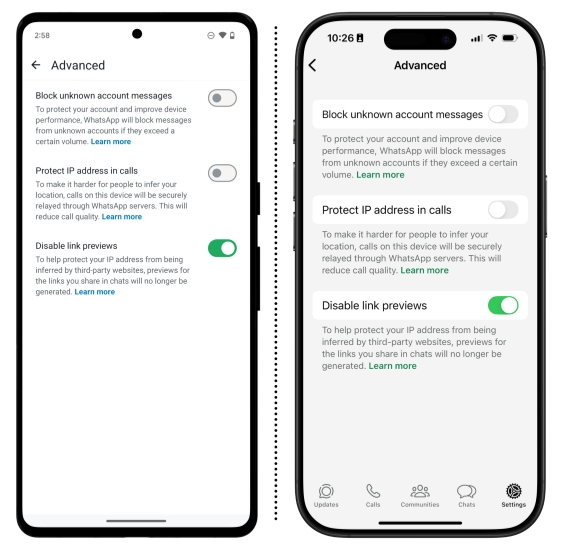
On Android:
Step 1. Open WhatsApp and tap the triple-dot icon.
Step 2. Go to Settings > Privacy > Advanced.
Step 3. Enable Block unknown account messages.
On iPhone:
Step 1. Open WhatsApp and go to Settings.
Step 2. Go to Privacy > Advanced and turn on Block unknown account messages.
Method 2. Adjust Privacy Settings for Groups
Group chats are one of the easiest ways for strangers to reach you on WhatsApp, especially when anyone can add you without permission. By changing your group privacy settings so that only your contacts, or even specific people, can add you to groups, you prevent random numbers from dragging you into unwanted conversations.
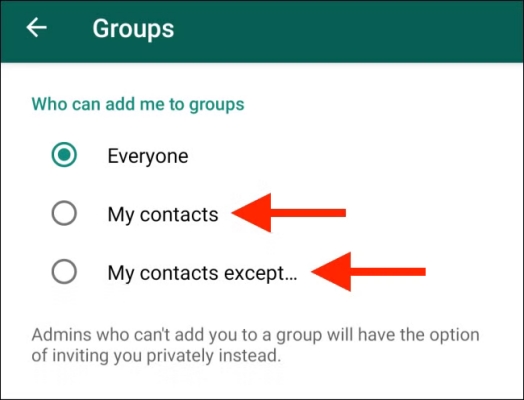
On Android:
Step 1. Open WhatsApp and tap the triple-dot icon.
Step 2. Go to Settings > Privacy > Groups.
Step 3. Choose My contacts to only allow your contacts to add you to groups. In this way, you won't receive messages from unknown contacts.
On iPhone:
Step 1. Open WhatsApp and go to Settings.
Step 2. Go to Privacy > Groups.
Step 3. Choose My contacts so that only known contacts can add you to groups.
Part 3. How to Receive WhatsApp Messages Only from Selected Contacts
Apart from blocking messages from unknown contacts, you may also want to cut down on messages from people you already know but don't really want to hear from. In this case, you can adjust a few settings in WhatsApp so that your inbox is effectively limited to selected contacts.
Method 1. Mute WhatsApp Messages
You can mute notifications for a specific WhatsApp contact so you no longer receive sound or alert pop‑ups when they message you. Their chats will still arrive in the background, but you'll only see their messages when you manually open WhatsApp and check the conversation, making it easier to focus on messages from your preferred contacts.
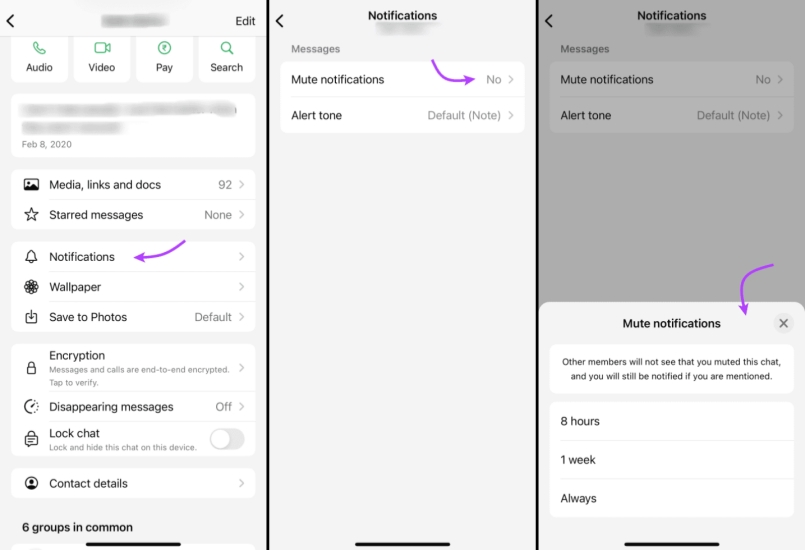
Step 1. Open a WhatsApp chat and tap the contact profile.
Step 2. Tap Notification and enable Mute.
Step 3. Choose Always. In this way, you won't receive his or her messages outside of WhatsApp.
Method 2. Archive WhatsApp Messages
Archiving is a great way to hide chats you don't need to see every day without deleting or blocking the contact. Archived chats are moved out of your main inbox, helping you focus on the people you actually want to hear from.
On Android:
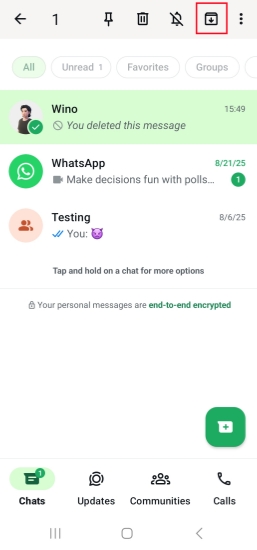
Step 1. Open WhatsApp and stay on the Chats page.
Step 2. Long-press the chat you don't want to receive anymore and tap the Archive icon to archive the chat.
On iPhone:
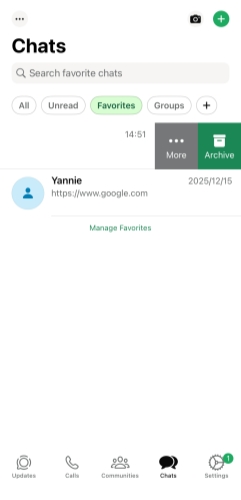
Step 1. Open WhatsApp and stay on the Chats page.
Step 2. Swipe left the WhatsApp chat you don't want to receive anymore and tap Archive to archive it.
⚠️ Keep Chats Archived
If you don't want archived chats to reappear in your main inbox when new messages arrive, turn on Keep Chats Archived so those conversations stay hidden even if someone sends you a new message.
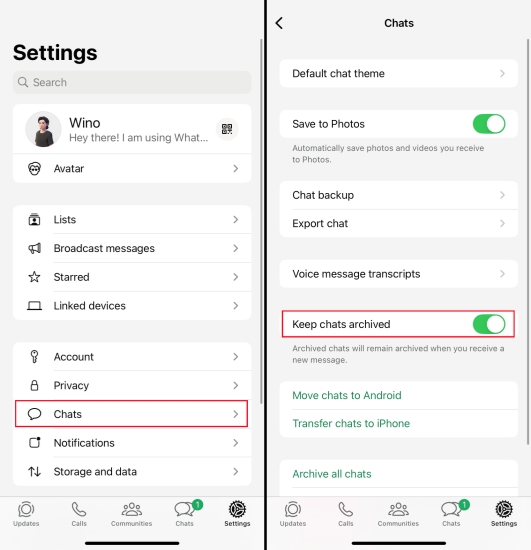
Step 1. Go to WhatsApp Settings > Chats.
Step 2. Make sure Keep chats archived is enabled so that new messages from archived chats won't appear in your WhatsApp chat thread.
Method 3. Block Known WhatsApp Contacts
If there are certain people you know but never want to receive messages from again, blocking them is the most effective option. Blocking a known contact stops all future messages and calls from that person.
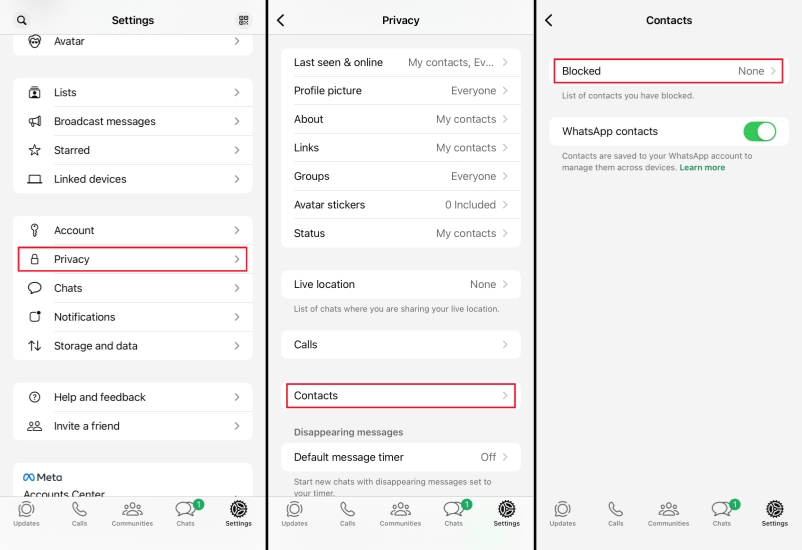
On Android:
Step 1. Open WhatsApp and tap the triple-dot icon.
Step 2. Choose Settings > Privacy > Contacts.
Step 3. Tap Blocked contacts and tap the add icon to choose the contacts you want to block. Then these contacts can't send messages anymore, and you won't receive messages from them.
On iPhone:
Step 1. Go to WhatsApp Settings > Privacy > Contacts.
Step 2. Tap Blocked and tap the add icon to add your WhatsApp contacts to the block list.
Part 4. Bonus Tip: Read WhatsApp Messages without Read Receipts
Sometimes you may open a WhatsApp message without really wanting to, and leaving the blue ticks on without replying can feel awkward. To protect your privacy and give you more control, we'd also like to share with you how to read WhatsApp messages without sending read receipts. With MagFone WhatsApp Transfer, you can view your messages while keeping your reading status hidden. It also lets you back up your WhatsApp data and restore it to your iPhone whenever you need.

MagFone Chats Transfer
Read WhatsApp messages without opening chat & read receipts & blue ticks.
Step 1 Open MagFone WhatsApp Transfer
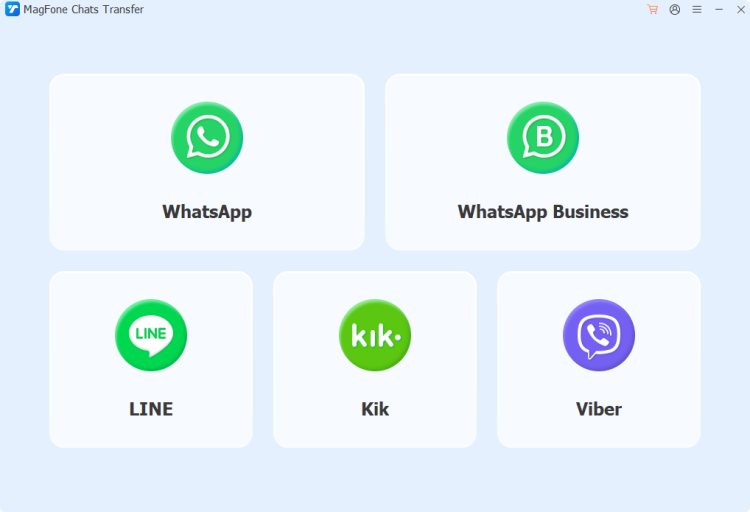
Download and install MagFone WhatsApp Transfer on your computer. Then connect your iPhone to the computer using a data cable. Open the program when you are ready.
Step 2 Back Up WhatsApp Messages on iPhone
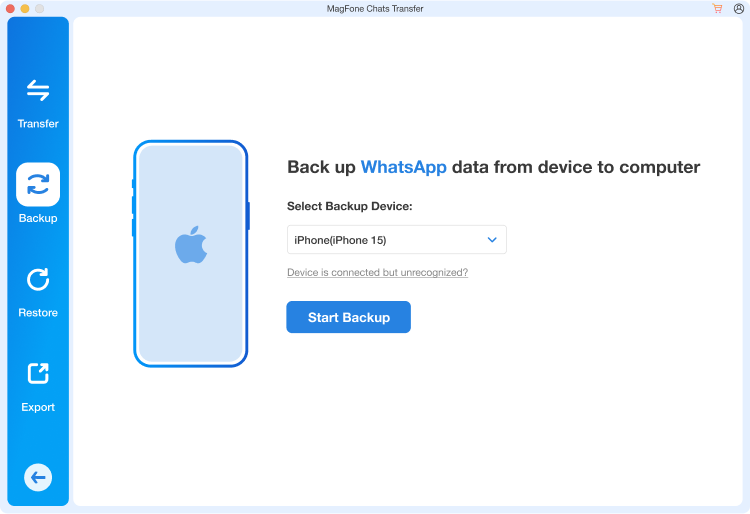
Choose WhatsApp from the main interface, then click Backup in the left menu. When your iPhone is detected, click Start Backup to back up your WhatsApp messages on your iPhone.
Step 2 Read WhatsApp Messages without Ticks
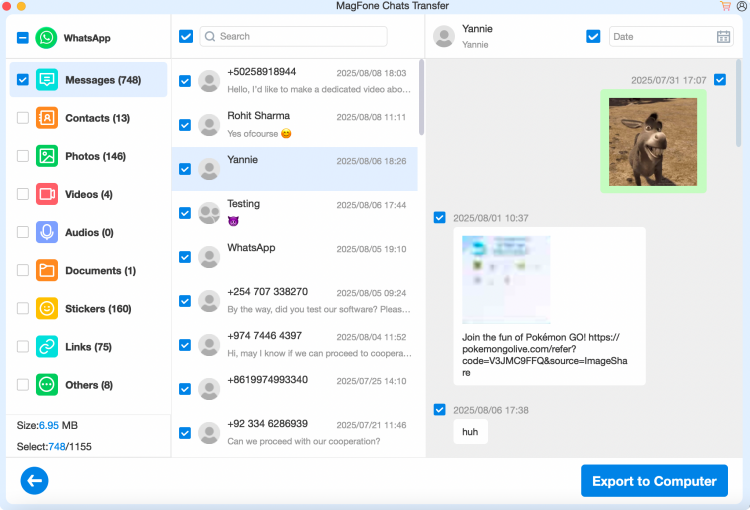
After backup, click Export. Then click the view icon to read your WhatsApp messages. In this way, the read receipts won't be triggered on WhatsApp.
Part 5. Conclusion
While WhatsApp doesn't offer a perfect contacts‑only inbox, combining blocking, privacy tweaks, muting, and archiving gives you powerful control over who can reach you. By applying the methods in this guide, you can come much closer to receiving WhatsApp messages only from contacts and selected people you trust, keeping spam, strangers, and distractions out of your way.

Edgar Davis
Editor in chief





