








WhatsApp is where so much of our daily life happens—private chats, work conversations, family groups, and more. So it's no surprise that the question arises: Can someone read my WhatsApp messages from another device? Whether you want to access your own chats from another device, or you're worried someone else might be doing that without your permission, it's important to understand what's actually possible. In this guide, we'll walk you through how to read WhatsApp messages from another device using official features, a helpful extra tip for viewing your chats elsewhere, and how to quickly check if anyone might already be reading your messages, so you stay informed and in control of your WhatsApp chats.
- Part 1. Can Someone Read Your WhatsApp Messages from Another Device?
- Part 2. How to Read WhatsApp Messages from Another Device [Official Feature]
- Part 3. How to Read WhatsApp Messages from Another Device [Extra Tip]
- Part 4. How to Check If Someone Is Reading Your WhatsApp Messages from Another Device
- Part 5. Conclusion
Part 1. Can Someone Read Your WhatsApp Messages from Another Device?
Some WhatsApp users wonder: Can someone else read my WhatsApp messages from another device? In actuality, this depends on whether you have logged into your WhatsApp account on another device. WhatsApp is designed so that your account is linked to your phone number and your primary device, and it uses strong encryption to keep your chats private. However, with features like WhatsApp Web and linked devices, your messages can appear on other phones, tablets, or computers if someone gains access to your account or your unlocked phone.
In the following part, we will show you how to read WhatsApp messages from another device and how to check if someone is reading your WhatsApp messages from another device.
Part 2. How to Read WhatsApp Messages from Another Device [Official Feature]
If you want to read your WhatsApp messages from another device for convenience, WhatsApp already offers you an official feature to do exactly that: Linked Devices. This built-in feature allows you to securely access your chats from another phone, tablet, or computer. Once your devices are linked, your recent WhatsApp data will sync across them, so you can send and receive messages from whichever device is most convenient.
Note:
You must have an active WhatsApp account on your primary phone first. The additional device acts as a companion or linked device.
On iPhone:
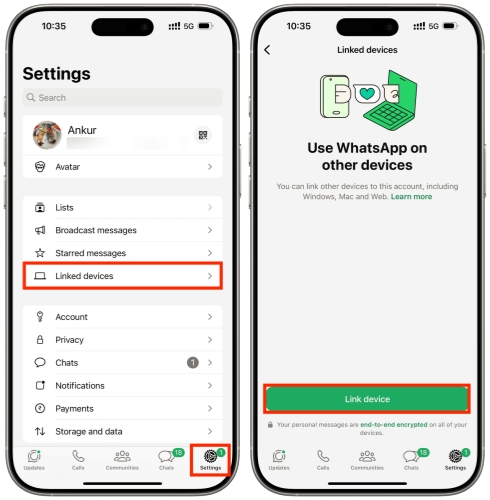
Step 1. Go to WhatsApp Settings > Linked devices.
Step 2. Tap Link device.
Step 3. Scan the QR code displayed on the device you want to link.
On Android:
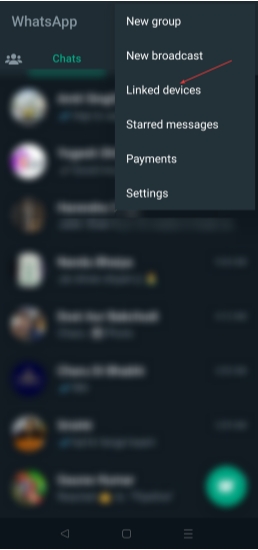
Step 1. Tap the triple-dot icon in WhatsApp.
Step 2. Tap Linked devices > Link a device.
Step 3. Scan the QR code on the target device. Then wait for WhatsApp to sync the data.
Part 3. How to Read WhatsApp Messages from Another Device [Extra Tip]
Besides using WhatsApp's official Linked Devices feature, there's another way to view and manage your WhatsApp chats. This method doesn't require you to scan a QR code or log in with your phone number on a browser. You can use a third‑party tool like MagFone WhatsApp Transfer.
MagFone WhatsApp Transfer is a dedicated WhatsApp data manager that allows you to read, transfer, back up, export, and restore WhatsApp messages directly from an iPhone. It's particularly useful if you want to access your WhatsApp history on a computer without logging in to the computer.

MagFone Chats Transfer
Efficiently back up your WhatsApp content without loss or hassle — everything moves with you, just as it was.
Step 1 Launch MagFone Chats Transfer
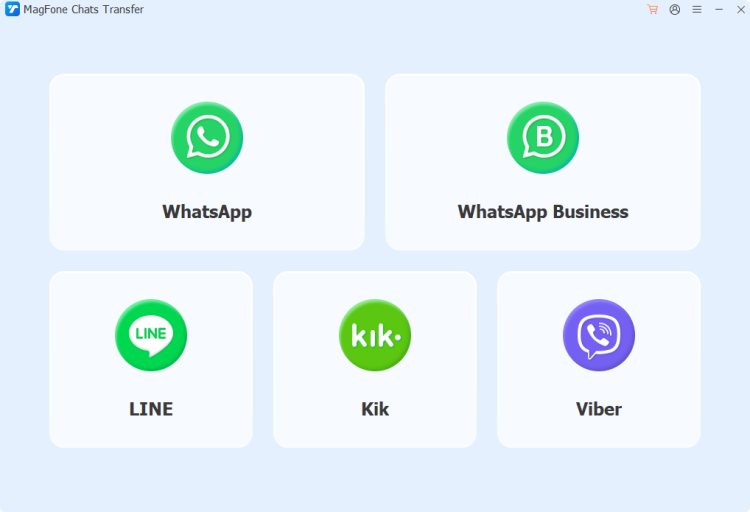
Start by downloading and installing MagFone WhatsApp Transfer on your computer. At the same time, link your iPhone to the computer using a data cable. Then run this tool.
Step 2 Back Up WhatsApp Messages
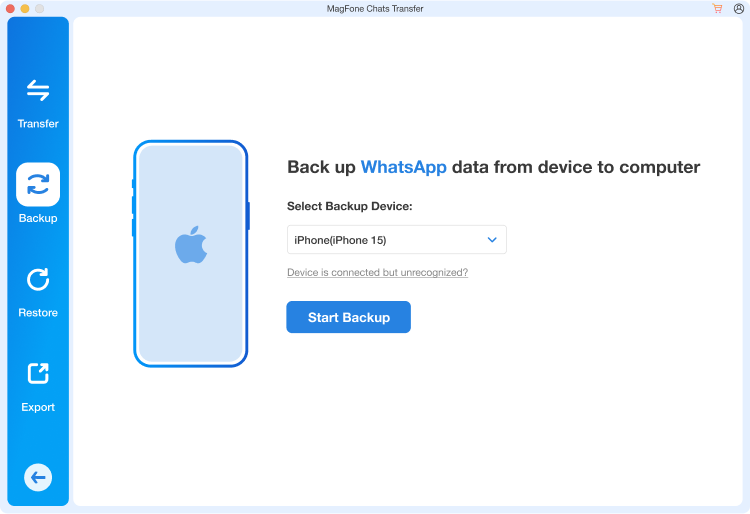
Click WhatsApp, and you'll see four features in the left bar. Click Backup and check your device information on the right screen. Then click Start Backup to back up your WhatsApp messages.
Step 3 Access WhatsApp Messages on Computer
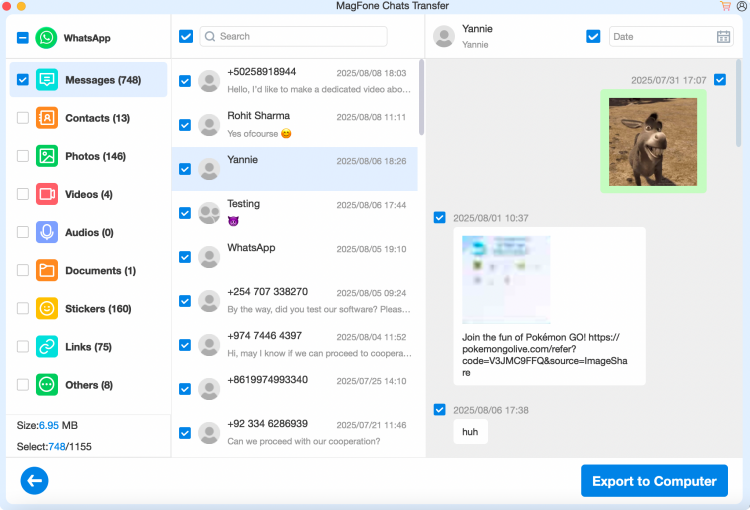
When the backup is completed, click Done. Then you can access WhatsApp messages from your phone on a computer.
Part 4. How to Check If Someone Is Reading Your WhatsApp Messages from Another Device
If you're worried that someone might already be reading your WhatsApp messages from another device, the good news is that it's usually quite easy to check. WhatsApp shows you which devices are linked to your account, when they were last active, and gives you the option to log them out instantly.
On iPhone:
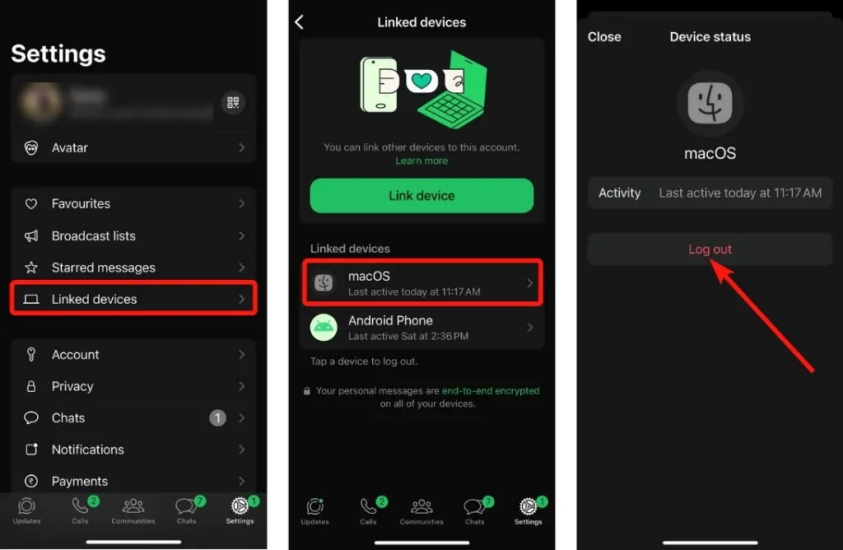
Step 1. Go to WhatsApp Settings > Linked Devices.
Step 2. Check the last active time of linked devices to figure out if someone is reading your WhatsApp messages from another device.
Step 3. When you confirm, just tap the device, then tap Log Out to avoid someone reading.
On Android:
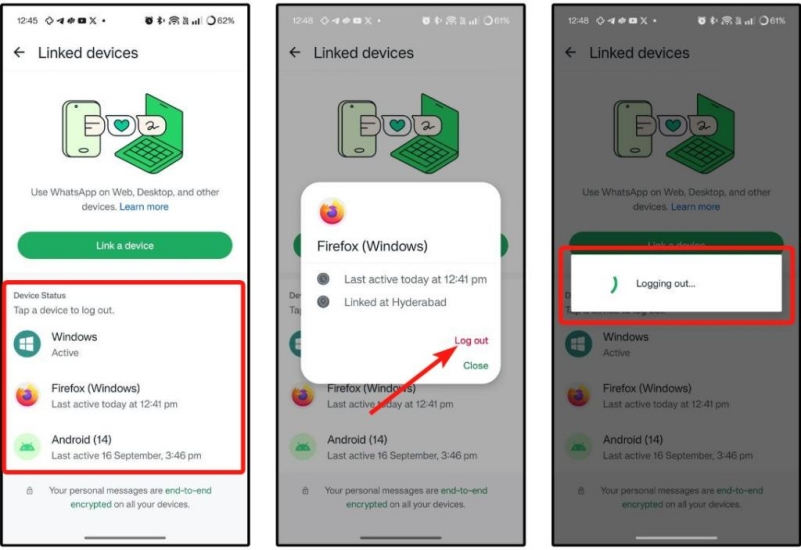
Step 1. Open WhatsApp and tap the triple-dot icon.
Step 2. Tap Linked devices.
Step 3. Access a device and tap Log Out to unlink it.
Part 5. Conclusion
Reading WhatsApp messages from another device is definitely possible, but it should always be done securely and within WhatsApp's official rules. With the Linked Devices feature, you can safely access your chats from a computer, tablet, or browser. Additionally, MagFone WhatsApp Transfer offers an alternative way to view and manage your WhatsApp messages without logging in or scanning a QR code. To reduce the risk of your chats being read by others, make a habit of regularly checking your list of linked devices and removing any you don't recognize.

Olivia Wood
Editor in chief





