








If you have notes missing or deleted on your iPhone, don't panic. Apple gives users several possible ways to get those notes back through iCloud. Whether you want to restore notes from iCloud Notes website, refresh syncing settings, or recover them from a backup, in the following guide, we'll cover the methods step by step to help you recover notes from iCloud, plus a bonus method for restoring notes on iPhone without using iCloud at all.
- Part 1. How Do I Recover My Notes from iCloud?
- Part 2. How to Recover Notes from iCloud
- Part 3. Bonus Tip: Recover Notes on iPhone Without iCloud
- Part 4. Conclusion
Part 1. How Do I Recover My Notes from iCloud?
Before you start recovering notes from iCloud, it is important to understand the different ways the recovery process can work. There are three main methods you can use to restore notes from iCloud.
If your notes were deleted within the last 30 days, you may be able to restore them from the Recently Deleted folder in iCloud Notes. If the notes are still stored in iCloud but are not showing up on your device, the issue may be related to syncing, and re-enabling iCloud sync can often bring them back. If the notes are no longer available on both your device and iCloud.com, you may need to recover them from an iCloud backup.
| Method | Recovery Scope | Works For | Limitation |
|---|---|---|---|
| Recover from Recently Deleted | Only notes stored in iCloud | Notes deleted within 30 days | Only works if notes were deleted recently and are still in the folder |
| Recover by Syncing | Only notes stored in iCloud | Notes missing on the device, but saved in iCloud | Won't help if the notes were permanently deleted |
| Recover from iCloud Backup | Not only notes stored in iCloud, but also notes stored on the device | Notes missing from both the device and iCloud | May require resetting the device, and will overwrite current data |
In the following sections, we'll explain each method step by step so you can choose the one that best matches your situation.
Part 2. How to Recover Notes from iCloud
You've known the working conditions and limitations of each method, and the following sections will walk you through each method step by step. You can choose the most suitable recovery approach.
Method 1. Recover Notes from iCloud Notes
This method is best if your notes were accidentally deleted recently and are still within Apple's 30-day recovery period. In that case, you can check the Recently Deleted folder in iCloud Notes and restore the notes directly without affecting the rest of your data.
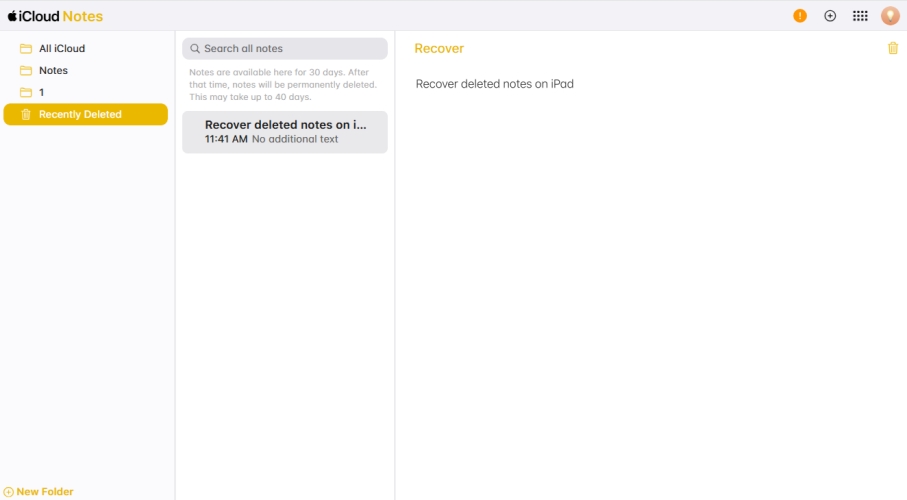
Step 1. Visit iCloud Notes website on your device, and sign in to your Apple Account.
Step 2. Open the Recently Deleted folder, and open the target note.
Step 3. Choose Recover to recover the note to its original location.
Method 2. Recover Notes from iCloud by Syncing
If your notes were not deleted but are not synced on your iPhone, the problem may be caused by an iCloud syncing issue. In this situation, re-syncing Notes with iCloud can help your device reconnect with iCloud and make the missing notes appear again.
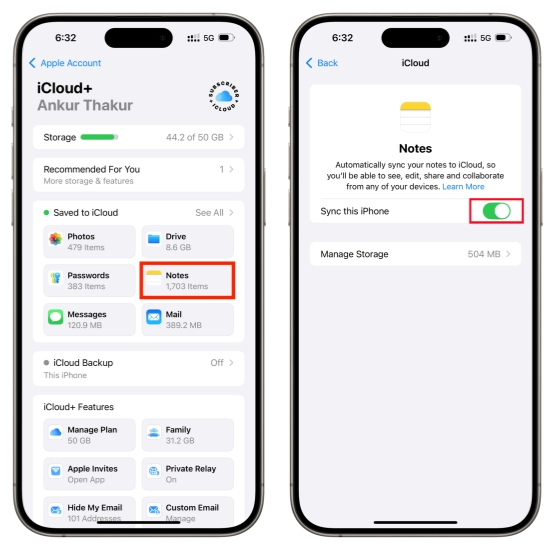
Step 1. Go to iPhone Settings > Apple ID > iCloud.
Step 2. Tap Notes under Saved to iCloud.
Step 3. Disable Sync this iPhone and tap Delete from iPhone to remove iCloud notes on your iPhone.
Step 4. Wait for seconds and re-enable Sync this iPhone to restore notes from iCloud.
Method 3. Recover Notes from iCloud Backup
If the notes cannot be found on your device or in iCloud Notes, restoring an iCloud backup may be the last option. This approach can recover not only the notes that were stored in iCloud but also the notes that are stored on the device at the time of the backup. However, because it involves erasing your device and restoring it to an earlier backup state, it will replace current data with older content.

Step 1. Open Settings and tap General.
Step 2. Find and tap Transfer or Reset iPhone at the bottom.
Step 3. Tap Erase All Content and Settings > Continue > Erase iPhone, and enter the required passcode or Apple ID password to proceed.

Step 4. Wait for the iPhone to be erased and manually set it up afterwards. Follow the onscreen instructions, and when you see the Transfer Your Apps & Data screen, choose From iCloud Backup.
Step 5. Sign in with your Apple ID and choose an available iCloud backup to restore to your iPhone. Then wait for iCloud backup to be restored to your iPhone, and afterwards, you can go to the Notes app to check your notes.
Part 3. Bonus Tip: Recover Notes on iPhone Without iCloud
You can recover notes from iCloud if the notes are not synced on your device or if the notes were recently deleted. However, if the notes were deleted permanently by yourself or the Apple system, it's harder to deal with. But with MagFone Notes Data Recovery, things get much easier. MagFone Notes Data Recovery is a dedicated data recovery software for iPhone, iPad, and iPod users. Whether deleted notes or disappeared notes on iPhone, MagFone iPhone Data Recovery can help you recover them with three simple steps.

MagFone iPhone Data Recovery
Recover data from iPhone and iPad in three recovery modes without data overwritting and device reset.
Step 1 Launch MagFone iPhone Data Recovery

First, download and install MagFone iPhone Data Recovery on your computer and use a data cable to link your iPhone to the computer. Then open the software after installation.
Step 2 Scan Deleted/Missing Notes on iPhone

Click iPhone/iPad Data Recovery on the main page. Then select notes and click Scan to scan the notes on your device. You also need to enter the passcode on your iPhone to give permissions.
Step 3 Recover Notes on iPhone without iCloud
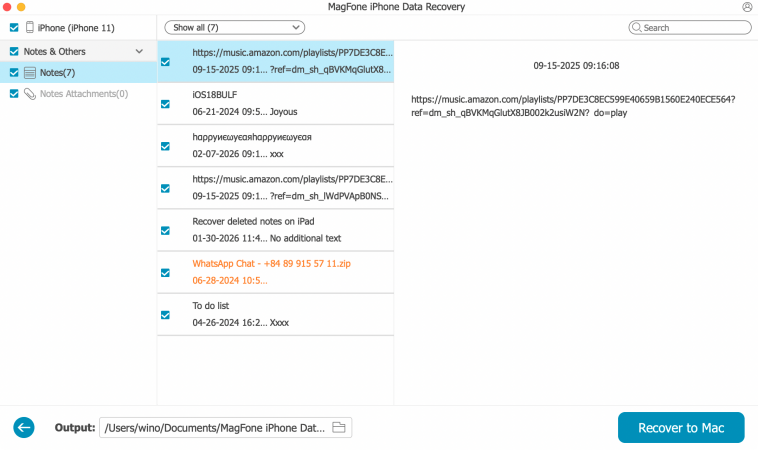
After scanning iPhone notes, you can check the details. To restore notes, just select and click Recover to PC or Recover to Mac to export the notes to your computer. Afterwards, you can recover the notes to your iPhone.
Part 4. Conclusion
Restoring notes from iCloud is easy when you know the condition of your notes. Whether to recover from the Recently Deleted folder, resyncing iCloud Notes, or restore an iCloud backup, you can always get this done. If you prefer an effective and thorough way, you can't miss MagFone iPhone Data Recovery to recover notes on your device with just a few clicks.

Edgar Davis
Editor in chief




