








Have you ever encountered the same issue where events disappeared from iPhone Calendar after an iOS update? This happens quite often and strangely among iPhone users. If you have been struggling with this kind of issue, go through this guide. We will introduce 11 fixes to the issue and explain how to export Calendar events so that you can import them at any time.
- Part 1. Why Are Events Disappearing from iPhone Calendar?
- Part 2. How to Fix Events Disappeared from iPhone Calendar
- Part 3. How to Recover Disappearing Events from iPhone Calendar
- Part 4. How to Export Events in iPhone Calendar for Archive
- Part 5. Conclusion
Part 1. Why Are Events Disappearing from iPhone Calendar?
It can be frustrating to open your iPhone Calendar and suddenly find that created events are vanishing. In many cases, they're just hidden by sync settings, account filters, software glitches, or issues with iCloud and third-party services. Here are the related causes of disappearing calendar events on iPhone:

1. Calendar Sync Range
iPhone Calendar has a setting that controls how far back it syncs events. If it's set to 1 Month or 3 Months, any event outside that timer simply won't appear on your device.
2. iCloud Calendar Sync
If iCloud Calendar has been switched off, your iPhone stops syncing calendar data from the cloud that you created on another Apple device.
3. Calendar Account
If you use Google Calendar, Outlook, or any other third-party calendar account on your iPhone, and the account is disabled or shown also hides all the events associated with it from your device.
4. Hidden Calendars Events Group
The Calendar app lets you toggle individual calendars on or off. If a specific calendar, like Work or Family, has been unchecked, all its events become invisible.
5. An iOS Update Disruption
iOS updates have been known to reset certain settings or temporarily break iCloud sync. This can cause events to stop appearing until the sync is manually refreshed.
6. Full iCloud Storage
When your iCloud storage reaches capacity, syncing stops. This means new or updated events may not upload or download properly, leading to events disappearing in your calendar.
7. Accidental Deletion
Less common, but possible. If someone else has access to a shared calendar, or if you accidentally deleted events yourself, they may be disappearing.
Part 2. How to Fix Events Disappeared from iPhone Calendar
By adjusting settings for Calendar, you can fix the events disappearing from iPhone Calendar issue most time. Follow the methods below to resolve the issue quickly.
Method 1. Search for Events in Calendar
Before changing any settings, use the search function to confirm whether the events are really disappearing or just not visible in your current view. Just tap the search icon and enter events piece to check.
Method 2. Sync All Events
If your older events are missing but recent ones are still showing, this is almost certainly the fix you need. iPhone Calendar's sync range setting decides how many older events are displayed on your device. If it's not set to All Events, this may cut off older events from appearing on your device.
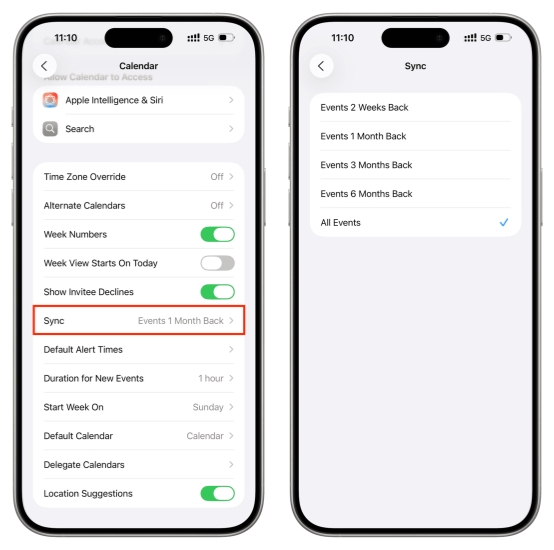
Step 1. Go to iPhone Settings > Apps > Calendar.
Step 2. Tap Sync and choose All Events. And wait for the older events to load on your iPhone.
Method 3. Refresh iCloud Sync
If your calendars are stored in iCloud, a temporary sync glitch can stop new events from appearing or make existing ones look like they've vanished. Refreshing the iCloud sync by disabling and re-enabling Calendar in iCloud can help fix the disappearing Calendar events issue on iPhone.
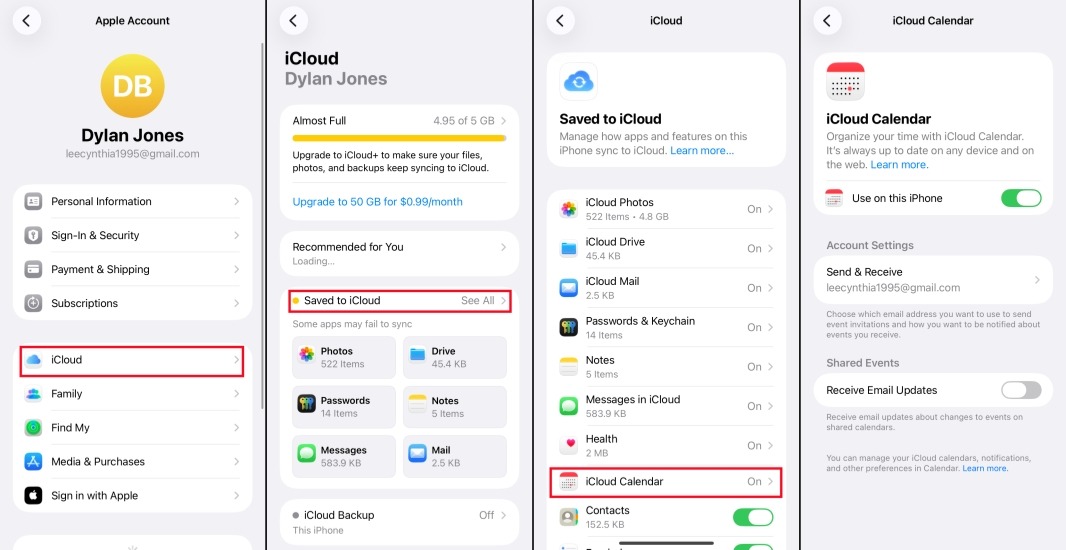
Step 1. Open Settings and access the Apple ID.
Step 2. Tap iCloud > Saved to iCloud > iCloud Calendar.
Step 3. Toggle off Use on this iPhone and toggle it on after a while.
Method 4. Show All Calendar Group
Sometimes events disappear simply because the calendar they belong to is hidden. If an account or specific calendar is unchecked, its events won't display, even though they are still stored in the background.
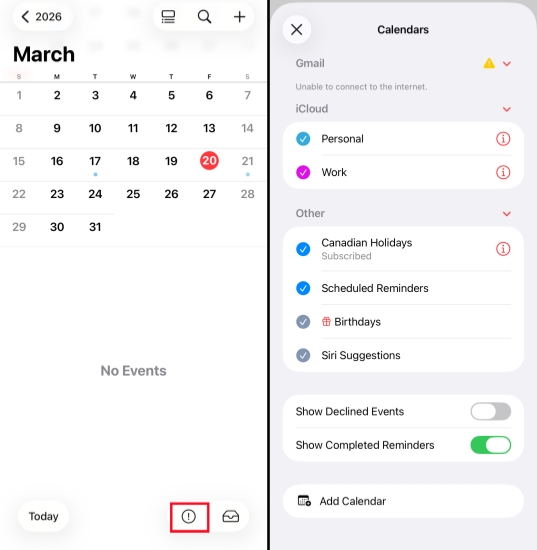
Step 1. Open the Calendar app.
Step 2. Tap the info icon at the bottom of the screen.
Step 3. A list of all your calendar accounts will appear. Make sure every calendar you want to see has a checkmark next to it.
Method 5. Restart iPhone
A reboot can help eliminate the software bugs that lead to iPhone Calendar events disappearing. Try rebooting your iPhone and check if the events are back.
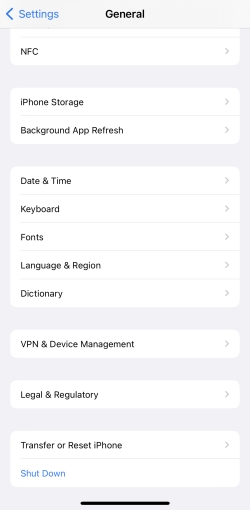
Step 1. Open Settings and tap General.
Step 2. Tap Shut Down at the bottom.
Step 3. Drag the power slide to power off the iPhone, then long-press the power button to restart.
Method 6. Sign Out and Sign Back Into Apple Account
If refreshing iCloud Calendar didn't work, signing out of your Apple Account entirely and signing back in can resolve deeper authentication or sync errors.
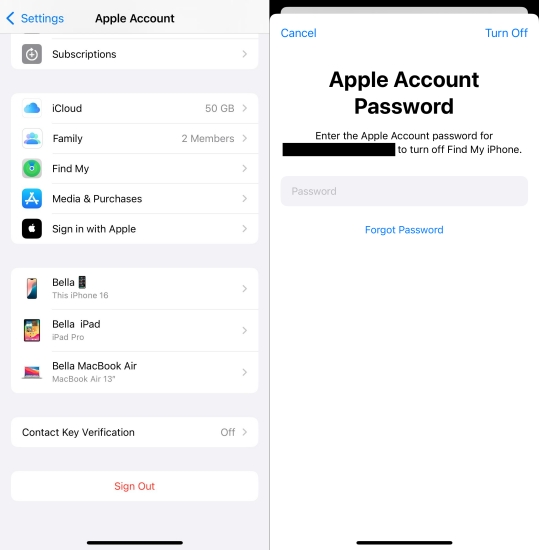
Step 1. Open iPhone Settings and tap your Apple ID.
Step 2. Tap Sign Out at the bottom and choose whether to upload data to iCloud and remove data from the device.
Step 3. Enter your Apple ID password to sign out, then sign back in.
Method 7. Refresh Third-party Calendar Accounts
If your missing events belong to a Google, Outlook, Yahoo, or other non-Apple calendar account, the account connection may have expired or broken. Refreshing the account may restore those events.
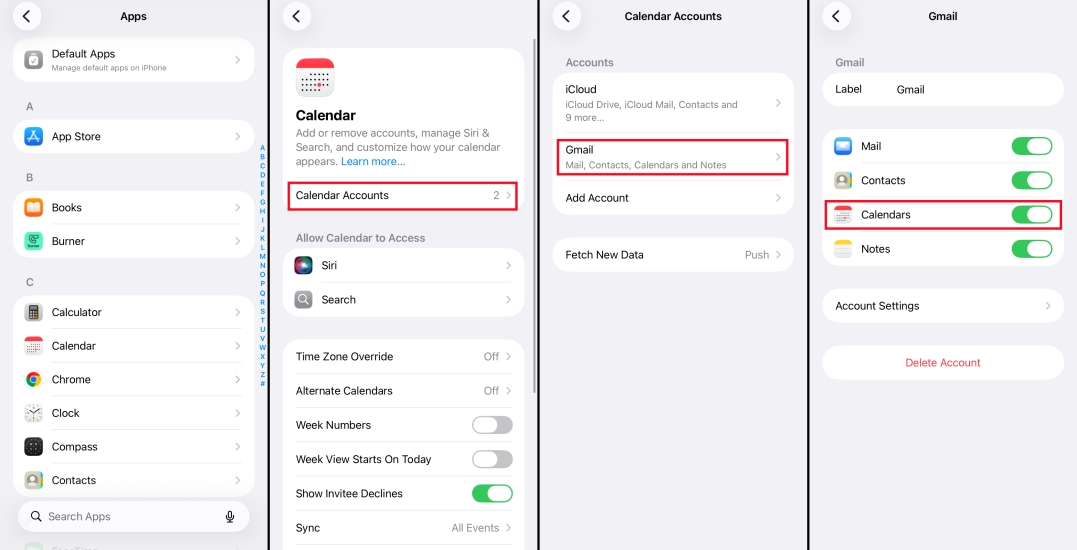
Step 1. Go to Settings > Apps > Calendar > Calendar Accounts.
Step 2. Tap the account that's missing events.
Step 3. Toggle Calendars off, wait 10 seconds, then toggle it back on.
Part 3. How to Recover Disappearing Events from iPhone Calendar
It's quite strange and troublesome that the Calendar events disappeared on the iPhone. If this issue keeps happening, you can only try restoring the events after they've disappeared. You have 4 options to get disappearing Calendar events:
Method 1. Restore Calendars from iCloud Data Recovery
Apple quietly offers a built-in calendar restore feature through iCloud.com. It lets you roll back your calendar data to an archived file from up to 30 days ago.
Note:
Restoring will replace your current calendar data with the archived version. Any events added after the snapshot date will be saved and archived as well.
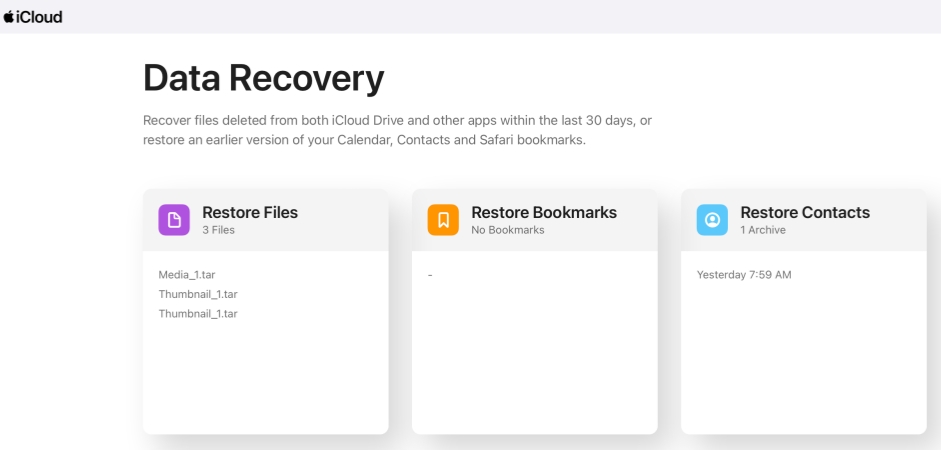
Step 1. Load the Data Recovery page in a browser.
Step 2. Click Restore Calendars, then click the Restore button next to an archived Calendar file to restore the events to your iCloud account.
Method 2. Restore Calendars from iCloud Backup
If the iCloud Data Recovery option doesn't contain a usable archive file, you can restore your entire iPhone from an iCloud backup. This can not only help you restore disappearing Calendar events on iPhone, but also help avoid events from disappearing in the future. However, it resets your device to the state it was in at the time of the backup, and the newer data will be replaced.

Step 1. Open Settings on iPhone and tap General.
Step 2. Tap Transfer or Reset iPhone at the bottom, then tap Erase All Contents and Settings.
Step 3. Tap Continue > Erase iPhone and enter your iPhone passcode and Apple ID password to prompt.

Step 4. After the erasure, get started to set up the device. Choose Set Up Manually and follow the onscreen instructions to proceed. When you see the Transfer Your Apps & Data screen, choose From iCloud Backup.
Step 5. Sign in to iCloud and choose one of your older iCloud backups to restore to your device. Then continue and finish setting up.
Method 3. Restore Calendars from iTunes Backup
If you have previously synced your iPhone to a computer, then a local backup may be available that contains your missing events. This operation will replace the current data on the iPhone with the older data in the local backup. So be careful when you want to restore a local backup.

Step 1. Connect your iPhone to the computer that has iTunes backups.
Step 2. Once your iPhone is detected, click the iPhone icon.
Step 3. Click Summary in the left menu, then click Restore Backup.
Step 4. Choose one backup and click Restore to recover iPhone data, including Calendar events.
Method 4. Restore Calendars from Local Memory[No Backup]
In some cases, calendar data may still be stored in the local memory of your iPhone even if it no longer appears in the Calendar app. Specialized iOS data recovery tools like MagFone Calendar Data Recovery can scan your device's internal storage and attempt to extract deleted or hidden calendar entries. This method is useful when you don't have a recent backup but still need to retrieve important appointments. You can follow the steps below to get disappearing Calendar events on your iPhone:

MagFone iPhone Data Recovery
Recover data from iPhone and iPad in three recovery modes without data overwritting and device reset.
Step 1 Install MagFone iPhone Data Recovery

Download the MagFone iPhone Data Recover package on your computer, then install it after downloading. At the same time, connect your iPhone to the computer using a data cable.
Step 2 Scan Disappeared Calendar Events on iPhone
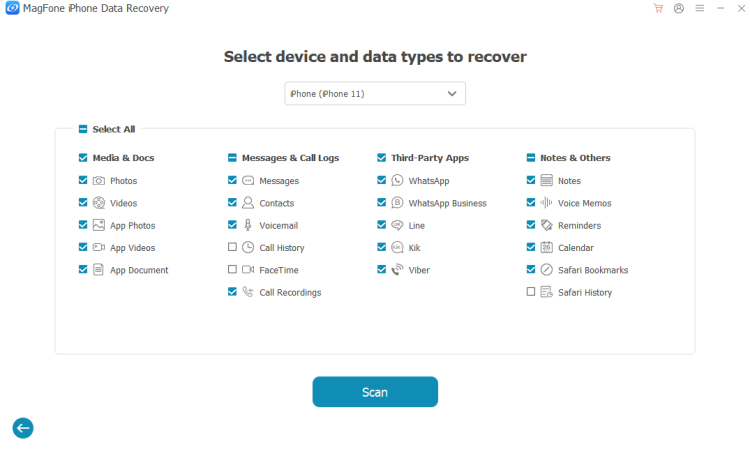
Launch the tool, and access the iPhone/iPad Data Recovery feature. Select Calendar in the data list and click Scan to scan disappeared events on your iPhone.
Step 3 Restere Calendar Events on iPhone
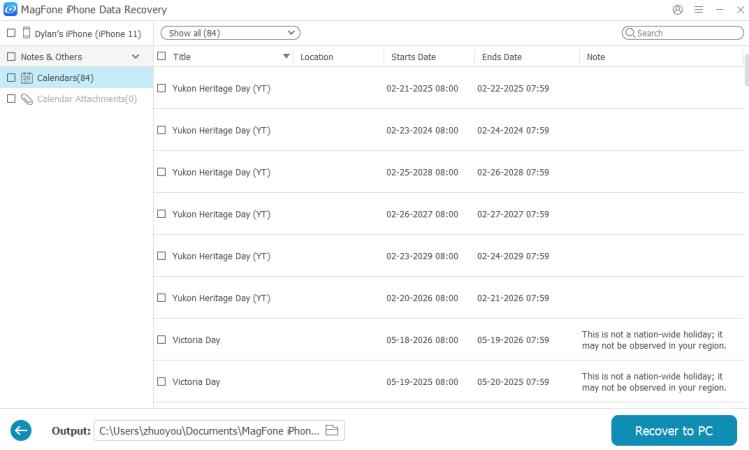
When the scan is done, you can find disappearing Calendar events on the next page. Just select and click Recover to PC or Recover to Mac to restore them.
Part 4. How to Export Events in iPhone Calendar for Archive
To avoid losing any important events in the future, here is a tip to export iPhone calendar events. This requires you to have enabled iCloud Calendar sync on all Apple devices, and you have a Mac. On Mac, you can export calendar events as an .ics file, which can be saved, shared, or imported into other calendar apps.
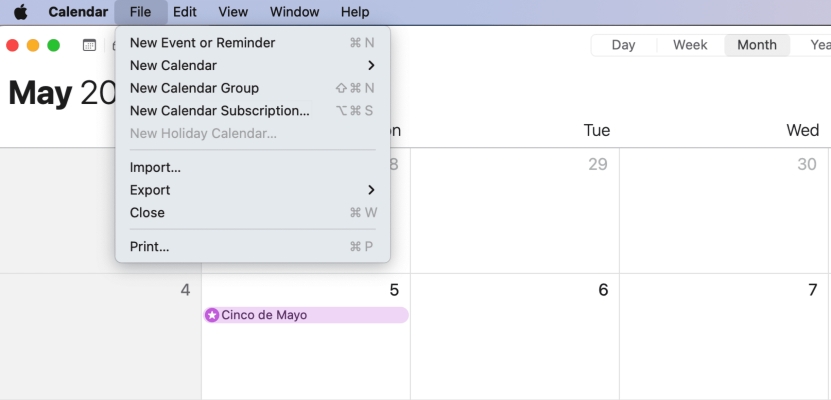
Step 1. Open the Calendar app on the Mac.
Step 2. Click the Events group in the left list.
Step 3. Click File > Export > Export, select a location, and click Export again to download it to your computer.
Part 5. Conclusion
Disappearing events on your iPhone Calendar are usually caused by sync settings, hidden accounts, or temporary glitches rather than permanent data loss. By checking search and sync options, refreshing iCloud and third-party accounts, and restarting or re-signing into your device, you can resolve most issues quickly. If events are still missing, restoring from iCloud, iTunes backups, or using MagFone iPhone Data Recovery tool offers additional ways to get them back. Finally, using a Mac to export calendar events for extra backup and recovery options.

Olivia Wood
Editor in chief





