








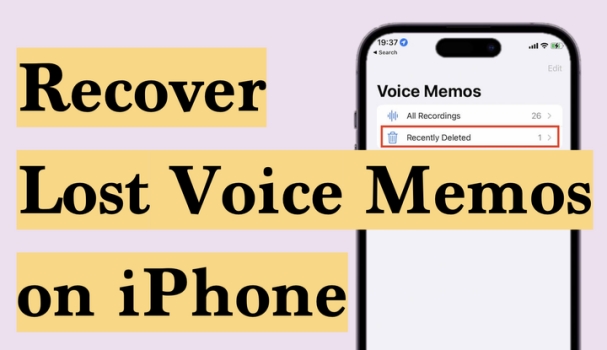
Accidentally deleted a voice memo? Or opened the Voice Memos app only to find your voice recordings gone after an iOS update or iPhone restore? You're not alone. If you've just discovered that your voice memos are missing from your iPhone, don't panic. In most cases, deleted or missing voice memos can still be recovered. This article covers four proven methods to retrieve lost voice memos on iPhone, starting with the simplest built-in option and working through to more advanced recovery tools.
- Part 1. Can You Recover Lost Voice Memos on iPhone?
- Part 2. How to Retrieve Lost Voice Memos on iPhone
- Part 3. Conclusion
Part 1. Can You Recover Lost Voice Memos on iPhone?
The short answer is yes. If it's an accidental deletion, then you can recover the lost voice memos on iPhone directly from the Recently Deleted folder. However, if the voice recordings are no longer in Recently Deleted or are lost after an update or restore, then the recovery becomes more dependent on whether you have a backup. If you regularly back up your iPhone to iCloud or iTunes, there's a strong chance your voice memos are still recoverable. And even without a backup, a dedicated recovery tool can scan your device's storage and retrieve files that haven't yet been overwritten. We will introduce each method in the next part.
Part 2. How to Retrieve Lost Voice Memos on iPhone
Whether the voice memos are lost due to device bugs, system updates, or accidental deletion, in this section, we will show you 4 methods to retrieve lost voice memos on iPhone.
| Method | Recently Deleted | iCloud Backup | iTunes Backup | Recovery Tool |
|---|---|---|---|---|
| Recovery Rate | Low | Medium | Medium | High |
| Data Loss Risk | ❌ | Overwrites device | Overwrites device | ❌ |
| Requires Backup | ❌ | ✔️ | ✔️ | ❌ |
| Selectively Recovery | ✔️ | ❌ | ❌ | ✔️ |
| Recovers Permanently Deleted | ❌ | Only if in backup | Only if in backup | ✔️ |
| Internet Required | ❌ | ✔️ | ❌ | ❌ |
| Time Required | Fast | Slow | Slow | Fast |
| Other Data Affected | ❌ | Full restore | Full restore | ❌ |
Method 1. Recover Lost Voice Memos on iPhone from Recently Deleted
When there are lost voice memos on iPhone, first go to check the Recently Deleted folder. The lost voice memos are likely deleted by accident, and there is a high chance you can find them in Recently Deleted.
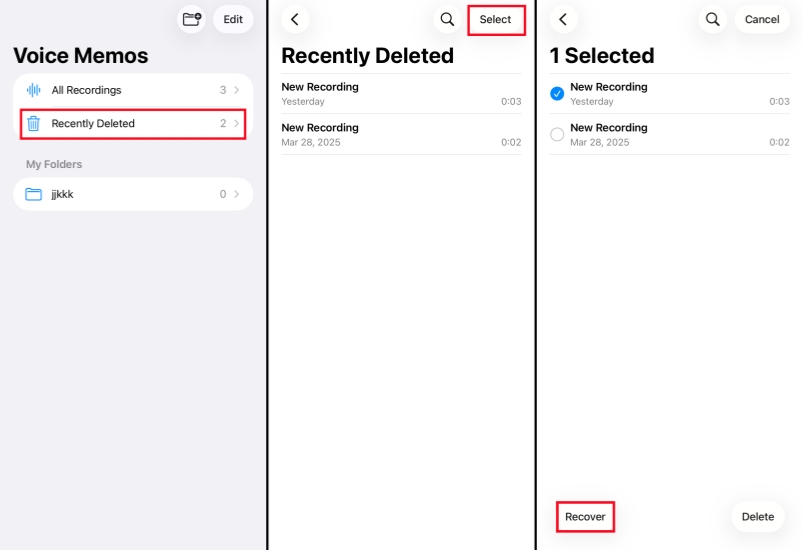
Step 1. Open Voice Memos and tap the back icon to the folders page.
Step 2. Access the Recently Deleted folder and see if the lost voice memos are here.
Step 3. Tap Select and select target voice memos, tap Recover to restore them to your iPhone.
Tip: Keep Deleted Voice Memos on iPhone for Longer
By default, the Voice Memos app permanently deletes recordings from the Recently Deleted folder after 30 days. But if you want more time to recover accidentally deleted memos, you can adjust this setting directly in the app.
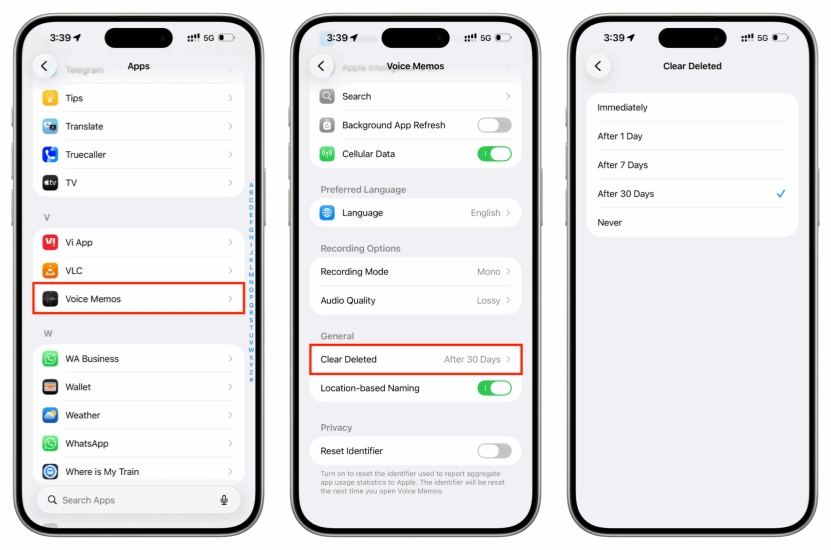
Step 1. Open the Settings app > Apps > Voice Memos.
Step 2. Tap Clear Deleted and change it from After 30 Days to Never.
With this set to Never, deleted voice memos will stay in the Recently Deleted folder indefinitely until you manually clear them, giving you a permanent safety net for accidental deletions.
Method 2. Recover Lost Voice Memos on iPhone from iCloud Backup
If there is an iCloud backup that contains the lost voice memos on the iPhone, you can restore the iPhone from the iCloud backup to get them back. Before recovering lost voice memos on iPhone from iCloud backup, you need to first restore the iPhone to factory settings.

Step 1. Head to iPhone Settings > General > Transfer or Reset iPhone.
Step 2. Tap Erase All Content and Settings > Continue > Erase iPhone.
Step 3. Input the required passcode and Apple ID password to confirm the operation.

Step 4. After the iPhone restarts, get started to set it up. Choose Set Up Manually and go through the displayed instructions. When you see the Transfer Your Apps & Data message, choose From iCloud Backup to recover iPhone data.
Step 5. Wait for the iPhone to sync the data in iCloud backup. Then go ahead to finish setting up the iPhone.
Method 3. Recover Lost Voice Memos on iPhone from iTunes Backup
When there is an iTunes backup on your computer, and the backup includes the lost voice memos on your iPhone, you can choose to recover lost voice memos on iPhone from the iTunes backup.

Step 1. Plug your iPhone into the computer using a data cable.
Step 2. Open iTunes and click the device icon when the iPhone is detected.
Step 3. Click Summary in the left directory, then click Restore Backup.
Step 4. Choose the backup you want to restore to your iPhone. After the restore, open the Voice Memos app to check the lost voice recordings.
Method 4. Recover Lost Voice Memos on iPhone Using Recovery Tool
The most effective but not free method is to use a data recovery tool. Most iPhone data recovery tool allows you to scan and preview lost or deleted iPhone data. For higher transparency and flexibility, MagFone Voice Memos Data Recovery is recommended. Using MagFone to scan your iPhone data, you can get a full preview of lost voice memos on your iPhone. And you can selectively recover the lost voice memos on iPhone. The operation is quite simple as follows:

MagFone iPhone Data Recovery
Recover data from iPhone and iPad in three recovery modes without data overwritting and device reset.
Step 1 Download and Install MagFone iPhone Data Recovery

First, download and install MagFone iPhone Data Recovery on your computer, then plug your iPhone into the computer using a data cable.
Step 2 Scan Lost Voice Memos on iPhone

Launch the tool and click iPhone/iPad Data Recovery in the main interface. Then select Voice Memos in the data list and click Scan. Also, enter the passcode on the iPhone to trust the computer and tool if required.
Step 3 Recover Lost Voice Memos on iPhone
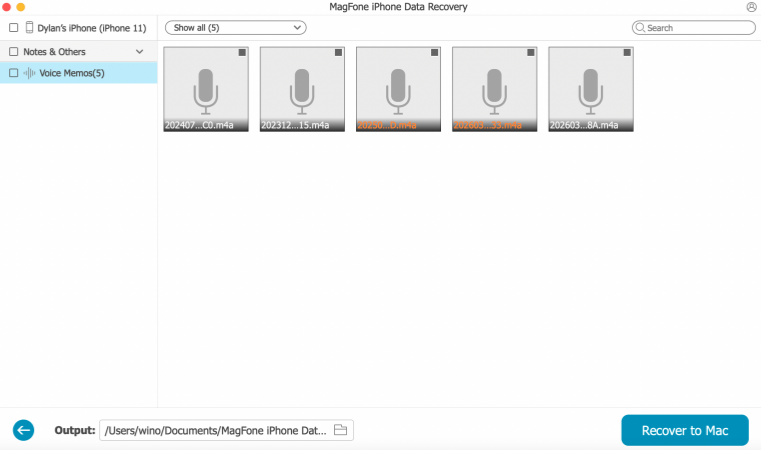
Click the play icon to review the lost voice memos in the scanned data. Then select the voice memos and click Recover to PC or Recover to Mac to recover them to the computer.
Part 3. Conclusion
By checking the Recently Deleted in Voice Memos, restoring an iCloud backup, or an iTunes backup, you can likely find and recover lost voice memos on iPhone. But if you want a quicker and more efficient method to get lost voice memos back, try MagFone iPhone Data Recovery! Get a full preview and selective recovery.

Edgar Davis
Editor in chief





