








"support.apple.com/passcode" is Apple's prompt to reset an iPad that can't be unlocked with its current passcode. If you see this message along with the iPad Unavailable screen, you have a few ways to erase and set up the device again. This guide will explain each option, including options without a computer and options with a computer, so you can choose the one that fits your situation.

- Part 1. What Does support.apple.com/passcode iPad Mean?
- Part 2. How to Bypass support.apple.com/passcode iPad without Computer
- Part 3. How to Bypass support.apple.com/passcode iPad with Computer
- Part 4. Conclusion
Part 1. What Does support.apple.com/ipad/passcode Mean?
The "support.apple.com/passcode" message usually comes with the iPad Unavailable screen. This means that you have entered an incorrect passcode on the device and you are currently locked out.
If you want to bypass the screen, you can wait for the unavailable timer to run down and enter the correct passcode. If you can't unlock from the iPad Unavailable screen, keep reading this guide and bypass the support.apple.com/passcode screen.
Part 2. How to Bypass support.apple.com/passcode iPad without Computer
If Find My was previously enabled on the iPad, there are three ways to erase the iPad and bypass support.apple.com/passcode without a computer.
Method 1. Reset iPad from Lock Screen
If Find My is enabled on the iPad and the iPad shows the Erase iPad or Forgot Passcode? option, you can bypass the "support.apple.com/passcode" message using this option.
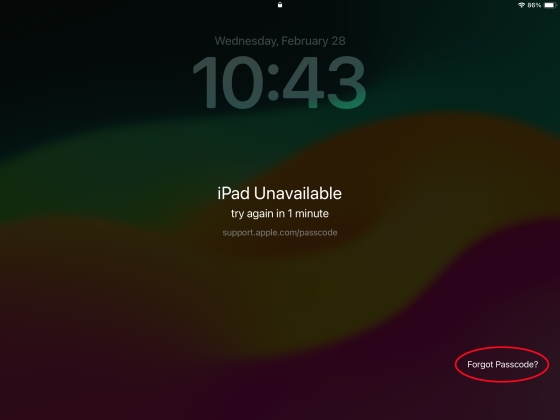
Step 1. Tap Erase iPad or Forgot Passcode? option on the iPad Unavailable screen.
Step 2. Tap Start iPad Reset and enter your Apple ID password.
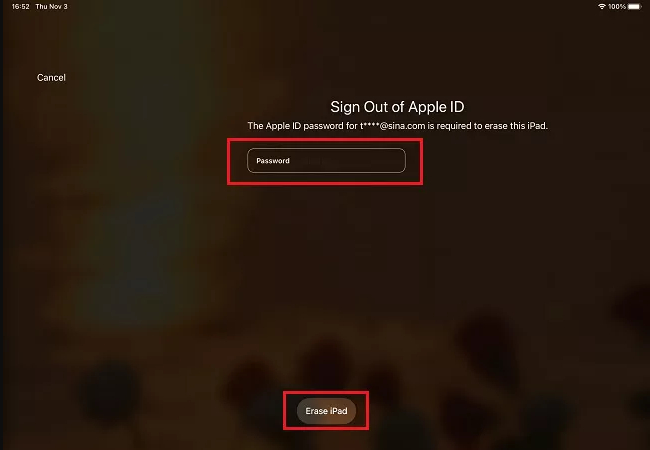
Step 3. Tap Erase iPad to confirm.
Method 2. Reset iPad from iCloud Find Website
If Find My was enabled on the iPad and you can sign in to your Apple Account, use iCloud's Find Devices feature to erase it remotely.
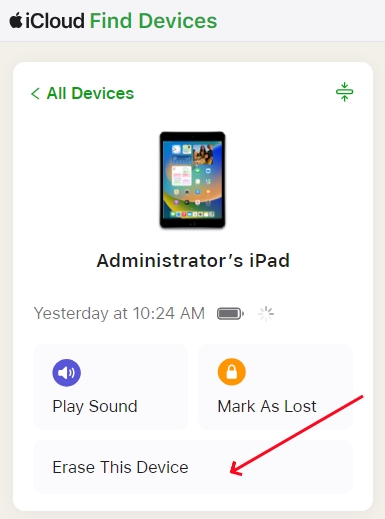
Step 1. Go to the iCloud Find website and log in to your Apple Account.
Step 2. Choose the iPad that is locked.
Step 3. Choose Erase > Next, and enter the Apple ID password to confirm.
Method 3. Reset iPad from Find My App
If there's another Apple device that is signed in with the same Apple ID, you can also erase the iPad from the Find My app.

Step 1. Open the Find My app and tap Devices at the bottom.
Step 2. Tap the triple-dot icon next to the iPad you want to erase.
Step 3. Tap Erase > Continue, and enter the Apple ID password to confirm.
Part 3. How to Bypass support.apple.com/passcode iPad with Computer
Even though Find My is disabled on the iPad, you can still bypass the iPad support.apple.com/passcode screen with a computer. You can use iTunes or an unlocking tool to remove the passcode.
Method 1. Reset iPad with iTunes
iTunes can help restore any Apple device if the device can be successfully detected. You need to get the iPad into Recovery Mode, and iTunes will automatically detect it and suggest the next step.
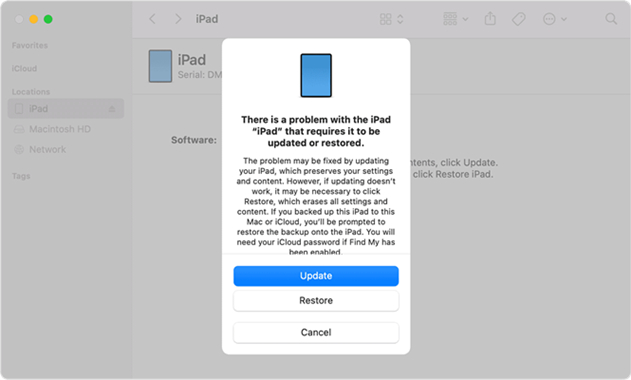
Step 1. Get the iPad into Recovery Mode.
- iPad with Home button: Press and hold the Power button and the Home button until you see a screen with a computer.
- iPad without Home button: Press the Volume Up button, press the Volume Down button, and press and hold the Power button until you see a screen with a computer.
Step 2. Use a data cable to connect the iPad to the computer.
Step 3. If iTunes asks whether to update or restore your iPad, choose Restore. This will remove all data on the iPad, as well as the passcode.
Method 2. Reset iPad with MagFone iPhone Unlocker
If iTunes can't detect your iPad in Recovery Mode, or you don't have an iTunes password, you can consider an unlocking tool. MagFone iPhone Unlocker helps bypass any iPad passcode, including digit passcodes and custom passcodes. If you are stuck on the iPad support.apple.com/passcode screen, MagFone can be the best choice to bypass the lockout screen without an iPad passcode and Apple ID password. In addition, it can also help bypass Activation Lock when you set up an iPad.

MagFone iPhone Unlocker
Resolve the "support.apple.com/passcode" Screen on Your iPad without passcode and Apple ID password.
Step 1 Launch MagFone iPhone Unlocker
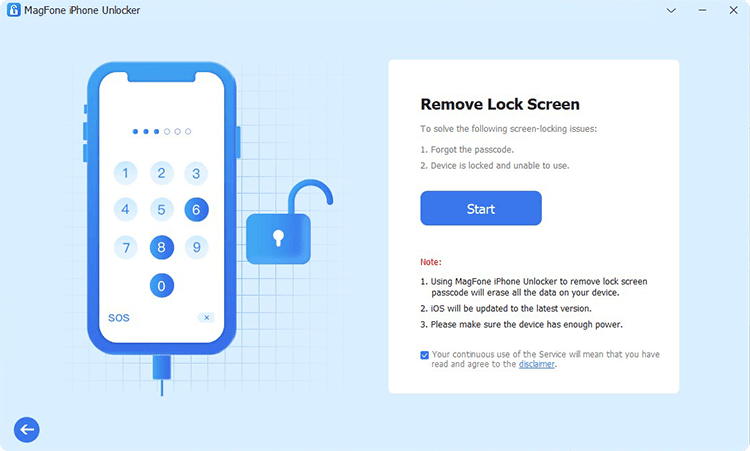
Download the MagFone iPhone Unlocker package from its website, and install it on your computer. Then open the tool and click Unlock iOS Screen on the main interface.
Step 2 Get iPad into Recovery Mode
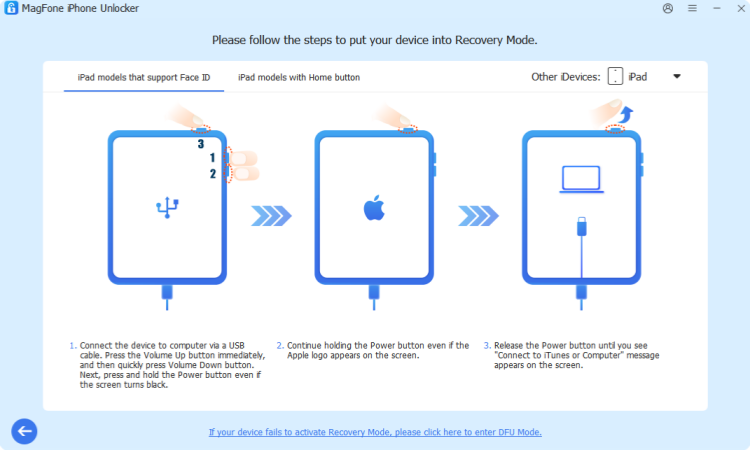
Click Start, select iPad from the drop-down device list, and follow the on-screen instructions to get your iPad into Recovery Mode. Then use a data cable to link your iPad to the computer.
Step 3 Download Firmware Package
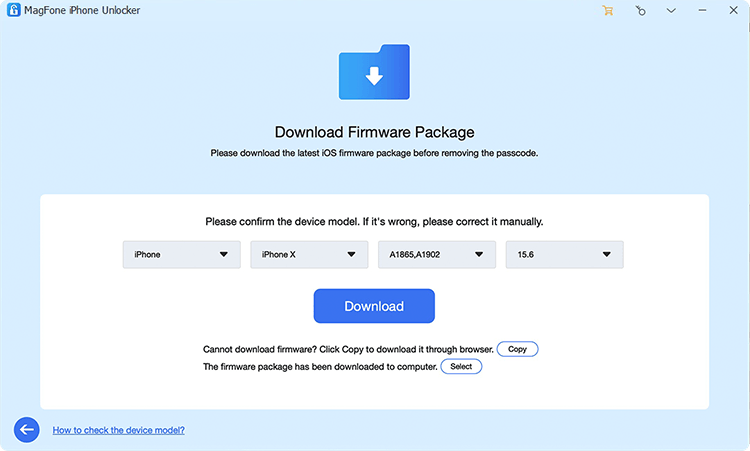
Click the Next button and check the device information, then click Download to download the compatible firmware package.
Step 4 Bypass support.apple.com/passcode Screen
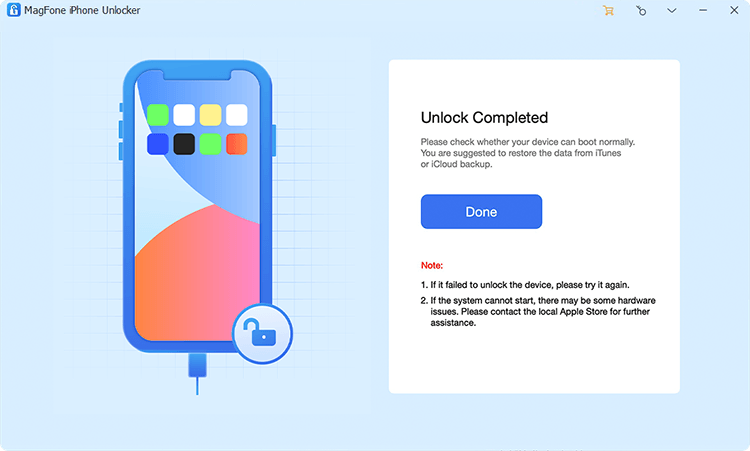
When the firmware is verified, click Unlock to remove the lock screen passcode from the iPad without a passcode and Apple ID password.
Part 4. Conclusion
If you are temporarily locked on the support.apple.com/passcode screen, first wait for the iPad Unavailable timer to run out. If you are permanently locked on the support.apple.com/passcode screen, follow the methods in this guide to safely bypass the lock screen passcode on your iPad. If the Activation Lock appears during setup, connect the iPad to MagFone iPhone Unlocker to remove the iCloud Activation Lock.

Dylan Jones
Editor in chief




