








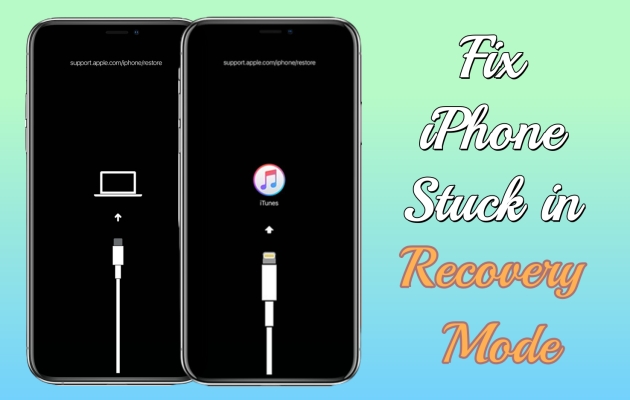
Recovery Mode is a special state for troubleshooting, allowing you to update or restore iOS devices using a computer with iTunes or Finder when it's unresponsbie or has software issues. But nowadays, many Apple users report their iPhone stuck in Recovery Mode and don't know how get out of it. No worry! In this post, we will explore the reasons of iPhone stuck in Recovery Mode and how to fix the issue in six practical ways. Let's get started now!
- Part 1. Meanings & Causes of iPhone Stuck in Recovery Mode
- Part 2. How to Get iPhone Out of Recovery Mode with One Click [Free]
- Part 3. How to Fix iPhone Stuck in Recovery Mode
- Part 4. FAQs about iPhone Stuck in Restore Mode
- Part 5. Conclusion
Part 1. Meanings & Causes of iPhone Stuck in Recovery Mode
An iPhone stuck in Recovery Mode usually caused by software glitches or interrupted updates. The issue may confuse you, so knowing the meaning and causes can help you find suitable methods to fix it.
1.1 What Does iPhone Stuck in Recovery Mode Mean?
When an iPhone is stuck in Recovery Mode, it keeps showing the recovery screen and won't boot normally. Recovery Mode is designed to help fix serious system issues, but sometimes the device fails to exit, creating a recovery loop. This often happens after:
- An interrupted iOS update
- A failed device attempt
- System file corruption
1.2 Why Is My iPhone Stuck in Recovery Mode?
A number of causes can lead to the iPhone stuck in Recovery Mode, usually linked to software issues. To fix iPhone stuck in Recovery Mode, finding out the reasons for the issue is important. Here are typical factors of iPhone stuck in Recovery Mode:

Reason 1. Failed Updates
A low storage space, incorrect USB connections, outdated computer software, or Apple server problems will interrupt the updating process and cause your iPhone to stuck in Recovery Mode.
Reason 2. Corrupted Software
Corrupted software leaves your iPhone's core system files in an unreadable or inconsistent state, preventing it from booting normally. So, it will activate Recovery Mode to fix the broken code.
Reason 3. Jailbreak Damages
If you attempt a jailbreak on your iPhone, it may corrupt core system files, install unstable tweaks, or create conflicts that prevent the normal boot process. It will trigger the iBoot to force your iPhone into Recovery Mode to protect against further damage.
Reason 4. Battery Depletion
Your iPhone needs enough energy to restore your iPhone's data in Recovery Mode. So if the battery is almost dead, it will result in your iPhone displays stuck in Recovery Mode.
Reason 5. Hardware Issues
In rare scenarios, hardware issues like physical damage, faulty components will prevent your iPhone system from running properly. Then your iPhone will be stuck in Recovery Mode.
Part 2. How to Get iPhone Out of Recovery Mode with One Click [Free]
If your iPhone is stuck in Recovery Mode or enters Recovery Mode repeatedly, you can use a professional tool like MagFone iOS System Recovery to exit Recovery Mode with one click. It is a safe and powerful tool that can help you enter or exist Recovery Mode on the iPhone, iPad, or iPod touch without any cost or data loss. Here's a simple guide.
Step 1 Access MagFone Software After Connection

Link your iPhone to your computer, and then fire up MagFone iOS System Recovery. Go to click the Enter/Exit Recovery Mode tab on the main interface.
Step 2 Exit iPhone Recovery Mode with Ease
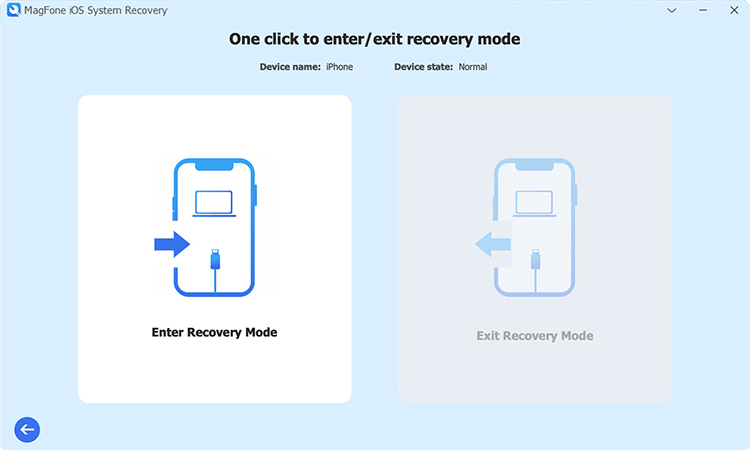
On the next page, you should click the Exit Recovery Mode button. After a while, MagFone will turn off the Recovery Mode on your iPhone.
Part 3. How to Fix iPhone Stuck in Recovery Mode
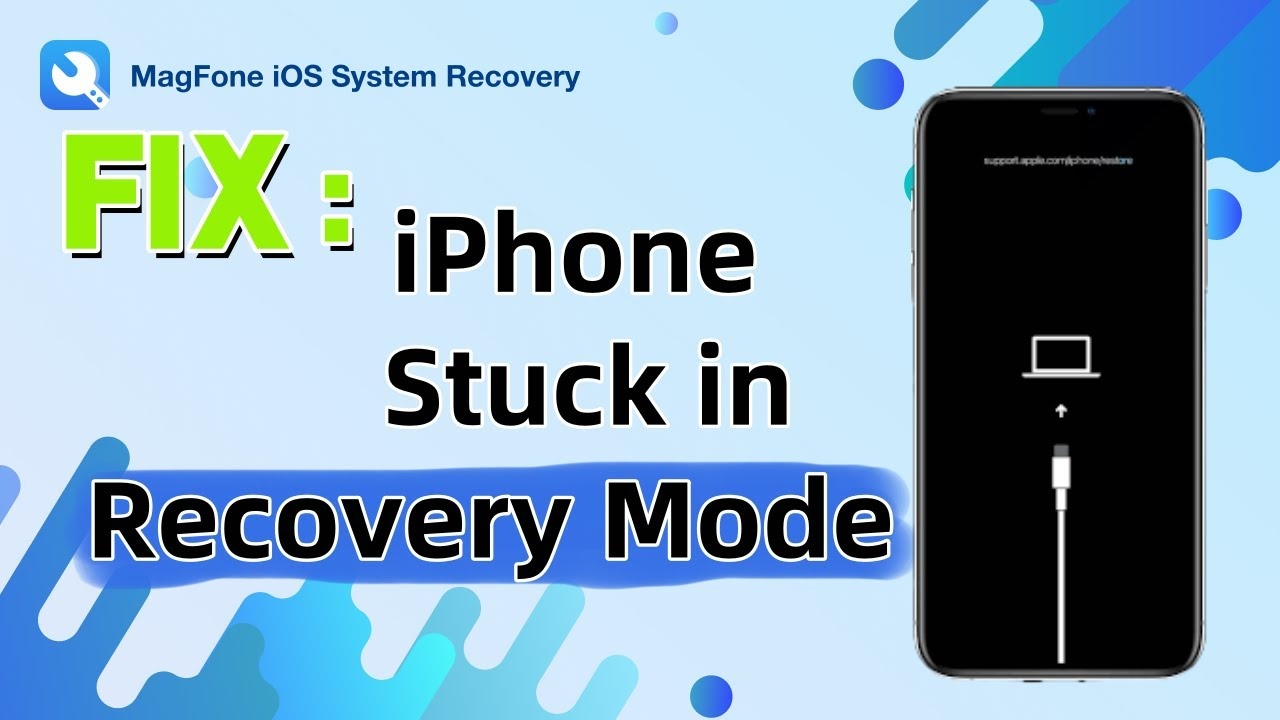
If you tried the method of getting out of Recovery Mode with one click but it is not effective, now you can try other methods to fix the issue properly. The following six workarounds can take your iPhone out of Recovery Mode effectively if your iPhone stuck in Recovery Mode is caused by software glitches. Before following the methods below, you can watch a video for reference.
Method 1. Force Restart Your iPhone
Force restarting an iPhone is the most common method to fix most temporary glitches in iPhone. So you can also try this method for your iPhone to get out of Recovery Mode. Follow the correct steps for your iPhone models to force restart.
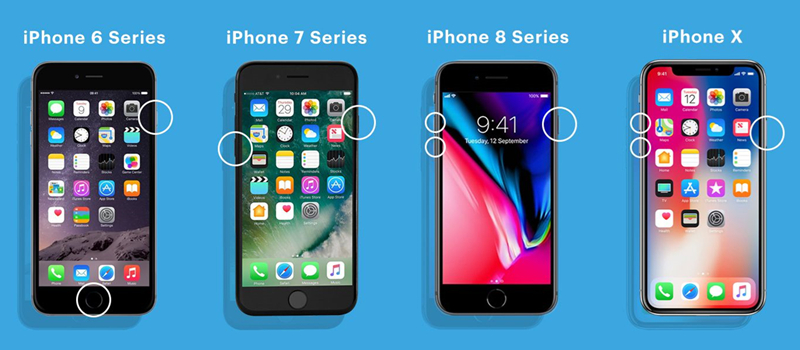
iPhone 8 and later: Quickly press the Volume Up button and then press the Volume Down button. After that, press and hold the Wake button until the Apple logo appears.
iPhone 7/7 Plus: Press and hold the Volume Down button and the Side button until the Apple logo displays.
iPhone 6 and earlier: Press and hold the Home button and the Power button until you see an on-screen Apple logo.
Method 2. Drain Your iPhone Battery
When the battery is drained totally, it will force a hard reset and clear corrupted processes. So, you should unplug your iPhone and let it stuck on Recovery Mode. When the battery is drained completely, charge your iPhone normally. Your iPhone will restart.
Method 3. Update or Restore Your iPhone via iTunes
If your iPhone falls into Recovery Mode after an update, you can use iTunes to update or restore your device. But you need to know that updating your iPhone will keep your data, while restoring will cause data loss. So, you can choose Update to exit Recovery Mode first. If your iPhone doesn't restart normally, you can select Restore to fix it. After the repair, your iPhone will return to factory settings, thus getting rid of the Recovery screen.

Step 1. Connect your iPhone to a computer and then run iTunes on a PC or Finder on a Mac.
Step 2. Choose Update from the pop-up window.
Step 3. Wait for iTunes to update your iPhone. After that, your iPhone will restart and exit Recovery Mode.
Step 4. If your iPhone failed to restart, choose the option of Restore and operate the same steps as Update.
Method 4. Fix Your iPhone in DFU Mode (Data Loss)
DFU Mode is a deeper mode than Recovery Mode. It allows a complete firmware reinstallation. So, putting your iPhone into DFU Mode may be helpful for your iPhone get out of Recovery Mode. If you don't mind data loss, try this method.
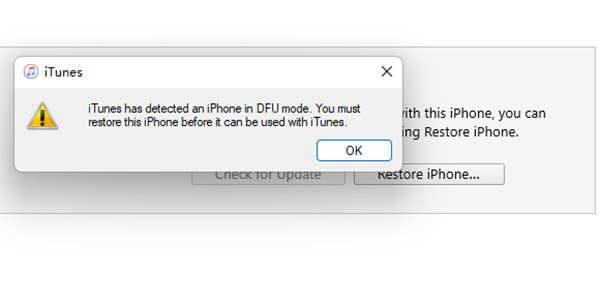
Step 1. Connect your iPhone to your computer with a USB cable
Step 2. Quickly press and release the Volume Up button and then quickly press and release the Volume Down button.
Step 3. Press and hold the Power button and release it until the screen turn black.
Step 4. Keep holding the Power button and the Volume Down button simultaneously.
Step 5. Release the Power button but keep holding the Volume Down button, your iPhone will go into DFU Mode until the screen keeps black.
Method 5. Use a Professional Repair Tool (No Data Loss)
If your iPhone is still stuck in Recovery Mode and the above Apple's standard solutions aren't working, or you want a simpler, guided fix, MagFone iOS System Recovery is a reliable tool that can help. It is designed to repair various iOS system issues, including devices trapped in Recovery Mode, DFU mode, or experiencing other software glitches, while not worrying about the data loss. Follow the step-by-step instructions below to fix iPhone stuck in Recovery Mode with MagFone software.

MagFone iOS System Recovery
Fix various iOS and iPadOS system issues, such as black screen, boot loop, frozen screen, or stuck on Apple logo, without data loss.
Step 1 Launch MagFone After Linking iPhone
Use a USB cable to connect the iPhone to your computer. Select the iOS System Repair tab after launching the MagFone program on your computer, then click Start.
Step 2 Use the iOS Standard Repair Mode
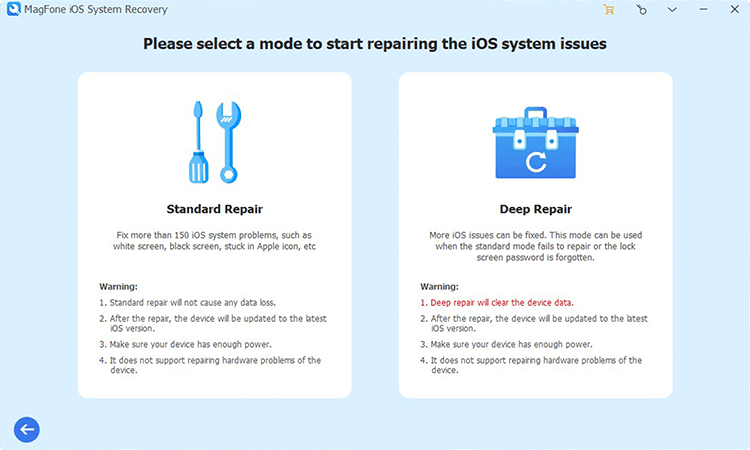
Then you'll see two repair modes on the screen. Select the Standard Repair Mode to fix the issue of your iPhone stuck in Recovery Mode and save your iPhone data. Then click on the arrow icon to proceed to the next step.
Step 3 Download an iPhone Firmware Package

Under the Standard Repair Mode, continue to check the iPhone information shown on the computer. Next, click the Download button to get an iPhone firmware package.
Step 4 Restore iPhone Stuck in Recovery Mode

Once the firmware package is downloaded on your computer, click Start Standard Repair to start repairing the iPhone in Recovery Mode. The iPhone will reboot after the MagFone repair.
Method 6. Contact Apple Support
If there are hardware issues in your iPhone, the above methods will be no effective. You can directly contact Apple to inquire about why your iPhone is stuck in recovery mode, and they will provide you with the best solution. You can visit the Apple Support website on another device or get your iPhone repaired at an offline repair shop. Newly purchased iPhones can be repaired under a one-year warranty at the Apple Store.

Part 4. FAQs about iPhone Stuck in Restore Mode
-
Will I lose my data if my iPhone is stuck in Recovery Mode?
Not always. Force restart and Update with iTunes usually preserve data after getting out of Recovery Mode. But Restore with iTunes and DFU mode erase data.
-
How to backup iPhone stuck in Recovery Mode?
You can’t backup your iPhone while it is stuck in Recovery Mode directly. If you have turned on iClound Sync on your iPhone, your device will be automatically synced to iCloud. Or you can recover data on your iPhone with an iPhone data recovery when there is no iTunes backup or iCloud backup.
-
How to recover data from iPhone stuck in Recovery Mode?
Actually, backups should be made before your iPhone gets into Recovery Mode. If you have backed up your iPhone recently via iTunes or synced your iPhone with iCloud, you can easily recover your data from iTunes or iCloud.com.
Part 5. Conclusion
Whether it's an iPhone stuck in Recovery Mode after restoring or updating, you can find a feasible way to exit the Recovery Mode screen on your iPhone. If you have tried the method of exiting Recovery Mode with one click and failed, you can use other effective methods to get your iPhone out of Recovery Mode. However, if you prefer an easy method and don’t want to lose any data, you can download MagFone iOS System Recovery to help you fix the issue of iPhone stuck in Recovery Mode.

Dylan Jones
Editor in chief




