








If you've become locked out of your iPad and forgotten your Apple ID password, you may wonder whether it's still possible to regain access. The answer depends on whether you can verify ownership through Apple's official tools. In this guide, we'll explain how to unlock an iPad without Apple ID and how to unlock an iPad with an Apple ID by resetting the password.
- Part 1. Can You Unlock an iPad without Apple ID?
- Part 2. How to Unlock iPad without Apple ID
- Part 3. How to Unlock iPad with Apple ID
- Part 4. Conclusion
Part 1. Can You Unlock an iPad without Apple ID?
Yes! You can unlock an iPad without an Apple ID. You can use MagFone iPad Unlocker or iTunes to unlock an iPad without an Apple ID completely. Besides, you can also reset the Apple ID password to regain access and use Apple ID to unlock an iPad.
Part 2. How to Unlock iPad without Apple ID
If you cannot access your Apple ID or have forgotten the iPad passcode, some tools may help you regain access by erasing the device and removing the existing screen lock. Make sure you have permission to unlock the iPad before proceeding.
Method 1. Unlock iPad Using MagFone iPhone Unlocker
One of the quickest ways to unlock an iPad without Apple ID is to use MagFone iPad Unlocker. It is a desktop-based tool designed to remove the lock screen passcode on iPhone and iPad without the Apple ID and password. Besides, it can unlock the Screen Time passcode, remove Apple ID, bypass MDM, and remove iCloud Activation Lock on iPhone and iPad. If you have any obstacles to unlocking an iPad without an Apple ID, just follow the steps below.

MagFone iPhone Unlocker
Unlock iPhone and iPad without Apple ID and password.
Step 1 Install MagFone iPad Unlocker on Computer
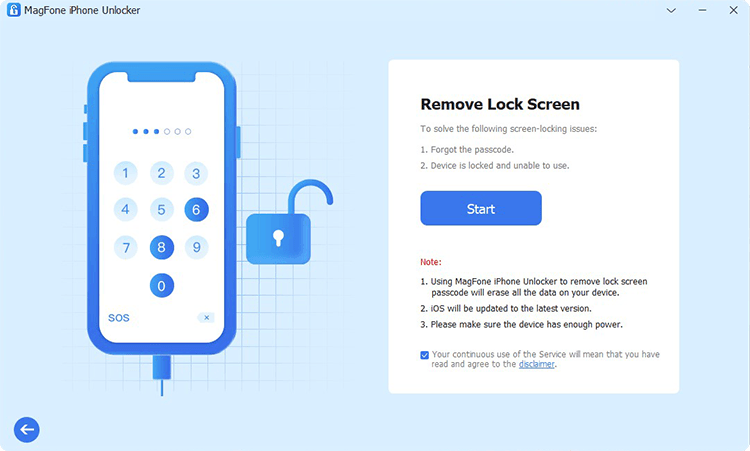
To unlock an iPad without an Apple ID, you need to first download and install MagFone iPhone Unlocker on your computer. Afterwards, launch this tool and use a data cable to link your iPad to the computer.
Step 2 Put iPad into Recovery Mode
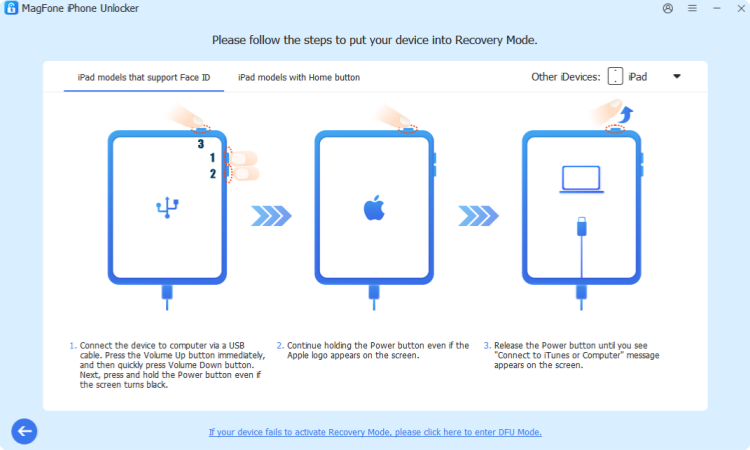
Choose Unlock iOS Screen from MagFone's interface. Click Start and follow the on-screen instructions to get the iPad into recovery mode.
Step 3 Download the Firmware Package
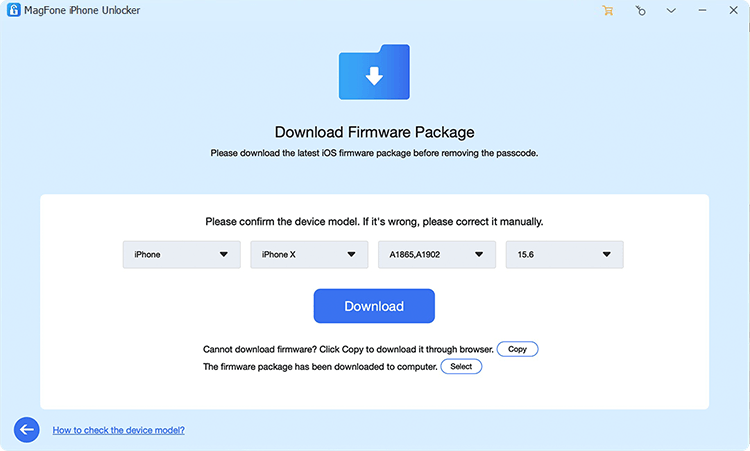
When the iPad is detected in recovery mode, click the Next button. Confirm your iPad information and click Download to download the correct firmware package.
Step 4 Unlock iPad without Apple ID
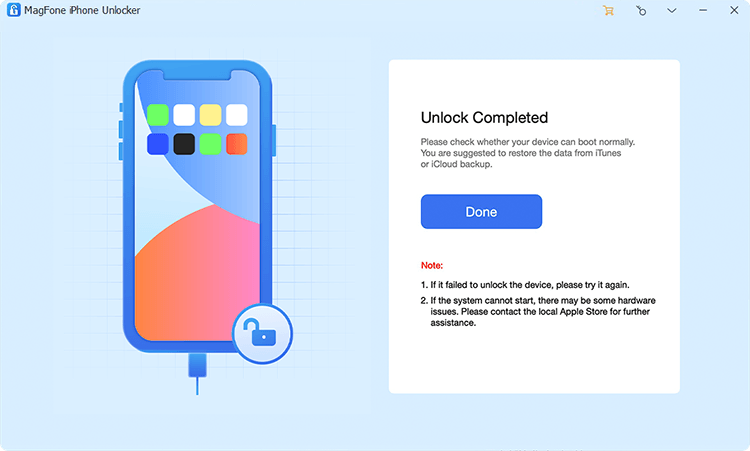
After downloading and verifying, click Unlock to unlock the iPad without an Apple ID password. If the iPad is locked by Activation Lock, you can use the Unlock iCloud Activation Lock feature to bypass it.
Method 2. Unlock iPad Using iTunes and Finder
iTunes and Finder can help restore an iPad when you can't access it. After connecting the iPad to a computer and entering recovery mode, you can select the restore option to erase the device and reinstall the latest compatible software.
Step 1. Put the iPad into recovery mode.
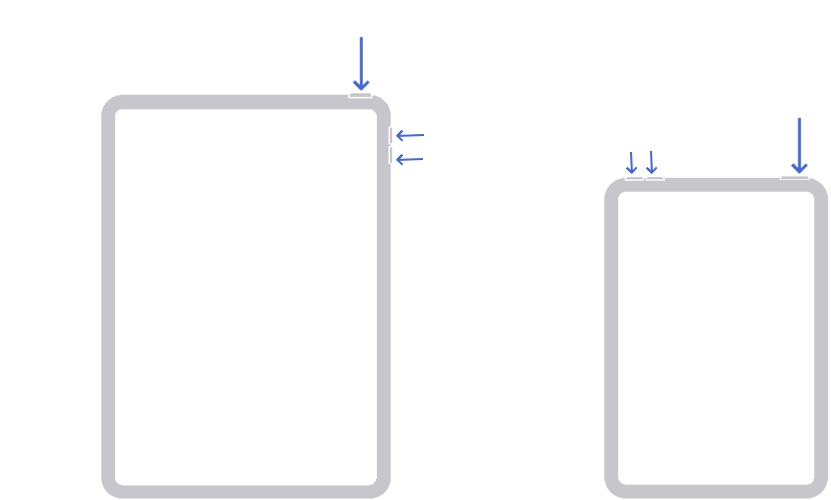
- iPad with Home Button: Keep holding the Power button and the Home button at the same time until the iPad enters recovery mode.
- iPad without Home Button: Quickly press and release the Volume Up button, then the Volume Down button. Then hold the Top button until the iPad enters recovery mode.
Step 2. Use a data cable to connect your iPad to the computer and open iTunes or Finder.
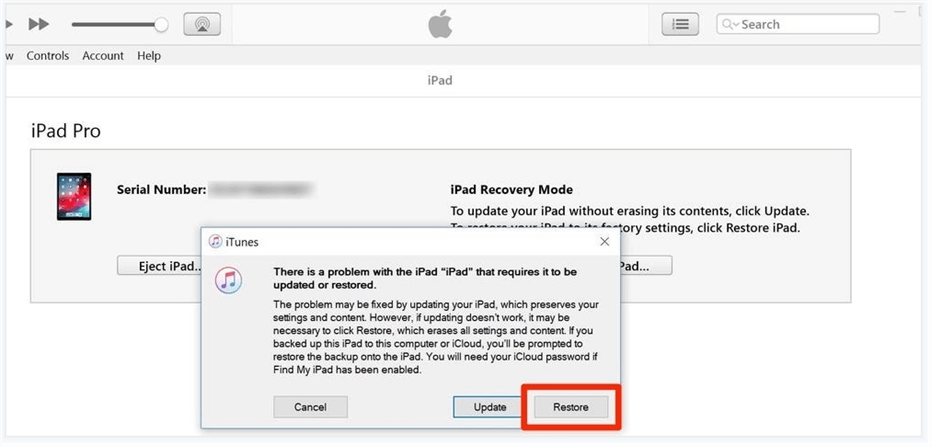
Step 3. If your iPad is detected, you will see a pop-up window. Choose Restore to restore the iPad to factory settings. After that, you can open it and set it up as a new one.
Part 3. How to Unlock iPad with Apple ID
If you forgot the Apple ID password, you can go to iforgot.apple.com to reset your Apple ID password first. Then you can choose either method below to unlock an iPad with Apple ID.
Method 1. Unlock iPad on Security Lockout Screen
If you enter the wrong passcode too many times, the iPad may display a Security Lockout or iPad Unavailable screen. On supported versions since iPadOS 15.2, you can tap the reset or erase option on the screen, enter your Apple ID password, and erase the device directly.
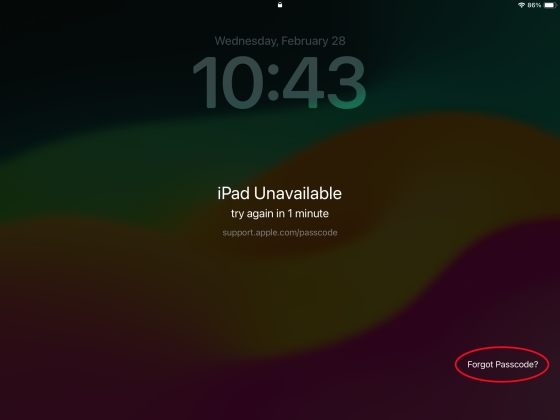
Step 1. Tap Forgot Passcode? or Erase iPad on the iPad Unavailable screen.
Step 2. Tap Start iPad Reset, then enter your Apple ID password.
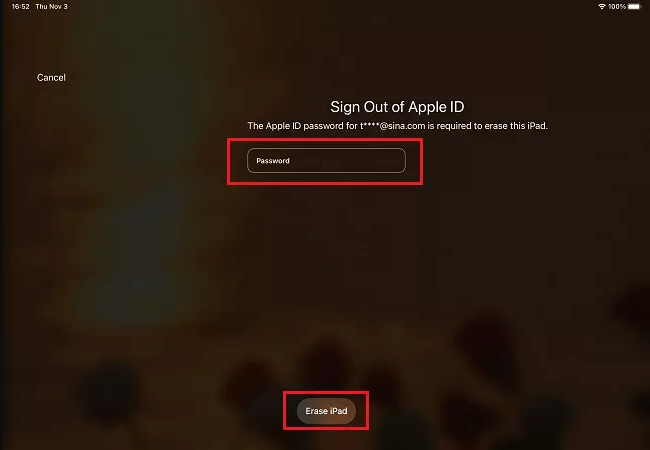
Step 3. Tap Erase iPad to confirm the erasure.
Method 2. Unlock iPad on iCloud Find Website
With Apple ID credentials, you can manage your devices from the iCloud Find website, where you can erase an iPad or remove a device from your Apple ID.
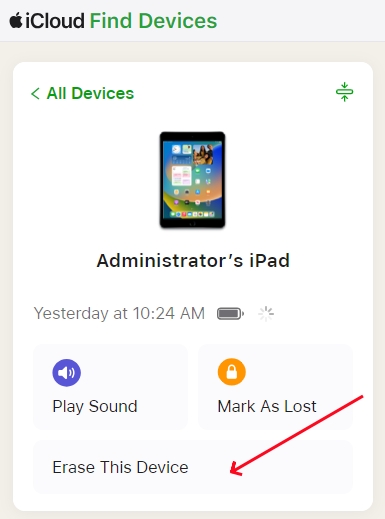
Step 1. Navigate to the iCloud Find website and log in with your Apple ID credentials.
Step 2. Access the iPad you need to unlock.
Step 3. Choose Erase > Next, then enter the Apple ID password to erase the iPad remotely.
Method 3. Unlock iPad via Find My App
You can also manage all your devices that are linked to the same Apple ID in the Find My app. This is convenient for users who have access to another iPhone, iPad, or Mac.
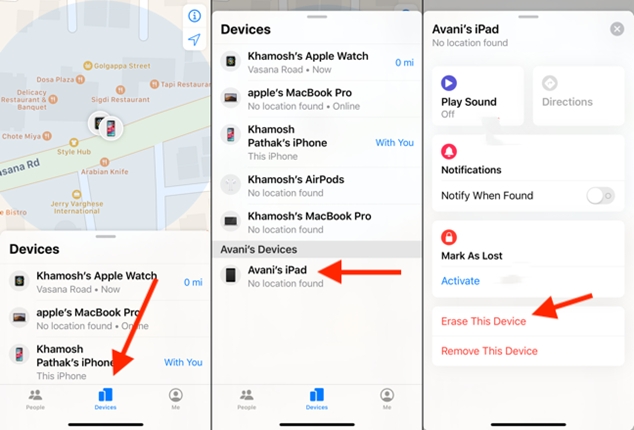
Step 1. Open the Find My app and tap Devices at the bottom.
Step 2. Tap the iPad and tap the triple-dot icon.
Step 3. Tap Erase > Continue, then enter the Apple ID password to confirm.
Part 4. Conclusion
After reviewing these methods, it is clear that the best solution to unlock an iPad depends on whether you can access the linked Apple ID. Desktop tools like MagFone iPad Unlocker, iTunes, and Finder may help remove a forgotten screen passcode, while Apple's Security Lockout, iCloud Find, and Find My options provide official ways to erase and reset the

Teresa Miller
Editor in chief





