








Whether it's to erase the iPad before selling or giving it away, or just to reset the iPad for better performance - you need to permanently remove all your content and settings from your iPad. To get it done, a factory reset is a useful, straightforward option. A factory reset erases information and settings on your iPad and installs the latest version of the iPadOS software.
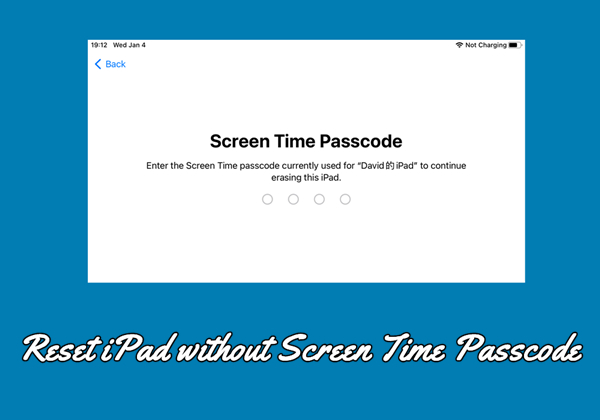
When restoring the iPad to its factory settings, some iPad users were asked to enter a Screen Time passcode. What to do if you forget your Screen Time passcode? If you forget the Screen Time passcode, then you will not be able to reset your iPad in Settings. Forgot your Screen Time passcode, but want to reset your iPad? Follow our guide on how to reset iPad without Screen Time passcode.
- Part 1. What to Do Before Resetting an iPad without Screen Time Passcode?
- Part 2. How to Reset iPad without Screen Time Passcode
- Part 3. Conclusion
Part 1. What to Do Before Resetting an iPad without Screen Time Passcode?
When you are going to reset an iPad in Settings, you will be asked whether to back up the iPad, and you will be required to enter the lock screen passcode, Screen Time passcode, or Apple ID password if you have set one to proceed. Before resetting an iPad without a Screen Time passcode, you can first back up your iPad and turn off the Screen Time passcode.
01Back Up iPad
Before resetting an iPad, it's suggested that you make an iCloud backup in advance so that you'll not be asked to back up when about to perform a factory reset.
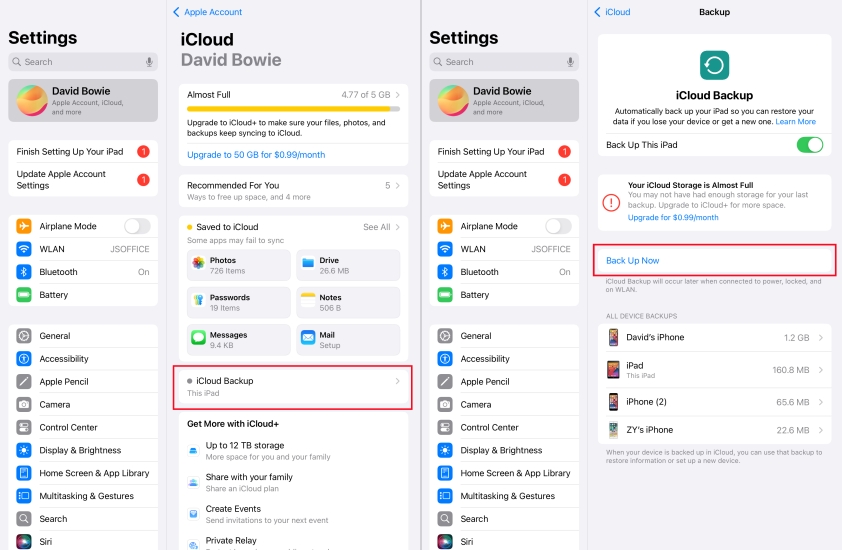
Step 1. Open Settings on your iPad and tap the Apple ID.
Step 2. Tap iCloud > iCloud Backup, tap Back Up Now to back up your iPad to iCloud. Make sure there is sufficient iCloud storage and a stable network connection.
02Disable Screen Time Passcode
Due to forgetting the Screen Time passcode, you'll be prevented from factory resetting your iPad. Don't worry, you can still use your Apple ID password to turn off the Screen Time passcode, then you can reset your iPad without Screen Time Passcode. Follow the steps below to disable Screen Time passcode for your personal iPad or your child's iPad.
Option 1. Turn Off Screen Time Passcode for Your Own iPad
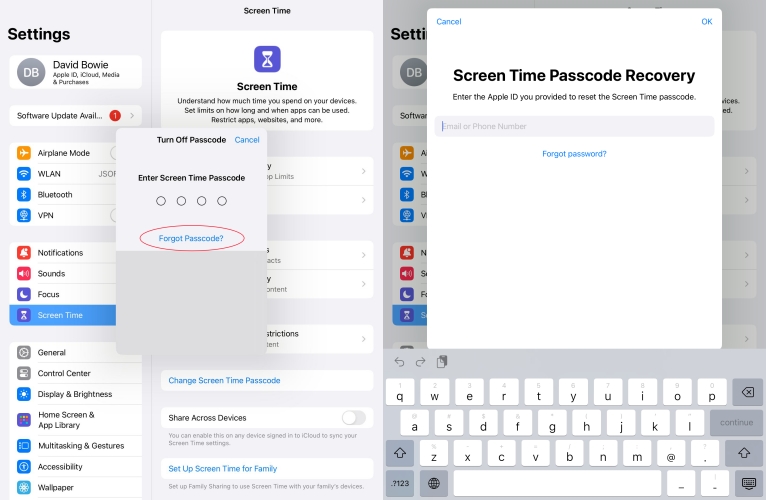
Step 1. Open the Settings app on your iPad and tap Screen Time.
Step 2. Tap Change Screen Time Passcode > Turn Off Screen Time Passcode, and tap Forgot Passcode?.
Step 3. Enter your Apple ID and password to disable the Screen Time passcode.
Option 2. Turn Off Screen Time Passcode for Your Child's iPad
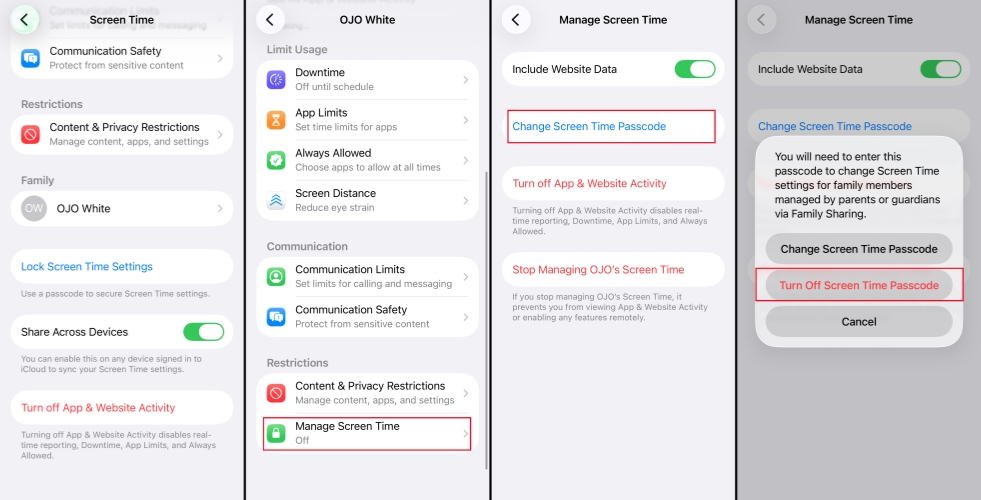
Step 1. Launch the Settings app on your iPad and tap Screen Time.
Step 2. Under Family, tap your child's name, then tap Manage Screen Time.
Step 3. Tap Change Screen Time Passcode, tap Turn Off Screen Time Passcode twice, and authenticate with Face ID, Touch ID, or passcode.
03Factory Reset iPad in Settings
After backing up your iPad and disabling Screen Time, you can reset the iPad without Screen Time passcode in Settings.
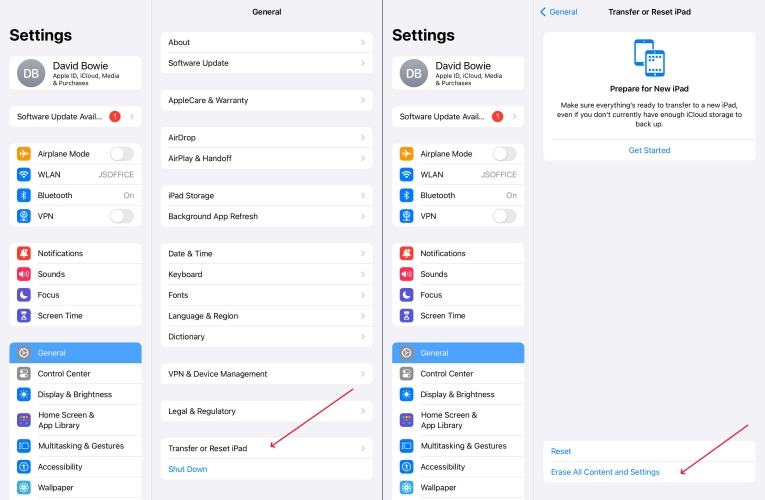
Step 1. Tap General in iPad Settings.
Step 2. Tap Transfer or Reset iPad > Erase All Content and Settings.
Step 3. Tap Continue > Erase iPad, then enter the iPad passcode and Apple ID password to proceed.
Part 2. How to Reset iPad without Screen Time Passcode
In addition to using Settings, there are other ways to erase the iPad. If you don't know or forget the Screen Time passcode for iPad, you can use an iPad unlocker, iTunes, or iCloud to reset iPad without Screen Time passcode. Let's dive into the details.
| Methods | Apple ID Credentials | iPad Passcode | Computer | Recommendation |
|---|---|---|---|---|
| MagFone iPad Unlocker | ❌ | ❌ | ✔️ | ⭐⭐⭐⭐⭐ |
| iTunes | Varies | ✔️ | ✔️ | ⭐⭐⭐⭐ |
| iCloud.com | ✔️ | ❌ | / | ⭐⭐ |
| Find My App | ✔️ | ❌ | / | ⭐⭐ |
Method 1. Factory Reset iPad Using MagFone iPad Unlocker
Using an unlocking tool is the easiest way to reset an iPad to factory settings without Screen Time passcode. When it comes to using an iPad passcode unlocker, we do recommend MagFone iPhone Unlocker. With the support of MagFone iPhone Unlocker, you can factory reset iPad without Screen Time passcode, Apple ID password, or screen passcode.
This is a great option if you want to reset your iPad to the default factory settings without Screen Time passcode. MagFone iPhone Unlocker is a smart tool that features in unlocking various locks on iPhone, iPad, and iPod touch. By using MagFone software, you can remove screen passcode, Apple ID, MDM restrictions, and Screen Time passcode. Here's how to erase iPad to factory settings without Screen Time passcode.

MagFone iPhone Unlocker
Unlock various locks on iOS devices, including screen locks, MDM, Apple ID, and Activation Lock without needing a password.
Step 1 Connect iPad to Computer and Open MagFone

Start by opening MagFone iPhone Unlocker, then you have to connect your iPad to your computer using a USB cable. Select the Unlock iOS Screen option and click on the Start button.
Step 2 Get iPad into Recovery Mode
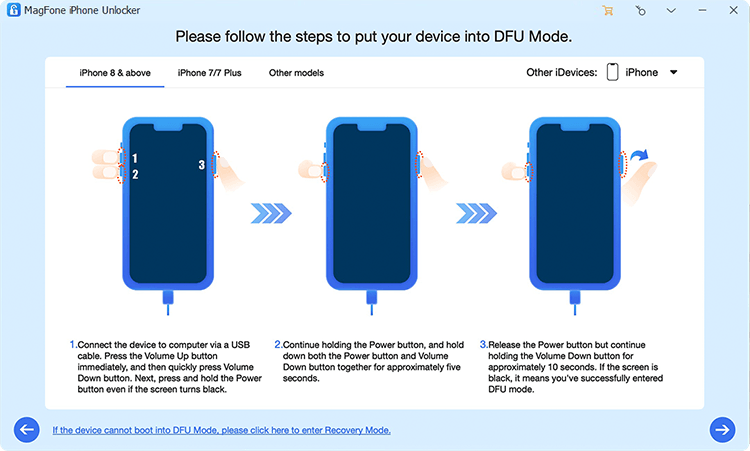
Follow the onscreen instructions to get your iPad into recovery mode, afterwards click the next button to the next step.
Step 3 Download the Firmware Package

Confirm your iPad information on screen, then choose a supported firmware package and click Download.
Step 4 Factory Reset iPad without Screen Time Passcode

Click on the Unlock button, and MagFone iPhone Unlocker will help erase all content and settings on your iPad. Keep your iPad connected to the computer until the process ends.
Method 2. Factory Reset iPad with iTunes
If you're unable to reset your iPad in Settings, you can connect your iPad to a computer and use iTunes or Finder to reset your iPad to factory settings without Screen Time passcode.
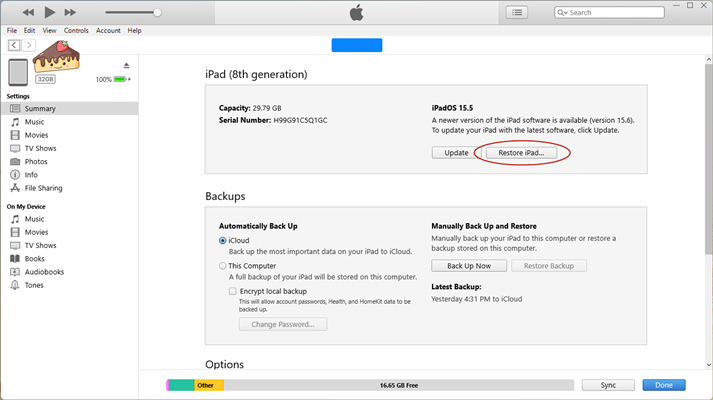
Step 1. Connect your iPad to your computer with a USB cable.
Step 2. Allow your iPad to trust the computer and open iTunes.
Step 3. Click the device button and select Summary.
Step 4. Click the Restore iPad button, then click it again to confirm.
Method 3. Factory Reset iPad on iCloud.com
When Find My is enabled on iPad, iCloud allows you to remotely erase the iPad with your Apple ID and password. After logging into iCloud, you can erase all the content and settings on your iPad.
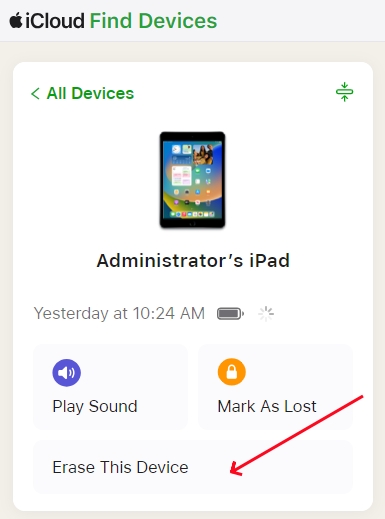
Step 1. Open iCloud.com/find, then enter your Apple ID and password to log in to iCloud.
Step 2. Select your iPad and click the Erase This Device button.
Step 3. Click Next, enter a phone number and your Apple ID password, and click the Erase button to confirm.
Method 4. Factory Reset iPad in Find My App
When Find My is enabled on the iPad, the Find My app also enables you to erase all of your content and settings from your iPad. If you have another Apple device, then you can use the Find My app to reset your iPad.
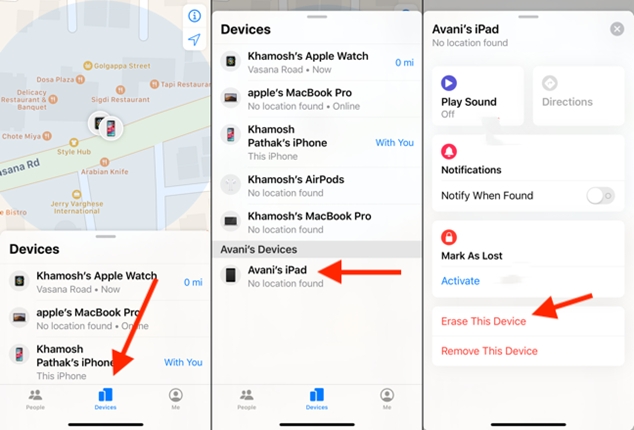
Step 1. Launch the Find My app and tap Devices at the bottom of the screen.
Step 2. Select your iPad and tap Erase This Device or Erase, then tap Continue.
Step 3. Enter your trusted phone number and tap Erase to enter your Apple ID password.
Step 4. Tap Erase again to confirm that you want to wipe out all the content and data.
Part 3. Conclusion
How to reset iPad without Screen Time passcode? Well, in this guide, you can find several methods to help you reset iPad to factory settings even if you forget your Screen Time passcode. If you want to quickly and easily reset your iPad, then you can consider using MagFone iPhone Unlocker. Download it and try it!

Teresa Miller
Editor in chief





