







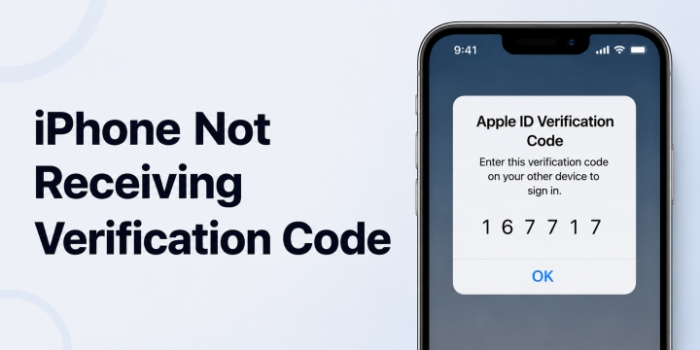
If your iPhone is not receiving verification codes, the problem usually falls into one of two cases: you are not getting the Apple account pop-up verification code, or you are not receiving text verification codes by SMS. Either way, it can stop you from signing in or completing important account actions. In this guide, we'll walk you through the most likely causes and show you how to fix the issue step by step.
- Part 1. Why Am I Not Receiving Verification Codes on My iPhone?
- Part 2. How to Fix iPhone Not Getting Verification Code [Pop-up Code]
- Part 3. How to Fix iPhone Not Getting Verification Code [Text Code]
- Part 4. Bonus Tip: Remove Error Apple ID from iPhone without Password
- Part 5. Conclusion
Part 1. Why Am I Not Receiving Verification Codes on My iPhone?
If your iPhone is not receiving verification codes, the issue usually comes down to two different situations. In some cases, the Apple account verification code does not pop up on the screen, while in other cases, the text verification code never arrives in Messages. Since these problems can happen for different reasons, below are the common reasons why you can't receive a verification code on iPhone:
Unstable Network Connection:
A weak, interrupted network connection or a VPN connection can prevent the verification request from appearing.
Messages are Filtered or Blocked:
Apple text verification codes may be sent to Spam, blocked contacts, or hidden by message settings.
System Restrictions:
Focus Mode or Do Not Disturb Mode may block or hide the text verification messages.
Part 2. How to Fix iPhone Not Getting Verification Code [Pop-up Code]
If the verification code is not appearing as a pop-up on your iPhone, the issue is usually related to network conditions, account settings, or system restrictions. Try the following methods to rule out the most common causes and get the verification code to appear properly.
Method 1. Refresh Network Settings
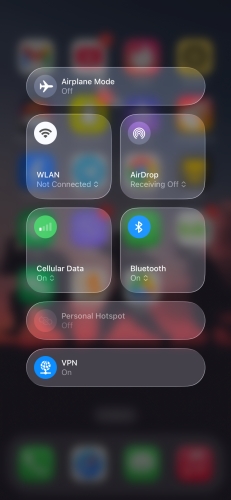
A weak or unstable network connection can delay or interrupt the delivery of Apple's verification code. If your iPhone is having trouble connecting to the network, refresh your Wi-Fi or cellular data connection first to see whether the pop-up code comes through normally. Just reach the Control Center on your iPhone and tap the WLAN or Cellular icon to refresh its status.
Method 2. Disable VPN
Sometimes, a VPN may interfere with Apple's verification process and prevent the code from appearing on your iPhone. Disabling VPN on your iPhone may ensure smooth verification code receiving.
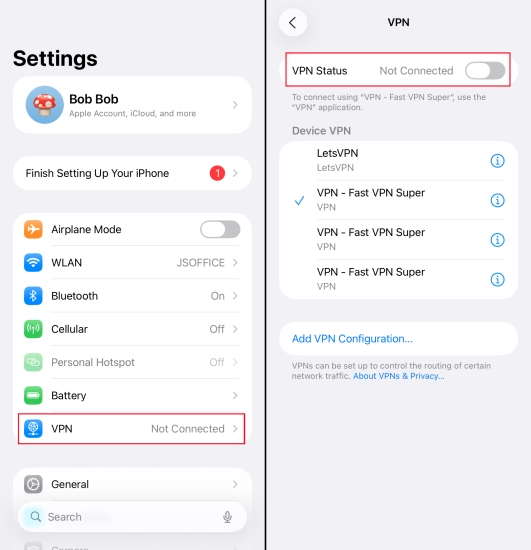
Step 1. Head to iPhone Settings > VPN.
Step 2. Disable the VPN connection.
Method 3. Update to the Latest iOS Version
An outdated iOS version may cause temporary system glitches that affect verification prompts. Updating your iPhone to the latest iOS version can help resolve these issues and improve the chances of receiving the code normally.
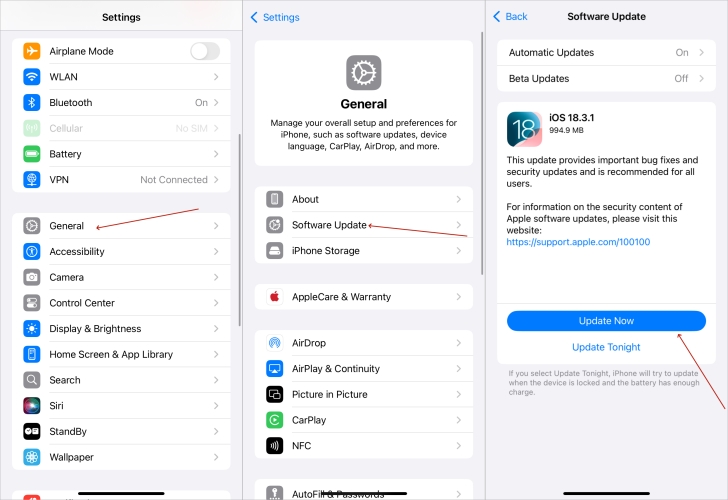
Step 1. Go to Settings > General > Software Update.
Step 2. Wait for your iPhone to check for updates.
Step 3. Tap Download Now or Install Now to update the iPhone to the latest system.
Method 4. Get Verification Code in Settings Manually
If the pop-up code still does not show up, you can generate a verification code manually in Settings on another Apple device signed in with the same Apple ID. This gives you an alternate way to sign in
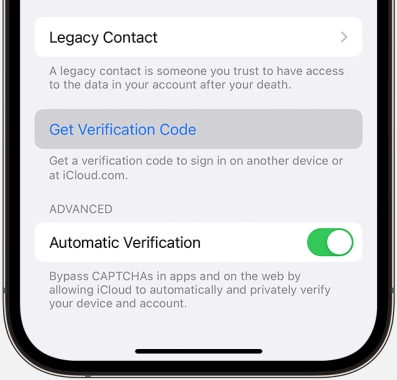
Step 1. Open Settings on an Apple device where you have signed in with the same Apple ID.
Step 2. Tap your Apple ID > Sign In & Security.
Step 3. Scroll down and tap Get a Verification Code, then you can view the code and use it to sign in.

MagFone iPhone Unlocker
Removing a device management profile needs a password, but MagFone iPhone Unlocker helps you remove MDM without a password.
Method 5. Get Verification Code via Call/SMS Message
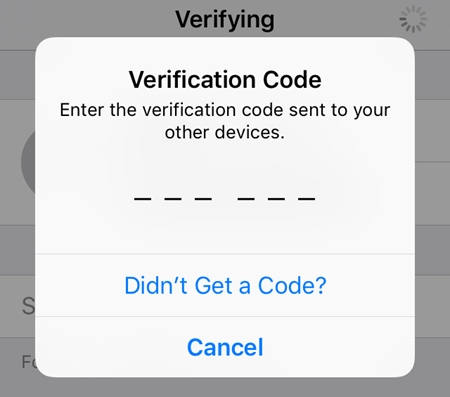
If the verification code cannot be delivered as a pop-up, Apple may also offer it through a call or SMS message. This gives you another way to receive the code and complete the sign-in process. Just choose Didn't Get a Code on the Verification Code entry screen. Then choose Send a verification code via phone call or text message.
Part 3. How to Fix iPhone Not Getting Verification Code [Text Code]
If you are doing a 2FA verification, and your iPhone is not receiving text verification codes, the problem is often tied to message filtering, blocked numbers, or notification settings. The following methods will help you check where the text may be going and make sure the message can reach your iPhone properly.
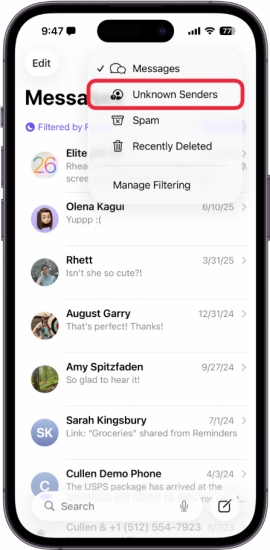
Method 1. Check Messages in Spam Folder
If you have previously filtered or reported messages as spam, the verification text may have been moved to the Spam folder instead of your main Messages list. Checking that folder can help you find the code and ensure future messages from the same sender appear normally.
Method 2. Check Blocked Contacts
If Apple's sending number has been added to your blocked list by mistake, the verification text will not reach your inbox. Reviewing your blocked contacts and unblocking the relevant number can restore delivery of the code.
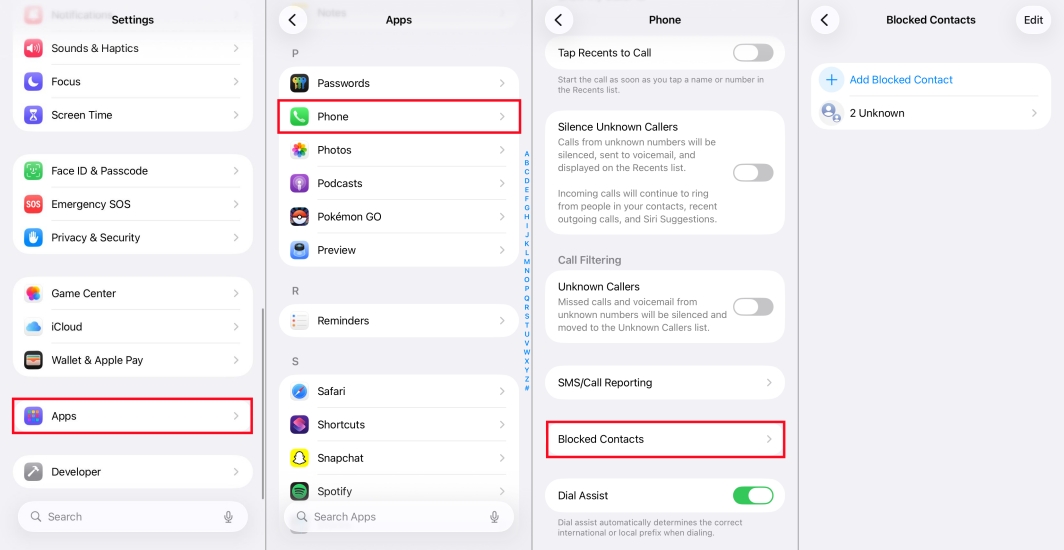
Step 1. Go to iPhone Settings > Apps > Messages.
Step 2. Tap Blocked Contacts to check if you have blocked numbers that are related to Apple's service.
Step 3. If there is one, swipe left to unblock the number.
Method 3. Check Do Not Disturb / Focus Mode
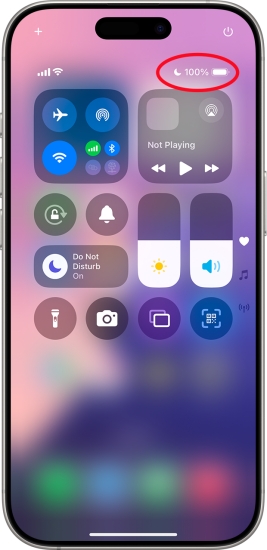
If Do Not Disturb or Focus Mode is enabled, the verification text may still arrive, but its notification will be hidden. In that case, opening the Messages app directly can help you find the code even if you did not see an alert.

MagFone iOS System Recovery
Fix various iOS and iPadOS system issues, such as Apple ID verification code not sending, receiving, loading and working, without data loss.
Part 4. Bonus Tip: Remove Error Apple ID from iPhone without Password
Generally, you can fix the iPhone not receiving issue and verify your identity after trying the above methods. In addition, if you have trouble dealing with Apple ID issues, like can't sign out of Apple ID, we'd like to share MagFone iPhone Unlocker with you. As a versatile iOS unlocking tool, MagFone iPhone Unlocker can deal with various forgotten iOS passcodes and passwords, including lock screen passcode, Screen Time passcode, Apple ID password, MDM password, and iTunes encryption password. If you have a password issue, MagFone can be a reliable consideration.
MagFone iPhone Unlocker
Unlock various locks on iOS devices, including screen locks, MDM, Apple ID, and Activation Lock without needing a password.
Let's see how MagFone works for removing an Apple ID from an iPhone.
Step 1 Run MagFone iPhone Unlocker
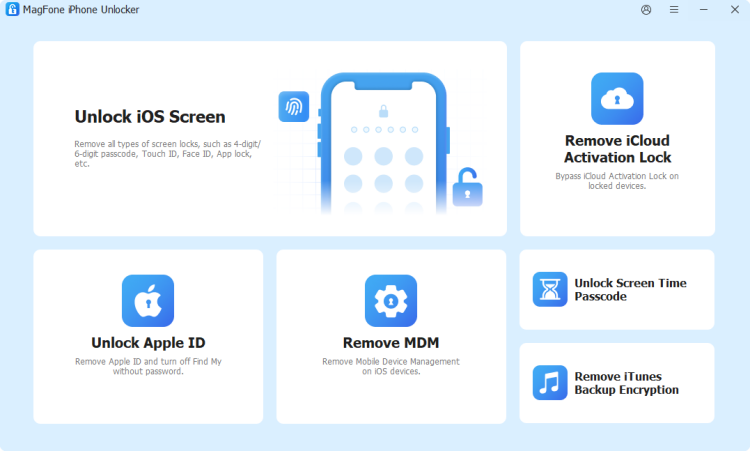
First, download and install MagFone iPhone Unlocker on a computer, then double-click to launch it after installation.
Step 2 Check iPhone Status
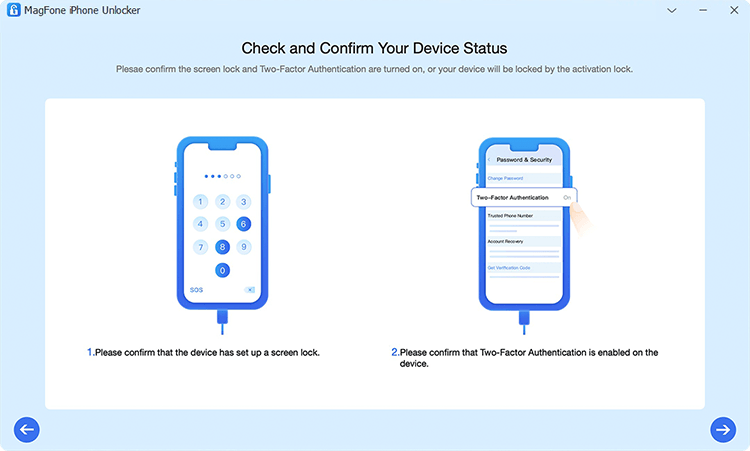
Choose Remove Apple ID from the provided features, and click Start. If Find My is disabled on your iPhone, the program will remove the Apple ID from your iPhone directly. If Find My is enabled, you need to ensure that you have a lock screen passcode set and 2FA enabled on your iPhone.
Step 3 Download Firmware Package

Once checked, click the Next icon. Then check your iPhone information on the computer and choose a compatible firmware package to download.
Step 4 Remove Apple ID from iPhone without Password
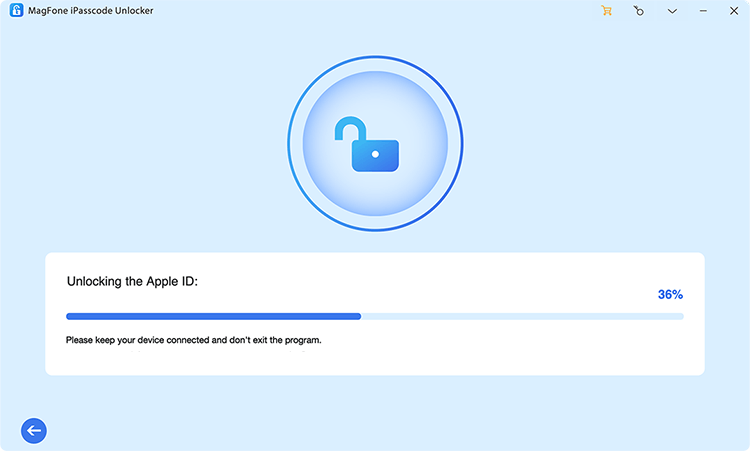
After the firmware package is verified, click Unlock to remove the Apple ID from your iPhone.
Part 5. Conclusion
In most cases, iPhone verification code issues can be solved by checking your network connection, message settings, or account-related restrictions. Whether the problem is with an Apple account pop-up code or an SMS verification code, the methods above should help you identify the cause and fix it quickly. If the issue still persists, it may be time to review your Apple ID or seek further account-related support.

Dylan Jones
Editor in chief




