








Recently, I've been having a weird issue with my iPhone. While using any app the screen suddenly goes black for a second or two, then comes back on, and shortly after that it jumps to the lock screen as if I pressed the power button. Has anyone else experienced something similar? Any idea what might be causing this or how to fix it?"
Why does my iPhone keep going to the lock screen? This is such a weird issue that many iPhone users have reported. The screen keeps locking as if the power button is being pressed, which can seriously affect your daily use. Don't worry if you're facing the same problem. In this guide, we'll explore the possible causes and show you solutions to keep your iPhone from going to the lock screen. Keep reading!
- Part 1. Why Does My iPhone Keep Going to Lock Screen?
- Part 2. How to Keep iPhone from Going to Lock Screen
- Part 3. Bonus Tip: Unlock iPhone Screen without Passcode
- Part 4. Conclusion
Part 1. Why Does My iPhone Keep Going to Lock Screen?
Many iPhone users have encountered a weird issue that the iPhone turns to a black screen and jumps to the lock screen automatically. This could be very frustrating while using it. Here is a list of possible reasons that lead to the iPhone going to the lock screen:
iPhone Settings:
One of the main factors is your iPhone settings. Settings like Auto-Lock, Low Power Mode, and Back Tap will trigger the iPhone screen to keep locking.
System Glitches:
Sometimes, minor system glitches or software bugs can also make the display go black and return to the lock screen randomly.
Hardware Issue:
A hardware problem, such as a faulty power button or internal component, may trigger the device to lock as if you're pressing the button yourself.
Part 2. How to Keep iPhone from Going to Lock Screen
Now that you know why your iPhone keeps going to the lock screen, we'll walk you through a series of step-by-step methods to help you troubleshoot the issue. Whether it's a simple display setting or a software conflict, you'll find a solution.
Method 1. Adjust Auto Lock Timer
If your iPhone keeps going to the lock screen regularly, the most likely culprit is the Auto Lock setting. You can adjust the Auto Lock timer to avoid the iPhone getting locked automatically.
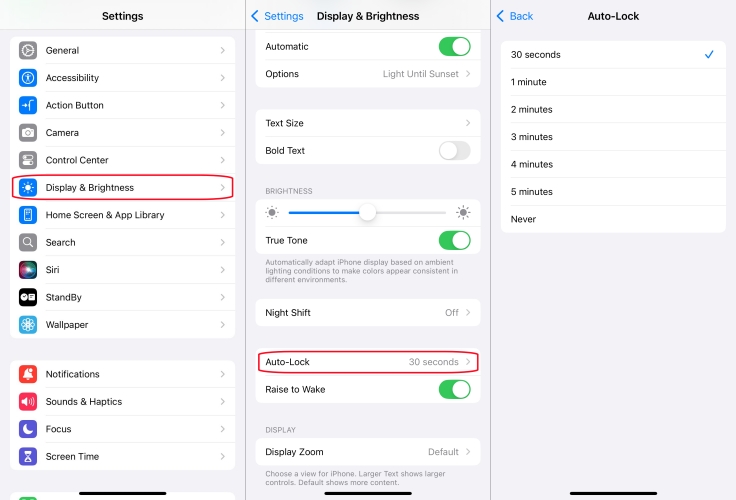
Step 1. Head for iPhone Settings > Display & Brightness.
Step 2. Find Auto-Lock and set a longer timer.
Method 2. Disable Back Tap to Lock Screen
Once you have set a shortcut to lock your iPhone, this could be one culprit. Your iPhone may go to the lock screen if you unconsciously tap the back of your phone. Check the Back Tap settings to stop the iPhone from going to the lock screen.
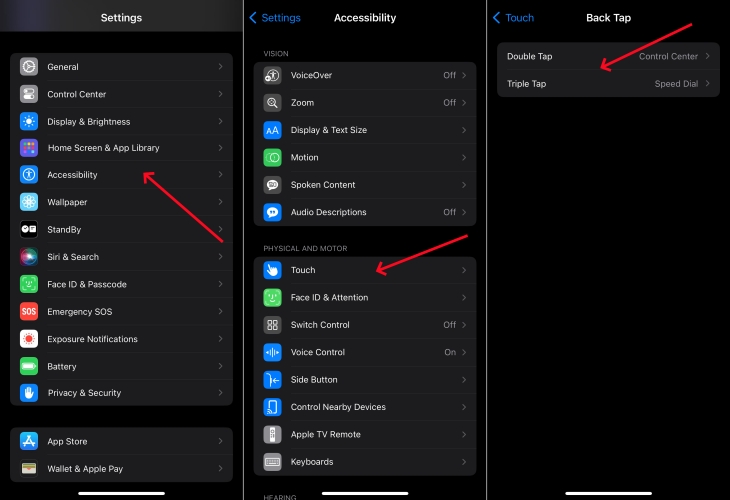
Step 1. Navigate to iPhone Settings > Accessibility.
Step 2. Find Touch > Back Tap. Check and adjust if you have set the back tap to Lock Screen.
Method 3. Turn Off Low Power Mode
When Low Power Mode is enabled, the Auto-Lock timer is set to 20 seconds by default to help conserve battery life. If you want the screen to stay on longer and avoid the iPhone, you can turn off Low Power Mode.
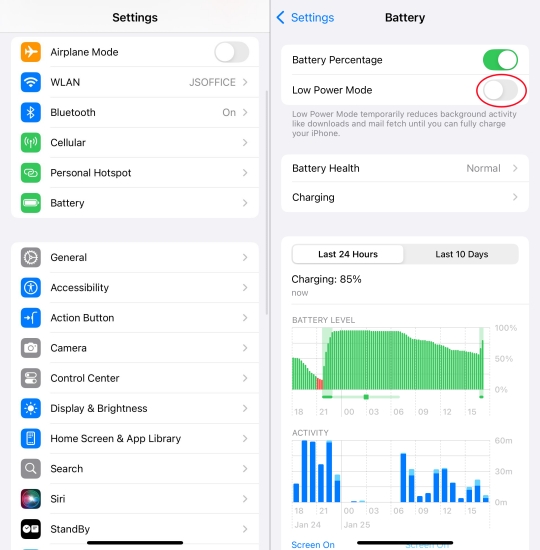
Step 1. Open iPhone Settings and tap Battery.
Step 2. Find Low Power Mode and turn it off.
Method 4. Restart Your iPhone
Minor glitches will also cause the iPhone to go to the lock screen unexpectedly. A simple restart can clear temporary system issues and reload essential services, giving your iPhone a fresh start.
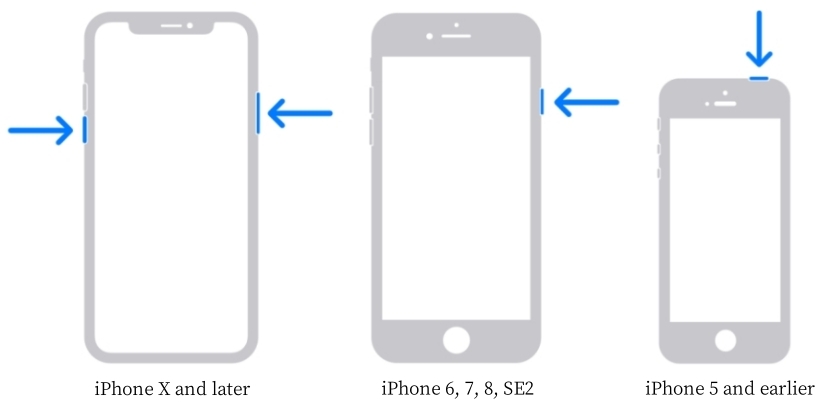
iPhone X and later:
Step 1. Hold down the power button together with the volume up button.
Step 2. Drag the power off slider to the right to shut down your iPhone.
Step 3. Hold down the power button until the Apple logo appears.
Medols before iPhone X:
Step 1. Keep the power button and the home button pressed until the screen changes.
Step 2. Drag the shut off slider to the end to shut down your iPhone.
Step 3. Hold down the power button until the Apple logo is displayed.
Method 5. Update the Software System
Apple regularly releases iOS updates that fix bugs, improve performance, and address unexpected behaviors, such as the iPhone randomly locking. If you're running an older version of iOS, a known issue could be causing the lock-screen problem you're experiencing.

Step 1. Access your iPhone's Settings and tap General.
Step 2. Tap Software Update and check if there is a newer system version to be downloaded and installed.
Step 3. Tap Download Now or Install Now to update the software system.
Method 6. Reset All Settings
Instead of trying to track down one specific setting, you can reset all settings on your device to return system options to their defaults without deleting your personal data.

Step 1. Go to iPhone Settings > General.
Step 2. Scroll down to the bottom and tap Transfer or Reset iPhone.
Step 3. Tap Reset and choose Reset All Settings. Enter your iPhone passcode to confirm the operation.
Part 3. Bonus Tip: Unlock iPhone Screen without Passcode
In some cases, if your iPhone is managed through MDM, the administrator can lock your iPhone remotely, and the Apple ID password is required to unlock it. Is there a way to unlock an iPhone without a password? MagFone iPhone Unlocker is here to help. As a comprehensive passcode removal, MagFone iPhone Unlocker supports not only removing the Lock Screen passcode, but also bypassing the Screen Time passcode and MDM lock. If you are seeking a solution to unlock an iPhone without a Passcode or Face ID, just follow the steps below:

MagFone iPhone Unlocker
Unlock various locks on iOS devices, including screen locks, MDM, Apple ID, and Activation Lock without needing a password.
Step 1 Launch MagFone iPhone Unlocker

Download MagFone iPhone Unlocker to your computer. Meanwhile, connect your iPhone to the computer. Click Unlock iOS Screen on the main interface.
Step 2 Force iPhone into Recovery Mode
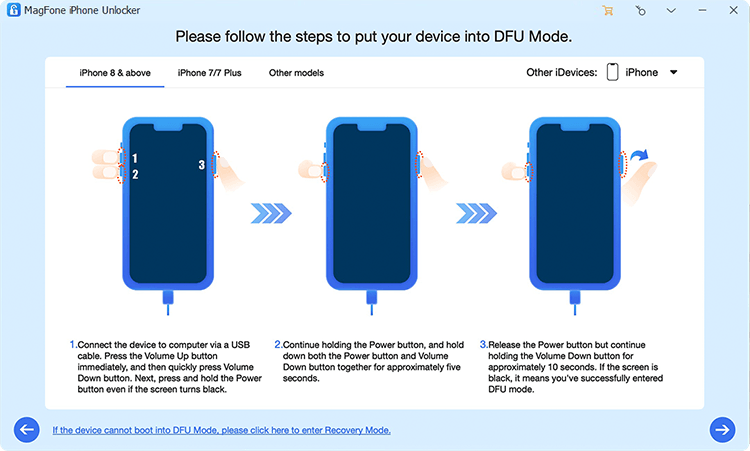
Click Start and then follow the on-screen instructions to put your iPhone into recovery mode.
Step 3 Download the Firmware Package
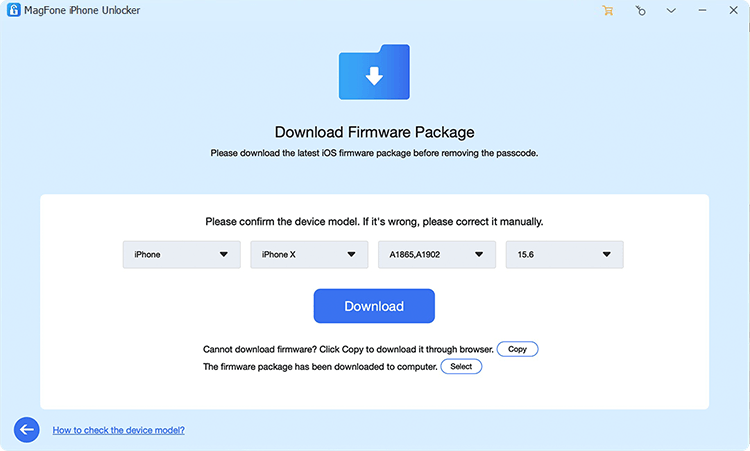
Once your iPhone enters recovery mode or DFU mode, the screen will turn to the next page where your iPhone information will be displayed. Just click Download to download the firmware package.
Step 4 Unlock iPhone without Passcode

Once the firmware is downloaded, you can click the Unlock button to unlock your iPhone without the passcode. After the whole process, click Done to complete.
Part 4. Conclusion
The iPhone keeps going to the lock screen, causing many inconveniences while you're using it. Following this troubleshooting guide, you can easily address the weird issue and get your iPhone back to normal. If your iPhone is locked by an MDM administrator remotely or you want to unlock your iPhone without a passcode, then you can consider MagFone iPhone Unlocker. Additionally, if you have any questions or solutions, just leave a comment to let us know!

Dylan Jones
Editor in chief





