







It's weird and kind of absurd if your iPad is frozen on the lock screen and won't respond to touch. It's just like a brick when you touch it. This problem is often caused by a temporary system glitch or minor software issue rather than serious damage. In this guide, we will walk through the possible reasons your iPad is stuck and show you several practical fixes to get it working again and methods to unlock it when the screen stays frozen.

- Part 1. Why Is My iPad Frozen on the Lock Screen?
- Part 2. How to Fix iPad Frozen on Lock Screen [No Data Loss]
- Part 3. How to Unlock Frozen iPad Screen [Data Loss]
- Part 4. Conclusion
Part 1. Why Is My iPad Frozen on the Lock Screen?
If your iPad gets stuck on the lock screen and stops responding, the cause is often a temporary software glitch, a system error, or a settings-related issue. In some cases, the lock screen may freeze after an update, app conflict, or other minor system problem. Keep reading to find out how to fix it.
Part 2. How to Fix iPad Frozen on Lock Screen [No Data Loss]
If you want to fix the issue without erasing anything on your iPad, start with these simple methods. They are designed to help you unfreeze the screen and get the device working again without data loss.
Option 1. Force Restart Your iPad
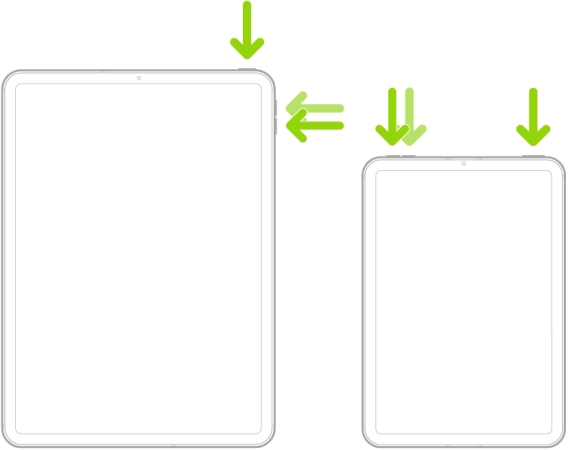
A force restart is often the quickest way to fix a frozen iPad. It can clear temporary glitches and refresh the system without affecting your data, making it the first method worth trying.
- iPad with Home Button: Hold the Home and Power buttons at the same time until the iPad restarts.
- iPad without Home Button: Press the Volume-up button and the Volume-down button in sequence, then keep holding the Power button until the iPad restarts.

Option 2. Drain Out iPad Battery
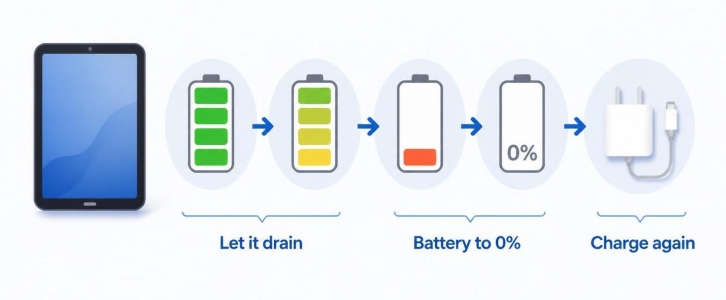
If your iPad won't respond at all, letting the battery drain completely may help reset the device naturally. Once it powers off, you can charge it again and see if the lock screen becomes responsive.

MagFone iOS System Recovery
Fix various iOS issues, including a frozen iPhone or a frozen iPad lock screen, without data loss.
Part 3. How to Unlock Frozen iPad Screen [Data Loss]
When the screen remains frozen and the no-data-loss fixes don't work, you may need to restore the device to remove the lock screen completely. The following methods will erase the iPad, so use them only if needed.
Option 1. Restore with iTunes
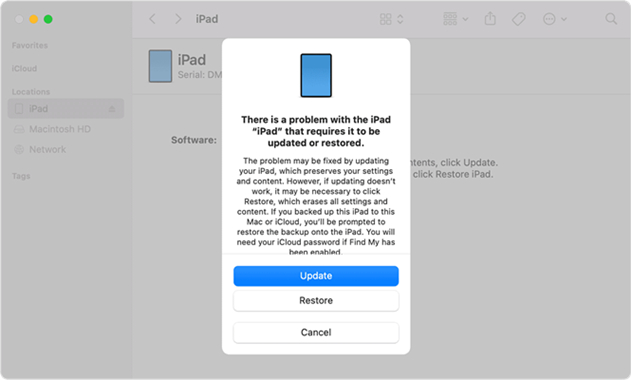
Restoring the iPad with iTunes can remove the frozen lock screen by resetting the iPad to factory settings and fixing known issues with your iPad. This is practical if your device can be detected by iTunes and you're okay without losing data stored on it.
Step 1. Get your iPad into recovery mode.
- iPad with Home button: Keep holding the Power button and the Home button at the same time, and release them until a computer image appears on the iPad screen.
- iPad without Home button: Press the Volume-up button and release it. Press the Volume-down button and release it. Then keep holding the Power button until a computer image appears on the iPad screen.
Step 2. Use a data cable to connect your iPad to a computer.
Step 3. Open iTunes on the computer and wait for the iPad to be detected.
Step 4. Choose Restore in the pop-up window to restore your iPad.
Option 2. Unlock iPad with MagFone iPad Unlocker
If your frozen iPad cannot be detected by iTunes but still charges when connected to a computer, MagFone iPad Unlocker can provide another way to unlock it. This tool is useful when iTunes fails, and you need a direct solution to remove the lock screen. Apart from rescuing you from the frozen iPad screen, MagFone iPad Unlocker can also remove passcodes, including Screen Time passcode, MDM passwords, Apple ID passwords, and iTunes Encryption passwords.

MagFone iPhone Unlocker
Unlock various locks on iOS devices, including screen locks, MDM, Apple ID, and Activation Lock without needing a password.
Let's see how to use MagFone iPad Unlocker to unfreeze the frozen iPad from the lock screen.
Step 1 Launch MagFone iPad Unlocker
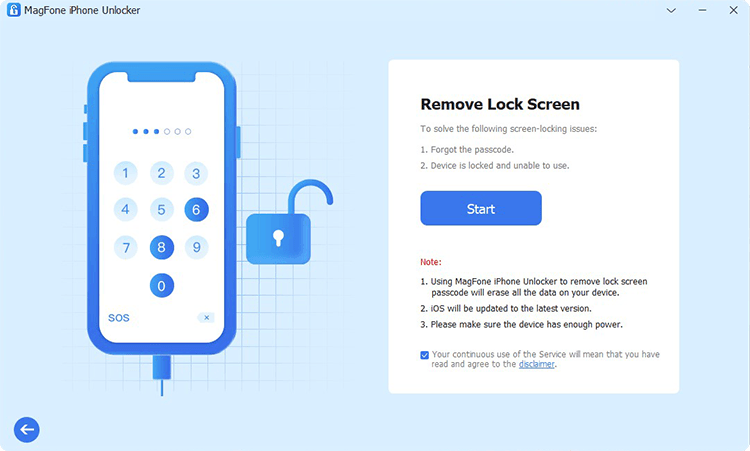
First, download and install MagFone iPhone Unlocker on your computer. Then use a data cable to link your iPhone to the computer and launch this tool.
Step 2 Put the iPad into Recovery Mode
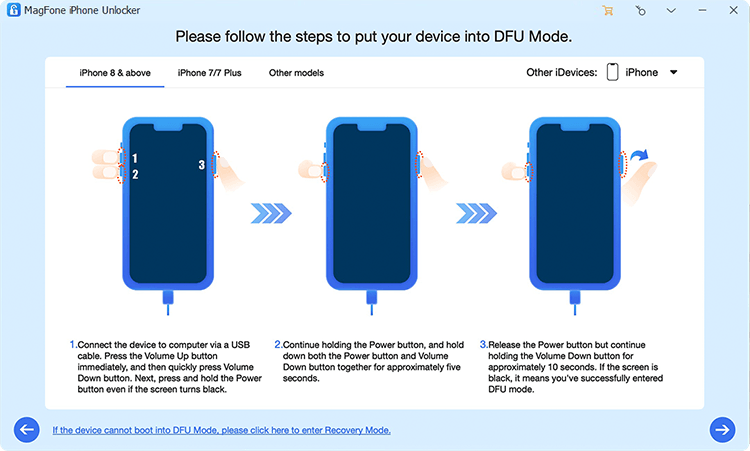
Click Unlock iOS Screen on the main interface and click Start. Follow the on-screen instructions to get your frozen iPad into recovery mode.
Step 3 Download the Correct Firmware Package

Click the Next icon and check your device information. Choose the correct firmware package and click Download to download it.
Step 4 Unlock iPad Frozen Screen
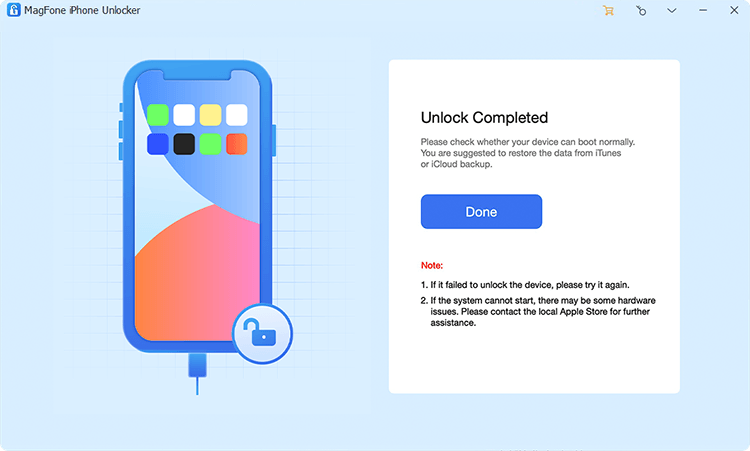
After downloading and verifying the firmware package, click Unlock to unlock your iPad from the lock screen.
Part 4. Conclusion
An iPad frozen on the lock screen can be frustrating, especially when it stops you from accessing your device. Fortunately, this issue can usually be fixed with a simple force restart or other no-data-loss methods. If those steps don't work, you can try restoring your iPad with iTunes or using a reliable iPad unlocker to remove the frozen lock screen. To avoid this kind of frozen issue, avoid installing unstable apps and make sure the battery stays charged.

Teresa Miller
Editor in chief




