








To protect their privacy, many iPad users set complex screen passcodes. While this can stop others from easily accessing your device, it also increases the chance that you might forget the passcode over time. After several failed attempts, the iPad becomes temporarily unavailable, and if you enter the wrong passcode ten times in a row, it can become permanently locked. So, what can you do if you forget your iPad passcode? This article will walk you through practical methods to bypass iPad passcode and regain access to your iPad.
- Part 1. How Do You Bypass a Passcode on an iPad?
- Part 2. How to Unlock iPad Passcode [No Data Loss]
- Part 3. How to Bypass Passcode on iPad [Data Loss]
- Part 4. FAQs about Overriding Passcode on iPad
- Part 5. Conclusion
Part 1. How Do You Bypass a Passcode on an iPad?
In some situations, you may need to bypass the passcode on your iPad. For example, if you forget the newly set passcode, your child enters the wrong passcode too many times and disables the device, or you've received an older iPad without knowing its original unlock code. When this happens, you'll find yourself locked out and unsure whether it's even possible to bypass the passcode.
Fortunately, there are several methods you can use. Some allow you to unlock iPad passcode without losing any data, while others require erasing the device to remove the passcode. Here is an overview of these approaches so you can choose the one that best fits your situation.
| Methods | Requirements | Data Loss | Apple ID Password | Recommendation |
|---|---|---|---|---|
| Previous Passcode | Passcode changed within 72 hours iPadOS 17 and later |
❌ | ❌ | ⭐⭐⭐ |
| Siri | iPadOS 8.1 to iPadOS 10.1 | ❌ | ❌ | ⭐⭐ |
| Rest with Apple ID | iPadOS 15.2 to iPadOS 16 | ✔️ | ✔️ | ⭐⭐⭐ |
| MagFone iPhone Unlocker | A USB cable | ✔️ | ❌ | ⭐⭐⭐⭐⭐ |
| iTunes | A USB Cable | ✔️ | ❌ | ⭐⭐⭐ |
| iCloud | Any device with network | ✔️ | ✔️ | ⭐⭐⭐ |
| Find My App | Another Apple Device | ✔️ | ✔️ | ⭐⭐⭐ |
Part 2. How to Unlock iPad Passcode [No Data Loss]
For many users, keeping existing data is the top priority. The good news is that in some cases, you can unlock iPad passcode without losing data. In this part, we'll show you 2 methods to bypass passcode on iPad without data loss.
Method 1. Use Previous Passcode to Unlock Passcode on iPad
If you've recently changed your iPad's lock screen passcode, iPadOS 17 and later versions allow you to authenticate with your old passcode within 72 hours. After unlocking, you need to reset the screen passcode of the iPad.
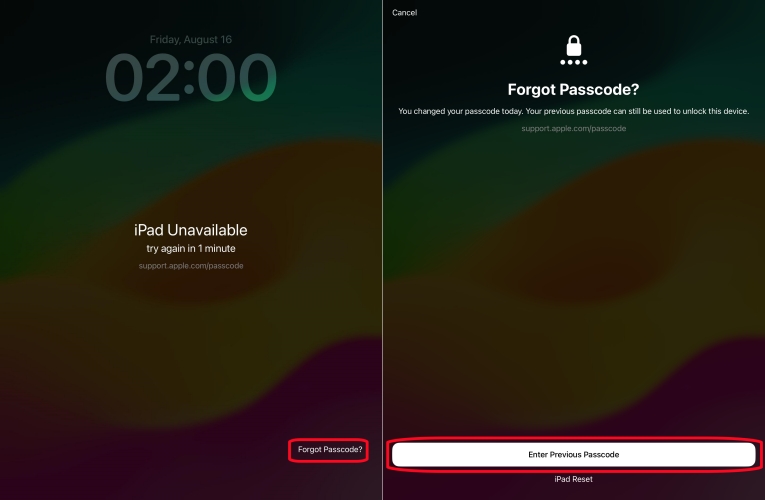
Step 1. Enter the lock screen by entering the wrong passcode several times.
Step 2. Tap on Forgot Passcode and then choose Enter Previous Passcode.
Step 3. Enter the old passcode to get rid of the forgotten passcode.
Method 2. Use Siri to Unlock Passcode on iPad
Siri is a virtual assistant where you can ask it questions or let it finish voice commands. As long as the iPad is still working, you can wake up Siri to unlock the iPad for you. And one prerequisite is that it only works when the iPad is running iPadOS 8.1 to iPadOS 10.1.
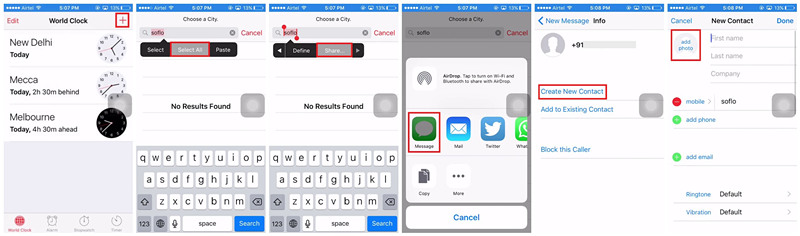
Step 1. Hold the Home key to activate Siri, then ask Siri to bring up the Clock app.
Step 2. Under the World Clock screen, tap the + button to create a new clock and type anything in the search box.
Step 3. Touch on the Select All button and pick the Share option, then there will pop up a window.
Step 4. Press Message and input anything in the To field, then tap return on the keyboard.
Step 5. After the text is highlighted, tap the + icon and choose the Create New Contact option.
Step 6. Press the profile icon to add a photo for the contact and head to the photo library.
Step 7. Locate your photo library and hit the Home button to unlock your iPad.
Part 3. How to Bypass Passcode on iPad [Data Loss]
The above methods for saving data have multiple limitations. If neither of the options works for you, the remaining solutions involve erasing your iPad. These methods get around passcode on iPad by restoring the device to factory settings, which means all content will be deleted. However, if you have a recent backup, you can restore your data afterward.
Method 1. Remove iPad Passcode with Apple ID Password
After entering the wrong screen passcode multiple times on your iPad running iPadOS 15.2 to iPadOS 16, you will see the iPad Unavailable screen. In this interface, you can select Erase iPad at the bottom to disable the passcode by inputting the Apple ID password.
iPadOS 15.2~16:
Step 1. Typing the wrong passcode until you see the iPad Unavailable screen.
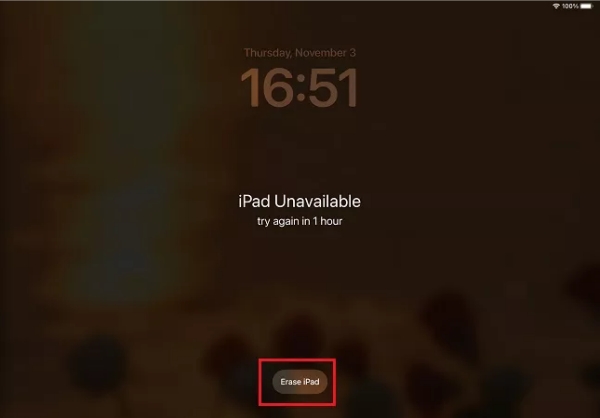
Step 2. Touch on the Erase iPad option twice.
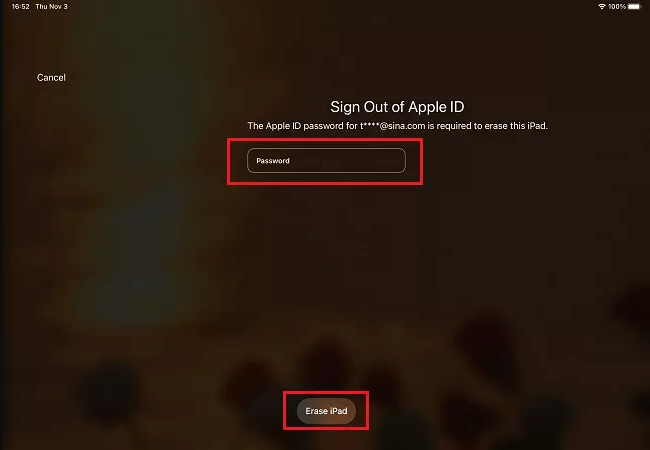
Step 3. Then type your Apple ID password to sign out of it. Wait while your iPad erases all data and settings, including the passcode.
iPadOS 17 and later:
Step 1. Enter the wrong passcode repeatedly until the iPad Unavailable screen appears.
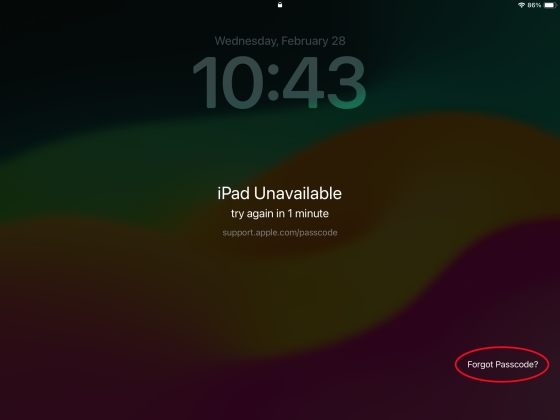
Step 2. Tap Forgot Passcode? at the bottom of the screen, then tap Start iPad Reset.
Step 3. Enter your Apple ID password to sign out of your Apple Account on this device.
Step 4. Tap Erase iPad to delete all data and settings, including the passcode.
Method 2. Remove iPad Passcode Using MagFone iPad Unlocker
You won't be able to bypass passcode on iPad if there is no network or if you forget your Apple ID password. Still wanna bypass the iPad screen passcode? Come and try MagFone iPhone Unlocker. It can help you bypass any screen lock on an iPhone, iPad, or iPod touch. It is also a comprehensive tool that can be used to remove an old Apple ID, screen time lock, and more. No information is required, and there is no complex process involved as well. Simply a few clicks can unlock your iPad with MagFone iPhone Unlocker.

MagFone iPhone Unlocker
Unlock various locks on iOS devices, including screen locks, MDM, Apple ID, and Activation Lock without needing a password.
Step 1 Make iPad Connected to Computer

To get started, connect your iPad to a trusted computer, then launch the MagFone program on it. After the computer detects your iPad, select the Unlock iOS Screen tab and click on the Start button.
Step 2 Put iPad into Recovery Mode Manually
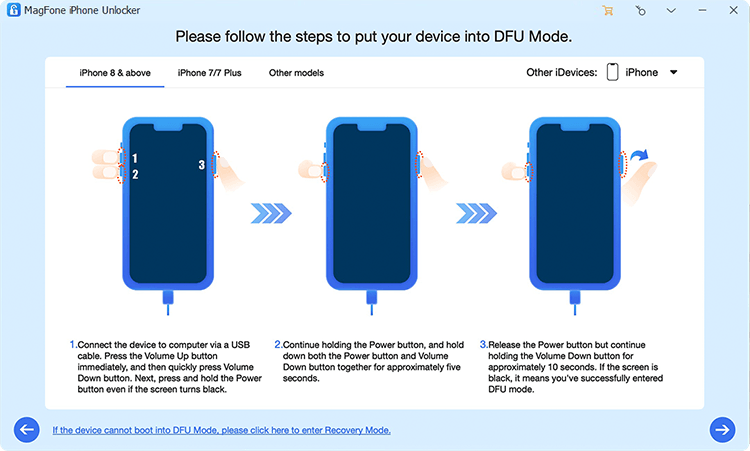
On the next screen, you'll be asked to get your iPad into recovery mode. You can follow the onscreen steps to put your iPad into recovery mode.
Step 3 Download a Proper Firmware Package

Once the iPad enters recovery mode, click the next icon. Check the device information shown on the computer. Then click the Download key to download a proper firmware package for your iPad.
Step 4 Start to Bypass Passcode on iPad

The last step is to click the Unlock button on the computer. The firmware package you've downloaded will be unzipped and verified. MagFone will quickly and safely bypass the screen lock on your iPad.
Method 3. Remove iPad Passcode via iTunes
Using iTunes to reset your iPad to factory settings can also unlock the screen passcode on your iPad. This will erase all data on the iPad, and then you will receive a brand new iPad with the screen passcode to be set.
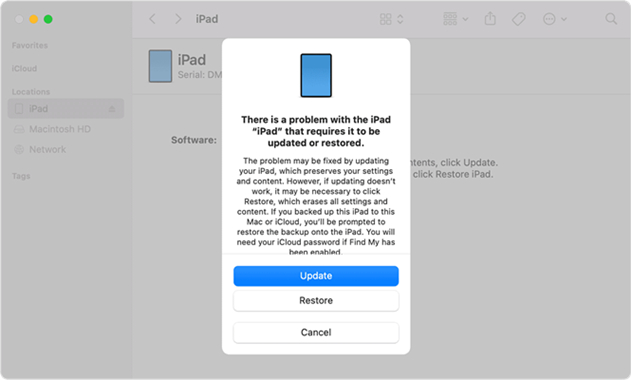
Step 1. Link the iPad to a computer with iTunes and put your iPad into recovery mode manually.
Step 2. Launch iTunes on the computer and click your iPad icon.
Step 3. Press the Restore option under the Summary part and then follow the next guide to restore your iPad.
Step 4. After restoring, your iPad will reboot.
Method 4. Remove iPad Passcode at iCloud Website
With the Find My feature enabled, you can sign in to the iCloud website using your Apple ID and erase the iPad remotely. This action removes all data and the passcode, allowing you to regain access to the iPad.
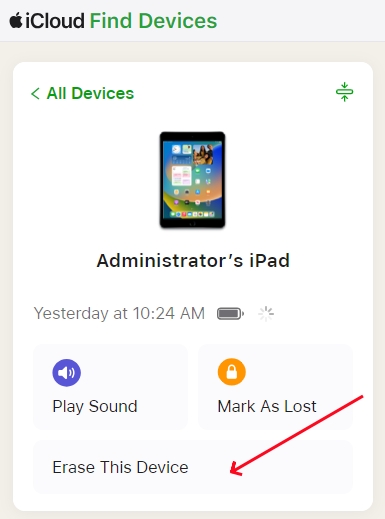
Step 1. Sign in to iCloud.com with your Apple ID password.
Step 2. Then you need to tap on the Find My icon.
Step 3. Select your locked iPad from the device list and click Erase This Device to erase all iPad data including the screen passcode.
Method 5. Remove iPad Passcode on Find My App
If you have another Apple device signed in with the same Apple ID, you can use the Find My app to remotely erase the locked iPad. This removes the passcode and all data from the device, allowing you to set it up again from scratch or restore your information from a backup afterward.
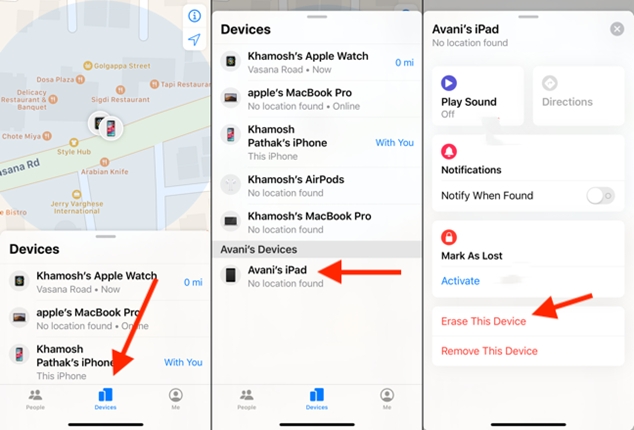
Step 1. Open the Find My app on another Apple device with the same Apple ID.
Step 2. Choose your locked iPad from the Devices tab.
Step 3. Next, swipe up to tap Erase This Device with your Apple ID password.
Part 4. FAQs about How to Override Passcode on iPad
-
How to bypass iPad passcode without computer?
To bypass iPad passcode without computer, you can reset the iPad passcode on the Security Lockout screen directly, or utilize iCloud website or the Find My app to erase iPad remotely.
-
How to bypass iPad passcode without iTunes?
You can try erasing the iPad in iCloud as well. After signing into iCloud.com, find your iPad, and then tap Erase This Device in the Find My app, your iPad screen passcode will be erased.
-
How to bypass iPad passcode without Apple ID?
It requires an Apple ID passcode to erase your iPad. You can use Siri to unlock your iPad if your iPad is in iPadOS 8.1 to iPadOS 10.1. By the way, no matter which iOS version, the iPad screen passcode can be bypassed by the MagFone iPhone Unlocker with ease.
Part 5. Conclusion
In the end, the best way to bypass an iPad passcode largely depends on the information and resources you have. If you meet the necessary conditions, using the previous passcode is the ideal option because it lets you unlock iPad passcode without losing data. If you can't access your Apple ID password, then MagFone iPad Unlocker becomes a strong alternative for removing iPad passcode. By understanding your situation in advance, you can choose the safest and most effective solution for regaining access to your device.

Dylan Jones
Editor in chief





