








The amount of people coming into my repair store telling me stuff like this genuinely makes me wish I could just be a fly on the wall when it happened."
——From Reddit
iPad requires a passcode you have never set after an iOS update? It's quite weird that iPad asks for an unknown passcode. But many users have shared their experience of this error on Reddit. If your iPad is asking passcode you have never set, we will share you with quick fixes to unlock the iPad and five unlocking methods to remove the passcode.
- Part 1. Why Is iPad Asking for Passcode I Never Set?
- Part 2. Quick Fixes for iPad Asking for Passcode I Never Set
- Part 3. How to Unlock iPad When It Asks for an Unknown Passcode
- Part 4. Conclusion
Part 1. Why Is iPad Asking for Passcode I Never Set?
When an iPad asks for a passcode but you have never set one, it can be confusing. This usually happens after a software update, a factory reset, or a change in security settings. In some cases, the iPad may have been linked to a management profile and be remotely locked with a passcode.
Part 2. Quick Fixes for iPad Asking for Passcode I Never Set
Before trying further unlocking methods, you can try these quick fixes first.
Try Previously Used Passcode
The iPad may be requiring you to enter a passcode that you have previously used. Think about those old passcodes you have used before and test their correctness. Avoid entering random and uncertain passcodes repeatedly because too many failed attempts will disable the iPad.
Restart the iPad
A temporary software issue may cause the iPad to display an unexpected passcode prompt. Restart your iPad to check whether the passcode prompt is removed.
Check Whether Someone Else Set a Passcode
Think about whether anyone else accessed your iPad and created the passcode. Ask your family members or friends about the unknown passcode.
Part 3. How to Unlock iPad When It Asks for an Unknown Passcode
If you want to remove the unknown passcode from your iPad, you need to restore the iPad to regain access. Here are five methods to remove the passcode from an iPad. You can check the details below and choose one to unlock the iPad.
Method 1. Unlock iPad Passcode on Lock Screen
You can erase the iPad on the lock screen, then you can unlock the iPad and set it up.
iPadOS 15.2 ~ iPadOS 16:
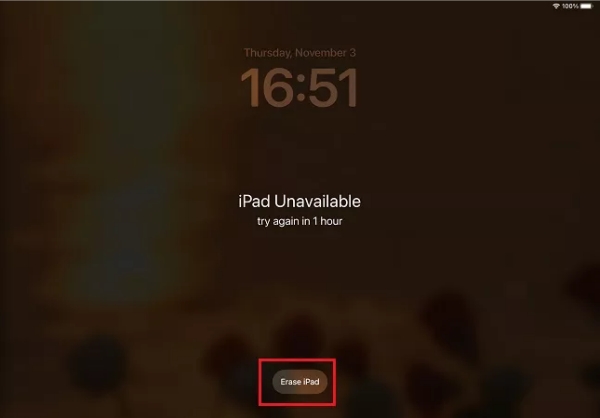
Step 1. Enter the wrong passcode until the iPad is unavailable.
Step 2. Tap Erase iPad on the iPad Unavailable screen.
Step 3. Enter the Apple ID password to proceed.
iPadOS 17 ~ iPadOS 27:
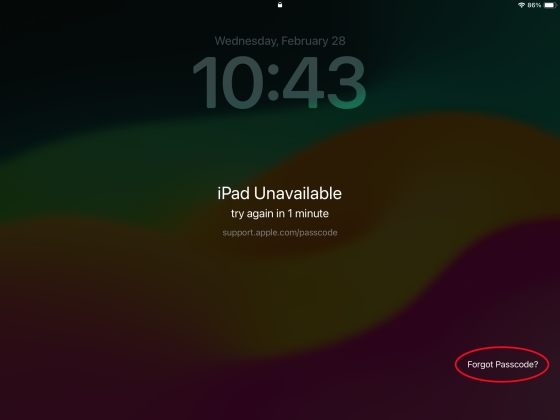
Step 1. Enter an incorrect passcode until the iPad is unavailable.
Step 2. Tap Forgot Passcode? on the iPad Unavailable screen.
Step 3. Tap Start iPad Reset, then enter the Apple ID password.
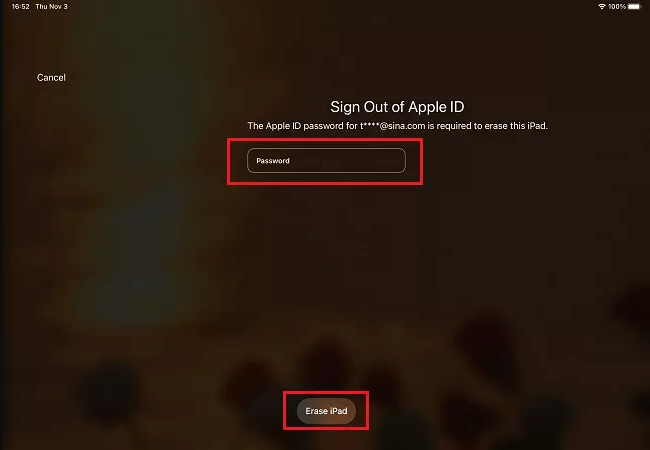
Step 4. Tap Erase iPad to remove the passcode on the iPad.
Method 2. Unlock iPad Passcode with iTunes
When the iPad is locked, you can also put it into recovery mode and restore it with iTunes.
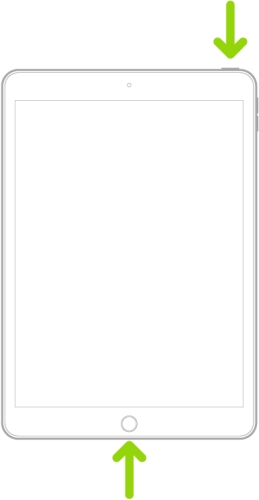
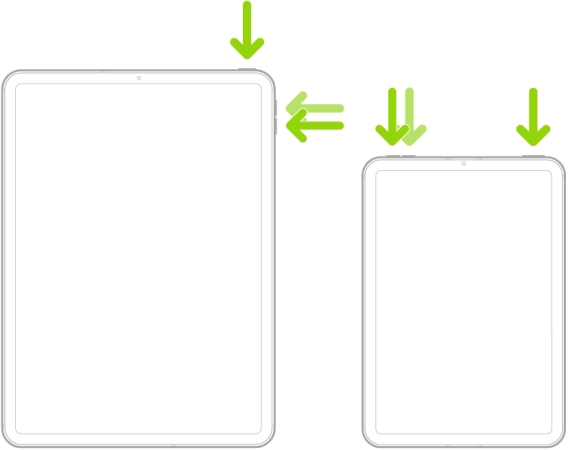
Step 1. Put the iPad into Recovery Mode.
- iPad with Home button: Keep holding the Power button and the Home button at the same time, and release them until a computer image appears on the iPad screen.
- iPad without Home button: Press the Volume-up button and release it. Press the Volume-down button and release it. Then keep holding the Power button until a computer image appears on the iPad screen.
Step 2. Connect the iPad to a computer and open iTunes.
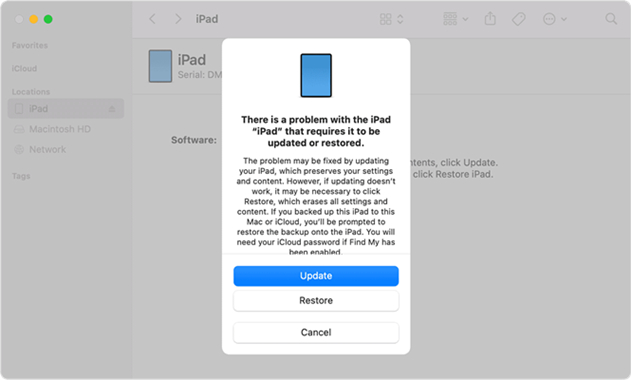
Step 3. When the iPad is detected by iTunes, click Restore to restore the iPad to factory settings and upgrade the iPad to the latest system.
💡Note:
iOS 27 has launched iOS Recovery, which offers several restore options for users to fix iPad issues. You can also enable iOS Recovery to erase all content and settings on the iPad.
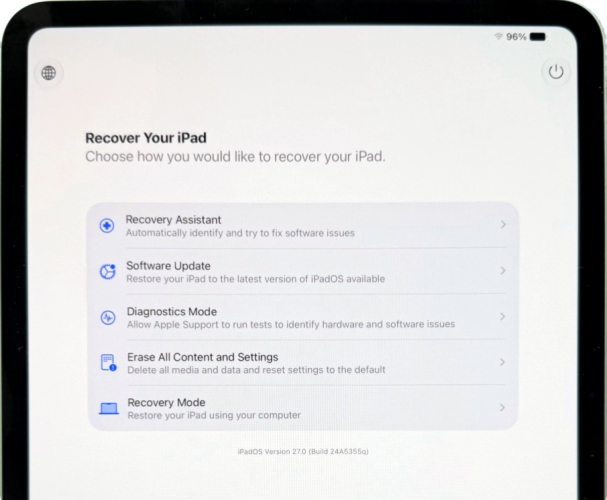
Step 1. Put the iPad into Recovery Mode; you may see the Restore Your iPad screen.
Step 2. Tap Erase All Content and Settings twice.
Step 3. If you have set a passcode, you will be asked to enter the passcode to confirm. If not, just confirm your operation.
Method 3. Unlock iPad Passcode with MagFone
When your iPad is locked by an unknown passcode, MagFone iPad Unlocker is recommended to remove the passcode. It's a professional unlocking tool for iPhone and iPad users, target to remove lock screen passcode, Screen Time passcode, Apple ID password, MDM password, iCloud Activation password, etc. With MagFone iPad Unlocker, you can deal with any forgotten or unknown passcodes or passwords without needing the original code. If you are stuck with an unknown iPad passcode, follow the steps below to unlock the iPad.

MagFone iPhone Unlocker
Unlock various locks on iOS devices, including screen locks, MDM, Apple ID, and Activation Lock without needing a password.
Step 1 Launch MagFone iPad Unlocker
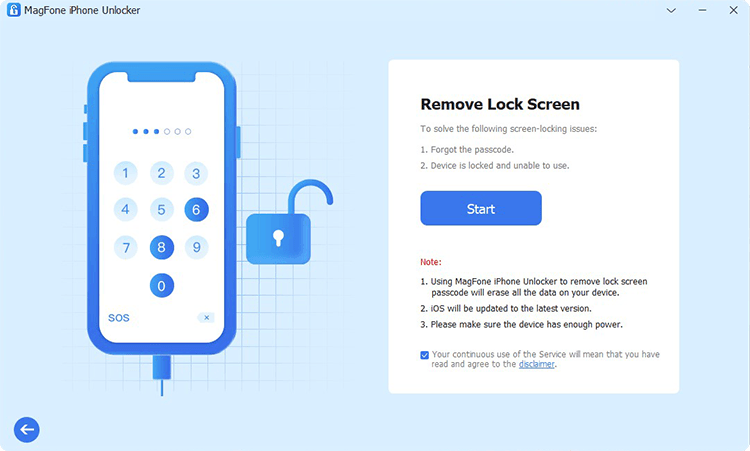
Download and install MagFone iPad Unlocker on your computer, then use a data cable to connect the iPad to the computer. Afterwards, open MagFone iPad Unlocker to remove the passcode.
Step 2 Put the iPad into Recovery Mode
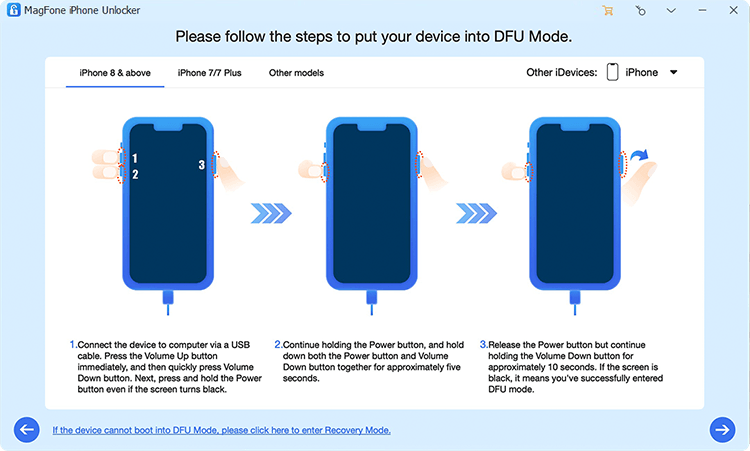
Choose Unlock iOS Screen from MagFone's main interface. Then click Start and follow the on-screen instructions to get the iPad into recovery mode.
Step 3 Download the Correct Firmware Package

After the iPad enters Recovery Mode and is detected by MagFone, click the Next button. Check the iPad information and click Download to download the firmware package.
Step 4 Remove Unset Passcode from iPad
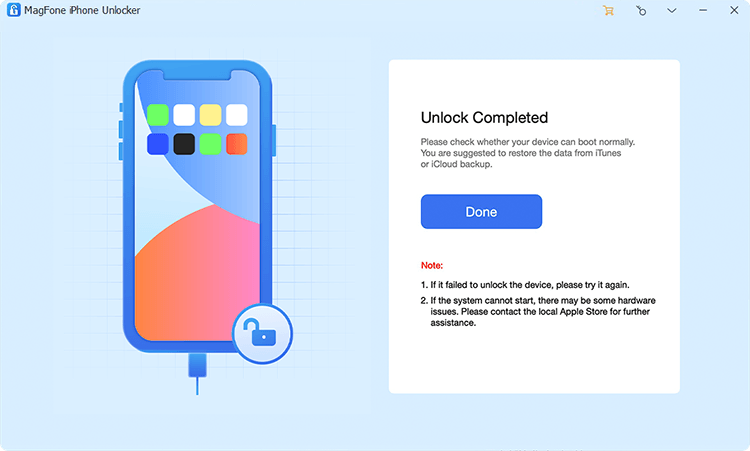
After downloading and verifying the firmware package, click Unlock to remove the unknown passcode from the iPad.
Method 4. Unlock iPad Passcode via iCloud Find
When Find My service is enabled on the iPad, you can manage the iPad on the iCloud Find website.
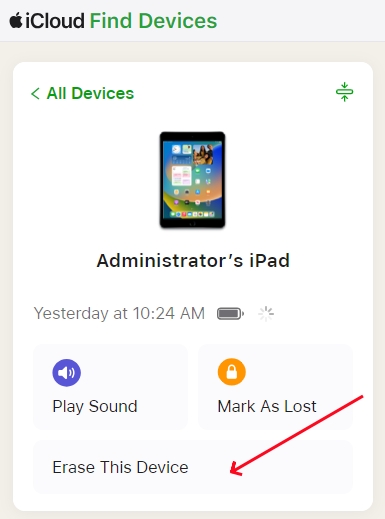
Step 1. Open the iCloud Find website on any device and sign in to your Apple Account.
Step 2. Enter the iPad details page.
Step 3. Click Erase > Next, and enter the Apple ID password to erase the iPad.
Method 5. Unlock iPad Passcode via Find My App
When Find My service is enabled on the iPad, you can also utilize the Find My app on another Apple device to manage the iPad.

Step 1. Open the Find My app on another Apple device.
Step 2. Tap Devices, and tap the triple-dot icon next to the locked iPad.
Step 3. Tap Erase > Continue, and enter the Apple ID password to confirm the operation.
Part 4. Conclusion
iPad asking for a passcode you never set usually comes up when updating the iPad system. So next time you need to update the iOS system, you'd better set a simple passcode in advance, then turn off the passcode after you successfully upgrade the device. If you are locked out by an unknown passcode, follow the methods in this guide to remove the passcode. If you want to remove the passcode in the quickest way, try MagFone iPad Unlocker.

Teresa Miller
Editor in chief




