








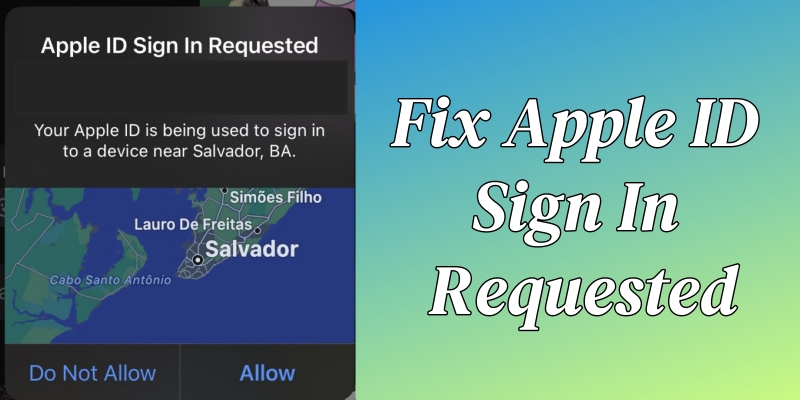
If the message "Apple ID Sign In Requested" keeps popping up on your iPhone, iPad, or Mac, you're not alone. This persistent sign-in request message can be frustrating, disrupting your daily usage of Apple services. Fortunately, whether it's a security check, a software glitch, or an Apple ID issue, there are multiple ways to stop this Apple ID sign-in request popup. This guide will cover why this happens and how to resolve it quickly and efficiently.
- Part 1. Apple ID Sign In Requested: Means & Causes
- Part 2. How to Stop Apple ID Sign In Requests
- Part 3. Bonus Tip to Remove Apple ID without Password
- Part 4. Conclusion
Part 1. Apple Account Sign In Requested: Means & Causes
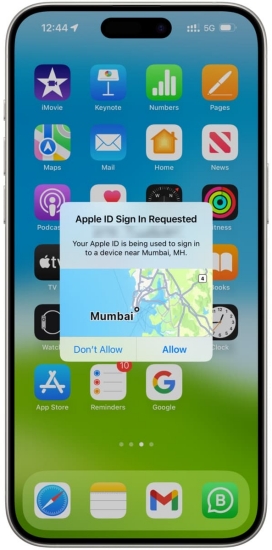
The message saying Apple ID Sign In Requested usually pops up on your trusted Apple device when your Apple ID is used on a new device or browser. It can be a standard security measure or a response to specific triggers since two-factor authentication is enabled. In the pop-up window, you can choose Allow or Don't Allow. Once choosing Allow, your Apple ID will be allowed to sign into the device or browser for use.
Why Do I Keep Getting Apple ID Sign In Requested Message?
It is common to receive the Apple ID Sign In Requested message while using the Apple ID. However, lots of users encounter that the Apple ID Sign In Requested message popping up repeatedly, which greatly influences device usage and brings some inconvenience. The most possible cause is that your Apple ID password may have been compromised. Keep reading and learn how to fix this issue.
Note:
If you encounter repeated Apple Account Sign In requests, you can take a screenshot when the pop-up appears. And report this issue to Apple Support.
Part 2. How to Stop Apple ID Sign In Requests
If the Apple ID sign-in request keeps popping up, you may need to enhance your account security. You can follow the methods below to check key security settings and change them if needed.
Method 1. Change Apple ID Password
If you used to sign in with your password on non-Apple websites or the password is too easy to be compromised, it's suggested you change the Apple ID password to a different and complex one.
On an iPhone or iPad
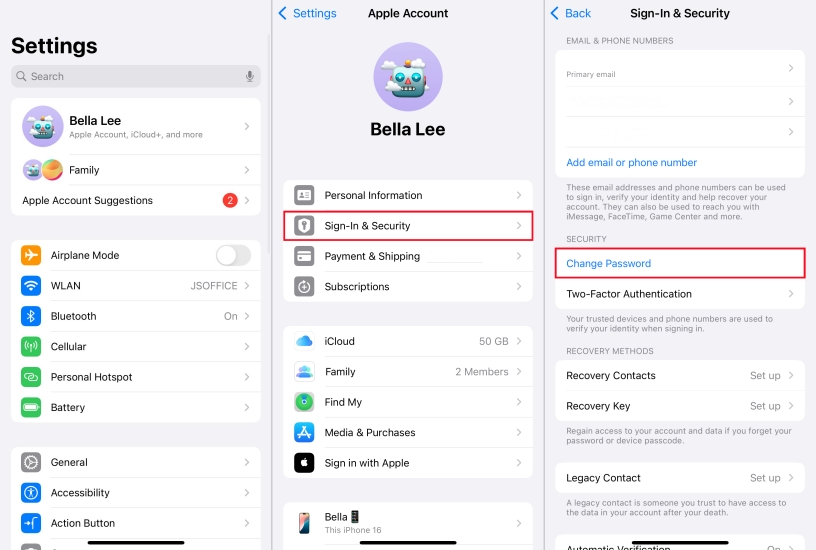
Step 1. In Settings, tap your Apple ID name and select Sign-In & Security.
Step 2. Tap Change Password and create a new password.
Step 3. Tap Change to save your new Apple ID password.
On a Mac
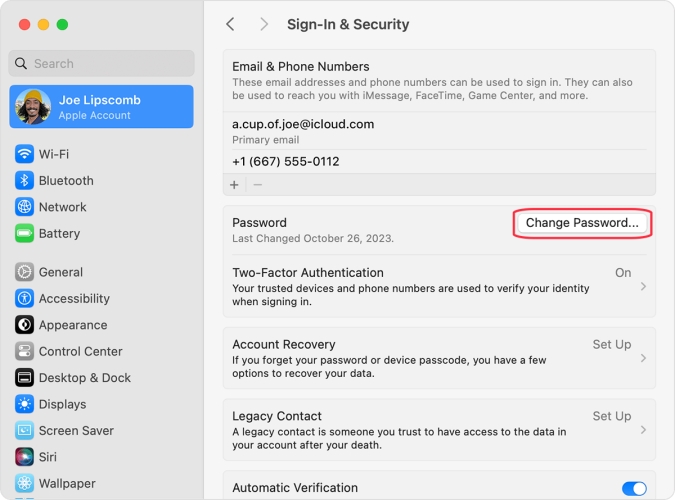
Step 1. Open Apple menu and click System Settings > your Apple ID name.
Step 2. Click Sign-In & Security > Change Password and create a new password.
Step 3. Enter the password again and click OK to confirm.
On the Web
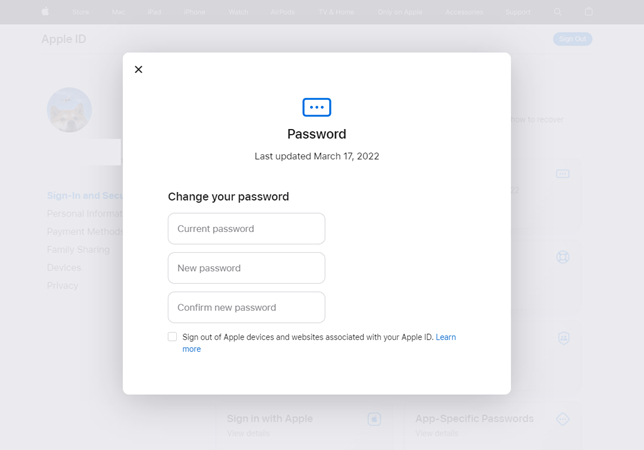
Step 1. Go to appleid.apple.com in a browser on your device and sign into your Apple ID.
Step 2. Tap Allow on the device and enter the verification code to confirm the sign-in.
Step 3. Click the Sign-In and Security tab and select the Password option.
Step 4. Enter your current password, then create a new password for your Apple ID.
Step 5. Tick the box at the bottom of the the window to complete the resetting.
Method 2. Update Security Information
Outdated security details, such as an old phone number or email, can trigger sign-in issues. Updating this information helps Apple verify your identity and prevents unnecessary account alerts.
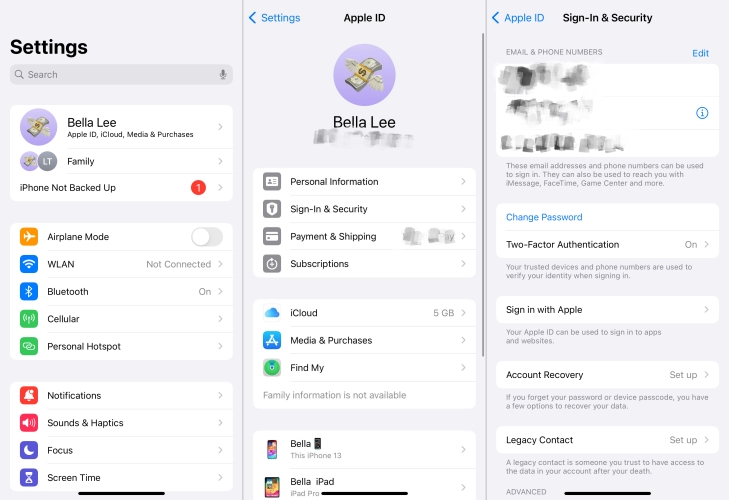
Step 1. Go to device Settings and tap your Apple ID.
Step 2. Tap Sign In & Security.
Step 3. Update important information like your email address and phone number.
Method 3. Remove Unfamiliar Devices from Apple ID
If unknown devices are linked to your Apple ID, they may cause repeated login prompts or security warnings. Removing devices that you do not recognize helps keep your account secure and stable.
On an iPhone or iPad
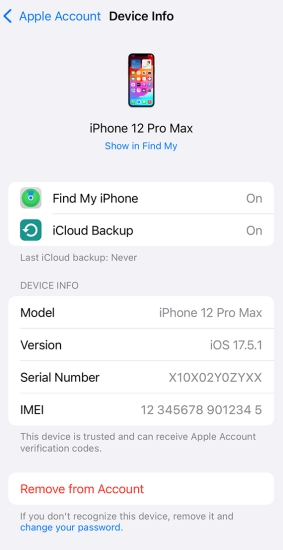
Step 1. Tap Settings > your Apple ID name, then scroll down to view the device list.
Step 2. Find all devices linked to your Apple ID.
Step 3. Tap the old or inactive device to find its details.
Step 4. Tap Remove from Account and tap again to confirm.
On a Mac
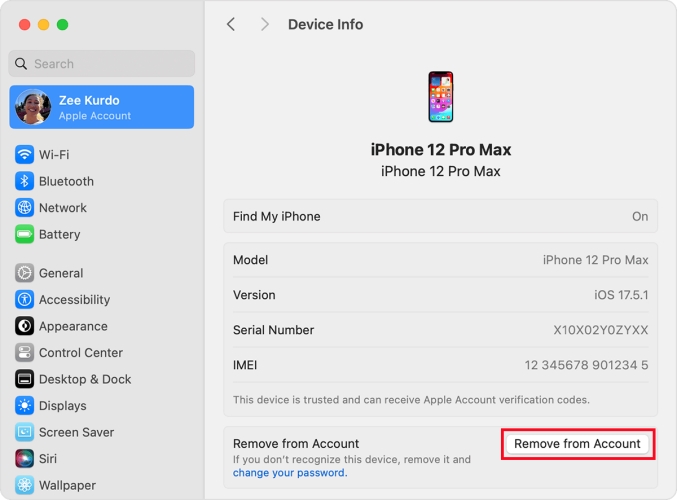
Step 1. Choose Apple menu > System Settings, then click your Apple ID name.
Step 2. View all the devices associated with your Apple ID.
Step 3. Click the old or inactive device to find its details.
Step 4. Click Remove from Account and click again to confirm.
On the Web
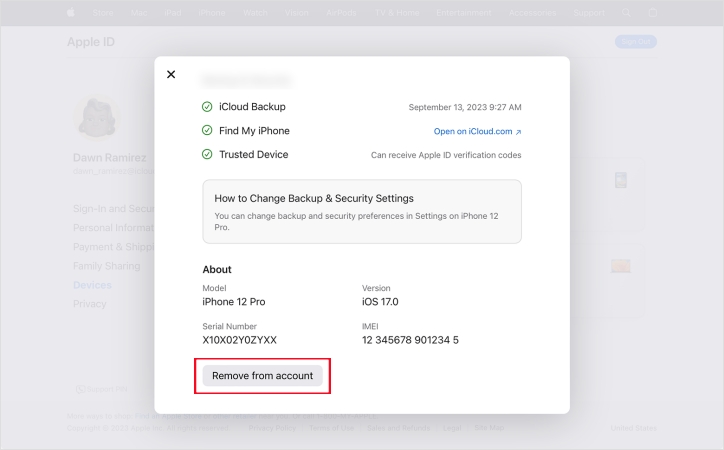
Step 1. Sign in to account.apple.com with your Apple ID and password.
Step 2. Click Devices and select the old or inactive device to view its details.
Step 3. Click Remove from Account twice to confirm that you want to remove the device.
Method 4. Sign Out of iCloud from All Browsers
If you used to sign in to your Apple Account on another computer or someone is trying to sign in to your Apple Account to access iCloud data, signing out of iCloud on all browsers can help reset those sessions and stop repeated requests.
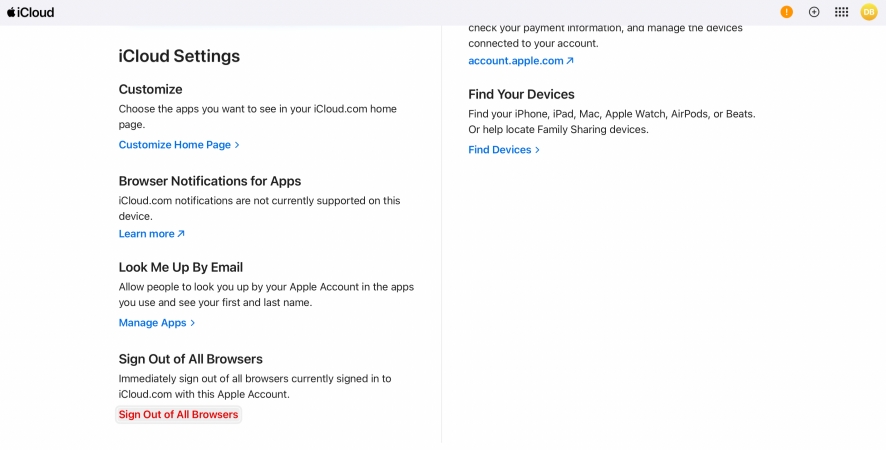
Step 1. Open the iCloud Settings web page and sign in with your Apple ID.
Step 2. Scroll down and click Sign Out of All Browsers.
Step 3. Choose Sign Out to confirm.
Method 5. Disable iCloud Data Access from Website
To prevent anyone from accessing your iCloud data or signing in to your Apple Account through the iCloud website, you can disable iCloud Data Access from Website. This helps stop unauthorized web-based activity and reduce repeated sign-in requests.
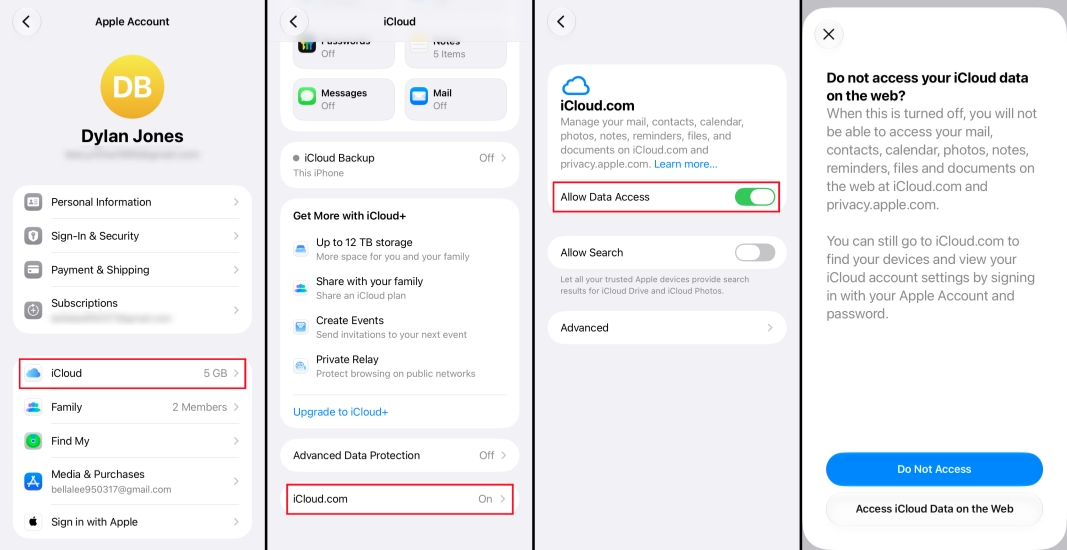
Step 1. Go to device Settings and tap your Apple ID.
Step 2. Tap iCloud and scroll to the bottom.
Step 3. Tap iCloud.com and disable Allow Data Access and choose Don Not Access to confirm.
Method 6. Update iOS Software
Keeping your iOS software up to date ensures that your device has the latest security features and performance improvements from Apple. It can also help fix system bugs that may cause repeated Apple ID sign-in prompts.
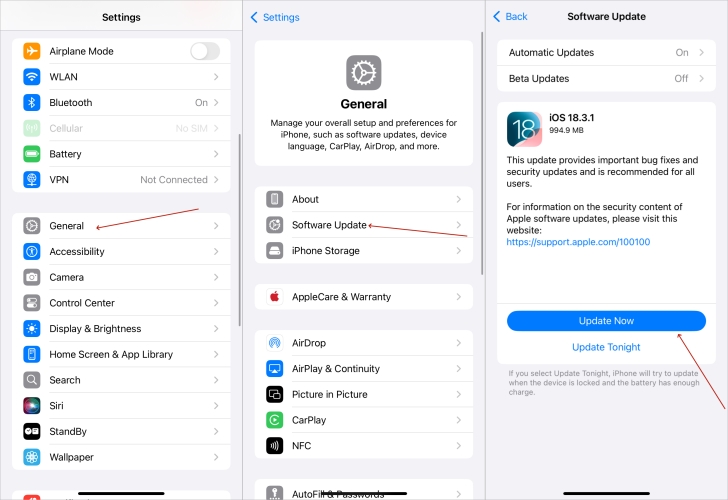
Step 1. Open Settings and tap General >Software Update.
Step 2. Check for updates, then tap Download Now or Install Now to update the system software.
Part 3. Bonus Tip to Remove Apple ID without Password
Applying the methods above can make your Apple Account more secure and reduce the chance of unauthorized access. If you still run into Apple ID issues, such as being unable to sign out of your Apple ID or having your Apple ID locked for security reasons, the following tip may be helpful. MagFone iPhone Unlocker is a practical option if you want to remove Apple ID from your iPhone without a password.
MagFone iPhone Unlocker is a trust-worthy tool that can remove Apple ID on the iPhone, iPad, and iPod touch without a password and data loss. Designed with an intuitive and user-friendly interface, MagFone software can help you remove Apple ID without a password and fix devices stuck in sign-in requests with several simple steps.

MagFone iPhone Unlocker
Unlock various locks on iOS devices, including screen locks, MDM, Apple ID, and Activation Lock without needing a password.
Step 1 Run MagFone iPhone Unlocker and Connect iPhone
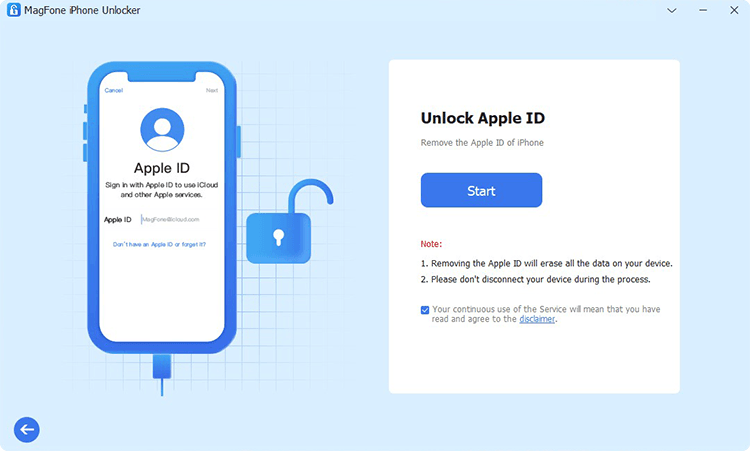
Install and run MagFone iPhone Unlocker on your computer, then connect your iPhone to the computer by using a USB cable. There are several options, including Remove Lock Screen, Unlock Apple ID, Remove MDM, and more. Simply select Unlock Apple ID and click the Start button.
Step 2 Check and Confirm the Device Status of iPhone
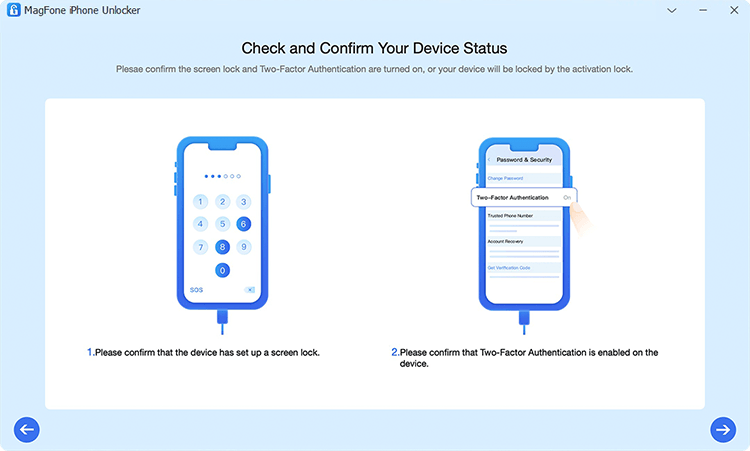
Proceed to turn the Find My feature off if you have enabled it on your iPhone. Tap on Settings > Your Apple ID > Find My > Find My iPhone and then turn Find My iPhone off. If you don't enable this feature on your iPhone, simply skip this step.
Step 3 Download and Verify the Firmware for iPhone

Go back to your computer and check the device information of your device shown on the screen. Make sure there is nothing wrong, then click the Download button to download the firmware package for your device to the computer.
Step 4 Remove Apple ID from iPhone without a Password
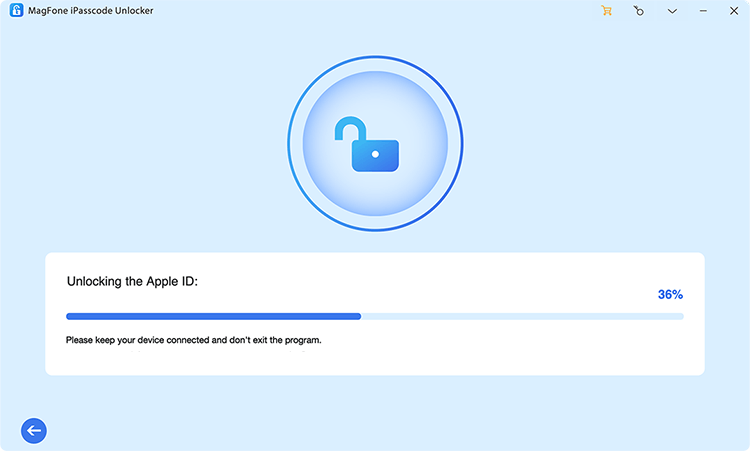
After downloading the firmware, you can click the Unlock button, letting MagFone software remove Apple ID from your device without a password. In the whole process, keep your device connected to the computer until the task ends.
Part 4. Conclusion
The Apple ID Sign In Requested message can stem from various causes, including security policies, software bugs, or network issues. By following the workable solutions introduced in this guide, you should be able to resolve the problem efficiently. If you are unable to remove Apple ID from your iPhone to bypass persistent sign-in requests, MagFone iPhone Unlocker can be a last resort to regain access to your device. Have you encountered this issue before? Let us know in the comments below!

Teresa Miller
Editor in chief




