








Suddenly I opened my iPhone and I got the message 'you need to enter password for your Apple ID'. I just entered it and got another alert 'This person is not active'. I tried many times but nothing changed. So please I need help to remove this Apple ID or fix it."
—— From Apple Support Community
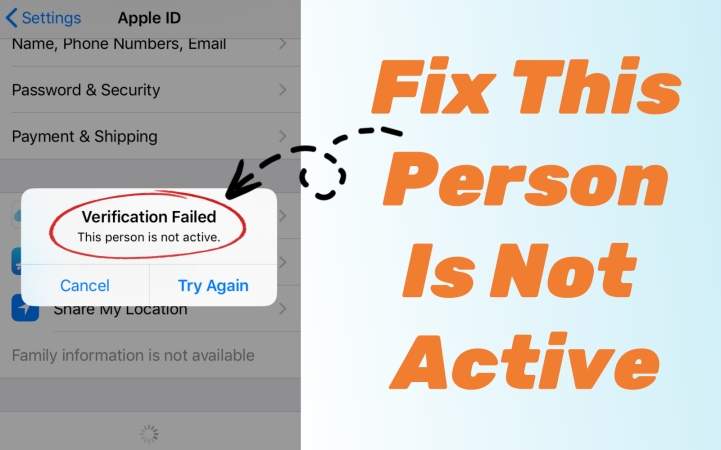
Apple ID issues can be frustrating, especially when you encounter the error message: "This person is not active" on your iPhone or iPad. The error can prevent you from signing into your Apple ID, making purchases, or accessing essential Apple services. But this error is not difficult to fix. This article will help you understand the causes behind this issue and provide practical solutions to restore access to your Apple ID. Let's go through how to fix "This person is not active" efficiently now.
- Part 1. Understanding This Person Is Not Active Error
- Part 2. How to Fix the "This Person Is Not Active" Issue
- Solution 1. Disable VPN Services
- Solution 2. Try Again
- Solution 3. Check Your Apple ID Status
- Solution 4. Check Apple System Status
- Solution 5. Restart Your iPhone
- Solution 6. Sign Out and Sign Back In to Apple ID
- Solution 7. Update Your Apple ID Information
- Solution 8. Reactivate a Disabled Apple ID
- Solution 9. Remove Apple ID Using Apple ID Removal
- Solution 10. Create a New Apple ID
- Part 3. Conclusion
Part 1. Understanding This Person Is Not Active Error
In the Apple Support Community and Reddit, there are lots of posts about the Apple ID error message, such as:
- Cannot Verify Identity. This Apple Account is not active.
- Verification Failed. This Person is not active.
- This Apple ID is not active.
And most users don't know why this happens and how to deal with this error. These alerts usually appear when you try to sign in, verify, or use your Apple ID for specific services on your iPhone, such as the App Store, iCloud, Game Center, etc. but something is preventing Apple's servers from recognizing your account as active.
In most cases, the "This person is not active" error is related to one or more of the following factors:
Reason 1. Apple ID Deactivation. Your Apple ID may have been deactivated due to inactivity, security concerns, or violations of Apple's terms.
Reason 2. Incorrect Credentials. Using outdated or incorrect credentials can lead to sign-in issues.
Reason 3. Security Lock. Multiple incorrect login attempts may trigger an account lock.
Reason 4. Temporary Server Issues. Sometimes, Apple's servers may be down or experiencing issues.
Reason 5. Device or Software Problems. Outdated iOS versions or corrupted system files can cause Apple ID errors.
Part 2. How to Fix the "This Person Is Not Active" Issue
After knowing the reason for this error message, it would not be so difficult for you to resolve it. There are some troubleshooting steps to help you fix this issue. Now let's go through the step-by-step methods to fix this issue.
Solution 1. Disable VPN Services
VPN services or security apps can interfere with Apple's servers. If you have enabled VPN service and there is no strong network connection on your iPhone, disable VPN and try signing in again.
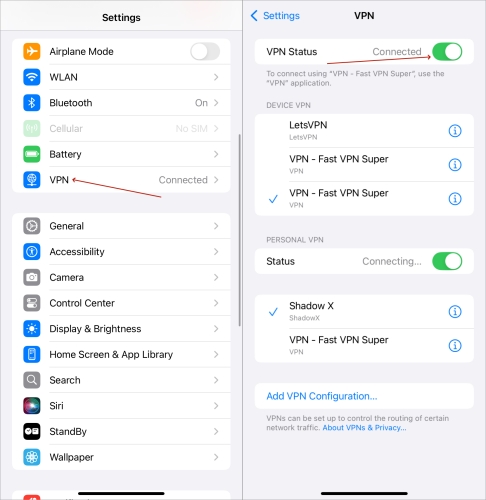
Step 1. Open the Settings app and tap General.
Step 2. Tap VPN & Device Management and toggle VPN off.
Solution 2. Try Again
When there is a Verification Failed-This person is not active error, tap the Try Again option to reconnect the verification. If the error recurs, then try the solutions afterwards.
Solution 3. Check Your Apple ID Status
If you're facing the error when you want to sign in to your Apple account for a certain service like Game Center, you can try signing in to your Apple ID from other entries to check if it's an issue with your Apple ID.
Step 1. Go to the Apple ID Account Page on your device.
Step 2. Enter your Apple ID credentials and click Continue.
Step 3. If you receive an error stating that the account does not exist or is inactive, proceed with the following fixes.
Solution 4. Check Apple System Status
If your Apple ID is not active for just one service, then you can go to the Apple System Status page to see if there is something wrong with your Apple ID.
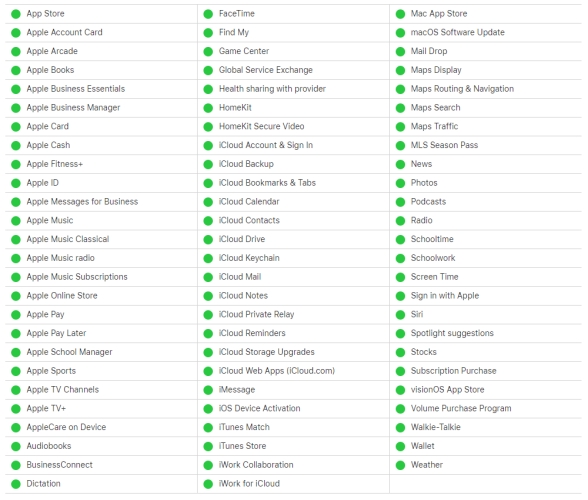
Step 1. Go to Apple System Status and check if Apple ID services are down.
Step 2. If you see an issue or outage indication next to the Apple ID, wait until they are restored.
Solution 5. Restart Your iPhone
A simple reboot often resolves many minor errors and glitches on the device. To resolve this error message, you can perform a reboot on your iPhone.
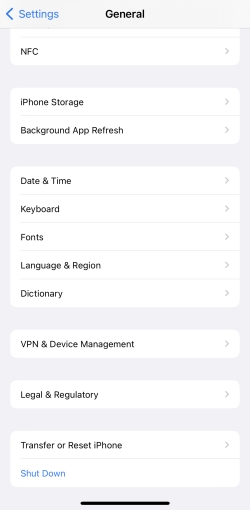
Step 1. Go to Settings > General > Shut Down.
Step 2. Swipe the Slide to Power Off slider to shut down the device.
Step 3. Press and hold the Power button to restart the device.
Solution 6. Sign Out and Sign Back In to Apple ID
A quick re-login can sometimes fix the issue. If you can remember your Apple ID password, you can directly sign out and sign back in to your Apple ID on your iPhone.
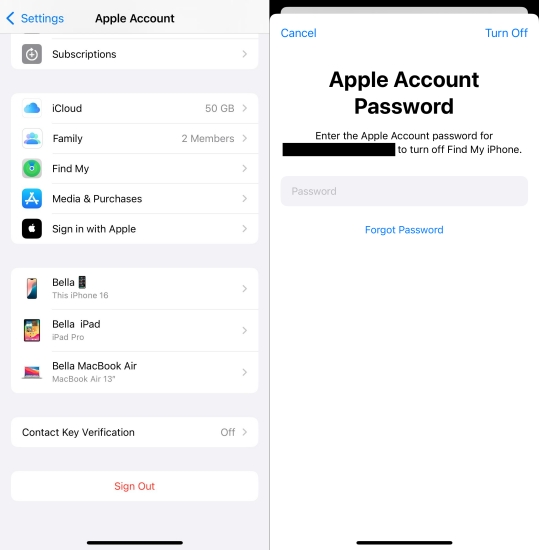
Step 1. Open Settings on your iPhone and tap your Apple ID name.
Step 2. Scroll down to tap Sign Out and enter your Apple ID password.
Step 3. Restart your device and sign back in using your credentials.
Solution 7. Update Your Apple ID Information
It is important to ensure your Apple ID account details are up to date. If you have made some changes to your Apple ID but doesn't update your Apple ID information, it will cause the issue.
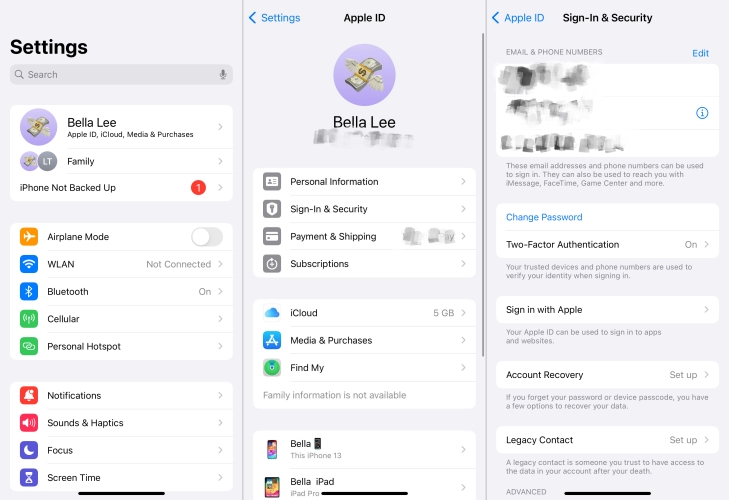
Step 1. Open iPhone Settings and tap your Apple ID.
Step 2. Tap Personal Information, then update your email, phone number, or others.
Solution 8. Reactivate a Disabled Apple ID
If your Apple ID has been deactivated by Apple, the only way to restore it is through Apple Support. Try reactivating your disabled Apple ID to resolve the issue.
Step 1. Navigate to Apple Support on your iPhone.
Step 2. Enter your Apple ID and follow the instructions to reactivate your locked or disabled Apple ID.
Solution 9. Remove Apple ID Using Apple ID Removal
When you are unable to verify and sign out of your Apple Account on your iPhone, one solution is to remove the Apple ID from your iPhone using an Apple ID removal. To completely remove an Apple ID from an iPhone, you can use an Apple ID removal like MagFone iPhone Unlocker. This can help you remove Apple ID from an iPhone, iPad, and iPod touch without a password while not deleting any data and content on the device. With this Apple ID removal, you can resolve the issue in several clicks. Here's how to remove Apple ID using MagFone iPhone Unlocker to resolve the issue.

MagFone iPhone Unlocker
Unlock various locks on iOS devices, including screen locks, MDM, Apple ID, and Activation Lock without needing a password.
Step 1 Run MagFone Software and Connect iPhone
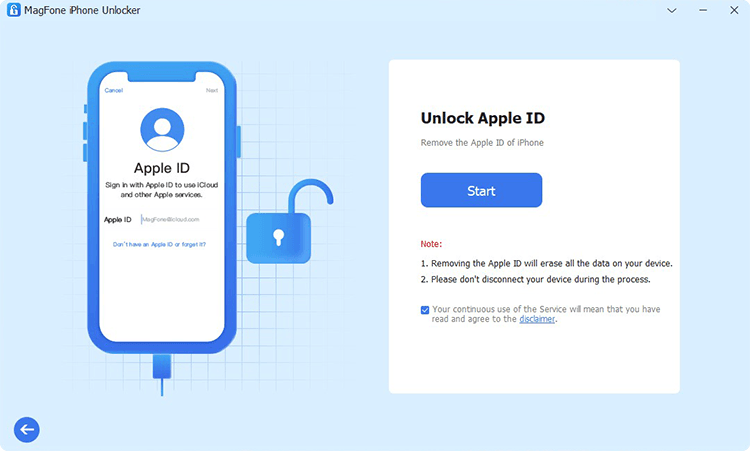
Start by using a USB cable to connect your iPhone to your computer, then launch MagFone iPhone Unlocker. On the main interface of the software, select Unlock Apple ID and click Start.
Step 2 Check and Confirm Find My iPhone Status
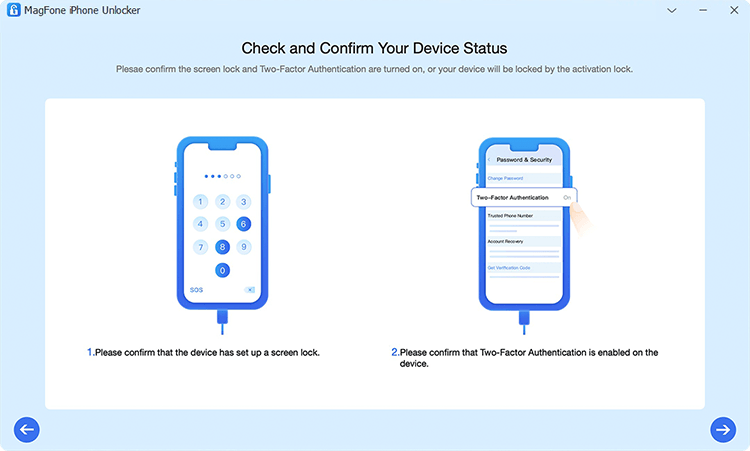
It's necessary to ensure that Find My iPhone is disabled on your iPhone. If not, go to Settings > your Apple ID name > Find My and turn off Find My iPhone.
Step 3 Download and Verify the Firmware Package

Go back to the software and check the device information of your iPhone shown on the screen. Make sure all is correct with your device. Then select the firmware version to download.
Step 4 Start to Remove Apple ID without Password
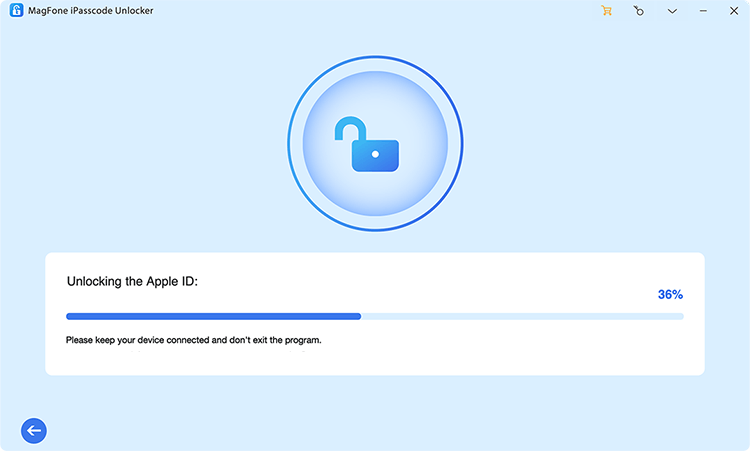
Once the firmware package is downloaded to your computer, you can click the Unlock button to initiate the process of removing Apple ID from your iPhone.
Part 3. Conclusion
If you see the "This person is not active" error, don't panic. Following the steps above should help resolve it. If your account remains inactive, contact Apple Support for assistance. Encountering the "This person is not active" error can be frustrating, but with the right troubleshooting steps, you can regain access to your Apple ID. Follow this guide carefully, and if necessary, seek help from Apple Support.

Teresa Miller
Editor in chief




