








My daughter forgot her Apple ID password. I want to reset password for her Apple ID. Apple said they would call or message me about resetting the password and no one got back to me. How do I change her Apple ID password?"
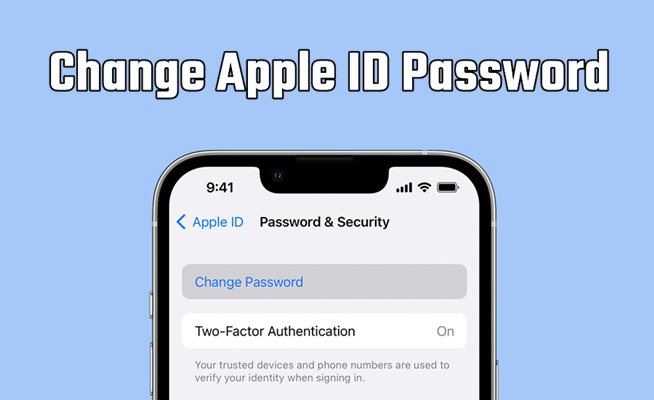
Forgot your Apple ID password? Find that your Apple ID password is already known to someone else? The best solution in this case is to reset the password for your Apple ID. Whether you can remember your current Apple ID password or not, the process of resetting Apple ID password is likely to be quicker and less painful than you might think. If you are wondering how to reset Apple ID password, follow this step-by-step guide to do so on different devices.
- Part 1. How to Change Apple ID Password [On Trusted Devices]
- Part 2. How to Reset Apple ID Password [No Trusted Devices]
- Part 3. Troubleshooting: Can't Reset Apple ID Password
- Part 4. FAQs about Changing Apple ID Password
- Part 5. Conclusion
Part 1. How to Change Apple ID Password [On Trusted Devices]
There are several options for you to reset the password for your Apple ID. Whether you just want to change your password or you have forgotten your Apple ID password, you can reset it without the current password on your trusted devices. Let's see how to change your Apple ID password on your trusted iPhone, iPad, Mac, or Apple Vision.
Option 1. Reset Apple ID Password on iPhone/iPad
With two-factor authentication turned on for your Apple ID, you can change the Apple ID password on your iPhone directly. Here's how to do it.
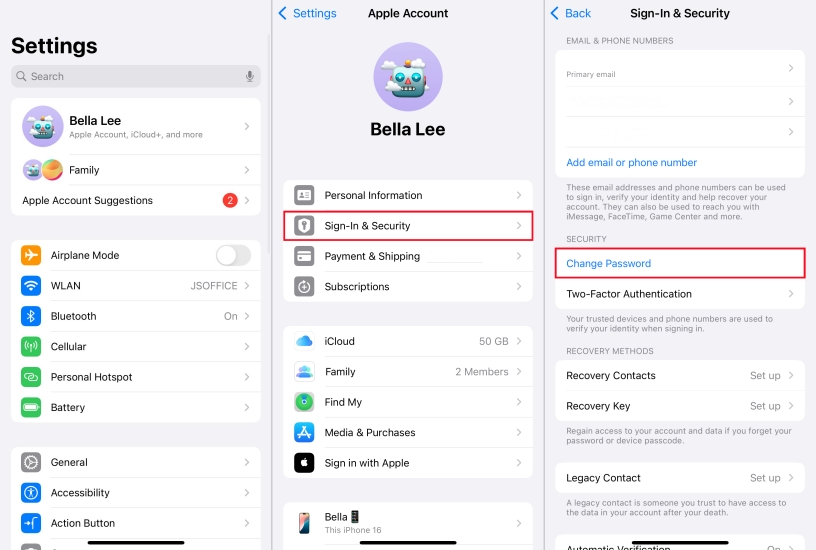
Step 1. Locate Settings on your iPhone and tap your Apple Account name.
Step 2. Tap Sign-In & Security and select Change Password.
Step 3. Authenticate with your iPhone passcode, Face ID, or Touch ID.
Step 4. Enter the new password twice and tap the confirm icon to change your Apple ID password.
Option 2. Reset Apple ID Password on Mac
If you have two-factor authentication turned on for your Apple ID, you can also change the Apple ID password on a Mac or iMac. Follow the steps below to reset Apple ID password.
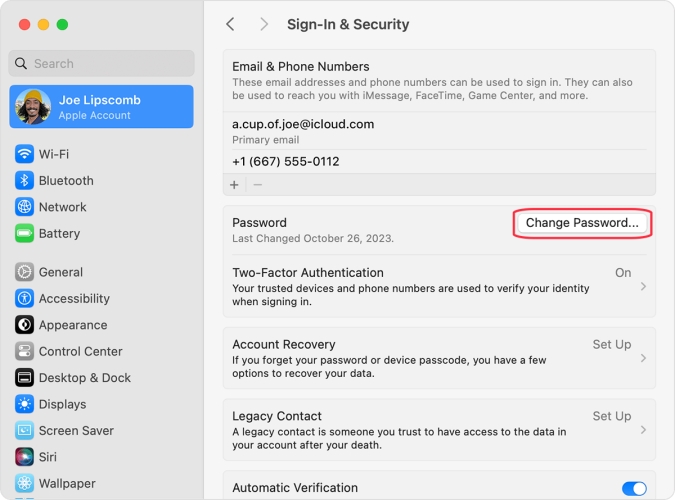
Step 1. Head to Apple menu > System Settings, then click your Apple ID name.
Step 2. Click Sign-In & Security and select Change Password.
Step 3. Enter the Mac login, then enter the password you want to create twice, and save it.
Option 3. Reset Apple ID Password in Apple Support App
In addition to changing the Apple ID password in device Settings, you can also reset the password for Apple ID using the Support app on your trusted devices.
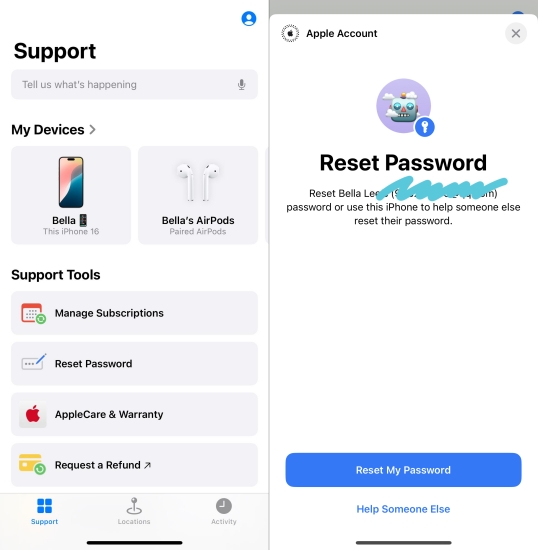
Step 1. Open the Support app on your iPhone and tap Support at the bottom.
Step 2. Locate Support Tools and select Reset Password.
Step 3. Tap Reset My Password and enter the screen lock passcode.
Step 4. Enter a new password for your Apple ID twice and tap Continue to confirm.
Tip: How to Change Apple ID Password with Family Sharing
If you are in a Family Sharing group with your child, you can change the Apple ID password for your child's Apple Account on your device.
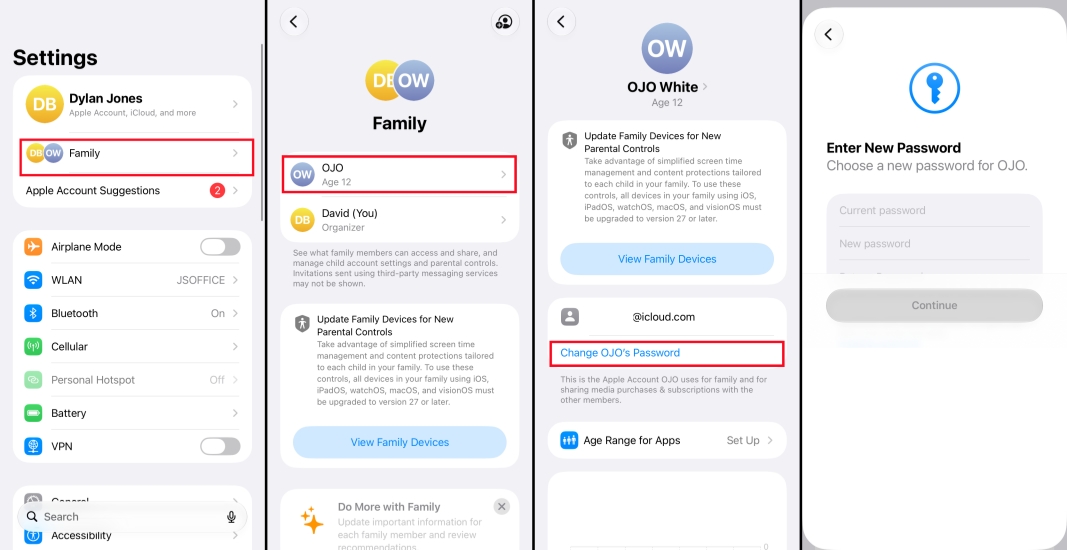
Step 1. Open Settings and tap Family under your Apple ID.
Step 2. Tap your child's account.
Step 3. Tap Change [Child's Name] Password.
Step 4. Enter your iPhone passcode and complete the Apple ID verification if needed.
Step 5. Enter the current password and enter a new Apple ID password twice.
Part 2. How to Reset Apple ID Password [No Trusted Devices]
On trusted devices, you can reset your Apple ID password without entering the current password. If you don't have any trusted Apple devices, don't worry. There are still several options for you. You can reset the Apple ID password after verifying your identity, like your phone number or email.
Option 1. Reset Apple ID Password on a New Apple Device
When you sign in to a new Apple device, you can tap the Forgot Password? link on screen. Then follow the on-screen instructions to reset your Apple ID password. To successfully reset your Apple ID password, you need to have access to the linked phone number of the Apple ID.
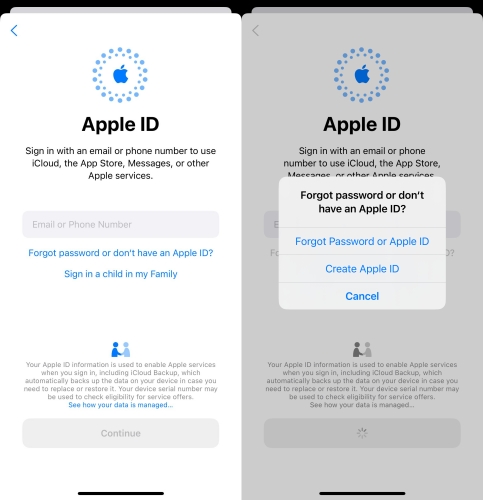
Option 2. Reset Apple ID Password on Borrowed Apple Device
When you don't have any trusted device, you can use a friend or family member's iPhone, iPad, or Mac to reset your Apple ID password.
Step 1. Open the Apple Support app on a borrowed Apple device.
Step 2. Tap Reset Password under Support Tools.
Step 3. Tap Help Someone Else and enter the Apple Account email address or phone number you need to reset.
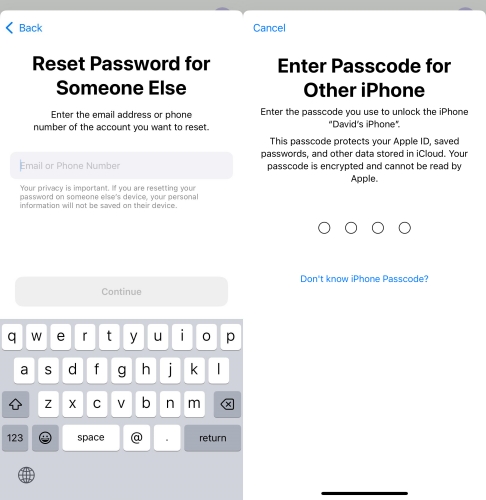
Step 4. Tap Continue and enter the trusted phone number.
Step 5. Then follow the screen prompts to reset the Apple ID password.
Option 3. Reset Apple ID Password on Web
If you don't have access to any Apple devices, you can reset your password using a web browser. Simply visit the Apple ID account page (appleid.apple.com), click “Forgot Apple ID or password?”, and follow the prompts to verify your identity. Once verified, you'll be able to set a new password and restore access to your account.
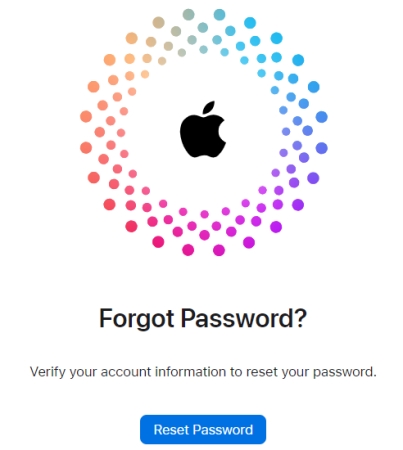
Step 1. Navigate to https://iforgot.apple.com/ and click Reset Password.
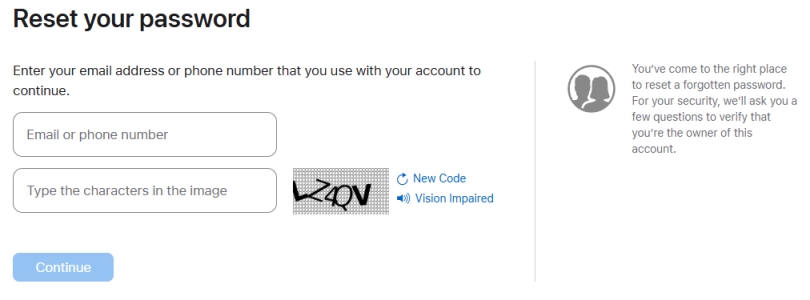
Step 2. Enter your Apple Account email address or phone number, and enter the verification code on screen.
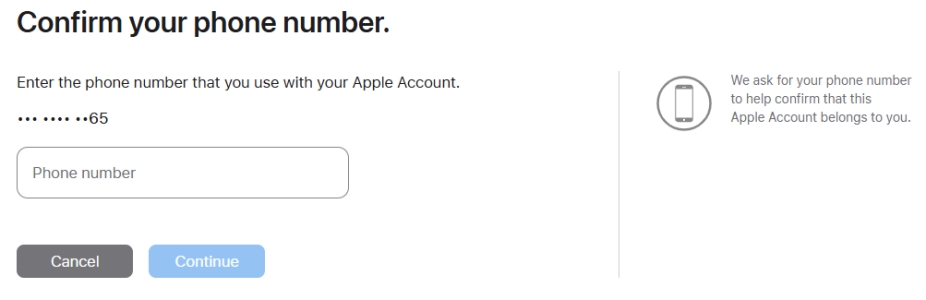
Step 3. Click Continue and enter the trusted phone number.
Step 4. Follow the on-screen prompts to reset the Apple ID password.
Part 3. Troubleshooting: Can't Reset Apple ID Password
Unfortunately, some users will get stuck when changing or resetting an Apple ID password due to various Apple ID issues, including a locked Apple Account, an inactive Apple Account, a disabled Apple Account, or an invalid Apple Account. If you can't reset the Apple ID password because of such an error, we'd suggest you use an Apple ID removal tool to remove an Apple ID without password.
MagFone iPhone Unlocker could be a good option for deleting Apple ID. As an easy-to-use and professional unlocking tool, it is capable of removing all types of passcode on the iPhone, iPad, and iPod touch. With this tool, you can also delete Screen Time passcode, MDM restriction, iCloud Activation lock, and iTunes backup encryption password. Follow the steps below to remove Apple ID without password by using MagFone iPhone Unlocker.

MagFone iPhone Unlocker
Remove a locked, disabled, invalid, inactive Apple Account from iPhone without password.
Step 1 Connect iPhone to Computer and Run MagFone
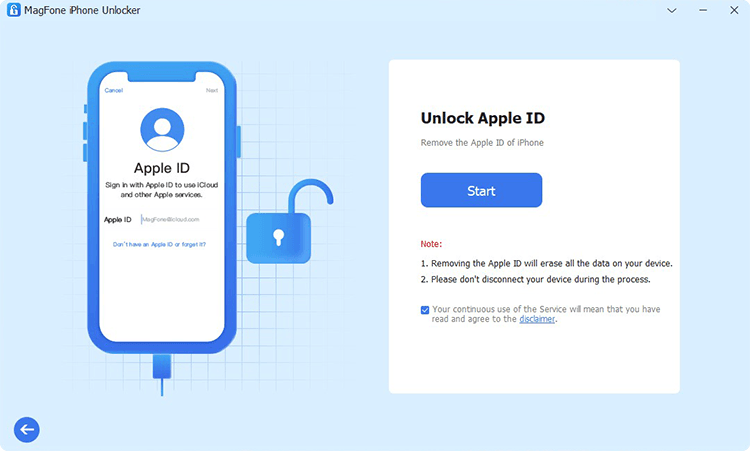
Start MagFone iPhone Unlocker on your computer, then go to attach your iPhone to the computer via a USB cable. On the main interface of MagFone software, select the Unlock Apple ID option and click on the Start button.
Step 2 Confirm Two-factor Authentication and Screen Passcode
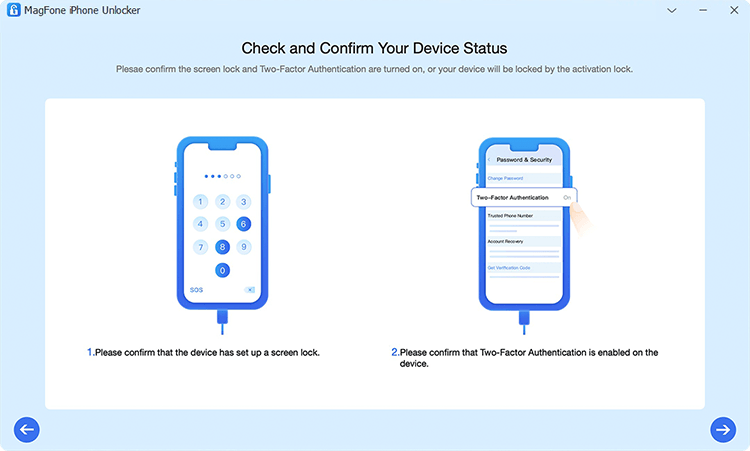
If you don't enable the Find My iPhone feature, you can directly skip this step. With the Find My iPhone feature turned on, you need to confirm that the two-factor authentication and screen passcode are turned on your iPhone.
Step 3 Download the Firmware Package for iPhone

After confirming the device, you can check whether the device information is correct or not. If there is anything wrong, you can manually correct it. Then click on the Download button to download the firmware for your iPhone.
Step 4 Remove Apple ID from iPhone without Password
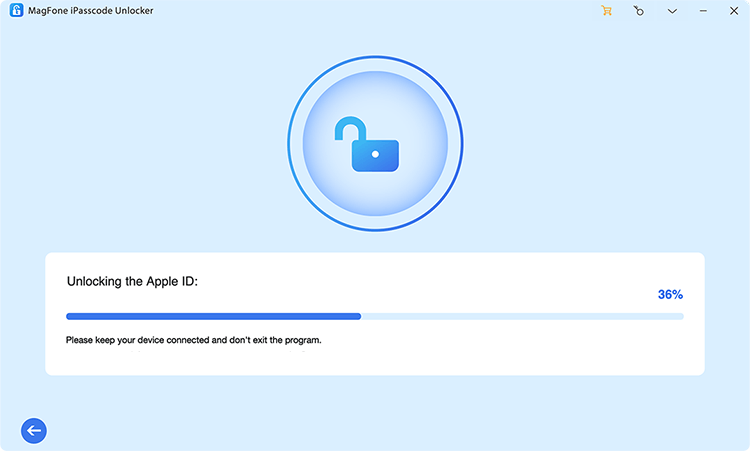
Now you can click on the Unlock button to remove Apple ID from iPhone without password. MagFone iPhone Unlocker will help you delete Apple ID on your iPhone even without password. Keep your iPhone connected to the computer until the process finishes.
Part 4. FAQs about Resetting Apple ID Password
How to reset Apple ID password without phone number?
To reset Apple ID password without phone number, you can use a trusted device. Then you don't need to use a phone number when resetting Apple ID password.
How to change Apple ID password if forgotten?
If you forgot the Apple ID password, you can change it directly on a trusted device without the current password. You can also reset the Apple ID password on untrusted devices as long as you have access to the trusted phone number.
Is there a way to find Apple ID password without resetting?
If you have signed in to your Apple ID on any Apple websites and saved the login on your device, then you can find the saved Apple ID credentials in your device Settings or the Passwords app. In addition, MagFone iPhone Unlocker can help find all saved passwords on your device.
Part 5. Conclusion
Regularly updating your Apple ID password is a crucial step in safeguarding your personal information and maintaining control over your Apple services. By following the steps outlined above, you can change your Apple ID password with ease. If you want to remove an Apple ID without password on your iPhone, you can consider using MagFone iPhone Unlocker. Download it for use, and you'll find out.

Dylan Jones
Editor in chief





