








Every time I try to download an app on my iPhone the AppStore asks for my Apple id password. When I put it in it loads as if it is going to start downloading the app and then it just asks for the password again. No matter how many times I've done this it just asks again."
—— From the Apple Community
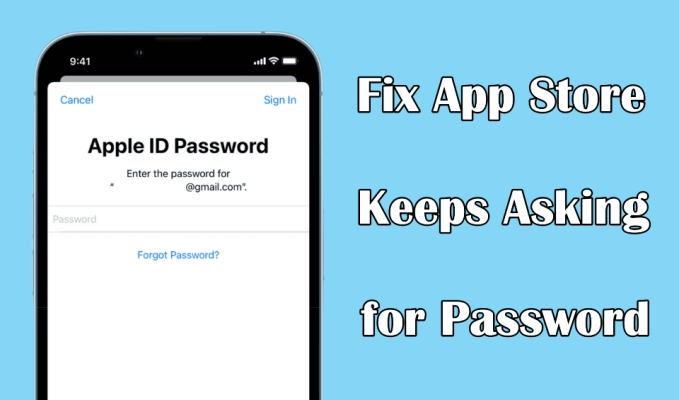
The App Store is Apple's official platform to download and install applications. Due to privacy and security protection, your Apple ID password is required to authorize when you want to download new apps on your device. However, some users complained that the App Store keeps asking for password when installing apps on an iPhone or iPad. In this guide, we will show you how to stop App Store from asking for password and how to fix it when the App Store keeps asking for password.
- Part 1. Why Does App Store Keep Asking for Password?
- Part 2. How to Stop App Store Asking for Password
- Part 3. How to Fix App Store Asking for Old Account Password
- Part 4. How to Fix App Store Keeps Asking for Password
- Part 5. FAQs about App Store Asking for Password
- Part 6. Conclusion
Part 1. Why Does App Store Keep Asking for Password?
There are many possible reasons why the Apple App Store keeps asking for a password. When you are preparing to install a new app or purchase apps and games in the App Store, you are required to enter the password to confirm. In addition to that, the following are some reasons why the App Store keeps asking for your password.

Reason 1. App Store Updates:
The App Store periodically checks for updates to installed apps on your iPhone. When updates are available, it may prompt you to enter your password to authenticate your Apple ID and proceed with the update.
Reason 2. Account Verification:
If you recently signed in to a new device or made changes to your Apple ID account settings, the App Store might request your password as a security measure to ensure that it is really you trying to access your account.
Reason 3. Purchase Confirmation:
When you attempt to download or purchase an app, the App Store will require your password to confirm the transaction. This prevents unauthorized purchases and helps maintain the security of your Apple ID.
Reason 4. Family Sharing:
If you are a part of a Family Sharing group, the App Store may ask for your password when someone else in the group is trying to make a purchase. This is to authorize the purchase and prevent unauthorized charges.
If you find that the App Store continues to prompt you for your password excessively or under unusual circumstances, it may be worth trying the following methods to fix this issue.
Part 2. How to Stop App Store Asking for Password
Maybe you have been confused and curious about why the App Store is asking for your password every time, and are tired of entering your password for app downloads. In fact, it's related to the Require Password feature. You can adjust the settings to stop the App Store from asking for a password for free downloads.
Method 1. Disable Require Password for Free Downloads
The App Store prompts you for a password to help prevent insecure or uncontrolled downloads. If you're tired of entering your password every time you download and install a free app, you can disable the Require Password option for free downloads and set purchases to require a password only after 15 minutes.
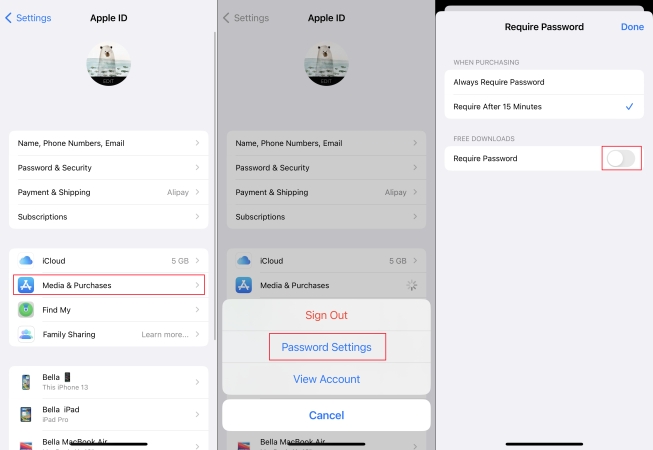
Step 1. Open iPhone Settings and tap your Apple ID.
Step 2. Tap Media & Purchases > Password Settings.
Step 3. Turn off Require Password for free app downloads and select Require After 15 Minutes for purchases.
Method 2. Enable Face ID for iTunes & App Store
If the App Store is asking for password instead of Face ID, it's often because Face ID isn't authorized for the App Store. Enabling it will prioritize facial recognition for identity verification, which is both secure and significantly reduces the frequency of password entry.
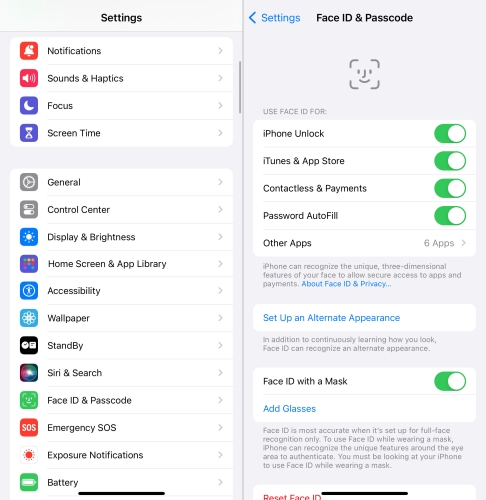
Step 1. In the Settings app, tap Face ID & Passcode or Touch ID & Password.
Step 2. On the next screen, turn on the toggle next to iTunes & App Store.
Step 3. Now you can use Face ID to purchase content from the App Store.
Method 3. Disable Purchase Sharing in Family Sharing
If you are using Family Sharing and you are the group manager, then you may be asked to give permission for downloads and purchases by the group members. In this case, it's suggested that you stop purchasing sharing in Family settings.
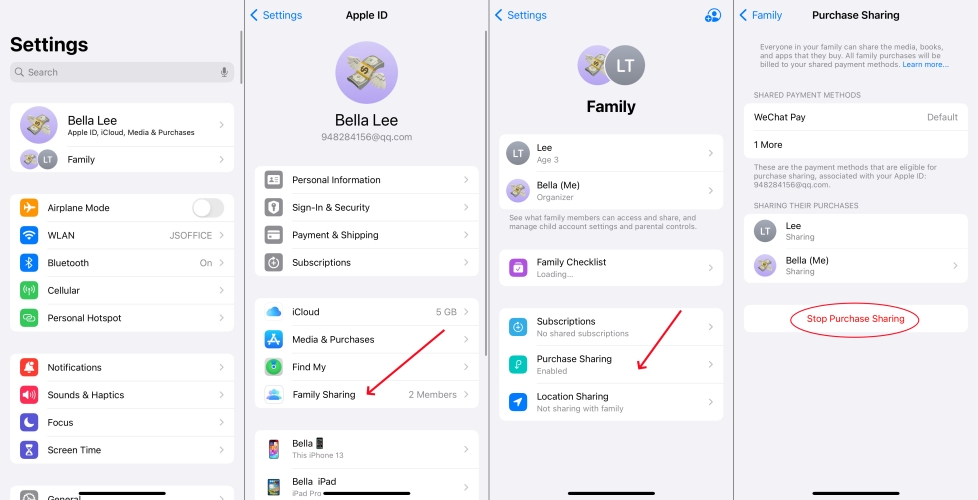
Step 1. Access iPhone Settings and tap your Apple ID.
Step 2. Tap Family Sharing > Purchase Sharing.
Step 3. Tap Stop Purchase Sharing.
Method 4. Enable Don't Require for iTunes & App Store
Another way to disable password requirements is through Screen Time settings. There, you can adjust the password requirements for additional purchases to prevent the App Store from repeatedly asking for a password.

Step 1. Head for iPhone Settings > Screen Time > Content & Privacy Restrictions.
Step 2. Tap iTunes & App Store Purchases and select Don't Require for additional purchases.
Part 3. How to Fix App Store Asking for Old Account Password
In some situations, you may have downloaded an app using someone else's Apple ID, or you're using a second device, which can cause the App Store to repeatedly ask for a password. For the first case, you can delete the app and reinstall it with your own Apple ID. For the second case, it's likely that you're unable to get the password for the old account, so you need to remove that account before you can continue using the device.
Here, a professional tool like MagFone iPhone Unlocker comes to the rescue. It is a powerful unlocking solution for removing various types of locks, such as screen passcode, Face ID, Touch ID, Apple ID, Screen Time passcode, and MDM. With MagFone, you can unlock someone else's Apple ID on an iPhone. Here's how to remove an App Store account using MagFone iPhone Unlocker.

MagFone iPhone Unlocker
Unlock various locks on iOS devices, including screen locks, MDM, Apple ID, and Activation Lock without needing a password.
Step 1 Open MagFone Software and Connect iPhone to Computer
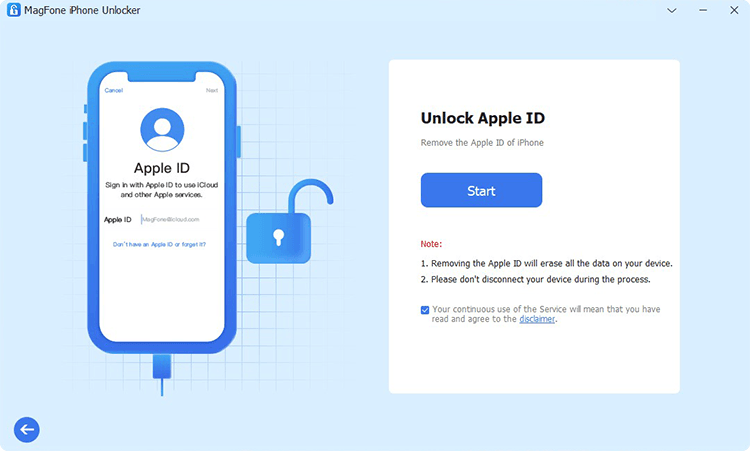
To begin with, use a USB cable to establish a connection between your iPhone and computer. Then start MagFone iPhone Unlocker on the computer and select the Unlock Apple ID option.
Step 2 Go to Confirm the Device Status before Deleting Apple ID
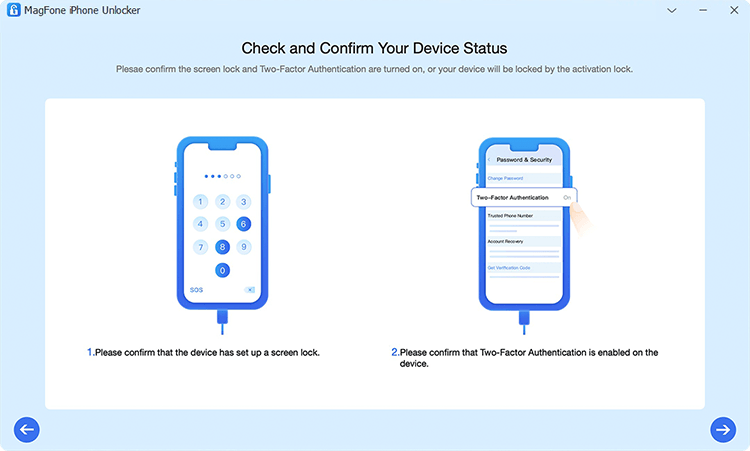
Make sure that the status of the Find My iPhone feature. If it's enabled, you need to confirm that you have set up the screen passcode and two-factor authentication on your device.
Step 3 Download and Verify the Firmware Package for iPhone

After confirming your device status, check the device information and manually correct the wrong information. Then click on the Download button to download the firmware package.
Step 4 Start to Remove Apple ID from iPhone Without Password
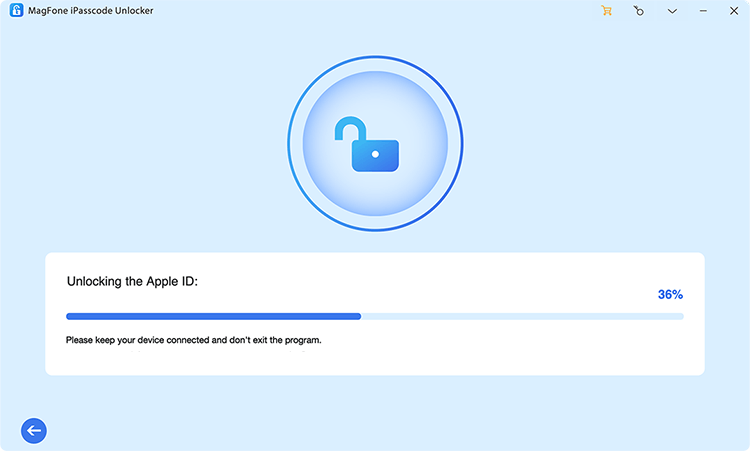
Once completing the download, click the Unlock button to remove Apple ID from your iPhone. In the process of removing your Apple ID, stay connected until your Apple ID is removed.
Part 4. How to Fix App Store Keeps Asking for Password
App Store password prompts for free downloads can usually be avoided. However, there are still situations where it may keep asking for your password. Now that you understand why this happens, you can try a series of practical solutions to resolve the issue. Below are several proven methods you can follow one by one.
Method 1. Sign in to the App Store in Settings
If the login status in the App Store is abnormal or not fully completed, the App Store may keep asking for your password for identity verification. You can reload your Apple account status by signing out and signing back in to the App Store in Settings.
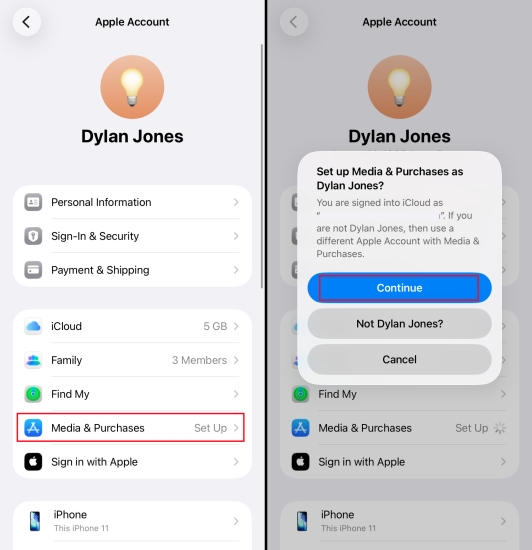
Step 1. Access iPhone Settings, then tap your Apple ID.
Step 2. Tap Media & Purchases. Choose Sign Out twice to sign out of the App Store.
Step 3. After signing out of your Apple account in the App Store, tap Media & Purchases again and tap Continue to sign back in to the App Store.
Method 2. Force Restart Your iPhone
System cache or background process malfunctions can also cause App Store verification errors. A force restart can clear temporary problems and reload Apple ID services, providing a quick way to resolve occasional password request issues.
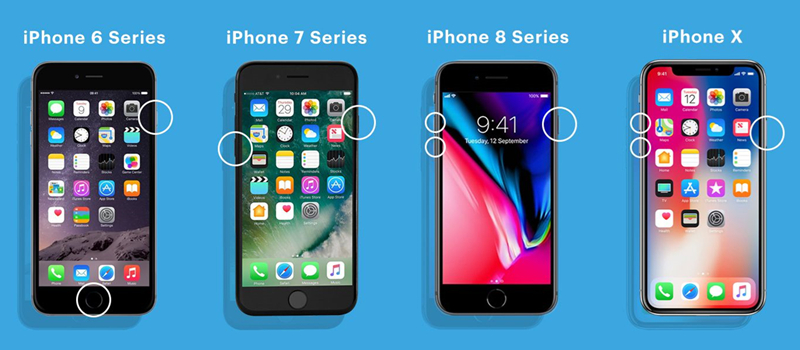
For iPhone X and Later:
Hold both the volume and side button until the power-off slider shows. Move the slider to turn off the iPhone, then power your iPhone on by pressing and holding the side button.
For iPhone 6, 7, 8, and SE (2nd or 3rd Generation):
Hold the side button until the power-off slide occurs. Drag the slider to turn off the iPhone, then keep holding the side button to turn it back on.
For iPhone SE (1st Generation) or Earlier:
Press and hold the top key until you see the power-off slider. Move the slider to turn off your device and then turn on the iPhone by pressing and holding the side button.
Method 3. Disable Auto App Updates
When automatic updates are running in the background, the App Store may prompt you to enter your password to verify the activity. Disabling automatic updates prevents the system from performing verifications without your knowledge, reducing unexpected password prompts.

Step 1. Go to iPhone Settings > Apps > App Store.
Step 2. Tap App Updates, then tap the button next to App Updates to disable auto updates.
Method 4. Change the Apple ID Password
When there is a problem with your Apple ID password, you are constantly asked to enter the password for confirmation. To resolve this issue once and for all, you can reset a new password for your Apple ID. Here's how to change your Apple ID password.
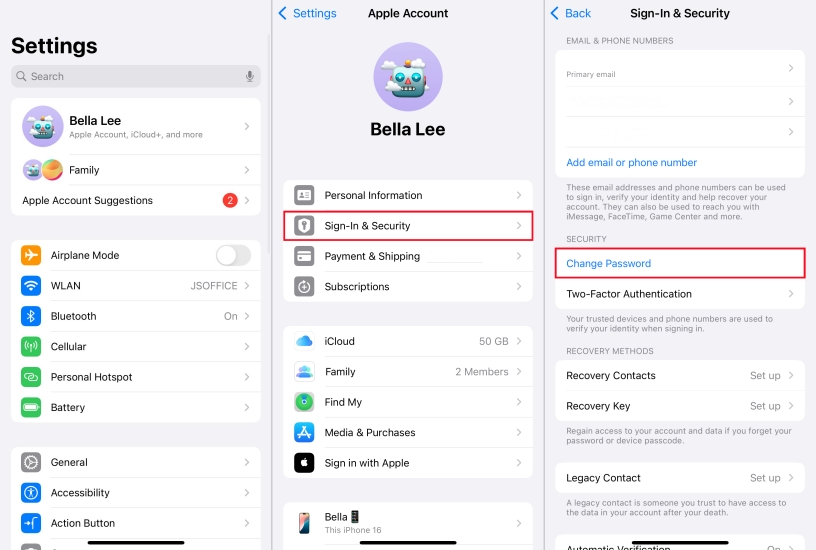
Step 1. Click Apple menu > System Settings, then select your Apple ID name.
Step 2. Click Password & Security > Change Password.
Step 3. Enter the password used to unlock your Mac and start changing the password.
Method 5. Update the System Software
Old iOS versions may have bugs related to App Store verification, which may cause abnormally frequent password requests. Updating the system to the latest version can fix the underlying issue.

Step 1. Head to Settings > General on your iPhone, then tap Software Update.
Step 2. Find an iOS update available and tap Download and Install.
Step 3. After downloading the update, tap Install Now.
Method 6. Disable and Enable iMessage & Face ID
iMessage and FaceTime on the iPhone can also cause the App Store to keep asking for password. Because iMessage and FaceTime are directly connected to your Apple ID as well as your App Store account. In this case, you can disable iMessage and FaceTime and then enable them again. Follow the steps below.
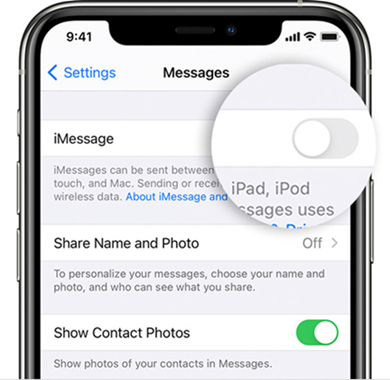
Step 1. Locate Settings on your iPhone and tap FaceTime or iMessage.
Step 2. Slide the switch to disable FaceTime or iMessage.
Step 3. Wait for a while and go to enable FaceTime or iMessage.
Method 7. Reset All Settings on Your iPhone
There are a lot of download and purchase settings on your iPhone, and inappropriate settings will hinder you from downloading, updating, or purchasing apps. Resetting all settings on an iPhone is a quick fix without knowing which one is incorrect. Here's how to.

Step 1. Enter Settings.
Step 2. Press on General and tap Transfer or Reset iPhone.
Step 3. On the next screen, tap on Reset > Reset All Settings.
Part 5. FAQs about App Store Asking for Password
-
Where are app passwords stored on iPhone?
All the app passwords are stored in Settings. Tap Settings, then select Passwords. Use Face ID or Touch ID when prompted, or enter your passcode. Then you can see the password of all apps on your iPhone.
-
How to turn off password for App Store?
You can't completely turn off password requirements for the App Store, but you can choose not to require a password for free apps and instead use Face ID or Touch ID for authentication. If you're using Family Sharing, turning off purchase sharing can also help reduce or eliminate extra password verification steps.
-
How to download apps on iPhone without password?
You can adjust the settings to download apps on an iPhone without a password. Just access Apple ID in Settings, then tap Media & Purchases > Password Settings and disable the Require Password option.
Part 6. Conclusion
The App Store always asking for a password can be frustrating, but it can usually be resolved with the right steps. By adjusting your Apple ID settings, updating your system, and following the troubleshooting methods above, you should be able to stop the repeated prompts and enjoy a smoother download experience. Just remember to avoid downloading unknown or untrusted apps. If you need to remove an old account from the App Store or your iPhone, MagFone iPhone Unlocker is a reliable choice.

Teresa Miller
Editor in chief





