








Open a website on your iPhone, only to see the restricted message? This can be quite frustrating. In many cases, the block comes from content restrictions, Screen Time settings, network restrictions, or geo-restrictions. The good news is that there are several ways to regain access to these restricted websites on iPhone aim at these restrictions. In this guide, we will walk you through practical methods to unblock restricted websites on iPhone.
- Part 1. Why Are Websites Restricted on iPhone? Quick Check
- Part 2. How to Unblock Restricted Websites on iPhone [Content Restrictions]
- Part 3. How to Access Restricted Websites on iPhone [Geo Restrictions]
- Part 4. Conclusion
Part 1. Why Are Websites Restricted on iPhone? Quick Check
Websites may be restricted on iPhone for different reasons, but the most common ones are content restrictions, network filtering, and regional blocks. In many cases, you can identify the possible cause by looking at the warning message shown on your screen. Once you know what type of restriction you are dealing with, it becomes much easier to choose the right solution.
Common messages may include:
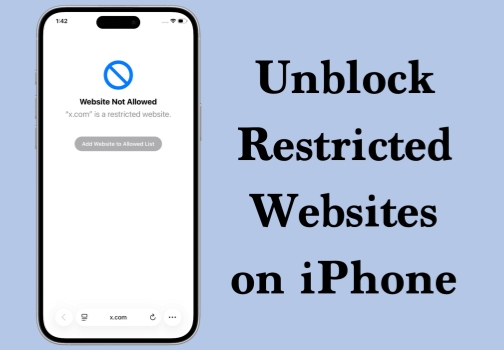
- Not Allowed. [website name] is a restricted website.
- You cannot browse this page at [website name] because it is restricted.
- This Connection Is Not Private.
- This site is blocked due to content filtering.
Generally, messages that mention restricted websites or content filtering are linked to Screen Time settings, parental controls, or network filters. Other access issues, however, may be caused by DNS errors, browser settings, or regional restrictions that prevent the website from loading properly. Next, we will look at the corresponding solutions to help you access restricted websites on iPhone.
| Method | Best For | Ease of Use | Effectiveness | Speed |
|---|---|---|---|---|
| Allow All Websites | Removing iPhone content restrictions completely | Easy | High | High |
| Add to Allowed List | Unblocking selected websites only | Easy | High | High |
| Remove Restrictions without Passcode | Bypassing restrictions when Screen Time passcode is inaccessible | Easy | High | High |
| Google Translate | Trying simple access workarounds | Easy | Low | Medium |
| VPN | Bypassing geo or network restrictions | Medium | High | Medium |
| Proxy Site | Accessing blocked sites quickly in a browser | Easy | Medium | Medium |
| New Browser | Trying alternative access methods | Easy | Low to Medium | Medium |
| Change DNS | Solving DNS-based blocking issues | Medium | Medium | Medium |
Part 2. How to Unblock Restricted Websites on iPhone [Content Restrictions]
If a website is blocked because of content restriction settings on your iPhone, you can usually restore access by adjusting those settings. Depending on your situation, you can choose to remove website content restrictions completely or allow only certain blocked websites.
Method 1. Allow All Websites in Settings
If you want to remove website restrictions entirely, the easiest solution is to change the content settings on your iPhone to allow unrestricted web access.
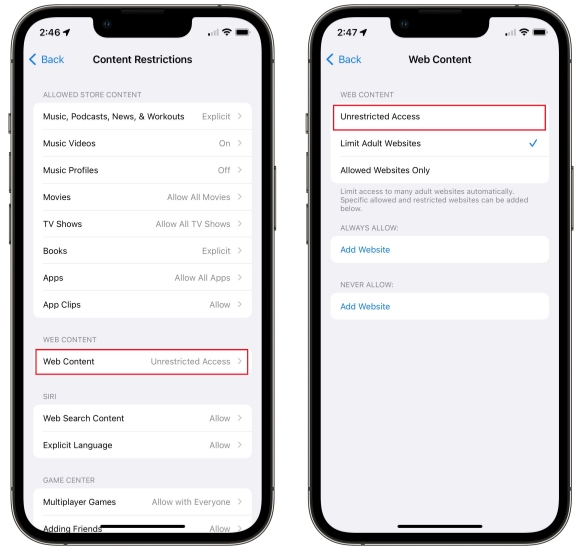
Step 1. Go to iPhone Settings > Screen Time > Content & Privacy Restrictions.
Step 2. Tap App Store, Media, Web & Games > Web Content.
Step 3. Choose Unrestricted so you can access the website without content restrictions on iPhone.
Method 2. Add Restricted Websites to Allowed List
If you do not want to turn off all content restrictions, you can instead add specific blocked websites to the allowed list. By customizing the allowed list, you can maintain restrictions while gaining access to the websites you actually need.
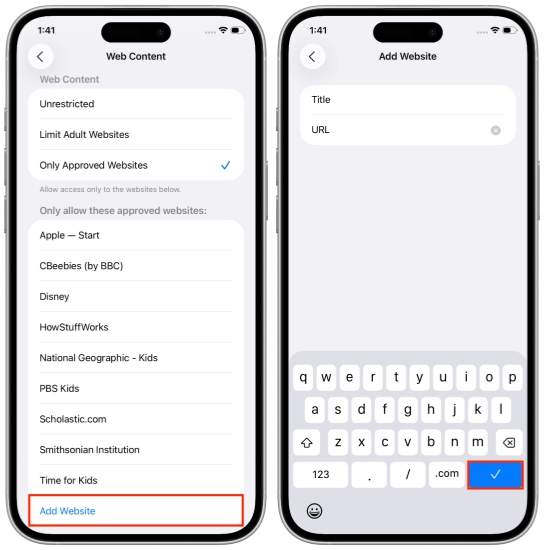
Step 1. Go to iPhone Settings > Screen Time > Content & Privacy Restrictions.
Step 2. Tap App Store, Media, Web & Games > Web Content.
Step 3. Choose the Only Approved Website option and tap Add Website to add a restricted website to the allowed list.
Step 4. Enter a title and the link of the restricted website, and tap the tick icon.
Method 3. Remove Restrictions on iPhone without Passcode
If you cannot adjust the restrictions settings because of a forgotten Screen Time passcode, a third-party unlocking tool may help. For example, MagFone iPhone Unlocker is designed to remove Screen Time restrictions without requiring the passcode and without data loss. This method may be suitable for users who have full ownership of the device but cannot access the content settings due to restrictions.

MagFone iPhone Unlocker
Remove content and privacy restrictions on iPhone without Screen Time passcode.
Step 1 Open MagFone iPhone Unlocker
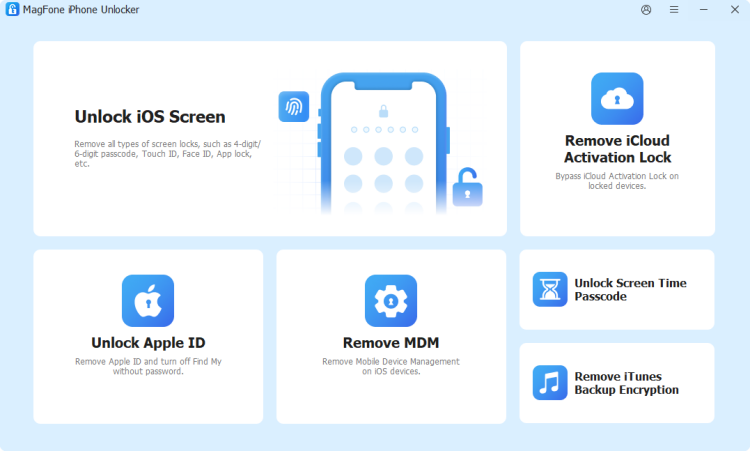
Download and install MagFone iPhone Unlocker on your iPhone. Then open this tool after successful installation.
Step 2 Remove Restrictions from iPhone
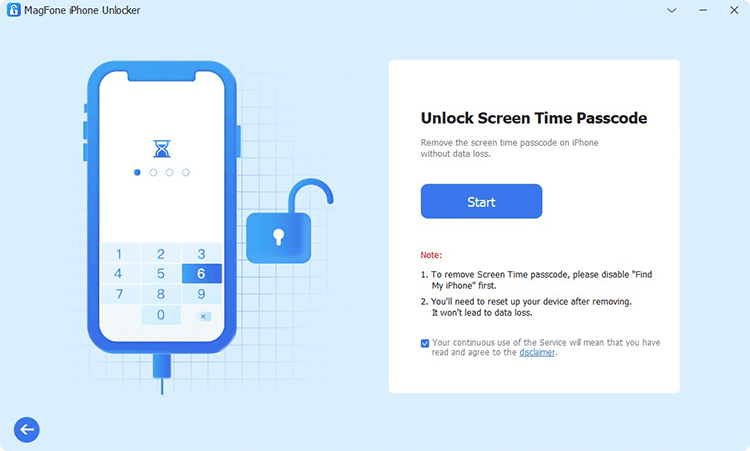
Click Unlock Screen Time Passcode on the main interface. Use a data cable to connect your iPhone to the computer. Then click the Start button on the screen. And in minutes, your iPhone will start, and you can now access restricted websites on your iPhone smoothly.
Method 4. Access Blocked Website via Google Translate
In some cases, users may be able to open a blocked website indirectly through Google Translate. Because the Google Translate website itself is often accessible, it can sometimes load another website through its translation interface. Although this workaround does not function for every site, it may still be worth trying when direct access is unavailable.
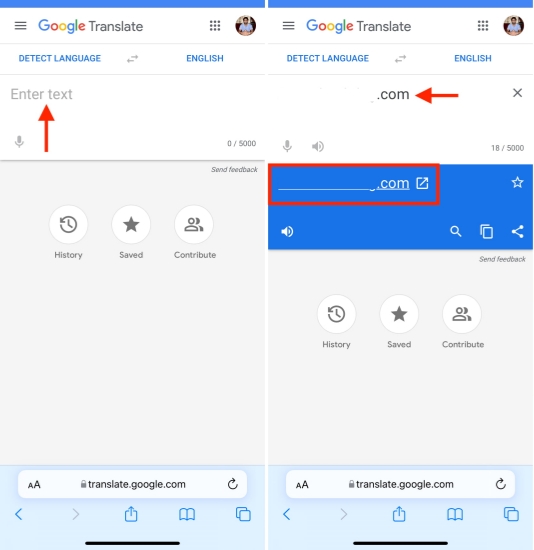
Step 1. Head to the Google Translate website on your iPhone.
Step 2. Enter the restricted website in the Google Translate typing box.
Step 3. Tap the translated result, and you can access the restricted website smoothly.
Part 3. How to Unblock Restricted Websites on iPhone [Geo/Network Restrictions]
If a website is blocked because of regional or network restrictions, adjusting iPhone content settings will not help. In this case, you may need to change your connection method or online location to regain access. Here are some common ways to do that.
Method 1. Use a VPN
A VPN can help you access blocked websites by routing your internet connection through a server in another region. If a website is unavailable in your current location, connecting to a server in a different country may help you bypass the restriction. When choosing a VPN, it is important to select one that offers multiple server locations, as this gives you more flexibility to switch to a region where the website is accessible.
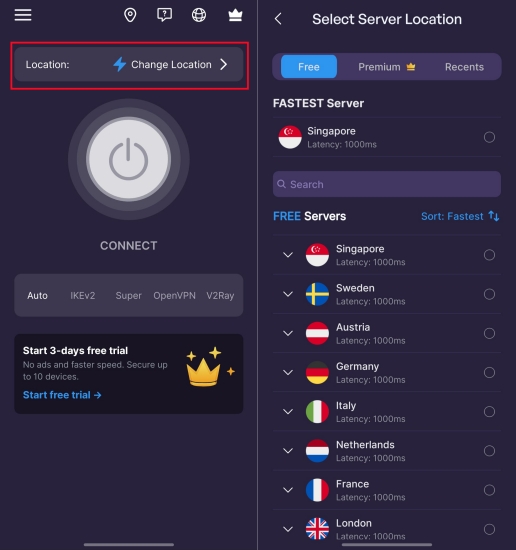
Step 1. Download a VPN application on your iPhone.
Step 2. Open the VPN application and follow the on-screen instructions to configure the VPN settings.
Step 3. Tap the connect icon to connect to a VPN server and then try to access blocked websites on your iPhone.
Method 2. Use a Proxy Site
A proxy can also hide your original IP address and help bypass some network restrictions. If you choose to use a proxy, make sure it is from a trusted provider, as free or unknown proxy services may expose your browsing activity or fail to work properly. You can try famous proxy sites such as CroxyProxy, KProxy, Hide.me Proxy, ProxySite, or 4everproxy to access blocked websites on iPhone.
Method 3. Use a New Browser
Switching to a different browser may help you access some restricted websites on iPhone. Some browsers offer stronger privacy features, private browsing modes, or built-in tools that can improve access in certain situations. For example, Brave provides privacy protection features and supports built-in VPN services, which may help you open blocked websites more easily.
Method 4. Change DNS
Changing DNS settings may help if the website is blocked through DNS filtering. By switching to a public DNS service, you may be able to open some restricted websites more easily.
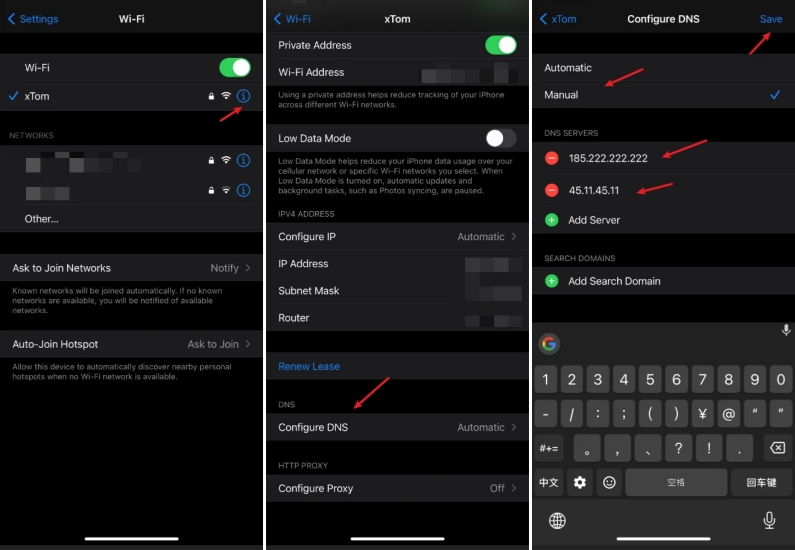
Step 1. Open Settings and tap WLAN.
Step 2. Tap the i icon next to the Wi-Fi you are connected to.
Step 3. Tap Configure DNS and select Manual.
Step 4. Tap Add Server and enter the DNS address you want to use. You can try public DNS servers such as:
- Google DNS: 8.8.8.8 and 8.8.4.4
- Cloudflare DNS: 1.1.1.1 and 1.0.0.1
Step 5. Tap Save in the upper-right corner.
Part 4. Conclusion
If you cannot access restricted websites on your iPhone, the right solution depends on what is causing the restriction. Whether the issue comes from content controls, network settings, or regional limits, there are several ways to restore access. For Screen Time or content restrictions, tools like MagFone iPhone Unlocker may offer a quick solution when you cannot change the settings directly. For geo-restrictions or network blocks, a VPN is often one of the most effective options. By identifying the cause first, you can choose the method that works best for your situation.

Dylan Jones
Editor in chief





