








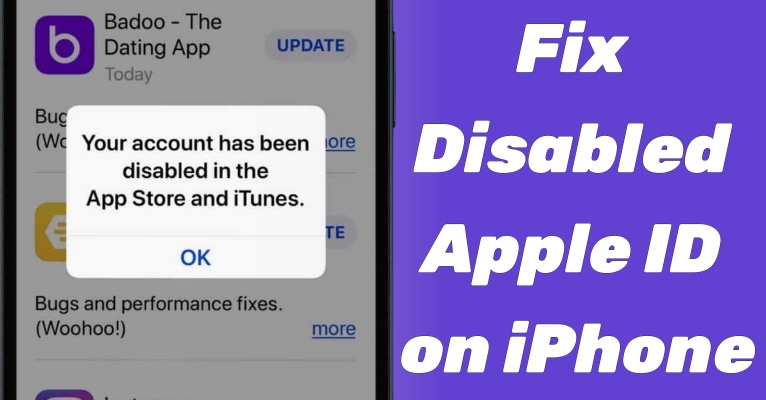
Once you receive the alert "Your account has been disabled in the App Store and iTunes" or "Your Apple ID has been disabled for security reasons," you'll no longer be able to download or update apps from the App Store, and you may find yourself locked out of other Apple services. This notification can be alarming. So why does your iPhone keep saying your Apple ID is disabled, and what can you do to fix it? In this guide, we'll explain the common reasons why your Apple ID might be disabled and show you effective ways to fix a disabled Apple ID.
- Part 1. Why Is My Apple ID Disabled?
- Part 2. How to Undisable Apple ID by Resetting Password
- Part 3. How to Fix If Your Apple ID Is Disabled
- Part 4. FAQs about Disabled Apple ID
- Part 5. Conclusion
Part 1. Why Is My Apple ID Disabled?
Strictly speaking, the issue of Apple ID being disabled can be classified into two cases.
- Your Apple Account has been disabled in the Apple Store and iTunes.
- Your Apple ID has been disabled for security reasons.
What exactly caused this error? Here are several underlying reasons.
- Multiple incorrect input of Apple ID password triggers the protection settings of the iPhone.
- Some unauthorized or unusual devices try to log into your Apple ID.
- Inappropriate iPhone settings prevent you from using your Apple ID.
- Violating Apple's terms can also result in the Apple ID being disabled.
Part 2. How to Undisable Apple ID
If your Apple ID has been disabled for security reasons, the first step is to reset your password and regain access to your account. Below are three practical ways to reset your Apple ID password and start using your account again.
Option 1. Reset Apple ID Password at iforgot.apple.com
When you see the Apple ID Disabled prompt on your iPhone, you are suggested to reset your password at iforgot.apple.com to enable your account. As long as you can remember and access both the linked email and phone number to the Apple Account, you can easily undisable your Apple ID.
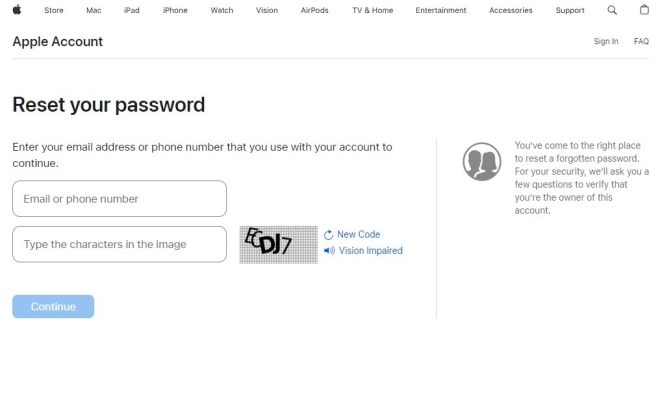
Step 1. Go to the iforgot.apple.com website and enter your Apple ID account.
Step 2. Type the characters in the image and select Continue.
Step 3. Input the phone number used with your Apple ID and click on Continue.
Step 4. Press Allow on your iPhone, then follow the onscreen instructions to reset the Apple ID password.
Step 4. Touch on Change to save the new password on your iPhone.
Option 2. Change Apple ID Password in Settings
If you're still signed in on an iPhone or iPad and can access the device's settings, you can reset your Apple ID password directly from there.
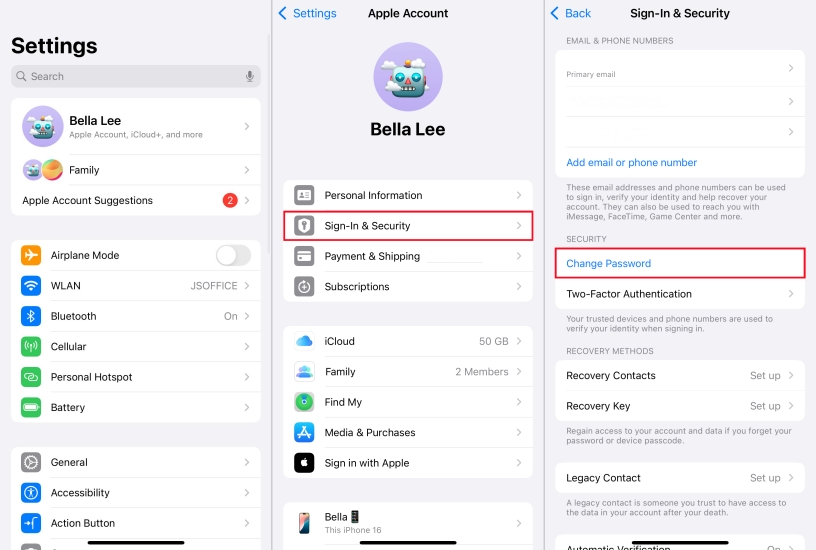
Step 1. Locate Settings on the iPhone.
Step 2. Tap on Apple ID > Sign-In & Security and press Change Password.
Step 3. Enter the iPhone passcode. Then enter a new password and verify it.
Option 3. Reset Apple ID Password in Apple Support App
Another alternative is to use the Apple Support app, which allows you to reset the password for your Apple ID or someone else's using a trusted device.
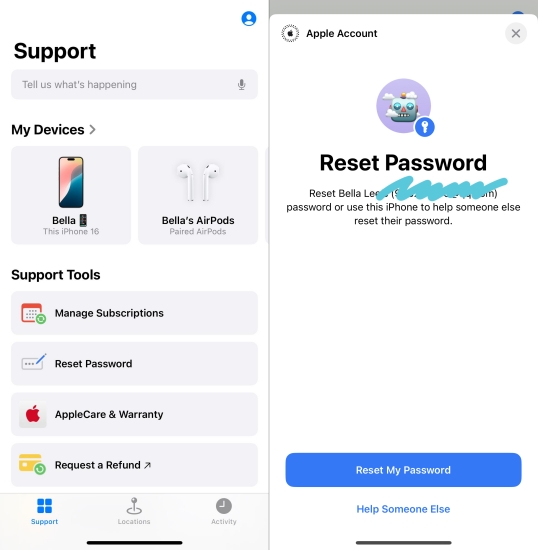
Step 1. Fire up the Support app on your iPhone and press Reset Password.
Step 2. Tap Continue and input the passcode you used on your iPhone.
Step 3. Input a new password for the Apple ID and input it again to verify.
Part 3. How to Fix If Your Apple ID Is Disabled
Besides the Apple ID being disabled for security reasons, you might also face a message that your Apple ID is disabled when you try to make purchases or use certain Apple services. This usually means there's an issue specifically with your iTunes & App Store or Media & Purchases account. Follow the methods below to fix the disabled Apple ID.
Method 1. Check iTunes & App Store Purchases Restrictions
Software download and installation on iPhone requires manual authorization. If you encounter Apple ID disabled alerts while downloading or purchasing software from the App Store or iTunes, please check if you allow these two apps to install and download.

Step 1. Switch to Settings first.
Step 2. Find and select Screen Time, then enter the Content & Privacy Restrictions option.
Step 3. Tap on iTunes and App Store Purchases. Next, allow installing, deleting, and in-app purchases options.
Method 2. Request Reactivation for Media & Purchases
Sometimes Apple disables an Apple ID specifically for Media & Purchases due to billing problems, chargebacks, or suspicious activity. In this case, you can apply for a reactivation for Media & Purchases.
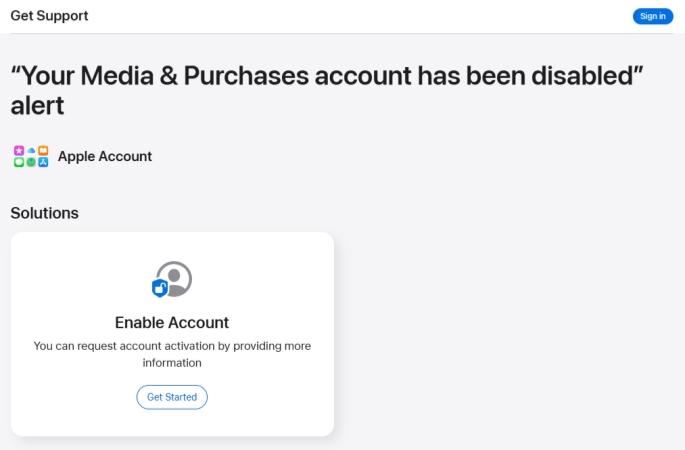
Step 1. Open the website in a browser: https://getsupport.apple.com/solutions.
Step 2. Click Get Started under Enable Account. Enter your Apple Account and password to sign in.
Step 3. Follow the on-screen instructions to reactivate Apple Account for Media & Purchases.
Method 3. Get Apple Support Online
There may be a security hold or account‑specific issue that only Apple can resolve. You can visit the Apple support website and contact them to get help.
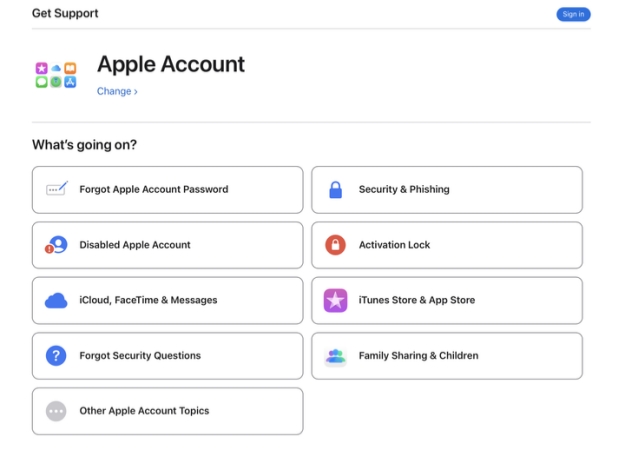
Step 1. Head for https://getsupport.apple.com/topics.
Step 2. Choose Disable Apple Account under What's going on? stack.
Step 3. Choose an option based on your case, either "Your Media & Purchases account has been disabled" alert or "Apple Account has been disabled for security reasons" alert.
Step 4. Click Continue. Click Get more help at the bottom, and you can have a live chat with an Apple Contact.
Method 4. Remove Disabled Apple ID from iPhone
When your Apple ID is disabled due to a violation of Apple's terms, you are unable to sign out of the disabled Apple ID. In this case, it's suggested that you use an Apple ID removal tool to delete the disabled Apple ID from your device, then create a new one. Here, MagFone iPhone Unlocker can help you unlock Apple Account on your iPhone or iPad without a password or restrictions. Just download MagFone on your computer to get started.

MagFone iPhone Unlocker
Unlock various locks on iOS devices, including screen locks, MDM, Apple ID, and Activation Lock without needing a password.
Step 1 Link iPhone and Your Computer
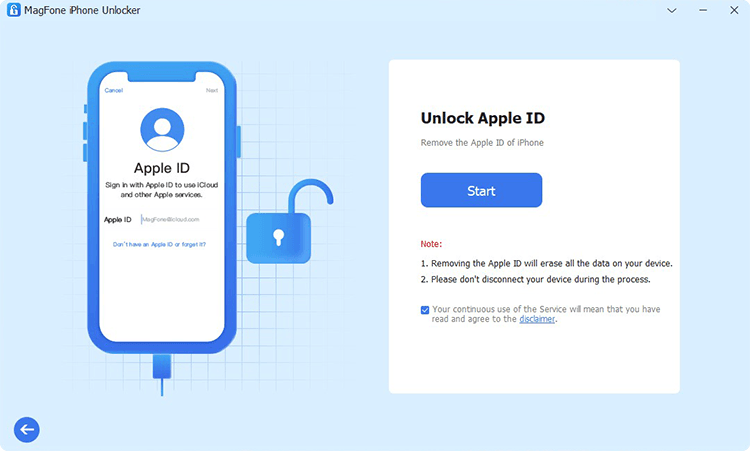
To get started, use a USB cable to link your iPhone to a computer. Then launch MagFone iPhone Unlocker on the computer and click the Remove Apple ID button. Click Start on the next screen.
Step 2 Download the Firmware Package

Next, confirm the iPhone information on the screen. Now it's time to download a firmware package for your iPhone. Select an appropriate version and click download.
Step 3 Start to Unlock Disabled Apple ID
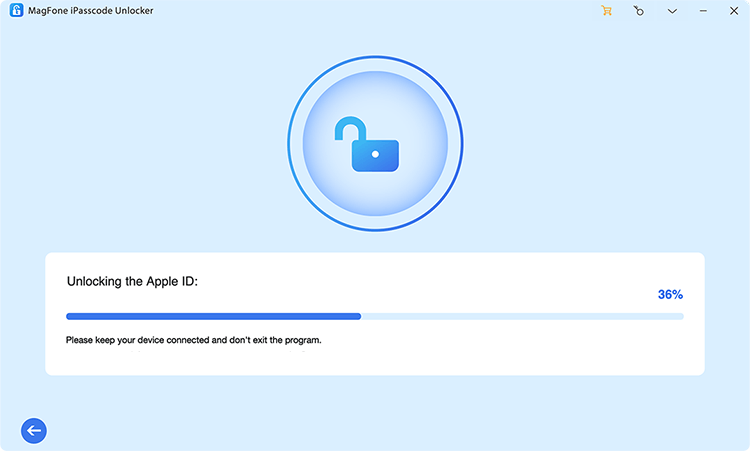
After the firmware is downloaded, unzip and verify the firmware package. Then you need to click Start Remove to remove the disabled Apple ID from your iPhone.
Part 4. FAQs about Disabled Apple ID
How to reactivate a disabled Apple ID on iPhone?
If your Apple ID is disabled and you want to reactivate the Apple ID on your iPhone, you can choose to verify your identity on iforgot.apple.com.
Step 1. Access the iforgot.apple.com on a web browser.
Step 2. Input your Apple ID account when prompted.
Step 3. If your account is disabled, you will likely see a message asking you to Request Access or Request Reactivation.
Step 4. Next, you may need to answer security questions, offer a phone number, or use another verification to prove you are the owner.
How to unlock my disabled Apple ID on iPhone?
You can unlock the disabled Apple ID on your iPhone by erasing it at iCloud.com.
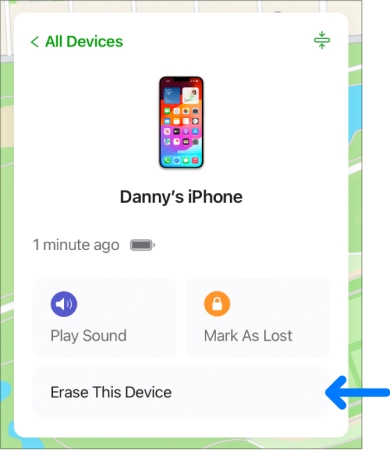
Step 1. Visit the iCloud official website and log in to iCloud with your Apple ID credentials.
Step 2. Select the Find My tab and click All Devices to select your disabled iPhone.
Step 3. Confirm the iPhone information and click the Erase This Device button, then click it again.
How to update apps with disabled Apple ID on iPhone?
When your Apple ID is disabled, you can't access any features in it, including updating apps. It's suggested that you remove the disabled Apple Account on iPhone, then update apps with a new available Apple ID.
Part 5. Conclusion
With the right steps, you can usually resolve a disabled Apple ID quickly and safely. Start by resetting your Apple ID password to verify your identity and protect your account from further risk. If your Apple ID is disabled specifically for Media & Purchases, apply the solutions in Part 3 to address possible billing, security, or restriction issues. In rare cases, Apple may permanently disable an Apple ID so it can no longer be accessed. When that happens, and you need to remove the disabled Apple ID from your iPhone, MagFone iPhone Unlocker offers a secure and efficient way to unlink the account from the device and sign in with a new Apple ID.

Dylan Jones
Editor in chief





