








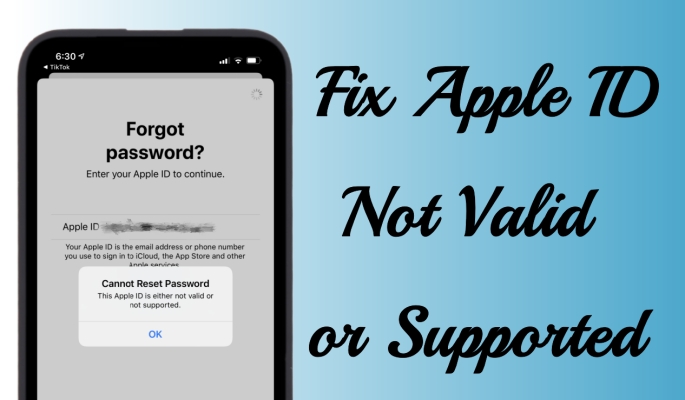
Your Apple ID is the heart of your digital life in the Apple ecosystem, enabling access to iCloud, the App Store, and more. But what happens when it suddenly stops working, flashing the dreaded this Apple ID is not valid or not supported message? It may lock you out of your favorite devices and apps, leaving you disconnected and frustrated. Don't worry, though—this guide has you covered. We'll dive into the common reasons behind this issue and provide 10 practical solutions to help you troubleshoot and fix the problem quickly.
- Part 1. Why Is My Apple ID Not Supported or Valid?
- Part 2. Alternative Ways to Reset Apple ID Password
- Part 3. Immediate Fixes to Apple ID Not Supported or Valid
- Part 4. Advanced Fixes to Apple ID Not Supported or Valid
- Part 5. Conclusion
Part 1. Why Is My Apple ID Not Supported or Valid?
When you encounter the Apple ID not valid or supported message, it can be confusing and frustrating. Identifying the root cause is crucial before diving into solutions, as it helps ensure that the corrective steps are effective. In this section, we'll explore common reasons why your Apple ID might be flagged as invalid or unsupported. Let's have a look.

Cause 1. Invalid or mistyped Apple ID.
The email address you entered does not exist in Apple's database or contains errors like a missing "@".
Cause 2. Apple ID not registered.
You are trying to log in with an email that hasn't been set up as an Apple ID.
Cause 3. Deactivated or disabled account.
Apple may have deactivated your Apple ID due to Security breaches or unusual activity.
Cause 4. Regional restrictions.
Apple ID services in one region may not work on devices or apps designed for another.
Cause 5. Device or app limitations.
The Apple ID you're using might not be supported on the device or app you're trying to access.
Cause 6. Temporary system issues.
Apple's servers may be down, causing verification errors.
Part 2. Alternative Ways to Reset Apple ID Password (Optional)
If you are unable to sign in or make changes to your account, the alternative method is to reset your Apple ID password using a trusted device. Here are three methods to reset the Apple ID password.
Method 1. Reset Apple ID Password on Mac
If you're signed in with your Apple ID on a Mac, you can reset your password from your computer as an alternative.
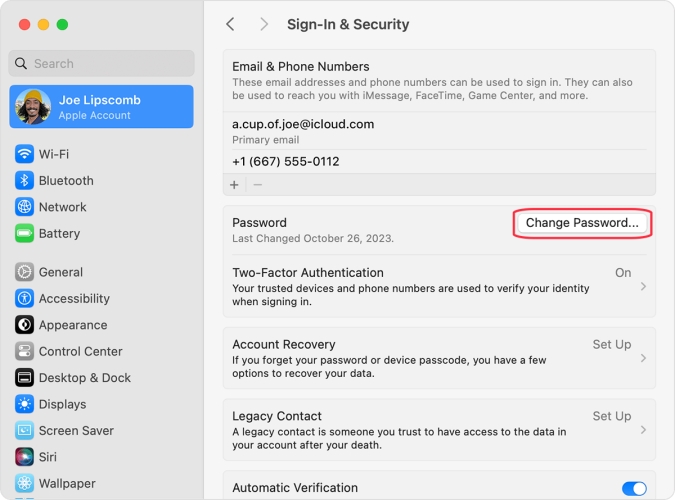
Step 1. Open System Preferences and click Apple ID.
Step 2. Click Password & Security > Change Password.
Step 3. Follow the on-screen prompts to reset the Apple ID password.
Method 2. Reset Apple ID Password on the Web
When you don't have access to a trusted Apple device, resetting your password through Apple's official account recovery website is often the best option.
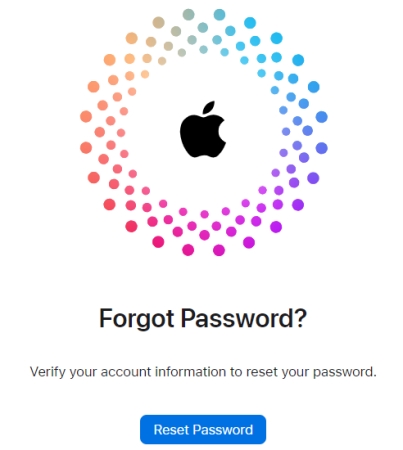
Step 1. Head to https://iforgot.apple.com/ in your browser.
Step 2. Access Reset Password and enter your Apple Account details to verify.
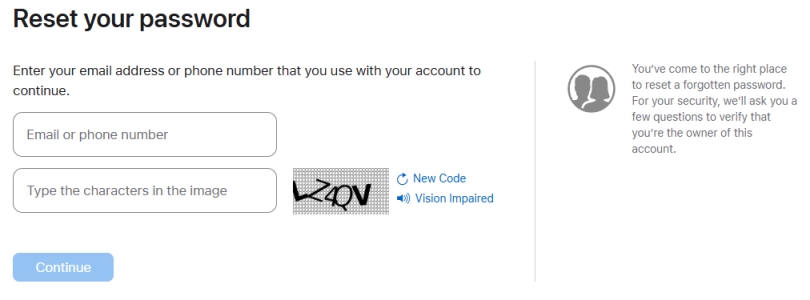
Step 3. Choose Continue and enter the required information.
Step 4. Choose Continue again and give permissions when you receive a notice on any Apple device that is signed in with the Apple ID.
Step 5. Follow the on-screen instructions to create a new password.
Method 3. Reset Apple ID Password via the Apple Support App
The Apple Support app offers another guided way to reset your Apple ID password using another iPhone, iPad, or iPod touch. Through the app, Apple verifies your identity and walks you through the password reset process in a secure environment. Once completed, you can immediately use the new password to sign back in to your Apple ID.
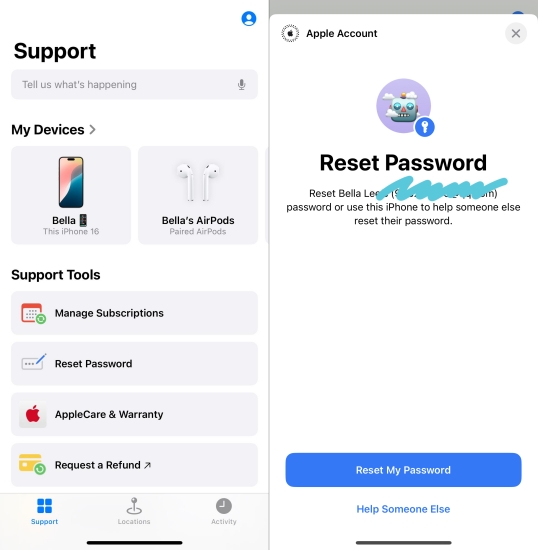
Step 1. Open the Apple Support app on any Apple device.
Step 2. Find and tap Reset Password on the Support page.
Step 3. Choose Reset My Password > Continue.
Step 4. Enter the screen passcode and create a new Apple ID password to reset.
Part 3. Immediate Fixes to Apple ID Not Supported or Valid
If your Apple ID is still not supported or not valid when you try to reset your password from different entry points, it's time to troubleshoot the issue. In many cases, the problem is temporary or related to your account settings or Apple's servers. A few quick checks can often reveal and resolve the cause right away.
Solution 1. Check Apple ID Details
Ensuring your Apple ID account information is accurate and up to date is crucial for troubleshooting. Incorrect details, such as a misspelled email address, outdated billing information, or mismatched security settings, can all cause an invalid Apple ID error. Verifying and correcting any discrepancies in your account information could be key to resolving the issue.
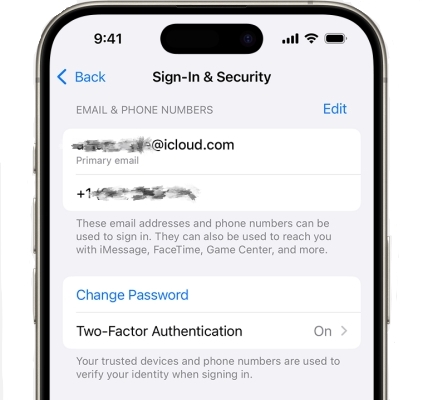
Solution 2. Check Apple ID Status
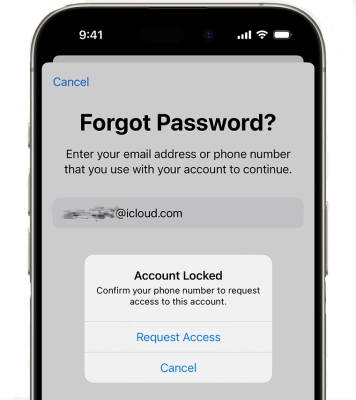
Your Apple ID's status may be affected by various factors like security concerns, terms of service violations, or even prolonged inactivity. Apple IDs can become disabled or locked due to these factors. So, it's vital to ensure your account is active and not locked. This often involves verifying your identity and resetting your password if needed to regain full access.
Solution 3. Check the System Status
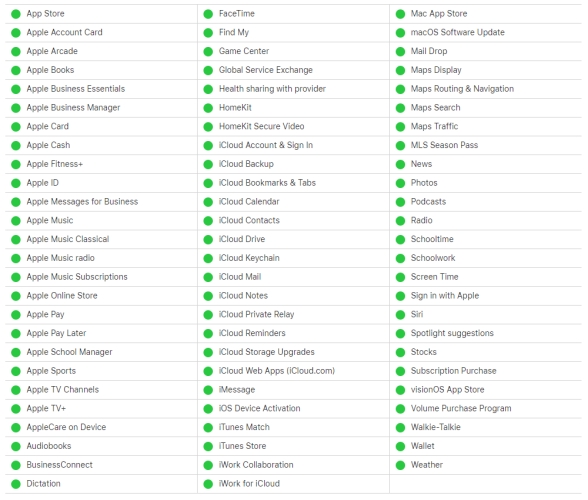
Apple's system status can sometimes experience temporary disruptions that affect Apple ID services. When this happens, users may encounter issues such as an invalid Apple ID error. It's a good idea to check Apple's system status page for any known outages or maintenance updates. If the Apple account servers are under repair, you'll need to wait until the services are restored.
Solution 4. Check Regional Restrictions
Apple IDs are sometimes region-locked based on where they were created or where the device is being used. Certain services or content may not be accessible if your Apple ID is registered in a region where those services aren't available. Setting your Apple ID to the correct region can help resolve the Apple account not valid issue, especially if you're abroad.
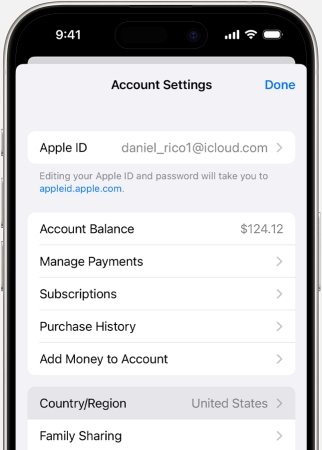
Step 1. Access Settings.
Step 2. Hit your name > Media & Purchases, then press View Account.
Step 3. Next, tap on Country/Region, and then choose a country where the Apple account is accessible.
Step 4. Then follow the onscreen instructions to complete the region setup.
Part 4. Advanced Fixes to Apple ID Not Supported or Valid
If none of the immediate checks in Part 3 resolve the "This Apple Account is not valid or supported" issue, the problem may be deeper than a temporary glitch or simple account mismatch. At this stage, you'll need to move beyond basic troubleshooting and use more advanced solutions to fix the issue.
Solution 1. Log Out and Back into Apple ID
A simple solution that works in many cases is logging out of your Apple ID and then logging back in. This can refresh your account and help clear any minor software glitches or sync issues that might be causing the error. It's a quick and easy way to solve the Apple ID not supported error.
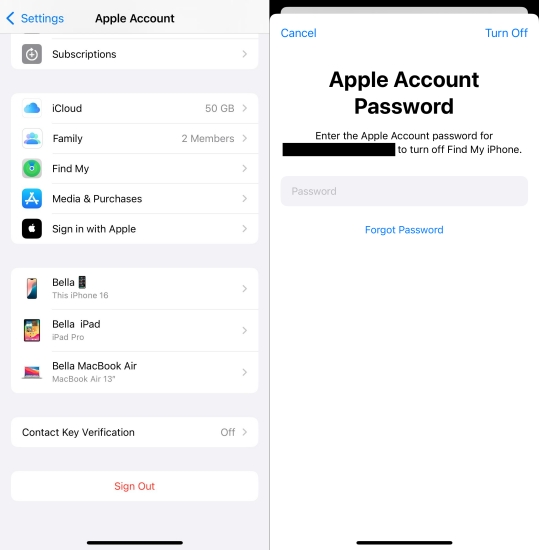
Step 1. Access Settings, then hit your profile.
Step 2. Scroll to the bottom and press the Sign Out button.
Step 3. Input the Apple account password to sign out of the Apple ID.
Solution 2. Update the iOS System
An outdated iOS version may lead to compatibility issues with Apple services. Updating to the latest iOS version ensures that your device and account operate smoothly with Apple's current system protocols, eliminating the Apple ID errors stemming from software discrepancies.
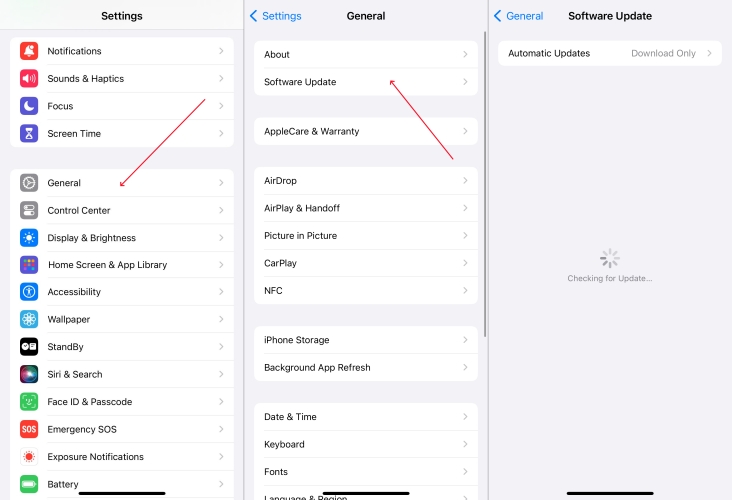
Step 1. Run Settings.
Step 2. In Settings, press General > Software Update.
Step 3. If there's an available update, choose the Update Now option.
Solution 3. Verify Date & Time Settings
Incorrect date, time, or time zone settings on your device can interfere with secure connections to Apple's servers and cause your Apple ID to fail verification. Verify the data and time settings to avoid Apple ID not supported or valid issue.
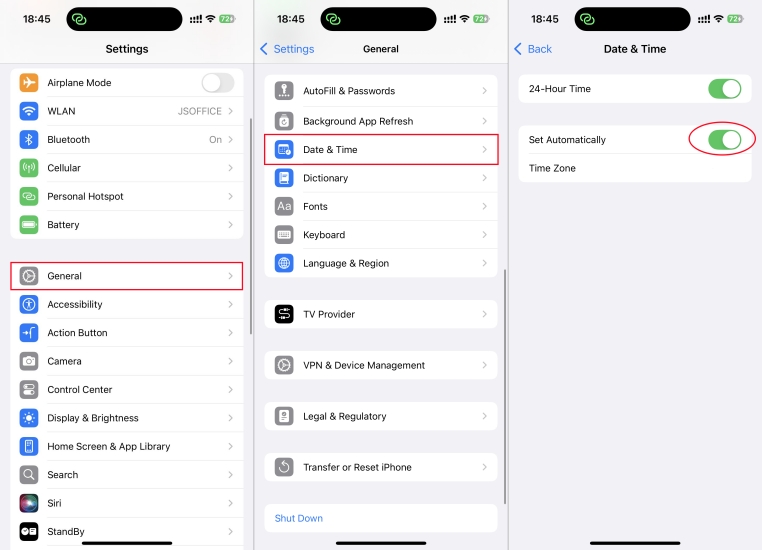
Step 1. Open Settings and tap General.
Step 2. Tap Data & Time, toggle on and off Set Automatically.
Solution 4. Use an Apple ID Removal
If the "This Apple ID is not valid or not supported" error is tied to an existing account on your iPhone, and you can't fix it with these methods, it's suggested that you remove the Apple ID and sign in to a new one. MagFone iPhone Unlocker offers a streamlined, hassle-free fix for issues like Apple ID not valid or supported. This tool can remove the Apple ID from your device without data loss and helps restore full access to your Apple services. For efficiency and safety, here are three steps to repair your Apple ID troubles by using MagFone.

MagFone iPhone Unlocker
Unlock various locks on iOS devices, including screen locks, MDM, Apple ID, and Activation Lock without needing a password.
Step 1 Link iPhone and Launch MagFone
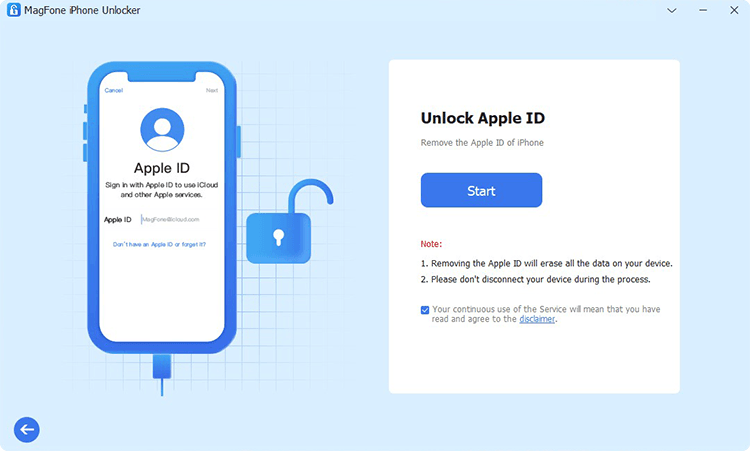
Start by linking your iPhone to a computer. Launch MagFone iPhone Unlocker and it will automatically detect your device. Once connected, select the Unlock Apple ID option from the main interface and click Start. Ensure you've enabled the screen lock and the two-authentication.
Step 2 Download the Correct Firmware

MagFone will verify your device information. Ensure the displayed firmware details match your iPhone model. If everything is correct, click the Download button to begin downloading the necessary firmware. If the details are incorrect, manually adjust them and select the correct firmware package.
Step 3 Remove Apple ID from iPhone
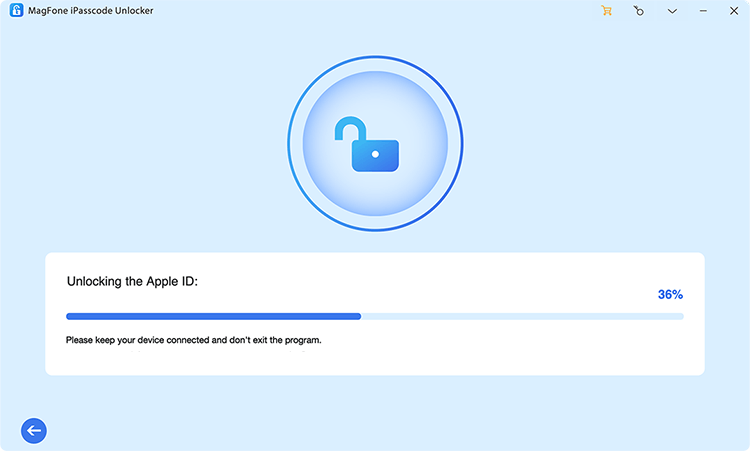
Once the firmware is downloaded, click Unlock to remove the Apple ID from your device. The process will take about one minute. If Find My is disabled, you won't lose any data. After completion, the Apple ID error will be resolved, giving you full access to your Apple services.
Solution 5. Contact Apple Support
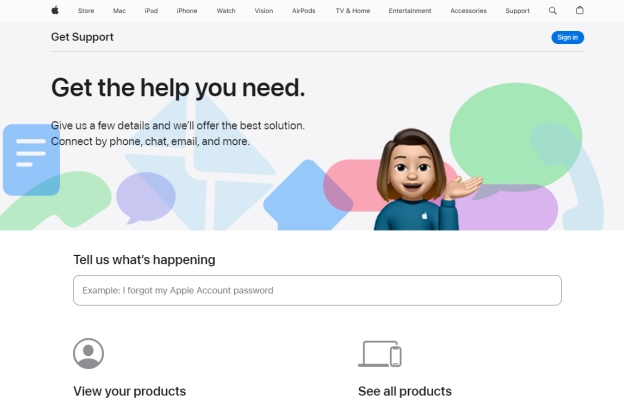
If all else you've tried, contacting Apple Support is a reliable option. Apple's support team can investigate your account, verify your identity, and resolve complex issues. If your account has been deactivated or restricted, they can provide guidance on how to unlock it as well.
Part 5. Conclusion
It's not that difficult to fix the Apple ID not supported problem. By understanding the underlying causes and applying the proper fixes, you can regain access to all of your Apple services in no time. Whether it's wrong account details, iOS system issues, or other reasons, there are corresponding ways to get your Apple ID working again.

Teresa Miller
Editor in chief





