








After leaving an iCloud account idle for a long time, you may forget your account password. If this is the case, you will no longer be able to log into iCloud or access any services. How do I recover my iCloud password? Is it possible to recover or reset my forgotten password? You may ask. It may not sound easy. But in reality, it only takes a few steps to achieve even if you don't have a verification code.
- Part 1. Quick Check Before Recovering iCloud Password
- Part 2. How to Recover iCloud Password with Trusted Device/Recovery Methods
- Part 3. How to Recover iCloud Password without Trusted Device
- Part 4. Bonus Tip: Remove Apple ID If You Can't Recover iCloud Password
- Part 5. FAQs about iPhone iCloud Account
- Part 6. Conclusion
Part 1. Quick Check Before Recovering iCloud Password
Before attempting to recover your iCloud password by resetting it, you can first try finding the password on your Apple device. If you used to log in to any Apple website, your iCloud login credentials may have been saved on your device. You can check the password in the Settings app, Passwords app, or Keychain Access on your Apple device.
Check iCloud Password on Mac
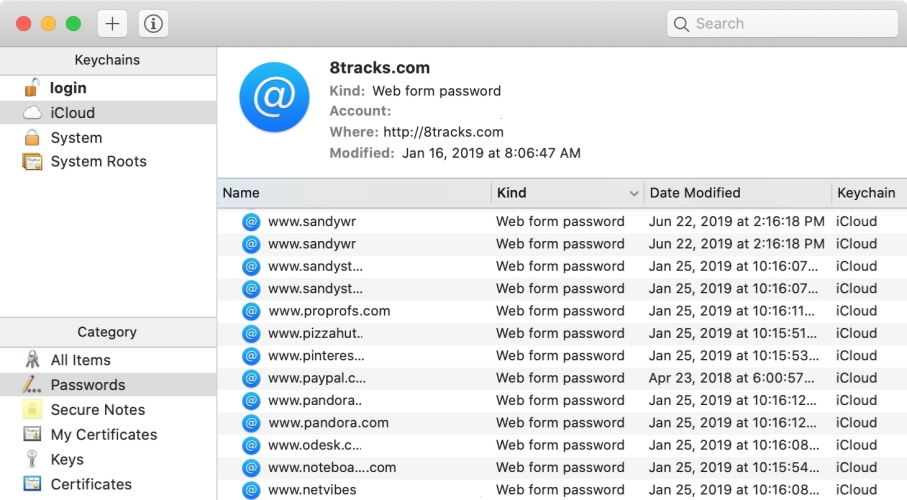
Step 1. Open Keychain Access on your Mac.
Step 2. Search for iCloud in the search box.
Step 3. Double-click the result and click Show password.
Step 4. Enter your Mac login credentials to reveal your iCloud account password.
Check iCloud Password in Settings
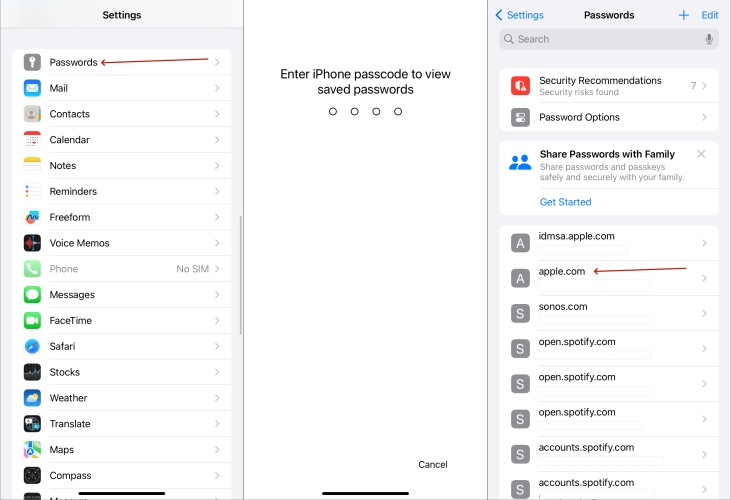
Step 1. Open the Settings app on your iPhone.
Step 2. Scroll down and tap on Passwords.
Step 3. Enter the password screen with Touch ID or passcode. Pick a website in the list and tap on it.
Step 4. Tap the password to see it.
Check iCloud Password in Passwords App
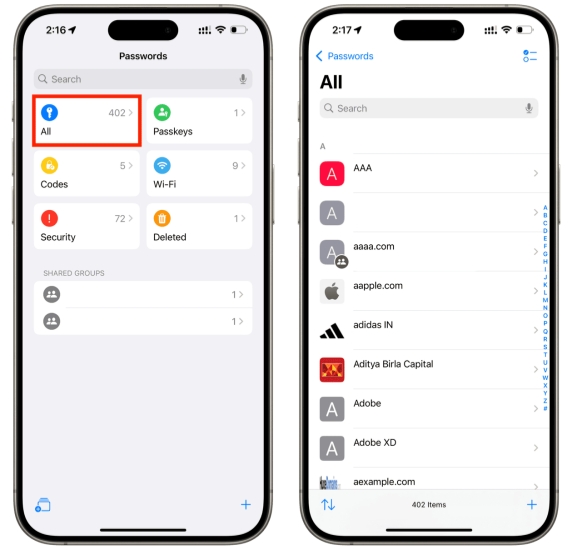
Step 1. Open the Passwords app on your iPhone or iPad, and unlock with your Face ID or Passcode.
Step 2. Tap the Search box and search for iCloud.
Step 3. Tap the best-match result, then tap the Password field to reveal the iCloud password.
Note:
If you used to log in to iCloud on other browsers, you may also find your iCloud password in the browser's password manager.
If you haven't saved any Apple ID password, you may recover your iCloud password by resetting it. In the following section, we will discuss how to recover your iCloud password on trusted devices and non-trusted devices.
| Methods | Requirement | Difficulty |
|---|---|---|
| Settings | An Apple Device with Your Apple ID password | ⭐ |
| account.apple.com | A Networked Apple Device Email Address |
⭐⭐ |
| iforgot.apple.com | A Networked Apple Device Email Address |
⭐⭐ |
| Recovery Key | A Networked Apple Device Recovery Key Another Trusted Apple Device |
⭐⭐⭐ |
| Recovery Contact | An Apple Device with Your Apple ID password Recovery Contact |
⭐⭐⭐ |
Part 2. How to Recover iCloud Password with Trusted Device/Recovery Methods
If you still have access to a trusted iPhone, iPad, or Mac, you can recover your iCloud password by changing it in Settings. In addition, if you have set up recovery methods for your Apple ID, you can also use a recovery key or ask a recovery contact for help.
Method 1. Recover iCloud Password in Settings
The iCloud password is as same as the Apple ID password for the Apple ID. If you have already signed into your iPhone with your Apple ID in Settings, you can follow the steps below to reset your iCloud password.
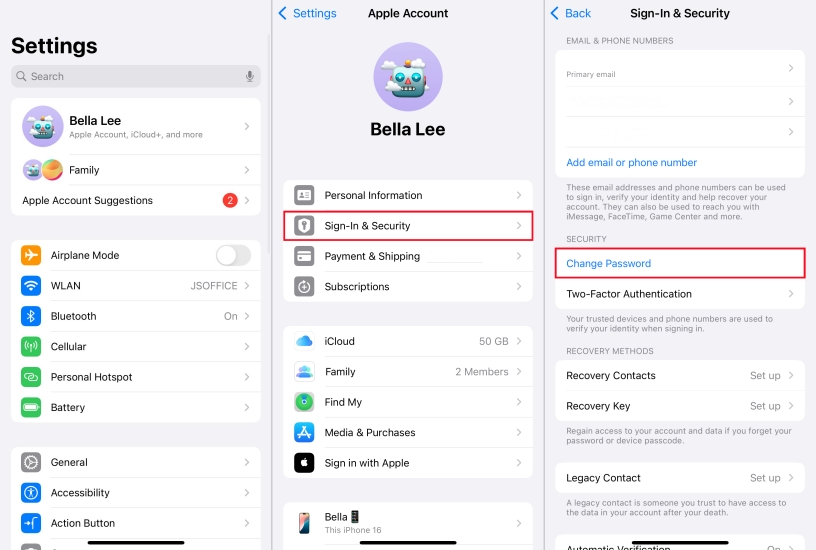
Step 1. Enter Settings.
Step 2. Tap Apple ID > Sign-In & Security, then tap Change Password.
Step 3. Input the Passcode of your iPhone.
Step 4. Set a new password and verify it again. After that, tap Change to finish iCloud password resetting.
Method 2. Retrieve iCloud Password by Recovery Key
A recovery key can help you regain access to your Apple Account when you cannot remember the current password. If you previously created one, enter the recovery key during Apple's account recovery process and follow the instructions to set a new password.
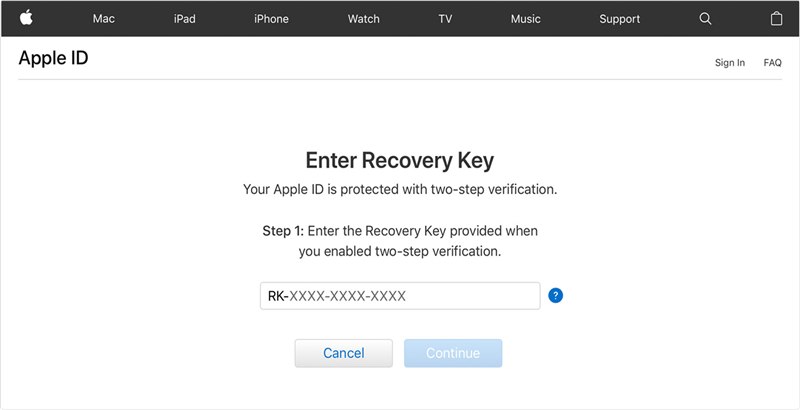
Step 1. Navigate to account.apple.com and click Reset password on the page.
Step 2. Type your Apple ID and verification code on the screen and click Continue.
Step 3. Choose the way of recovery key and input the recovery key on another trusted device.
Step 4. Then you're able to create a new password for your iCloud account.
Method 3. Get Back iCloud Password via Recovery Contact
If you have set a recovery contact for your iCloud account, the contact can provide a verification code to help you recover your Apple Account. When you try resetting your iCloud password, Apple will automatically detect that you have set up a recovery contact. So you can enter the code from your recovery contact to reset your iCloud password.
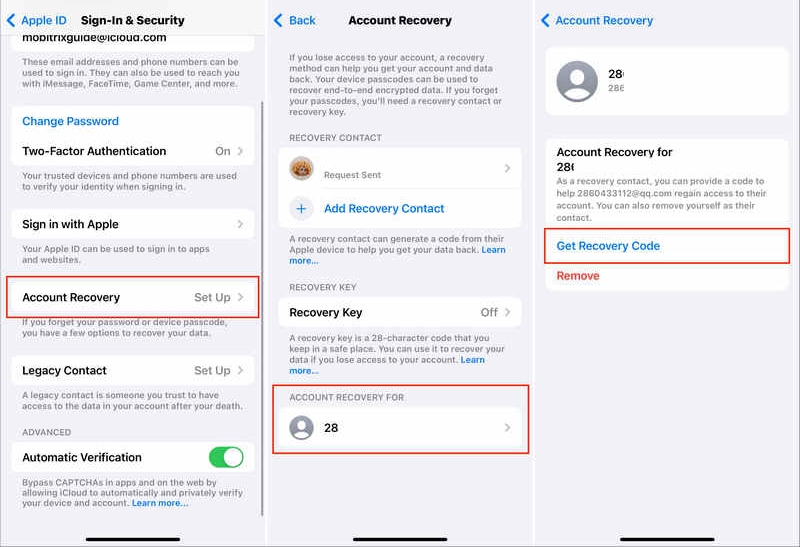
Step 1. Run Settings and tap your name.
Step 2. Under Apple ID, press Sign-In & Security > Account Recovery.
Step 3. Choose and send a text to a recovery contact.
Step 4. Type the recovery code he or she received.
Part 3. How to Recover iCloud Password without Trusted Device
If you don't have access to a trusted device, Apple offers web-based and app-based recovery options that may help you reset your password after confirming your account information.
Method 1. Reset iCloud Password on iforgot.apple.com
Apple's official iforgot.apple.com website allows you to begin the password recovery process from almost any device. Follow the steps below to reset your iCloud password on the website.
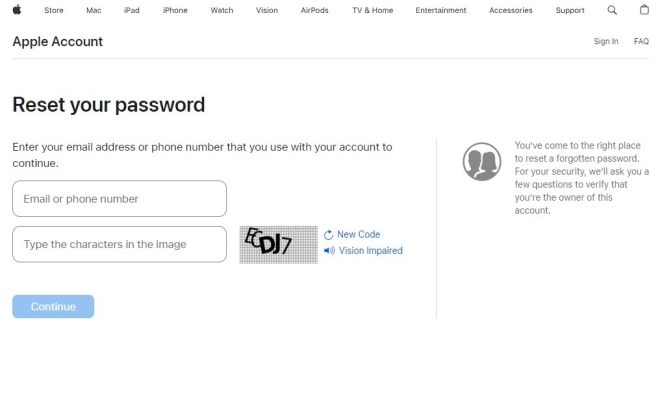
Step 1. Go to iforgot.apple.com in a browser and click Reset Password.
Step 2. Enter your iCloud email address and the code on the screen, then click Continue.
Step 3. Enter your trusted phone number and click Continue.
Step 4. Choose Can't use any of these options.
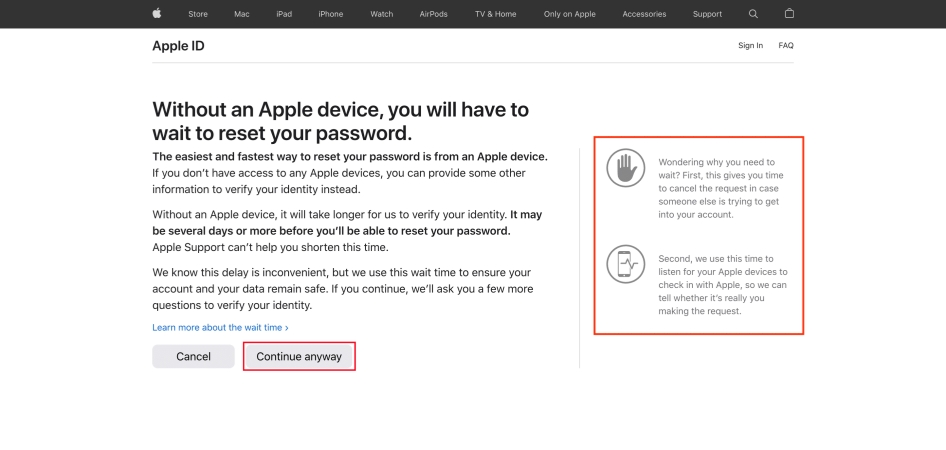
Step 5. Choose Continue anyway, then choose Continue to receive a verification code from Apple.
Step 6. Follow Apple's prompts to recover your iCloud account.
Method 2. Reset iCloud Password in Apple Support App
If you can use a borrowed iPhone or iPad, the Apple Support app may help you reset your iCloud password.
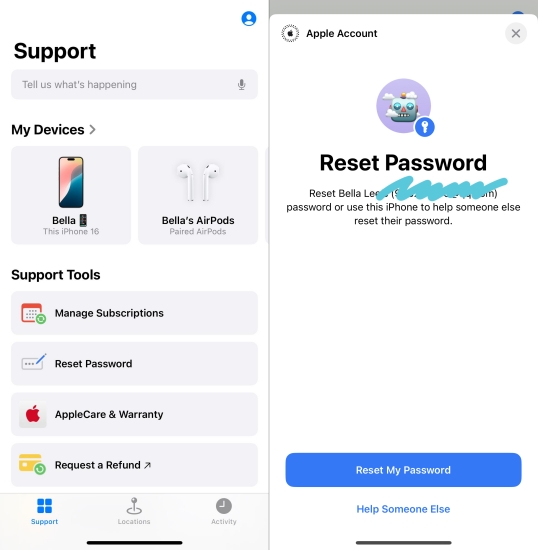
Step 1. Open the Apple Support app on someone else's Apple device.
Step 2. Find and tap Reset Password under the Support Tools section.
Step 3. Tap Help Someone Else, enter the iCloud account, and tap Continue.
Step 4. Enter the trusted phone number and enter the verification code sent to your trusted phone number.
Step 5. Set a new iCloud password.
Part 4. Bonus Tip: Remove Apple ID If You Can't Recover iCloud Password
Since we've mentioned how to recover or reset an iCloud password, next we're going to tell you a feasible way to bypass an iCloud account without any password. If you've tried the above methods but they are not working for you, you can consider MagFone iPhone Unlocker, an authoritative and widely acclaimed software. After using MagFone iPhone Unlocker to bypass your previous iCloud account, you won't struggle with the forgotten iCloud password anymore.

MagFone iPhone Unlocker
Bypass iCloud Activation Lock on iPhone, iPad, and iPod touch without the original Apple ID or password.
Step 1 Install MagFone iPhone Unlocker
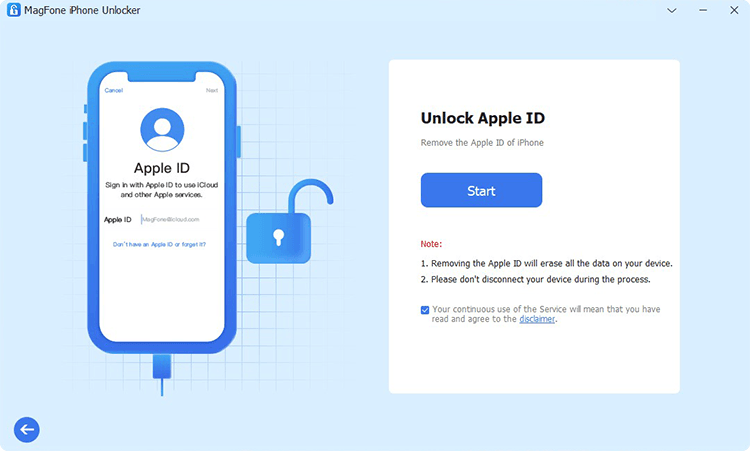
First of all, connect your iPhone to a networked computer. Then install MagFone iPhone Unlocker on your computer and launch it. At the main interface, pick Unlock Apple ID and click Start.
Step 2 Confirm Device Status
Confirm that you have set a lock screen passcode on the iPhone and 2FA for your Apple ID. Then click Yes twice.
Step 3 Download Firmware Package

Verify your device details on the screen, then click Download to download the firmware package.
Step 4 Remove Apple ID without Password
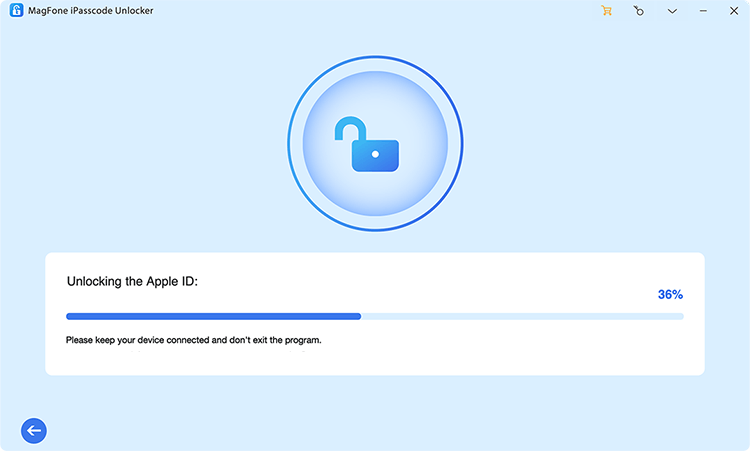
When the download is over, you can click Unlock to remove the iCloud account on your iPhone. After that, you will get rid of the forgotten iCloud password.
Part 5. FAQs about iPhone iCloud Account
How to delete iCloud account on iPhone?
As long as you sign out of the Apple ID on your iPhone, the iCloud account will be deleted as well. Here's how to.
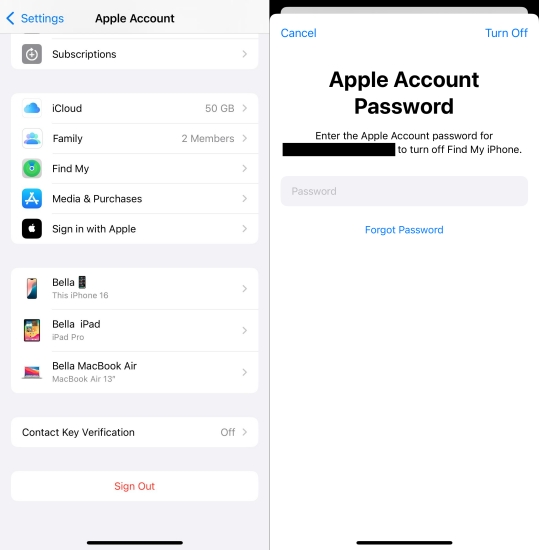
Step 1. Go to Settings and tap on Apple ID.
Step 2. Swipe down and press Sign Out.
Step 3. Enter your Apple ID password to delete the iCloud account on your iPhone.
How to add iCloud account to iPhone?
You can add an iCloud account on your iPhone in Settings. Follow these steps to add an iCloud address.
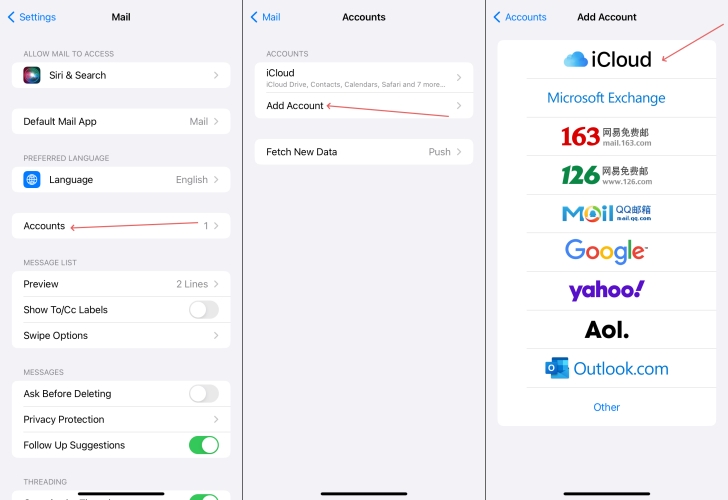
Step 1. Go to Settings.
Step 2. Select Mail > Accounts, then tap Add Account > iCloud.
Step 3. Enter your Apple ID and password and touch on Next.
Step 4. If prompted, input the six-digit Apple ID Verification Code.
How to change iCloud email address on iPhone?
You should delete the previous iCloud email address in Settings and then add a new iCloud account on your iPhone like this.
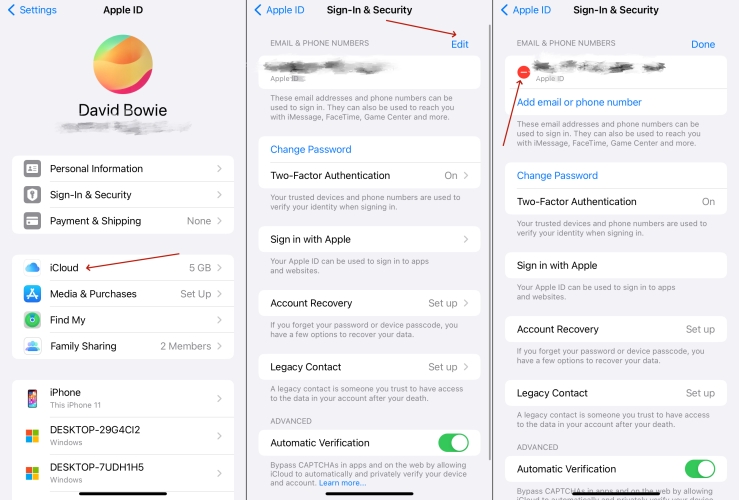
Step 1. Fire up Settings
Step 2. Tap on Apple ID and select iCloud.
Step 3. Under the iCloud screen, press on Edit and delete the original iCloud account.
Step 4. Tap Add email or phone number to add a new iCloud account.
Part 6. Conclusion
Did you forget the iCloud account password? Don't worry, this comprehensive guide on how to recover your iCloud password provides 3 ways to check your Apple ID password. Even though you can't find it, it's also simple to recover or reset your iCloud password. In even worse cases, you can rely on the MagFone Activation Unlocker to bypass the iCloud password.

Dylan Jones
Editor in chief




