








Hey, I want to unlock my disabled iPad without using iTunes. I gave the iPad to my friends and he tapped in the wrong passcode. Now he is not able to use it as it says that iPad is disabled. How can I unlock it without using iTunes, as it was setup using my laptop for the first time. He can't send the iPad to me. How to resolve this issue?"
—— From the Apple Community
Being locked out of iPad at the worst possible time? It's frustrating. Fortunately, there are several effective ways to unlock a disabled iPad, even if you don't want to use iTunes. In this guide, we'll walk you through 5 methods step by step to unlock iPad without iTunes, from using Finder or dedicated unlocking software on a computer, to unlocking your iPad directly from the device itself or via iCloud and the Find My app. By the end, you'll know how to safely regain access to your iPad.
- Part 1. How Do You Unlock an iPad without iTunes?
- Part 2. How to Unlock Disabled iPad without iTunes on Computer
- Part 3. How to Unlock iPad Passcode without Computer or iTunes
- Part 4. Conclusion
Part 1. How Do You Unlock an iPad without iTunes?
iPads can get locked for various reasons. The most common is entering the wrong passcode too many times. Additionally, forgetting the Apple ID credentials or purchasing a second-hand iPad with existing locks can result in this issue. The following are common scenarios for a locked iPad:
- Kids accidentally lock the device
- Kids accidentally lock the device
- Locked iPad after a failed update
- iCloud lock from a previous owner
Using iTunes to unlock a locked or disabled iPad is one of Apple's recommended solutions. But what if you don't want to use iTunes, or you can't access it on your computer? Fortunately, there are several other reliable methods you can try to unlock a disabled iPad without iTunes. Next, we'll walk you through these alternatives step by step so you can choose the option that works best for you.
| Methods | Supported OS | Apple ID & Password | Find My iPad | Data Loss | Easy to Use | Recommendation |
|---|---|---|---|---|---|---|
| Finder | All iPad Models | ✔️ | ❌ | ✔️ | Moderate | ⭐⭐⭐ |
| MagFone iPhone Unlocker | All iPadOS | ❌ | ❌ | ✔️ | Easy | ⭐⭐⭐⭐⭐ |
| Security Lockout | iPadOS 15.2 and later | ✔️ | ✔️ | ✔️ | Easy | ⭐⭐⭐⭐ |
| iCloud | iPadOS 13 and later | ✔️ | ✔️ | ✔️ | Complex | ⭐⭐⭐ |
| Find My App | iPadOS 13 and later | ✔️ | ✔️ | ✔️ | Complex | ⭐⭐⭐ |
Part 2. How to Unlock Disabled iPad without iTunes on Computer
If you have access to a computer, unlocking your disabled iPad without iTunes becomes much easier. Both macOS and Windows offer practical solutions that let you restore access to your device safely and efficiently. In this part, we'll explore how to use built‑in tools like Finder on a Mac, as well as third‑party software such as MagFone iPad Unlocker.
Method 1. Unlock Disabled iPad Using Finder
On newer versions of macOS, Finder has taken over many of the tasks that iTunes used to handle, including restoring and updating iOS and iPadOS devices. This makes it a convenient, built‑in option for unlocking a disabled iPad if you're using a Mac.
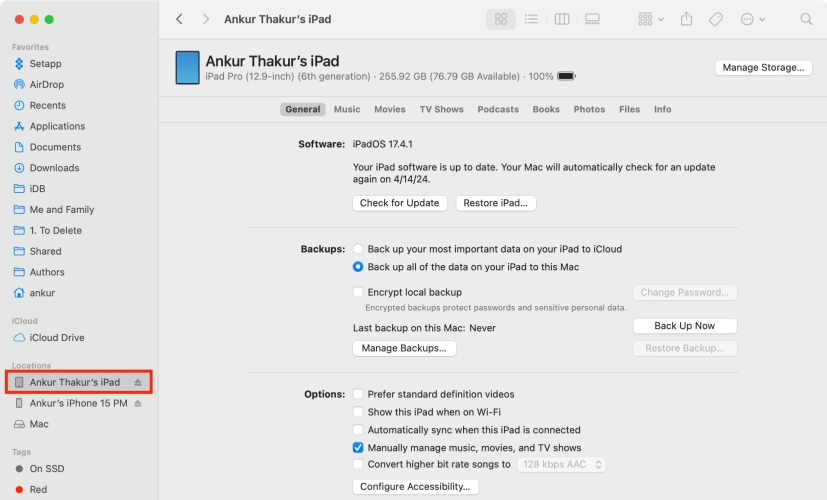
Step 1. Connect your iPhone to a Mac and open Finder.
Step 2. Click the iPad under Locations, then click Restore iPad > Restore to remove all data on the disabled iPad, including the screen passcode.
Step 3. After restoring, you can reset the iPad and choose to restore data from an iCloud or Finder backup if you have one available.
Method 2. Unlock Disabled iPad Using MagFone iPad Unlocker
If you don't have a Mac, a third-party tool like MagFone iPhone Unlocker, which is available on both Windows and Mac, offers a more flexible solution. MagFone iPhone Unlocker is a powerful unlocking tool, aiming at solving all kinds of lock problems users may come across when using Apple devices like iPhone and iPad. No matter if you forget the screen lock passcode or you cannot unlock your Apple device, MagFone iPhone Unlocker can do you a favor and restore your device to normal. Below is how to unlock iPad without iTunes through MagFone iPhone Unlocker.

MagFone iPhone Unlocker
Unlock various locks on iOS devices, including screen locks, MDM, Apple ID, and Activation Lock without needing a password.
Step 1 Download and Open MagFone iPhone Unlocker

First, download and install MagFone iPhone Unlocker to your computer. Then open it and connect your iPad to the computer through a USB cable. On the main interface of the software, select the Unlock iOS Screen option and click the Start button.
Step 2 Get Disabled iPad into Recovery Mode or DFU Mode
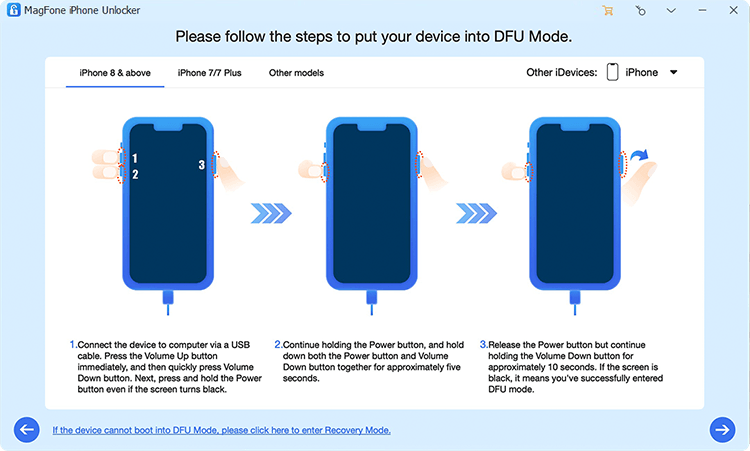
To make your disabled iPad detected by the software, you have to follow the onscreen instructions to put it into recovery mode or DFU mode. Then, click the icon in the bottom right corner to proceed.
Step 3 Download the Firmware Package for iPad

The firmware package is necessary for the unlocking process. Check the device information carefully before you click to download the firmware package. Choose the package that matches your device version. Then click Download to download the firmware package.
Step 4 Start to Unlock Disabled iPad without iTunes

Click the Unlock button to start unlocking your disabled iPad. Before the process is completed, keep your device connected to the computer. When the process ends, you can check whether you can get into your iPad without iTunes.
Part 3. How to Unlock iPad Passcode without Computer or iTunes
If you don't have a computer available or simply prefer not to use one, you can still unlock a disabled iPad without relying on a computer or iTunes. Apple provides several options that work directly from your device or another Apple device, making the process more convenient when you're on the go. In this part, we'll look at how to use the Security Lockout screen, the iCloud website, and the Find My app to erase your iPad and unlock iPad passcode without computer or iTunes.
Method 1. Unlock Disabled iPad on the Security Lockout Screen
Users can unlock a disabled iPad without iTunes on the Security Lockout screen directly. Security Lockout is a feature on the iPad since iPadOS 15.2 or later. After repeated failed attempts, the Security Lockout page will appear on the device's screen. Then you can't use your iPad if you see an iPad unavailable message or a Security Lockout screen. However, you can choose to erase the device in the onscreen option. But make sure that you can remember your Apple ID and that your device is connected to WiFi or a cellular network.
📝Requirements:
iPad running iPadOS 15.2 or later
Connect to a cellular or WiFi network
An Apple ID and password
On iPadOS 17 or later
Step 1. On the iPad Unavailable screen, tap Forgot Passcode?.
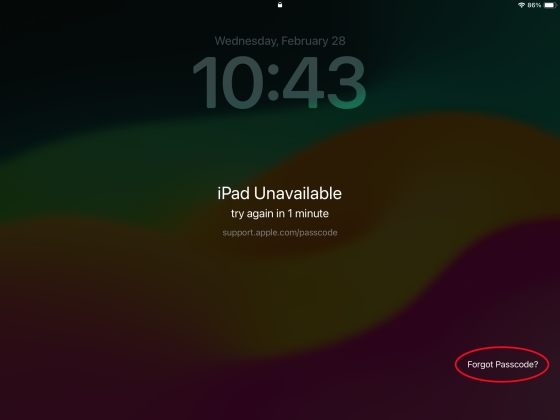
Step 2. Tap Start iPad Reset to confirm again.
Step 3. On the Sign Out of Apple ID page, enter your Apple ID password to sign out your Apple ID.
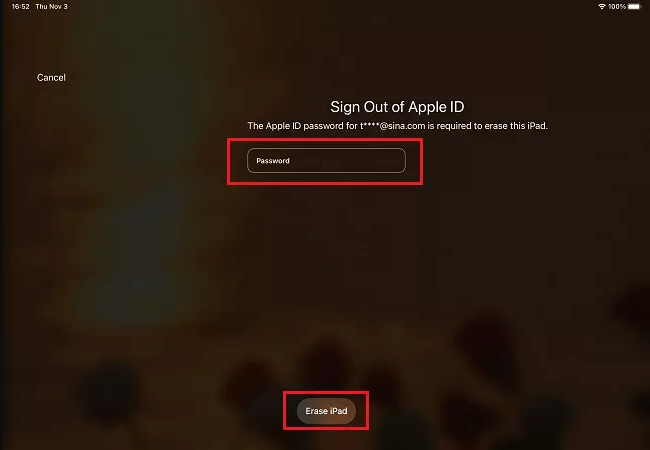
Step 4. Tap Erase iPad to start erasing all the data and settings.
Step 5. Wait to completely erase the device. Now you can restart your device and set it up.
From iPadOS 15.2 to iPadOS 17
Step 1. On the iPad Unavailable screen, tap Erase iPad.
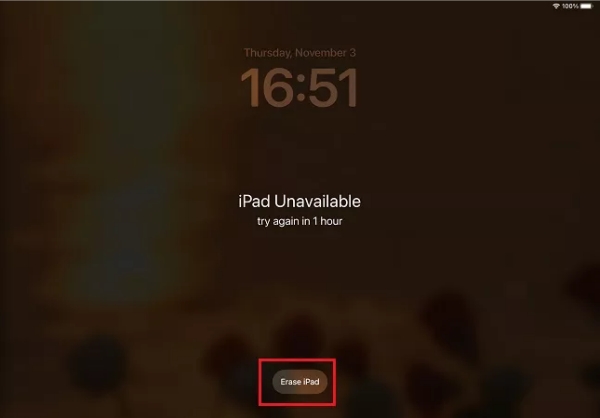
Step 2. Confirm to tap Erase iPad again.
Step 3. On the Sign Out of Apple ID page, enter your Apple ID password.
Step 4. After signing out of your Apple ID, tap Erase iPad to continue.
Step 5. Once the erasing process is done, your iPad will reboot. Now you can set it up.
72-hour Passcode Reset
If you recently changed your iPad passcode within the last 72 hours, you may be able to unlock your device using your previous passcode. When tapping the Forgot Passcode? option, you will see the Enter Previous Passcode option, simply tap and enter the old passcode. This option can help you regain access quickly without using iTunes or a computer, as long as the 72‑hour window has not yet passed and the device still accepts the former passcode.
Method 2. Unlock Disabled iPad at the iCloud Website
With Find My iPad enabled and being able to access your Apple ID and password, you can try to unlock your disabled iPad at iCloud.com. In this case, you just need to open a browser to sign into iCloud with your Apple ID and password, then you can remotely unlock your disabled iPad without iTunes. But note that you need to activate your iPad when setting it up.
📝Requirements:
An internet-connected device
An Apple ID and password
Find My iPad in enabled status
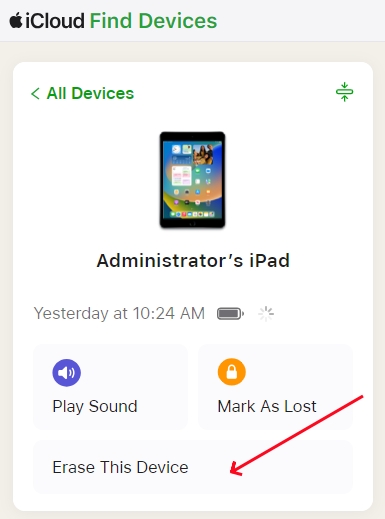
Step 1. Go to iCloud.com and log in with your Apple ID account and password.
Step 2. On the main interface, click the Find My button, then find All Devices.
Step 3. In All Devices, select your locked iPad and click Erase This Device.
Step 4. Click Erase This Device and enter your Apple ID password to confirm.
Method 3. Unlock Disabled iPad through the Find My App
Apart from logging into iCloud.com, users can also unlock a disabled iPad through the Find My app on Apple devices. If you have enabled Find My iPad and use the same Apple ID on all your Apple devices, you can use the Find My app to manage and control your iPad. On an Apple device, you can remotely erase your disabled iPad. Then your iPad will be factory reset. Your iPad becomes fresh as a new one and you can set it up.
📝Requirements:
An Apple device
An Apple ID password
Find My iPad in enabled status
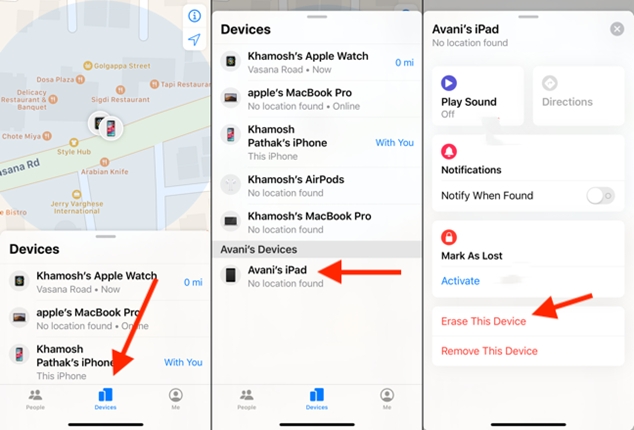
Step 1. Open the Find My app on another Apple device.
Step 2. Tap Devices to see all the devices connected to the Apple ID, then select your iPad.
Step 3. Tap Erase This Device, then tap Continue to confirm the process.
Step 4. Enter your trusted phone number and tap Erase to reset your device.
Part 4. Conclusion
Unlocking your iPad without iTunes doesn't have to be a nightmare. Whether you use Finder, third-party tools like MagFone iPhone Unlocker, Security Lockout, iCloud, or Find My app, there's always a way out. If you are looking for the simplest and quickest way to unlock an iPad, then MagFone iPhone Unlocker is your best partner. In addition to unlocking a locked device, it can also help with removing Apple ID, bypassing Screen Time passcode, and deleting MDM. With so many functions, MagFone iPhone Unlocker is right there for you to try!

Teresa Miller
Editor in chief





