








Forgetting your iPad unlock password is a common problem, especially if you haven't used the device for a long time, recently changed the passcode, or received a second-hand iPad. After too many incorrect attempts, the iPad may display "iPad is Disabled" or "iPad Unavailable," which can make you worry that you'll never be able to access it again. Fortunately, no matter why your iPad is locked, there are still practical solutions you can try at home. In this guide, we'll walk you through five proven methods to get into a locked iPad so you can quickly regain access.

- Part 1. How Do You Get into an iPad That Is Locked?
- Part 2. How to Get into a Locked iPad without Password
- Part 3. How to Get into Locked iPad without a Computer
- Part 4. FAQs about Locked iPad
- Part 5. Conclusion
Part 1. How Do You Get into an iPad That Is Locked?
When your iPad is locked, you may see either "iPad is disabled" or "iPad Unavailable," followed by a "Try again in [timer]" message. This can be torturous, especially if your iPad has been locked for a long time. Fortunately, there are five methods you can use to get into a locked iPad, even if there is a long timer.
| Method | Apple ID and Password | Find My iPad | Recommendation |
|---|---|---|---|
| MagFone iPad Unlocker | ❌ | Disabled | ⭐⭐⭐⭐⭐ |
| iTunes | ❌ | Disabled | ⭐⭐⭐ |
| Security Lockout | ✔️ | Enabled | ⭐⭐⭐⭐ |
| iCloud.com | ✔️ | Enabled | ⭐⭐⭐ |
| Find My App | ✔️ | Enabled | ⭐⭐⭐ |
Part 2. How to Get into a Locked iPad without Password
If the iPad's lock timer is short, you can simply wait and then enter the correct passcode to unlock it. But what if it's an iPad you haven't used for a long time and you've forgotten the passcode? In that case, you can use a computer to help you get into the locked device. Either an iPad unlocker tool or iTunes can be used to open a locked iPad without the Apple ID password.
Method 1. Get into Locked iPad via MagFone iPad Unlocker
Using an iPad unlocker is extremely helpful when you've forgotten both your iPad passcode and your Apple ID password. Among the many options available, MagFone iPad Unlocker stands out. It's a professional unlocking tool designed to remove multiple types of locks on Apple devices, including the lock screen passcode, Screen Time passcode, and MDM restrictions. In addition, MagFone iPad Unlocker offers a high success rate, supports a wide range of iPad models and iOS versions. Whether your iPad is disabled, unavailable, or locked, this tool can help you quickly regain full access to your device. Just follow the steps below to get into a locked iPad.

MagFone iPhone Unlocker
Unlock various locks on iOS devices, including screen locks, MDM, Apple ID, and Activation Lock without needing a password.
Step 1 Launch MagFone iPad Unlocker

Download and install MagFone iPhone Unlocker on your computer. At the same time, connect the locked iPad to your computer via a data cable. Launch MagFone iPad Unlocker after installation.
Step 2 Put the Locked iPad into Recovery Mode
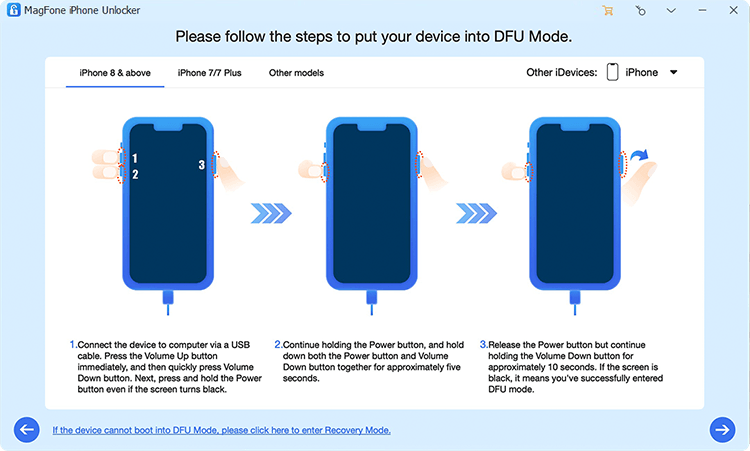
Click Unlock iOS Screen, then click Start. Follow the on-screen instructions to put the locked iPad into recovery mode.
Step 3 Download the Firmware Package

Once the locked iPad is entered recovery mode, you can check its details and click Download to download a firmware package.
Step 4 Get into Locked iPad without Passcode

After downloading and verifying the firmware package, click Unlock to remove the passcode on the locked iPad. Then you can get into the locked iPad and set it up as a new one.
Method 2. Get into Locked iPad via iTunes/Finder
Besides an unlocking tool, iTunes can also help you regain access to a locked iPad. By connecting your device to a computer and putting it into Recovery mode, you can use iTunes to restore the iPad and remove the lock screen passcode. However, you may encounter errors during the restore process.
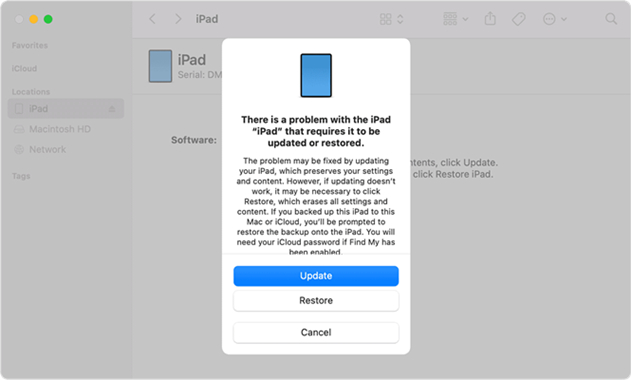
Step 1. Connect the locked iPad to your computer via a data cable. Then put the locked iPad in to recovery mode.
- For iPads without a Home button: Quickly press and release the volume up button, then the volume down button, and finally press and hold the top button until the recovery mode screen appears.
- For iPads with a Home button: Keep holding both the Home button and the top button until the screen goes black and the iPad turns off. Once it's off, release the top button and keep holding the Home button until you see the recovery mode screen on your locked iPad.
Step 2. When the locked iPad enters recovery mode, there will be a pop-up window from iTunes. Choose Restore to erase all data on the locked iPad. Then you will be able to get into the locked iPad without passcode.
Part 3. How to Get into Locked iPad without Computer
If you don't have a computer with you for the time being, you can try unlocking your iPad directly or remotely using your Apple ID. This method requires that you still remember your Apple ID and password.
Method 1. Open a Locked iPad on Security Lockout Screen
In newer iPadOS versions, the option to Forgot Passcode? may appear on the lock screen when the device enters the wrong passcode multiple times. As long as you enter the correct Apple ID password, you can remove the lock screen passcode.
For iOS 15.2 to iOS 16:
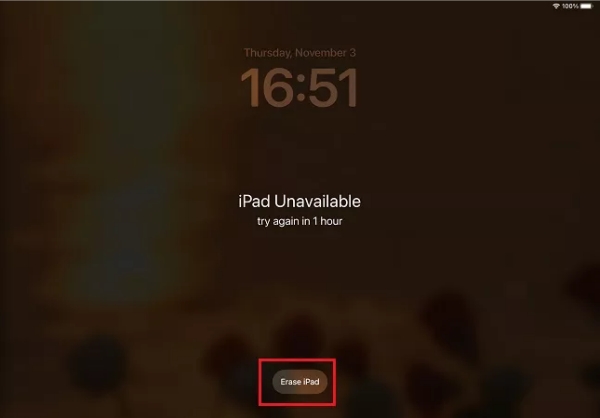
Step 1. When the Security Lockout screen appears, tap Erase iPad.
Step 2. Enter your Apple ID password when prompted so that your Apple ID can be signed out of the iPad.
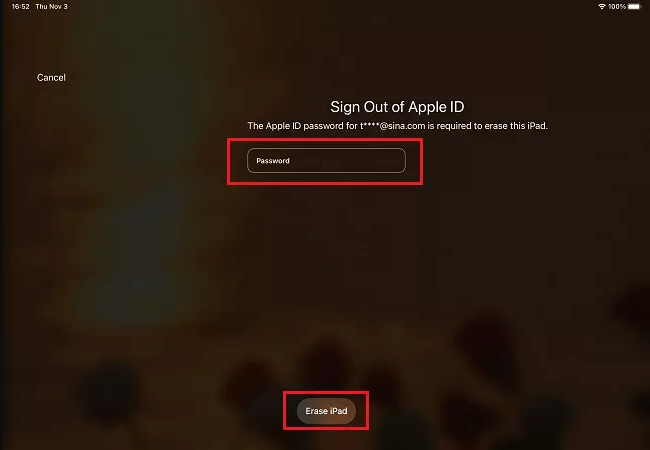
Step 3. Tap Erase iPhad again to remove all content and settings from the device.
For iOS 17 or later:
Step 1. Keep entering an incorrect passcode until you see the iPhone Unavailable screen.
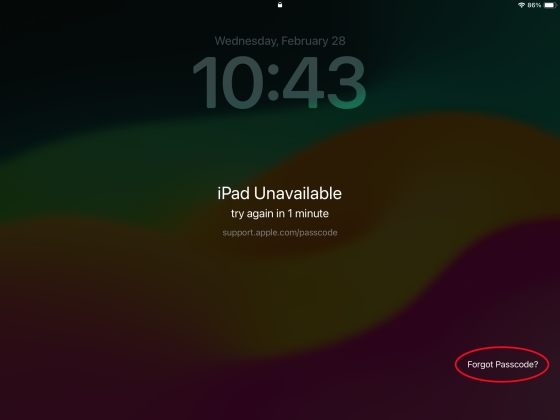
Step 2. Tap Forgot Passcode?, then select Start iPad Reset.
Step 3. When asked, enter your Apple ID and password to sign out of your account on the device.
Step 4. Then tap Erase iPad to start deleting all the data and settings. Then you can set up your device and set a new passcode.
Method 2. Open a Locked iPad at iCloud.com
If there is no Forgot Passcode? option on the locked iPad, but it's still tied to your Apple ID, you can access iCloud.com on other devices to remotely erase your iPad with the Find My feature.
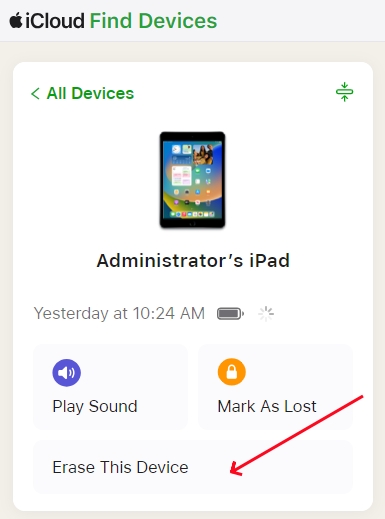
Step 1. Navigate to iCloud.com and sign in to your Apple account.
Step 2. Enter Find My, and you can see all your linked devices on this page.
Step 3. Find the locked iPad and choose Erase this device.
Step 4. Enter your Apple ID password and choose Erase to erase all data and settings on the locked iPad and regain access.
Method 3. Open a Locked iPad via Find My App
If there are other Apple devices linked to the same Apple ID, you can use the Find My app on any of those devices to remotely erase and unlock your iPad. This allows you to remove the lock screen passcode and then set it up again as new.
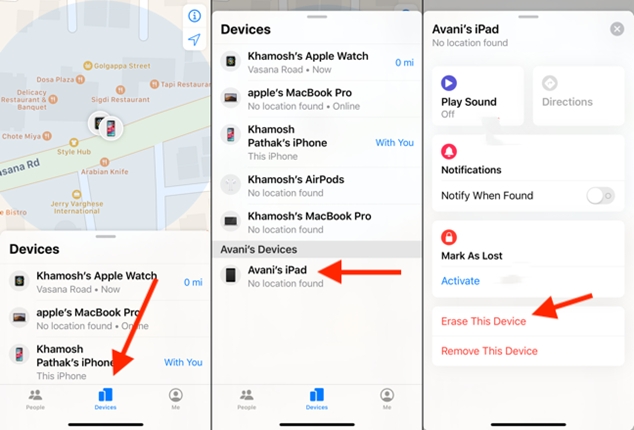
Step 1. Open Find My on your Apple device.
Step 2. Tap Devices and find the locked iPad in the list.
Step 3. Access and tap Erase this device, tap Continue > Erase.
Step 4. Then you'll be required to enter the Apple ID password to confirm the operation.
Part 4. FAQs about Locked iPad
How to reset iPad that is locked?
When an iPad is locked, resetting the device usually requires erasing all data. The most common way is to connect your iPad to your computer, enter recovery mode via iTunes or Finder, and restore the device. If you remember your Apple ID, you can also remotely erase your iPad and set it up again through the iCloud website or Find My app.
How to restore iPad when locked?
You can use your computer to put your iPad into recovery mode and perform a recovery via iTunes or Finder. Or you can remotely erase the locked iPad to restore it through the iCloud website or Find My app.
How to reset a locked iPad without iTunes?
To reset a locked iPad without iTunes, you can choose iCloud.com or Find My app to remotely erase your locked iPad, provided that Find My iPad is turned on and you remember your Apple ID. Besides, you can also use MagFone iOS System Recovery to reset the device.
How to unlock a locked iPad without Apple ID?
To unlock a locked iPad without Apple ID, you need to utilize a computer to help you. Either iTunes or MagFone iPhone Unlocker can help you to get into locked iPad without Apple ID.
Part 5. Conclusion
When your iPad is locked, it doesn't mean the device is permanently unusable. In most cases, you can still regain full access by resetting or erasing the device. Depending on your situation, you can restore your iPad via iTunes on a computer, erase and unlock it using your Apple ID through Find My, or rely on a third-party solution such as MagFone iPad Unlocker. Choose the method that suits your situation so you can get into a locked iPad easily and quickly.

Teresa Miller
Editor in chief





