








When an iPhone becomes unavailable because of a forgotten passcode, finding a reliable unlocking tool is often the best solution. However, not every program offers the same features or delivers the expected results. In this review, we will take a closer look at ApowerUnlock, including how it works, what users say about it, and another option you may consider.

- Part 1. What Is ApowerUnlock?
- Part 2. How to Use ApowerUnlock to Unlock iOS Screen
- Part 3. Real Reviews about ApowerUnlock
- Part 4. Best Alternative to ApowerUnlock
- Part 5. Conclusion
Part 1. What Is ApowerUnlock?
ApowerUnlock is an iOS unlocking tool developed by Apowersoft. It's mainly designed to unlock the lock screen passcode on iPhone and iPad. It supports unlocking three types of screen locks: digital passcode, Touch ID, and Face ID. Besides unlocking the screen passcode, ApowerUnlock for Mac also supports removing Apple ID from iPhone or iPad.

Pricing Plans of ApowerUnlock
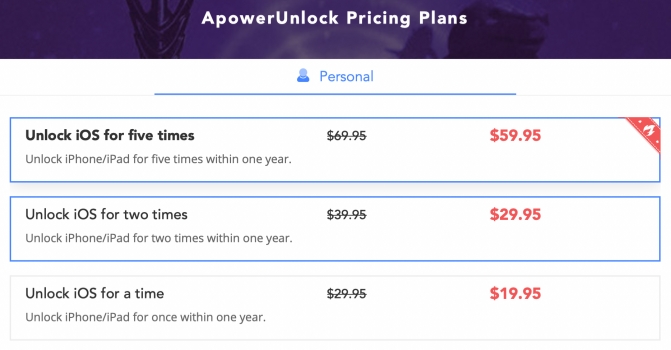
ApowerUnlock offers three personal licensing options based on the number of times you need to unlock an iOS device during one year.
| Pricing Plans | Price |
|---|---|
| Unlock iOS for five times | $59.95 |
| Unlock iOS for two times | $29.95 |
| Unlock iOS for one times | $19.95 |
Part 2. How to Use ApowerUnlock
Since ApowerUnlock is mainly designed to unlock the lock screen, let's see how to use this tool to unlock an iPhone or iPad.

Step 1. Download the ApowerUnlock package from its official website, then install and set up ApowerUnlock.
Step 2. Open ApowerUnlock and click the profile icon to register.
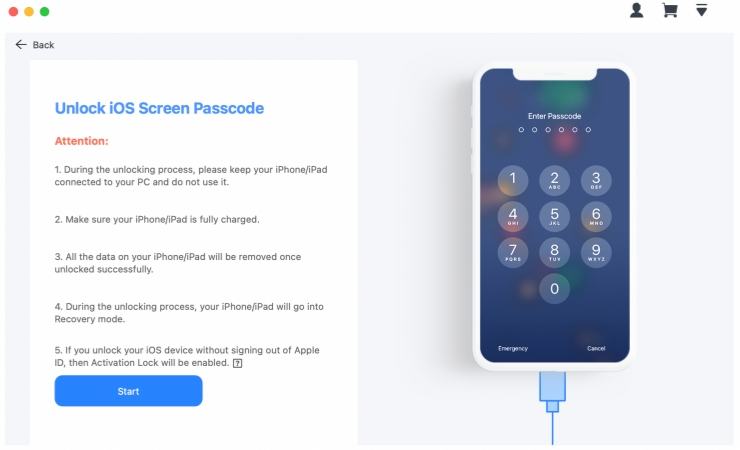
Step 3. Click Unlock Screen, then click Start.
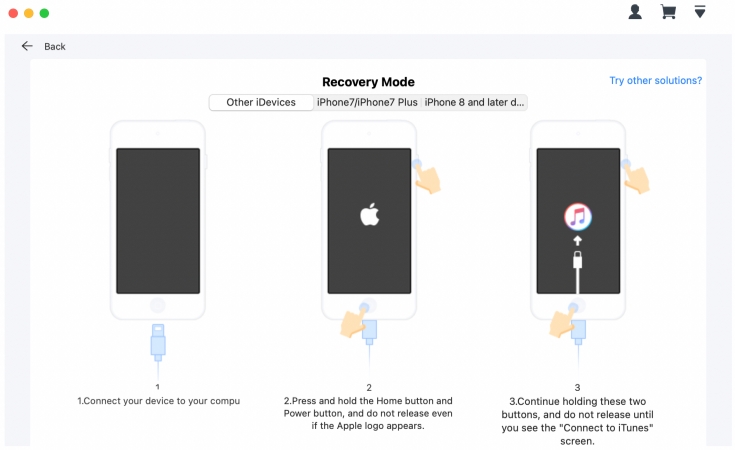
Step 4. Put the locked iPhone into Recovery Mode.
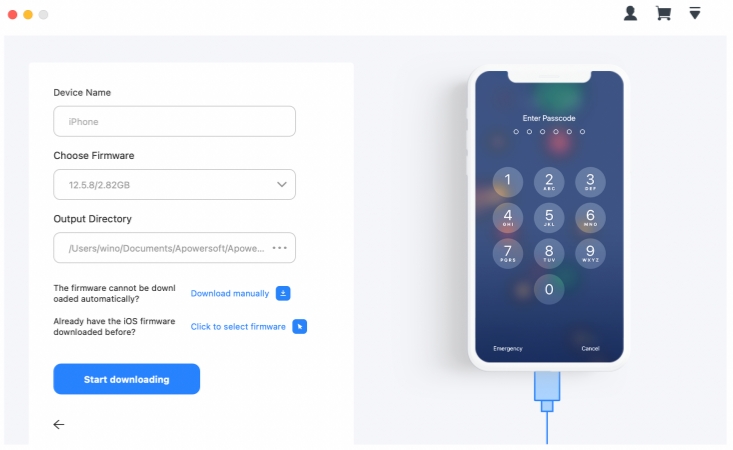
Step 5. Click Start Downloading to download the firmware.
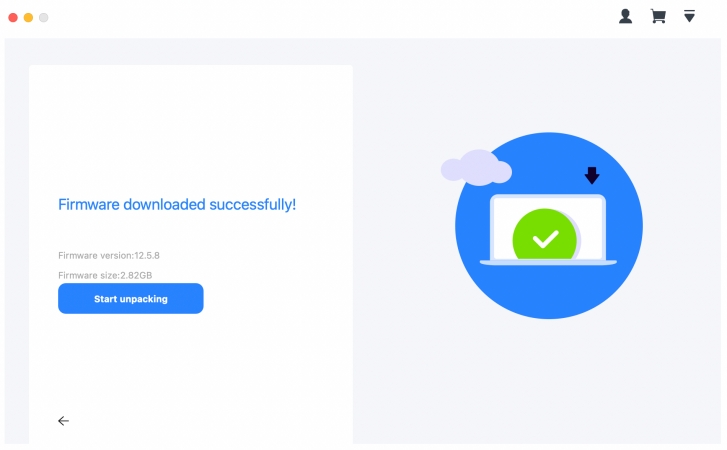
Step 6. After downloading, click Start unpacking to unpack the package.

Step 7. Click Start unlocking to remove the lock screen passcode from iPhone.
Part 3. Real Reviews about ApowerUnlock
After using ApowerUnlock, we will share our own hands-on experience and users' feedback from Trustpilot, giving you a more balanced look at its overall performance.
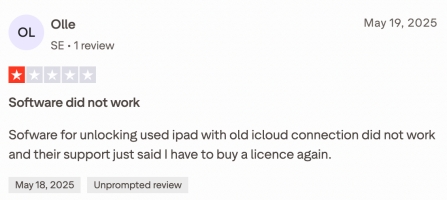
Although ApowerUnlock is dedicated to unlocking screens for iPhone and iPad users, its performance is not as good as expected. Apwowersoft has an average rating of 2.1 out of 5 on Trustpilot, and it has mixed but overall negative user feedback. Some users give positive feedback for being easy to use and delivering advertised features, while more complaints are mainly about unhelpful customer service, frequent login requirements, and concerns about needing to pay again after software updates.
- Clear interface
- Can remove digital passcodes, Touch ID, and Face ID locks
- Offers one-time unlocking plan
- Single unlocking features
- Windows version doesn't support Apple ID removal
- Unlocking success varies from device model and storage conditions
Part 4. Best Alternative to ApowerUnlock
ApowerUnlock's overall Trustpilot rating and users' feedback suggest that the software may not meet users' expectations. If you need a more comprehensive and reliable unlocking solution, MagFone iPhone Unlocker is worth considering as an alternative.
| Features | ApowerUnlock | MagFone iPhone Unlocker |
|---|---|---|
| Unlock iOS Screen | ✔️ | ✔️ |
| Remove Apple ID from iDevice | ❌ | ✔️ |
| Remove Screen Time Passcode | ❌ | ✔️ |
| Unlock Activation Lock | ❌ | ✔️ |
| Remove MDM Password | ❌ | ✔️ |
| Remove iTunes Backup Encryption | ❌ | ✔️ |
| Password Manager | ❌ | ✔️ |
| Reliablility | ⭐⭐ | ⭐⭐⭐⭐⭐ |
| Trustpilot Rating | 2.1 | 4.3 |
MagFone offers multiple unlocking features, including removing the lock screen passcode, removing the Screen Time passcode, removing Apple ID, removing MDM, and unlocking iCloud Activation Lock. Apart from unlocking features, it also supports scanning and finding saved passwords on iOS devices.
MagFone offers support for different iOS lock-related situations and gives you a more reliable unlocking experience. Below, we will walk you through how to use MagFone iPhone Unlocker to remove the lock screen passcode.

MagFone iPhone Unlocker
Unlock various locks on iOS devices, including screen locks, MDM, Apple ID, and Activation Lock without needing a password.
Step 1 Download and install MagFone iPhone Unlocker
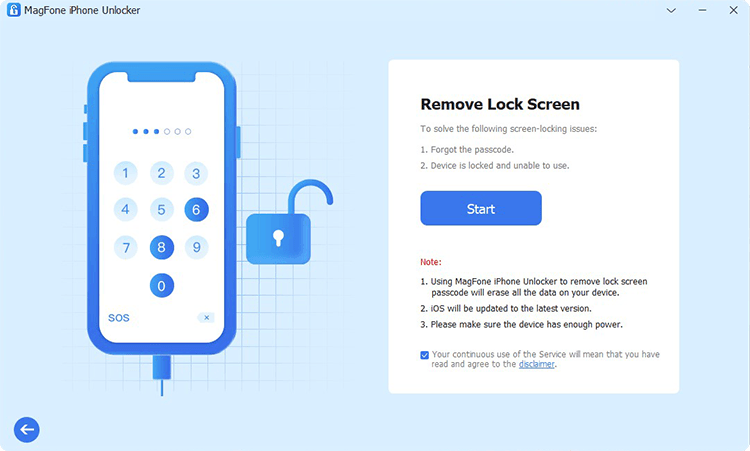
First, download and install MagFone iPhone Unlocker on your computer. Then use a data cable to link a locked iPhone to the computer.
Step 2 Put the iPhone into Recovery Mode
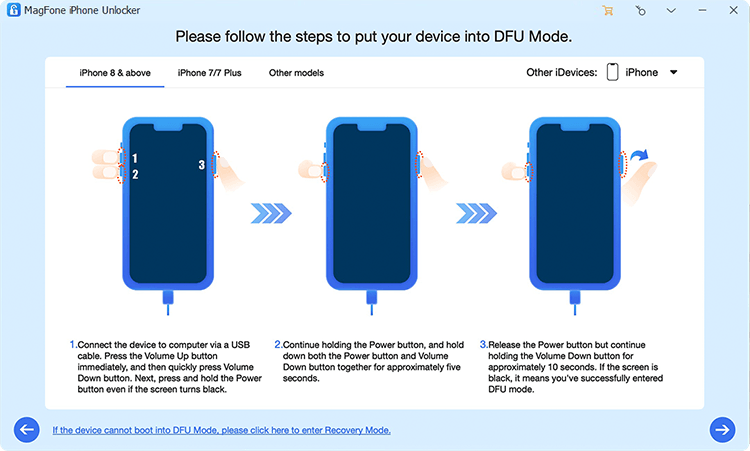
Click Unlock iOS Screen on the main interface, and click Start. Then follow the on-screen tutorial to get the locked iPhone into Recovery Mode.
Step 3 Download the Firmware Package

When the locked iPhone is in Recovery Mode, click the Next button. Then click Download to download the firmware package.
Step 4 Unlock iPhone without Passcode
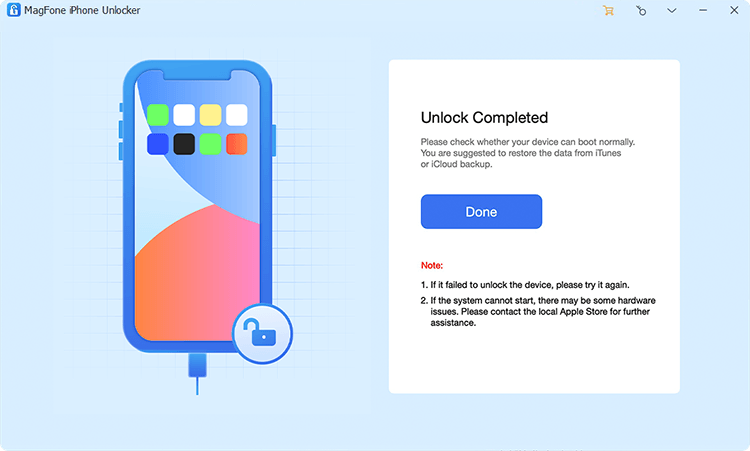
When the firmware package is downloaded and verified, click Unlock to remove the lock screen passcode.
Part 5. Conclusion
ApowerUnlock can be an option if you need to remove iPhone and iPad screen passcodes. But it has many limitations if you encounter more passcode-related issues. Before choosing ApowerUnlock, you can read our full review and compare it with alternatives such as MagFone iPhone Unlocker.

Dylan Jones
Editor in chief




