








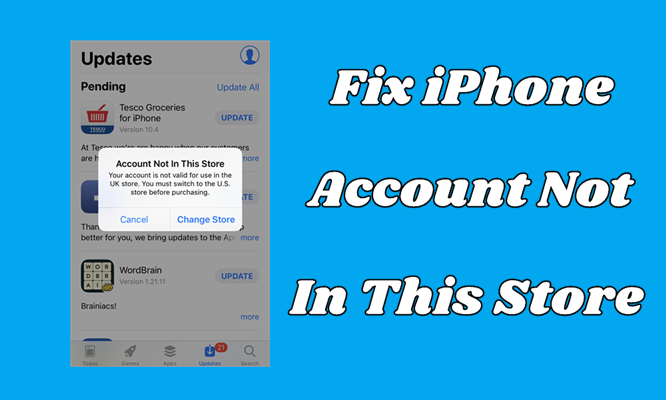
When downloading or updating apps from the App Store, many iPhone users encounter an error message that says "Account Not in This Store". This issue is usually related to the region setting of your Apple ID and can directly lead to the inability to download apps, update software, or even use certain services. What's even more troubling is that the error can still recur even if the App Store region has been changed. In this guide, we will show you how to fix Account Not in This Store error, helping you get back to normal use of the App Store.
- Part 1. What Does Account Not In This Store Mean?
- Part 2. How to Bypass Account Not in This Store by Changing Region
- Part 3. How to Fix Account Not in This Store after Changing Region
- Solution 1. Force Restart iPhone
- Solution 2. Turn Off VPN Service
- Solution 3. Sign Out and Back into App Store
- Solution 4. Change Password for Apple ID
- Solution 5. Update and Verify Payment Method
- Solution 6. Disable Content Restrictions
- Solution 7. Update System Software
- Solution 8. Reset Network Settings
- Solution 9. Create a New Apple ID for the Required Region
- Part 4. Bonus Tip: Unlink Apple ID from iPhone without Password
- Part 5. Conclusion
Part 1. What Does Account Not In This Store Mean?
When you see the message "Account Not In This Store. Your account is not valid for use in the store. You must switch to the store before purchasing", it means there is a mismatch between your Apple ID's country or region and the App Store you're currently trying to use. As a result, you won't be able to purchase, download, or update apps in the App Store on your iPhone, iPad, or other Apple devices until the regions match.
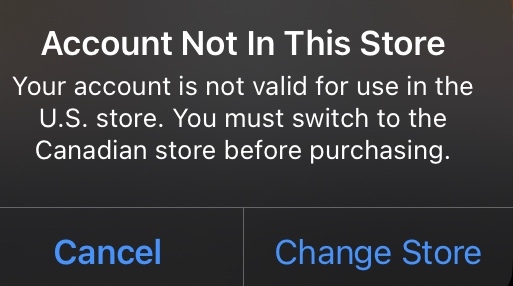
This message usually appears when your Apple ID's region settings don't line up with the App Store region on your device. Common causes include:
- Your Apple ID is set to a different country than the App Store currently in use.
- The app is not available in your current country or region.
- You changed your App Store region but didn't fully update your Apple ID settings.
- You're using multiple Apple IDs on one device, each with a different region.
- Your device was restored from a backup that was linked to another country's App Store.
- Your iCloud region or billing address was changed to a different country.
Part 2. How to Bypass Account Not in This Store by Changing Region
The good news is that the Account Not In This Store issue can usually be resolved by updating your region or account settings. In this part, we'll show you how to change your App Store country or region to remove the "Account Not In This Store" message so you can purchase, download, and update apps normally again.
Make Preparation for Changing Your Country or Region:
- Check your Apple account balance. If you have a balance, spend any balance remaining on your Apple ID.
- Check your subscription on Apple ID. If you have subscribed to any service, cancel your subscription in advance.
- Check your order on your Apple ID. If you have any memberships, pre-orders, movie rentals, or others, go to deal with it in advance.
- Get a payment method for your new country or region. Make sure that you have a valid payment method for your new country or region.
- Download all your previous contents. If you want to continue to use apps or others in the future, re-download your apps, music, movies, TV shows, and books on your device.
Option 1. Change Your Region on Your iPhone or iPad
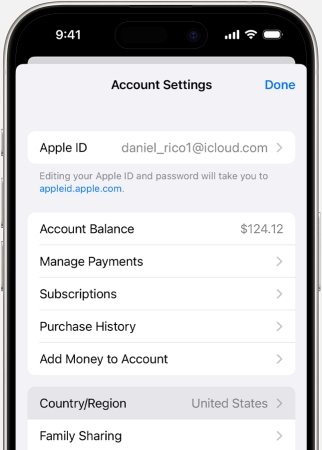
Step 1. Go to Settings and tap your name, then select Media & Purchases.
Step 2. Tap View Account and enter your Apple ID and password to sign in.
Step 3. Under Account Settings, select Country/Region and tap Change Country or Region.
Step 4. Select the country or region you're in, then tap Agree and Change Country.
Step 5. Tap Continue, then tap Agree again to confirm.
Step 6. Select a payment method and enter your new payment information and billing address, then tap Next.
Option 2. Change Your Region on Mac
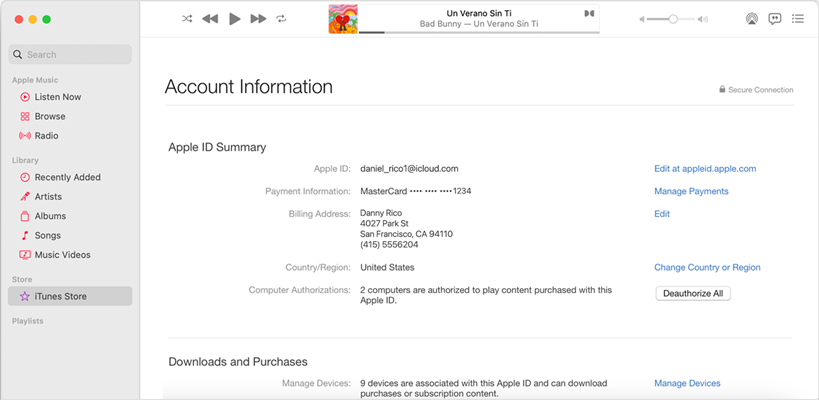
Step 1. Open the Apple Music app or Apple TV app.
Step 2. Click Account > Account Settings in the menu bar.
Step 3. Enter your Apple ID and password to sign in.
Step 4. On the Account Information page, click Change Country or Region.
Step 5. Select the country or region you live in, then review the Terms & Conditions.
Step 6. Click Agree, then click Agree again to confirm.
Step 7. Enter your new payment information and billing address, then click Continue.
Option 3. Change Your Region on Windows PC
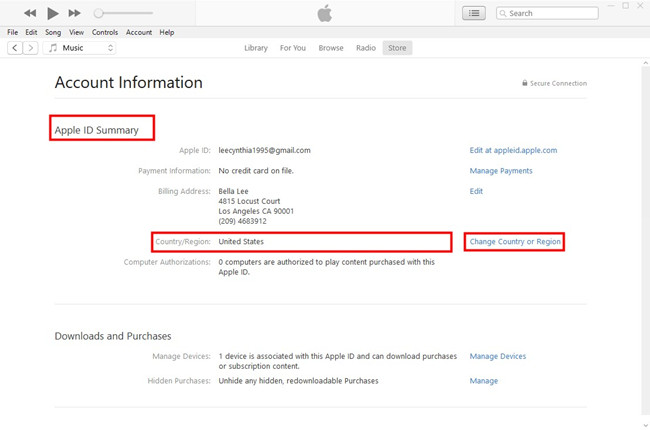
Step 1. Launch iTunes and click Account > View My Account from the menu bar.
Step 2. On the Account Settings page, click Change Country or Region.
Step 3. Browse and select your new country or region.
Step 4. Review the Terms & Conditions, then click Agree twice.
Step 5. Input your new payment information and billing address, then click Continue.
Option 4. Change Your Region Online
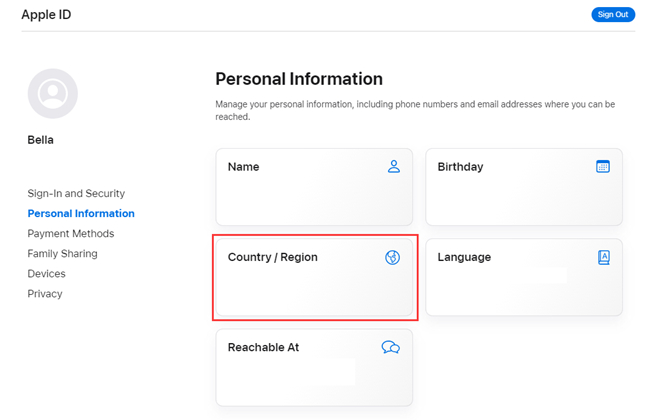
Step 1. Visit appleid.apple.com and sign in with your Apple ID and password.
Step 2. Click Personal Information on the left sidebar and select Country/Region.
Step 3. In the pop-up window, click Change country or region to update your Apple ID information.
Step 4. Select a new country or region and update your payment method and billing address, then click Update.
Note:
If you are a part of a Family Sharing group, you might not be able to change your country or region. In this case, only the organizer of Family Sharing can change the Apple ID information.
Part 3. How to Fix Account Not in This Store after Changing Region
If changing the App Store region didn't fully resolve the "Account Not In This Store" error, there may be other issues with your device, network, or Apple ID settings. Work through the following solutions one by one until the message disappears and you can use the App Store normally again.
Solution 1. Force Restart iPhone
A force restart can clear temporary glitches that may interfere with the App Store or your Apple ID authentication. This simply refreshes the system and can often remove minor software bugs that trigger the "Account Not In This Store" message.
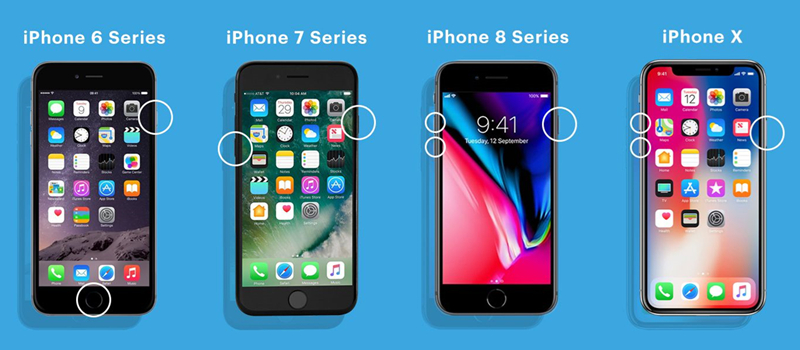
- For iPhone 8, iPhone SE(2nd), and later series:
Step 1. Quickly press and release the volume up button, then quickly press and release the volume down button.
Step 2. Immediately press and hold the power button until the Apple logo appears on the screen.
Step 3. Release the power button and wait for your iPhone to finish restarting.
- For iPhone 7 series:
Step 1. Press and hold the volume down button and the power button at the same time.
Step 2. Keep holding both buttons until the Apple logo appears on the screen.
Step 3. Release both buttons and wait for your iPhone to finish restarting.
- For iPhone 6 or iPhone SE(1st):
Step 1. Press and hold the home button and the power button at the same time.
Step 2. Keep holding both buttons until you see the Apple logo on the screen.
Step 3. Release both buttons and allow your device to complete the restart.
Solution 2. Turn Off VPN Service
If you're using a VPN, it can cause the App Store to access server regions that don't match your Apple ID region, triggering the error. It is recommended to temporarily turn off the VPN, switch to a stable local network, and open the App Store again to try.
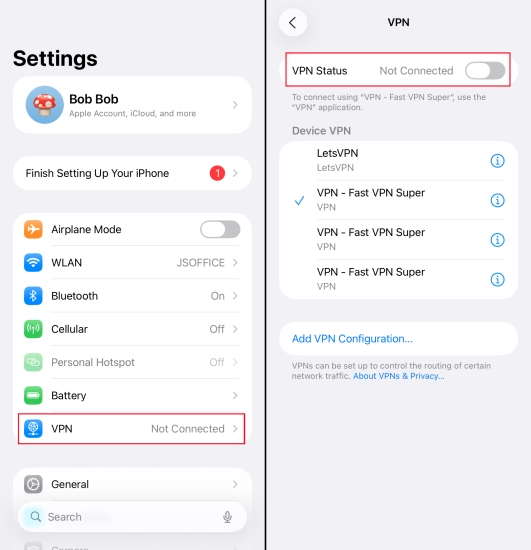
Step 1. Open iPhone Settings and tap VPN.
Step 2. Disable VPN Status.
Solution 3. Sign Out and Back into App Store
Signing out and signing back in to the App Store allows the system to re-verify your Apple ID's region information. This helps sync the region settings you just changed.
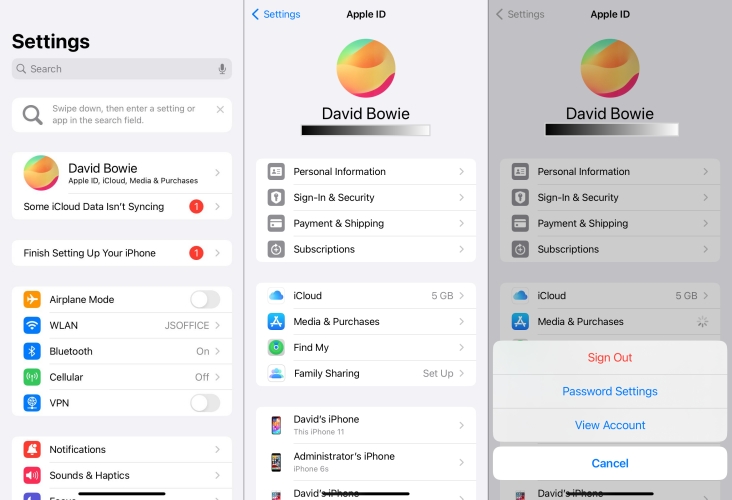
Step 1. Head to Settings and tap your Apple ID profile, then select Media & Purchases.
Step 2. In the pop-up window, tap Sign Out and tap it again to confirm.
Step 3. After signing out of your Apple ID, go to sign in again.
Solution 4. Change Password for Apple ID
If there's a security flag or authentication issue on your Apple ID, the App Store might not validate your account properly. Changing Apple ID password re-authenticates your account across all Apple services and can restore normal access to the store.
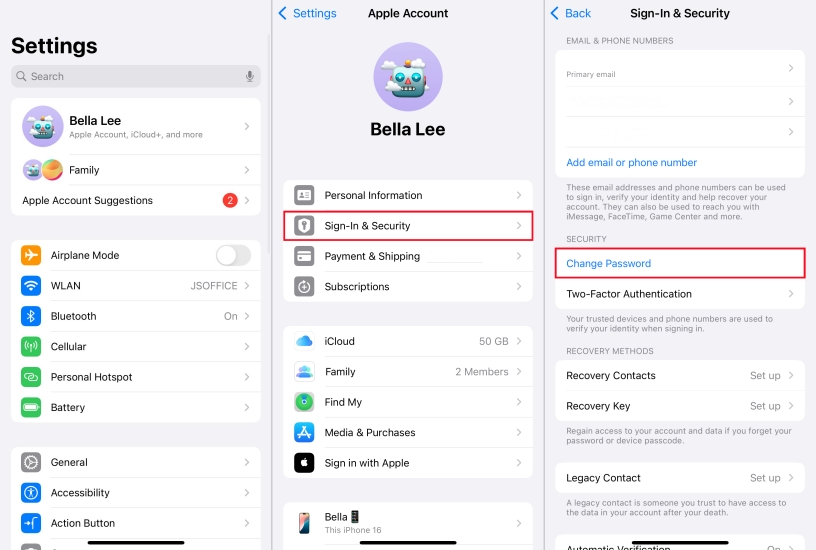
Step 1. Open the Settings app on your iPhone and tap your Apple ID name.
Step 2. Tap Sign-In & Security and select Change Password.
Step 3. Enter your current password, then enter a new password twice.
Solution 5. Update and Verify Payment Method
An invalid, expired, or region-mismatched payment method can prevent your account from being used in a specific store. Making sure your payment information is valid, up to date, and matches your new country or region helps ensure the App Store verifies your account.
Option 1. Update the Payment Method on the iPhone
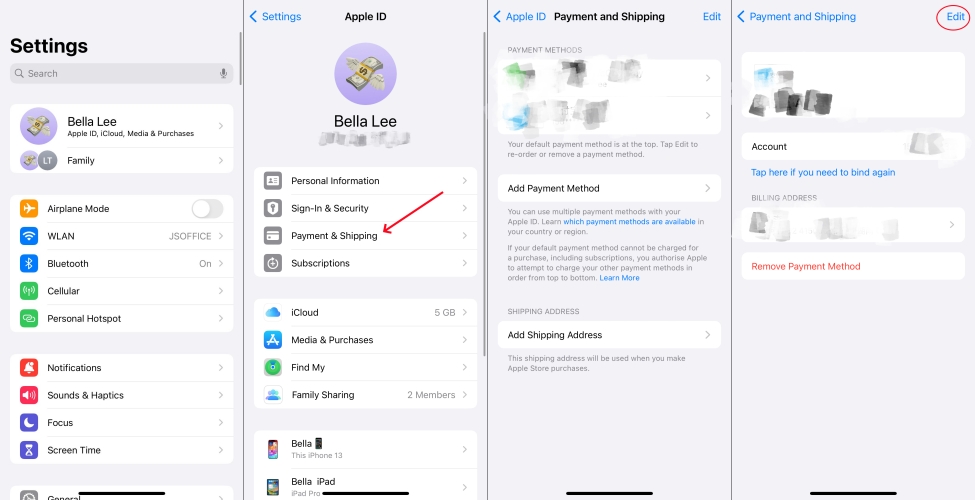
Step 1. Open the Settings app, then tap your Apple ID name > Payment & Shipping.
Step 2. Enter the Apple ID password to forward and browse your payment method.
Step 3. Select a payment method to update and tap Edit.
Step 4. Enter your new billing information and tap Done.
Option 2. Change the Payment Method on the iPhone
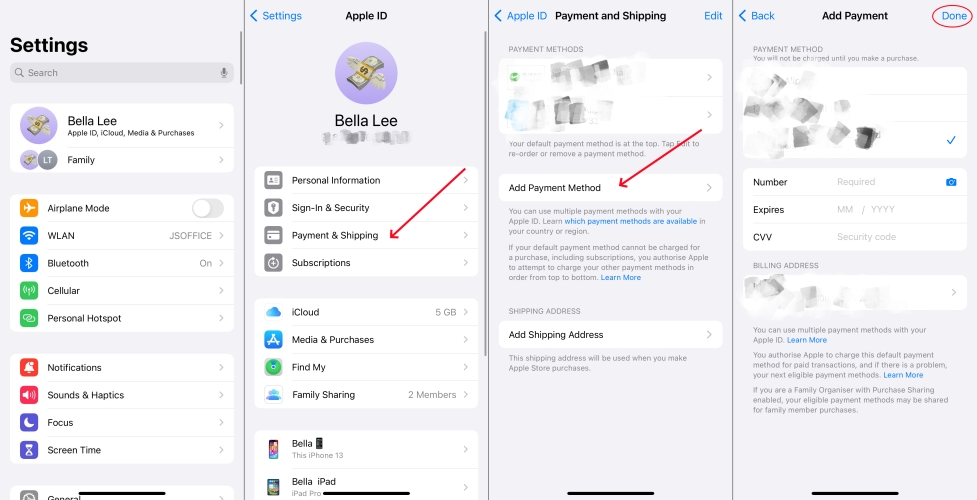
Step 1. In the Settings app, tap your Apple ID name and select Payment & Shipping.
Step 2. Sign in with your Apple ID password, then tap Add Payment Method.
Step 3. Enter the new payment method and tap Done.
Step 4. Tap Edit, then tap the red delete button next to the useless method.
Step 5. Tap Remove to confirm.
Solution 6. Disable Content Restrictions
Content and privacy restrictions in Screen Time can sometimes limit regional content or app downloads. Turning them off can restore full access to app downloads and updates.
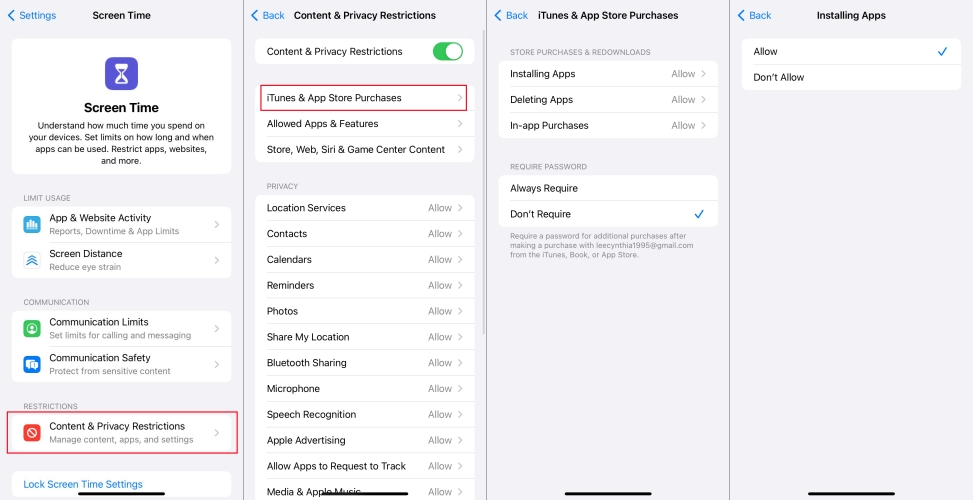
Step 1. Locate Settings on your iPhone and tap Screen Time.
Step 2. Under Screen Time, tap Content & Privacy Restrictions.
Step 3. Tap iTunes & App Store Purchases.
Step 4. Select Allow in Installing Apps and In-app Purchases.
Solution 7. Update System Software
Running an outdated version of iOS or iPadOS can lead to compatibility issues with the App Store and Apple ID services. Updating your device to the latest software version installs bug fixes and improvements that may resolve the "Account Not In This Store" problem.

Step 1. Go to Settings > General and tap Software Update.
Step 2. If there is an available update, then tap Download and Install.
Step 3. Enter your screen lock passcode and tap Install Now to update your iPhone.
Solution 8. Reset Network Settings
Abnormal network settings can also cause the App Store to not connect to the regional server correctly. By resetting network settings, you can clear potential issues in your Wi-Fi, cellular, and DNS configurations.
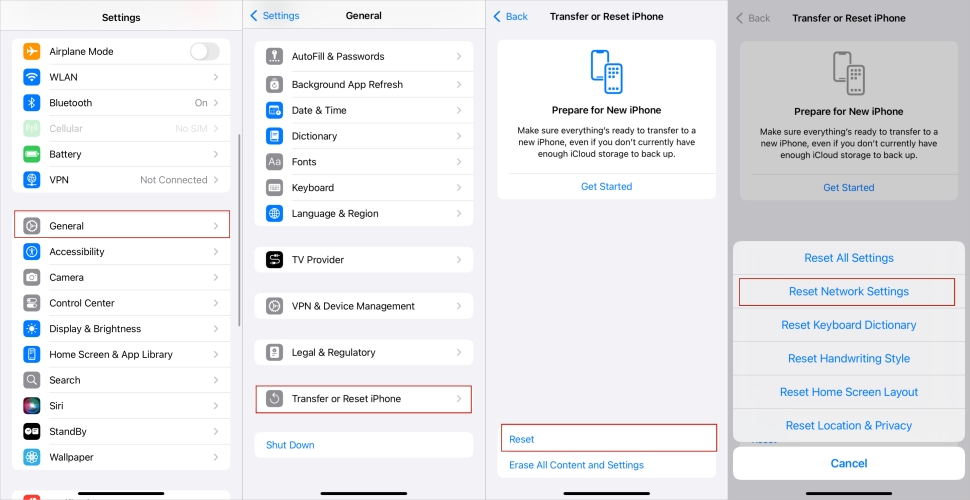
Step 1. In the Settings of your iPhone, tap General and scroll down to Transfer or Reset iPhone.
Step 2. Tap Reset and select Reset Network Settings in the pop-up window.
Step 3. Enter your screen passcode and tap Reset Network Settings again to confirm the network reset on your device.
Solution 9. Create a New Apple ID for the Required Region
If you often need apps from another country or region, creating a second Apple ID for that region can be a practical workaround. After setting up the new Apple ID, you can switch to it in the App Store and then download and install apps that are only available in that region.
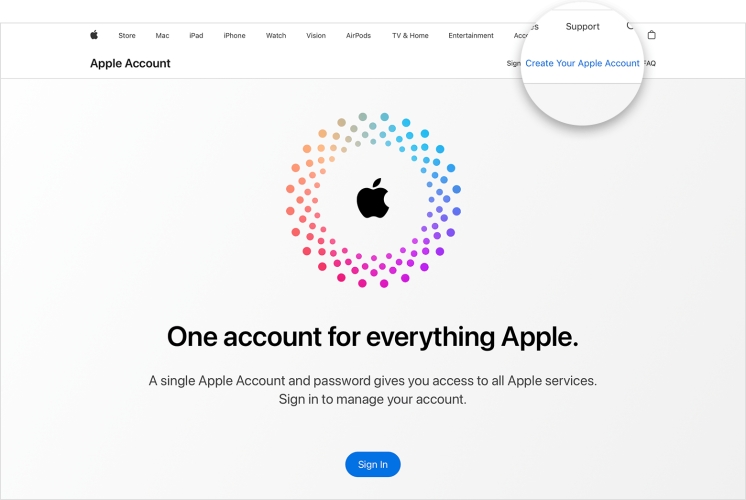
Step 1. Go to Apple's ID website and create a new Apple ID with an email.
Step 2. Choose the desired country or region when prompted.
Step 3. Skip adding a payment method if possible.
Step 4. Sign in to the App Store with this new Apple ID to access region-restricted apps.
Part 4. Bonus Tip: Unlink Apple ID from iPhone without Password
If you're still running into Apple ID–related issues or you've forgotten the password for the account currently signed in on your iPhone, the former methods may not be enough to help. In that case, using a professional unlock tool can be a more direct way to remove the Apple ID from your device. For instance, MagFone iPhone Unlocker is an almighty tool that can delete Apple ID from iPhone without password and without data loss. It is compatible with the latest version of iPhone, iPad, and iPod touch. By using this tool, you can quickly remove Apple ID from your device. Just follow the steps below to remove Apple ID from iPhone without using the password.

MagFone iPhone Unlocker
Unlock various locks on iOS devices, including screen locks, MDM, Apple ID, and Activation Lock without needing a password.
Step 1 Link iPhone to Computer and Open MagFone
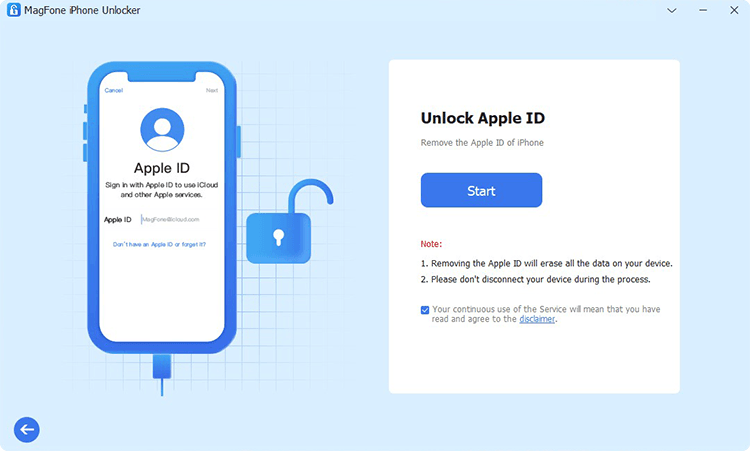
Start by connecting your iPhone to your computer via a USB cable, then launch MagFone iPhone Unlocker. On the interface of MagFone software, access the Unlock Apple ID feature and click the Start button to proceed to the next step.
Step 2 Download and Verify the Firmware Package

After your iPhone is detected, you need to check the device information. All the device information is shown on the interface of MagFone software. If there is nothing wrong, you can click the Download button to download the firmware.
Step 3 Remove Apple ID from iPhone without Password
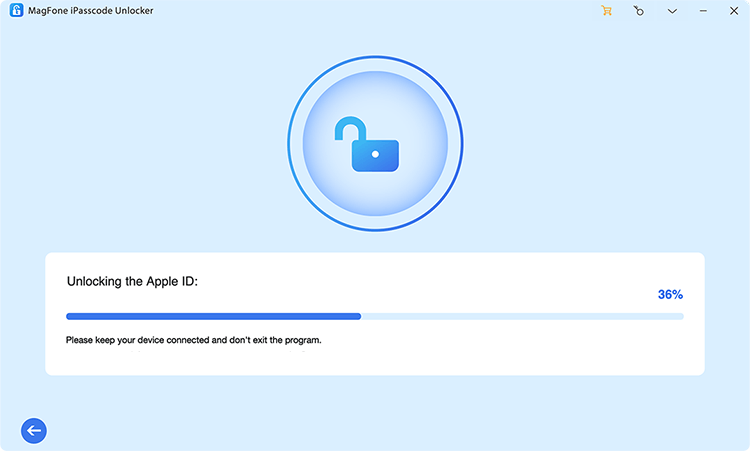
When the download is complete, click the Unlock button at the bottom right corner. Then MagFone iPhone Unlocker will quickly remove Apple ID from your iPhone. Keep your device connected to your computer until the process ends.
Part 5. Conclusion
Fortunately, it usually doesn't take much time or effort to fix the "Account Not In This Store" error on your iPhone or iPad by following the methods introduced in this guide. If you still can't resolve the issue after trying all the steps, you should contact Apple Support for further assistance. In addition, if you need to remove an Apple ID from an iPhone, iPad, or iPod touch but don't have the password, MagFone iPhone Unlocker can be a helpful tool to get the job done.

Teresa Miller
Editor in chief





