








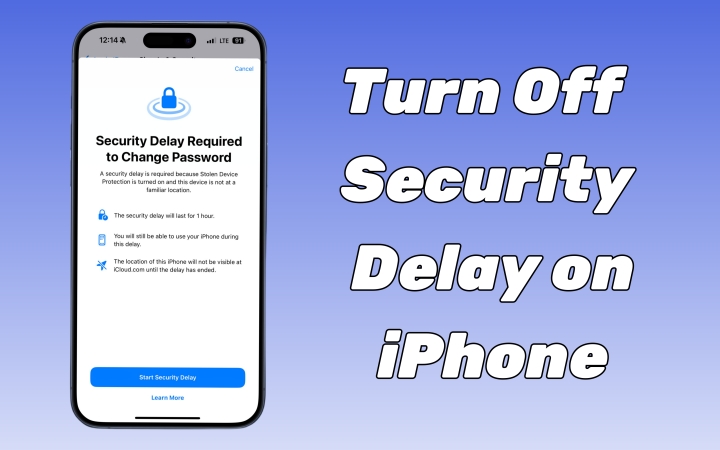
In today's fast-paced digital world, every second counts. For iPhone users, the security delay feature is an added precaution that sometimes hinders quick access to features or apps. If you are looking for ways to turn off the security delay on your iPhone, this comprehensive guide will walk you through all the steps while maintaining optimal security. Let's delve into how to turn off security delay on iPhone now.
- Part 1. What Is Security Delay on iPhone?
- Part 2. How to Turn Off Security Delay on iPhone in Settings
- Part 3. How to Turn Off Security Delay on iPhone without Waiting
- Part 4. FAQs about Security Delay on iPhone
- Part 5. Final Words
Part 1. What Is Security Delay on iPhone?
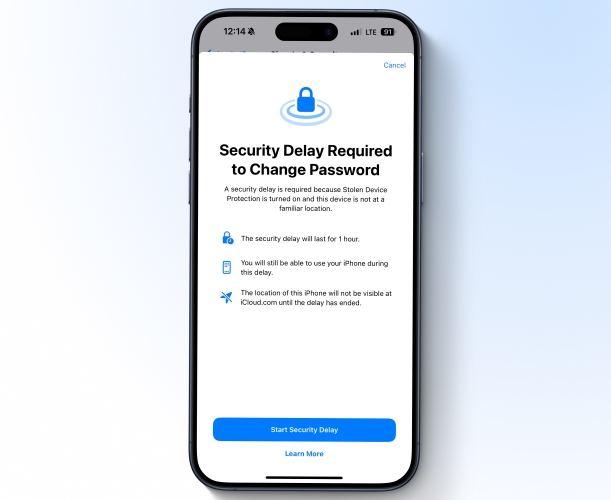
The security delay is a built-in feature introduced on iPhones running iOS 17.4 or later and designed to enhance user safety and device security. It ensures there is a deliberate pause between certain actions, such as changing your Apple ID password, adding Face ID, resetting all settings, or updating Apple ID security settings. While this is a great measure to protect your privacy, some users may find it inconvenient, particularly if the delay interferes with their productivity.
What Does Security Delay Do on iPhone?
Why do I have a security delay from trying to change my Apple ID when I am at my house? Why did it just tell me I can't use my phone for an hour because I needed to change my Apple ID because I forgot it? Does that mean my phone is hacked?
—— From the Apple Community
Many users first notice a security delay when they try to quickly adjust an important setting and see a message telling them they must wait before proceeding. This is normal and is tied to Stolen Device Protection, especially when Require Security Delay is set to Always. In that case, you may be required to wait up to one hour before making sensitive changes, no matter where you are.
During the Security Delay period, you:
- Can't change Apple ID password, iPhone passcode.
- Can't sign out of Apple account.
- Can't reset iPhone Settings.
- Can't update Apple Account security settings.
- Can't turn off Stolen Device Protection.
- Can't add or remove Face ID or Touch ID.
- Must wait until the delay ends before proceeding.
Video Tutorial: Turn Off Security Delay on iPhone
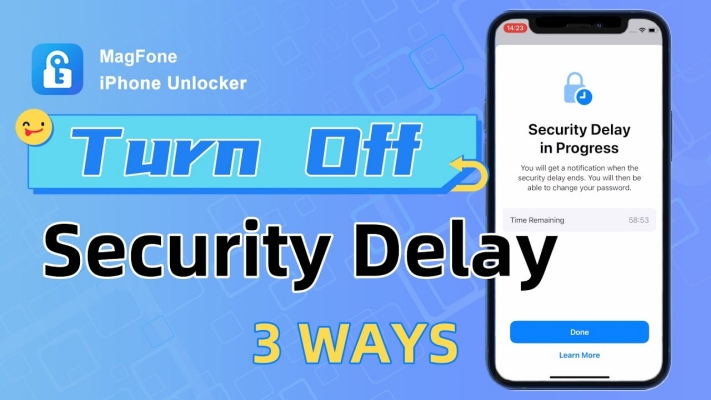
To see how Security Delay works in practice and where it appears in Settings, watch this quick video tutorial. It walks you through what triggers the delay and how to get rid of security delay on iPhone.
Part 2. How to Turn Off Security Delay on iPhone in Settings
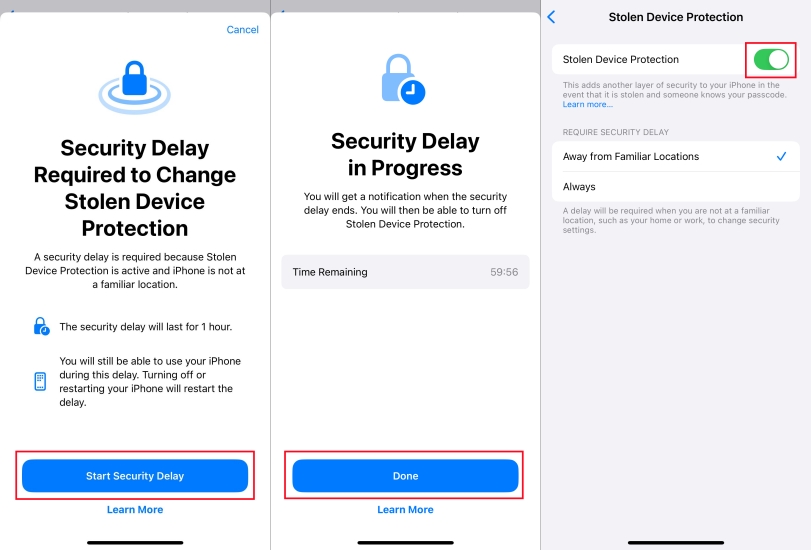
It is easy to turn off the security delay on your iPhone provide that you have the screen lock passcode. However, the security protection may be reduced if you turn it off. If you don't want to see the security delay anymore, you can directly disable Stolen Device Protection with the following steps.
Step 1. Access the Settings app and tap Face ID & Passcode.
Step 2. Enter the screen lock passcode and tap Stolen Device Protection.
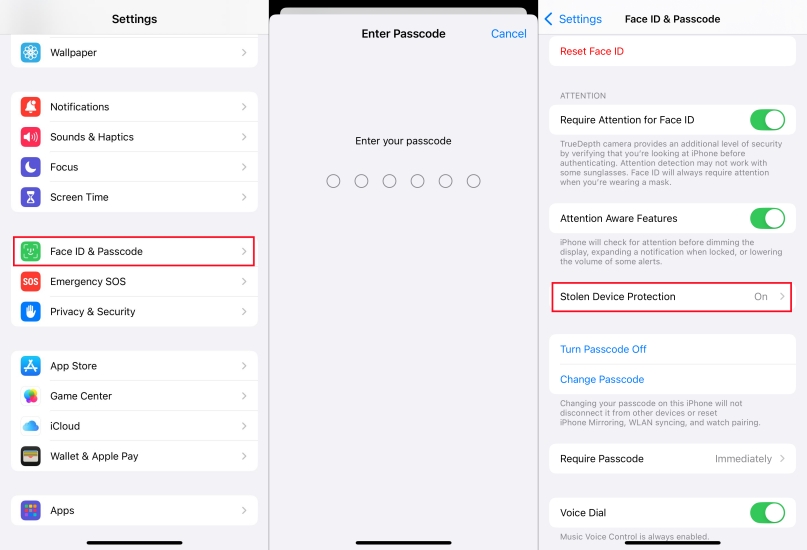
Step 3. Toggle off the switch next to Stolen Device Protection.
Step 4. Tap Start Security Delay > Done to confirm.
Step 5. Wait for one hour, then go back to disable Stolen Device Protection.
Part 3. How to Turn Off Security Delay on iPhone without Waiting
While it is simple to turn off the security delay on your iPhone with a password, you need to wait an hour and then authenticate with Face ID or Touch ID again to disable it. But what if you want to turn off the security delay on iPhone without waiting? In this case, you can consider using MagFone iPhone Unlocker. With this tool, you can remove Face ID and passcode from your iPhone, and the security delay will be removed immediately. Also, by using this tool, you can make any sensitive changes, including removing Apple ID password, without worrying about the security delay appearing.

MagFone iPhone Unlocker
Unlock various locks on iOS devices, including screen locks, MDM, Apple ID, and Activation Lock without needing a password.
Step 1 Run MagFone iPhone Unlocker and Connect iPhone

Launch MagFone iPhone Unlocker on your Windows computer and connect your iPhone to the computer with an USB cable. Now select the Unlock iOS Screen option and click on the Start button to continue.
Step 2 Put iPhone into Recovery Mode
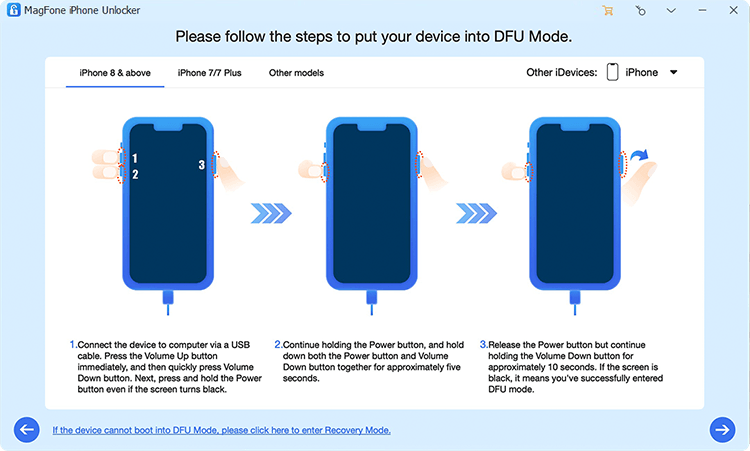
As instructed, you have to follow the on-screen steps to put your iPhone into recovery mode. Once you have set it successfully, the Next button will be clickable.
Step 3 Download and Verify the Matching Firmware Package

As you can see, this program will detect and show all the device information of your iPhone to check and confirm. Correct it if there is something wrong. Then you can click the Download button to start downloading and verifying the firmware package.
Step 4 Start to Turn Off Security Delay without Passcode

When MagFone iPhone Unlocker completes the whole process of downloading and verifying the firmware package, confirm to click on the Unlock button to remove the security lockout from your device. Wait patiently until it finishes.
Part 4. FAQs about Security Delay on iPhone
How to reset iPhone without Security Delay?
You generally cannot bypass a security delay if it has been triggered. You need to wait for the Security Delay period and reset it afterwards. Or you can use MagFone iOS System Recovery to reset the iPhone without the Security Delay process.
How to avoid Security Delay on iPhone?
To avoid a security delay, make sure you are in a familiar location. You can also disable Stolen Device Protection under Settings > Face ID & Passcode.
How to change password on iPhone without Security Delay?
If security delay is active, you cannot immediately change your iPhone password in an unfamiliar location. To change it without delay, you need to stay at a trusted location or wait for the 1-hour security period to complete.
Part 5. Conclusion
By following this guide, you will know what a security delay means on iPhone. Also, you will learn how to turn off the security delay on your iPhone with or without waiting. Whether you are a power user or someone who values convenience, these adjustments will ensure a seamless experience with your device. If you have any other questions about the security delay, leave a message.

Teresa Miller
Editor in chief





