








Forgetting your Apple ID password can be frustrating, especially when you're locked out of essential Apple services like iCloud, Apple Music, and the App Store. Fortunately, Apple provides a straightforward way to reset your password at iforgot.apple.com. This guide will walk you through the process of resetting your Apple ID password at iforgot.apple.com and explore some alternative solutions to iforgot.apple.com password reset.
- Part 1. iforgot.apple.com Password Reset: Step-by-Step Guide
- Part 2. Alternative Ways to Reset Apple ID Password
- Part 3. What If You Can't Reset Apple ID Password at iforgot.apple.com?
- Part 4. Conclusion
Part 1. iforgot.apple.com Password Reset: Step-by-Step Guide
iforgot.apple.com is a special website developed by Apple, where Apple users can reset their Apple ID password, unlock their locked Apple ID, and recover their Apple ID. Resetting an Apple ID password via iforgot.apple.com is a free and secure way only if you can access your trusted Apple device and remember your phone number for the Apple ID. If you have forgotten your Apple ID password or just want to use a new one, follow these steps to reset it.
Step 1. Visit iforgot.apple.com on an internet-connected device
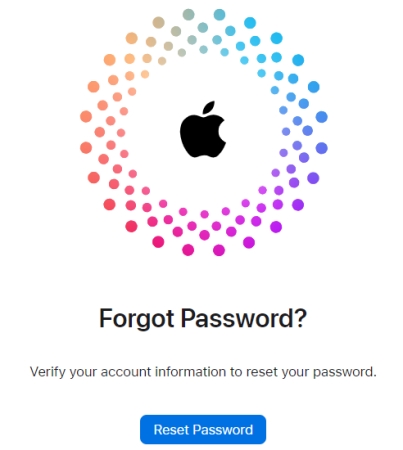
Step 2. Click the Reset Password button to enter the reset page.
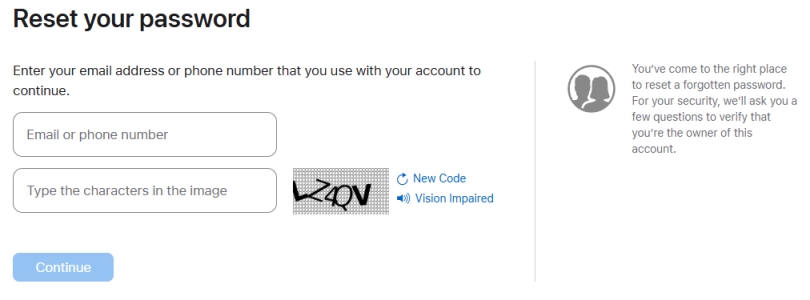
Step 3. Enter your Apple ID and type the characters in the image.
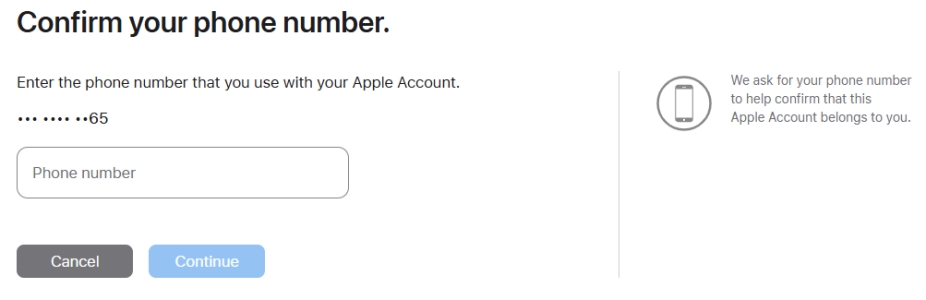
Step 4. Click the Continue button and enter your trusted phone number.
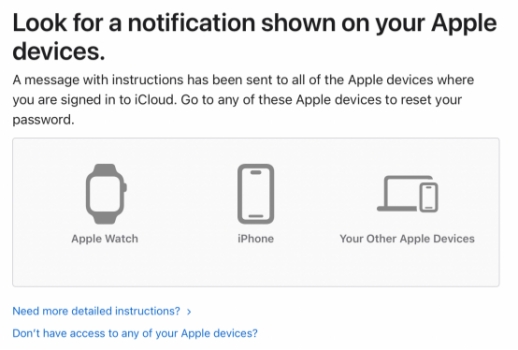
Step 5. Click the Continue button, and you will receive a Reset Password prompt on your Apple devices that are signed in with your Apple ID. Tap Allow to allow password reset.
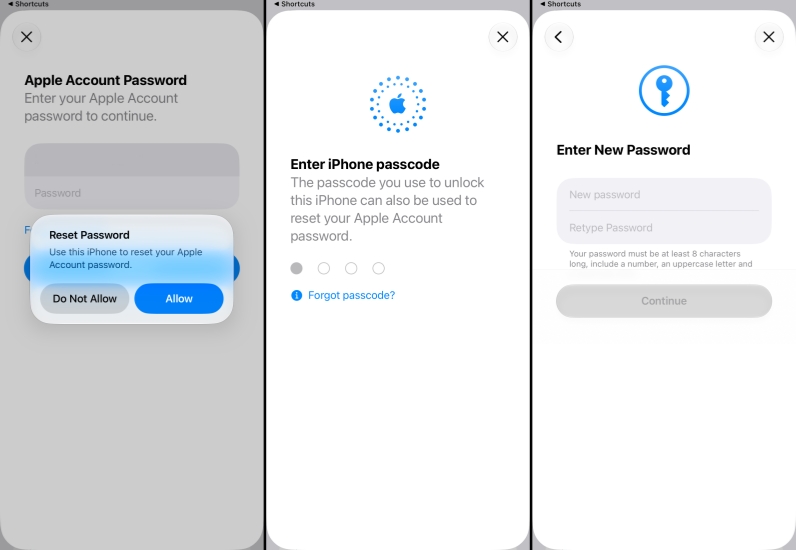
Step 6. Enter your screen lock passcode on the device to confirm.
Step 7. Create a new passcode and enter it again, then tap Continue.
Note:
If you can't access or use a trusted Apple device, you can click the Don't have access to any of your Apple devices? link on the screen, and you will be directed to use another Apple device to reset your password, whether a new Apple device, someone else's Apple device, or an iOS device at an Apple Store. You can click the Continue button under each option to see further steps. Also, we will introduce these alternative methods to help you reset your Apple ID password in the next section.
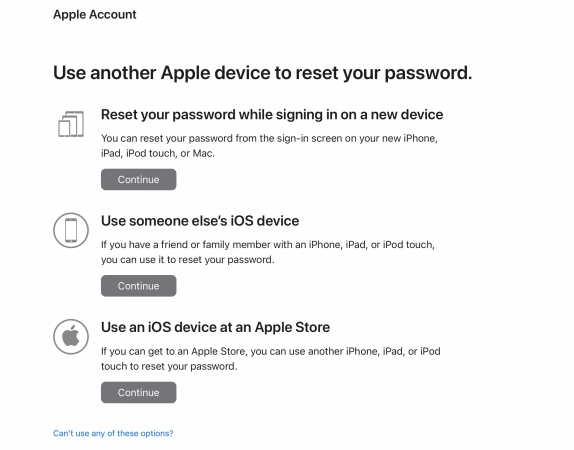
If you can't use any Apple device to reset your Apple ID password, you can click the Can't use any of these options? link and follow the instructions to regain access to your Apple Account.
Common issues during iforgot.apple.com Password Reset
Sometimes, users encounter problems when trying to reset their Apple ID password via iforgot.apple.com. If you see messages indicating that this Apple ID is locked, disabled, or inactive, your account is temporarily restricted for security reasons. To fix it, go to iforgot.apple.com, follow the on‑screen steps to unlock or reactivate your Apple ID first, and then reset your password. Make sure you still have access to your trusted phone number or trusted devices, as you may need them to verify your identity.
Part 2. Alternative Ways to Reset Apple ID Password
If you can't reset your Apple ID password through iforgot.apple.com, don't worry. Apple offers several other official methods you can try. In this part, we'll walk you through alternative ways to reset your Apple ID password, whether you have access to a trusted device, a borrowed device, or a brand‑new Apple product.
Solution 1. Reset Apple ID Password on appleid.apple.com
In addition to iforgot.apple.com, you can reset your Apple ID password at appleid.apple.com. By logging onto the Apple ID account page, you can reset your password for your Apple ID. Follow these steps to reset your Apple ID password using appleid.apple.com.
📝What You Need:
A trusted iPhone
A verification code
An internet connection
Up to 20 minutes
Step 1. Open a browser on your device and go to https://appleid.apple.com/sign-in.
Step 2. Type your Apple ID credentials then you'll be asked to enter a verification code.
Step 3. Press the Allow button on your trusted device to receive a verification code.
Step 4. Go back to the Apple ID account page and enter the verification code.
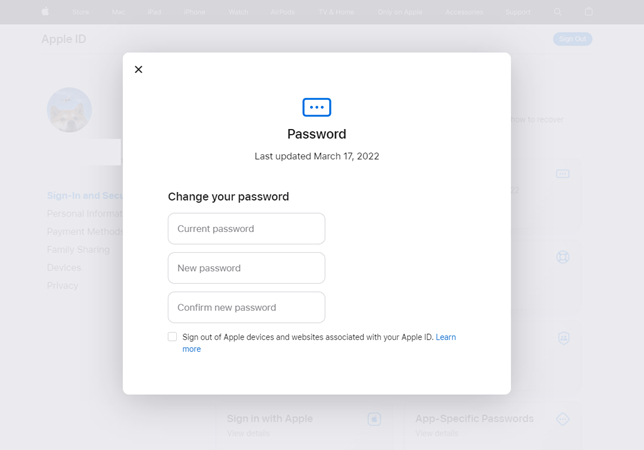
Step 5. Switch to the Sign-In and Security tab and click the Password button.
Step 6. Enter your current password, then enter a new password twice in the pop-up window.
Step 7. Tick the box at the bottom of the window, and you'll now be able to finish the resetting.
Note:
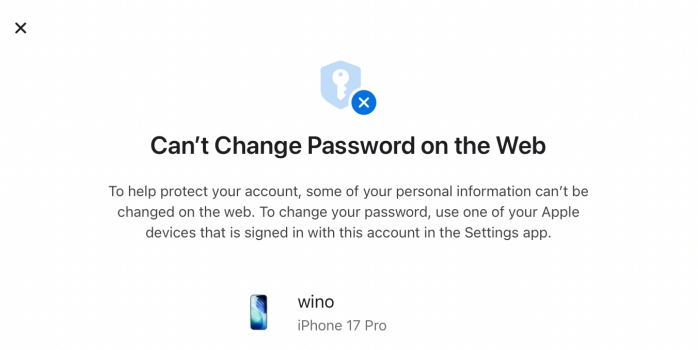
Due to account protection, you may not be able to reset your Apple ID password on https://account.apple.com/account, and you will be prompted to reset the Apple ID password on one of the listed trusted devices. If you see the Can't Change Password on the Web screen, then you can go through this guide to check other alternative methods.
Solution 2. Reset Apple ID Password on a Trusted Apple Device
Compared to resetting the Apple ID password on the web, users are allowed to directly reset it on their trusted Apple devices, including the iPhone, iPad, Apple Watch, Apple Vision Pro, and Mac. Here's how to reset your Apple ID password on a trusted Apple device.
📝What You Need:
An iPhone, iPad, iPod touch, or Mac
An internet connection
Up to 10 minutes
On a Trusted iPhone, iPad, Apple Watch, or Apple Vision Pro
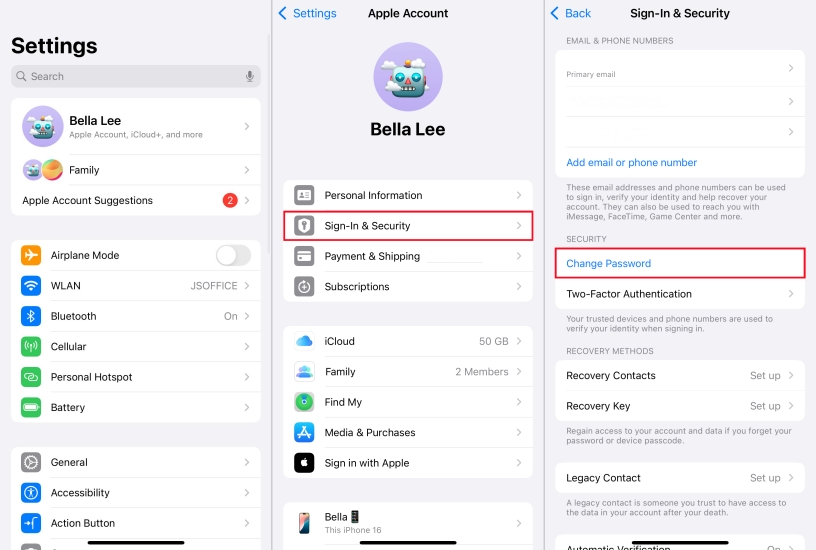
Step 1. Navigate to Settings > your Apple ID name and tap Sign-In & Security.
Step 2. Under Sign-In & Security, tap Change Password.
Step 3. Create a new password and enter it again.
Step 4. Tap Change to confirm your new Apple ID password.
On a Trusted Mac or iMac
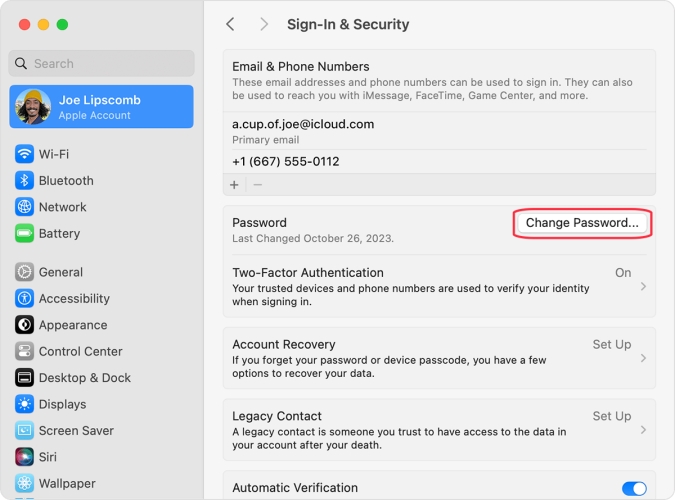
Step 1. Choose Apple menu > System Settings, then click your Apple ID name.
Step 2. Go to Sign-In & Security and click the Change Password button.
Step 3. Create a new password and enter it twice, then save it.
Solution 3. Reset Apple ID Password on a Borrowed Apple Device
If you don't have an Apple device but have access to your trusted phone number, you can borrow an Apple device from a friend or family member. Here's how to reset your Apple ID password with the Apple Support app on a borrowed Apple device.
📝What You Need:
An iPhone, iPad, iPod touch, or Mac
An internet connection
A verification code
Up to 15 minutes
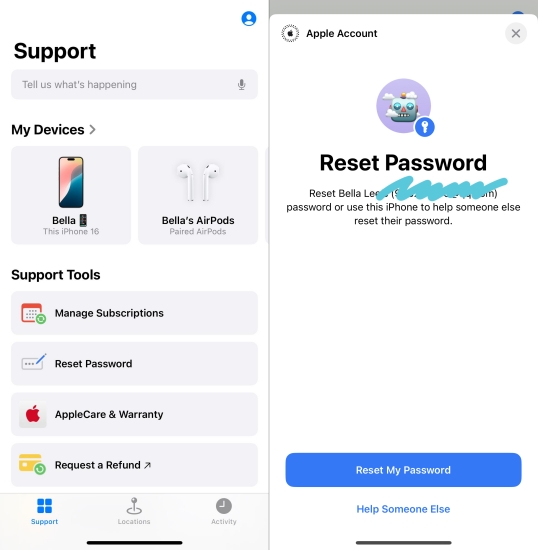
Step 1. Launch the Apple Support app on a borrowed iPhone.
Step 2. Scroll down to Support Tools and tap Reset Password.
Step 3. Select Help Someone Else and enter your Apple ID.
Step 4. Tap Next and enter your trusted phone number.
Step 5. Tap Done and enter your iPhone unlock passcode.
Step 6. Use a new password for your Apple ID and tap Continue to confirm.
Solution 4. Reset Apple ID Password on a New Apple Device
When you are new to an Apple device like iPhone or iPad, you can use the Forgot Password option to reset your Apple ID password during device setup on the Apple Account sign-in screen. Follow the steps below to reset your Apple ID password on a new Apple device.
📝What You Need:
A new iPhone with the internet connection
A trusted phone number
A verification code
Up to 20 minutes
Step 1. Tap Settings > Sign in to your iPhone and select Sign in Manually.
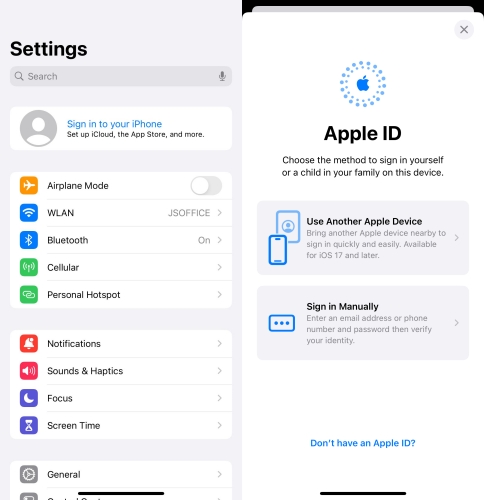
Step 2. Tap the Forgot password or don't have an Apple ID? option.
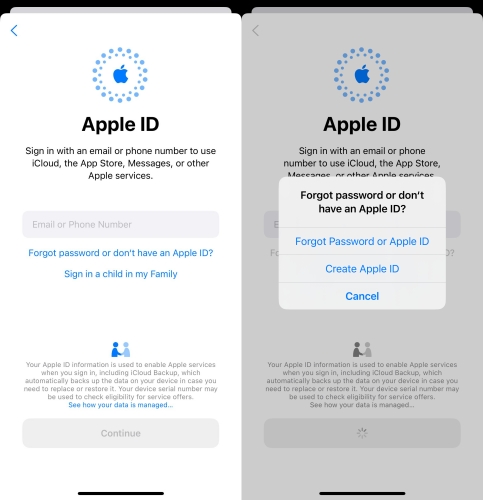
Step 3. In the pop-up window, tap Forgot Password or Apple ID.
Step 4. Enter your trusted phone number and tap Continue > Done.
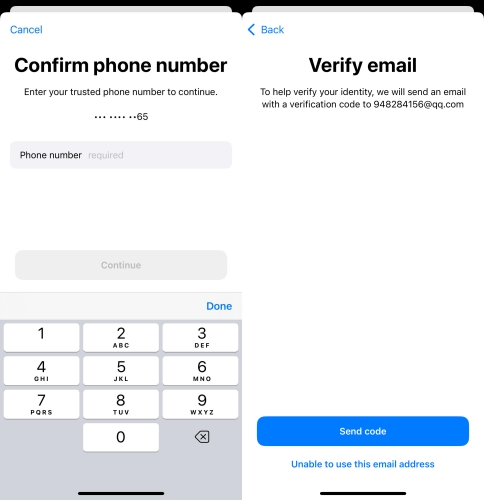
Step 5. Enter your screen lock passcode and tap Send Code.
Step 6. Create a new password for your Apple ID.
Part 3. What If You Can't Reset Apple ID Password at iforgot.apple.com?
In most cases, you can reset your Apple ID password by following the methods above. However, if you've forgotten your Apple ID password and still can't reset it successfully, you may need a different solution. In this situation, one option is to remove the existing Apple ID from your iPhone or iPad with the help of a dedicated Apple ID removal tool.
One such tool is MagFone iPhone Unlocker, a professional unlocking program for iPhone, iPad, and iPod touch. This software is designed to help remove an Apple ID from an iOS device even when you don't know the password. In addition, it can unlock various iOS locks, including screen lock, Screen Time Lock, and MDM lock on iPhone. The following is a guide on how to remove Apple ID without password via MagFone software.

MagFone iPhone Unlocker
Remove Apple ID from iPhone and iPad, without needing a password.
Step 1 Connect iDevice to Computer and Open MagFone
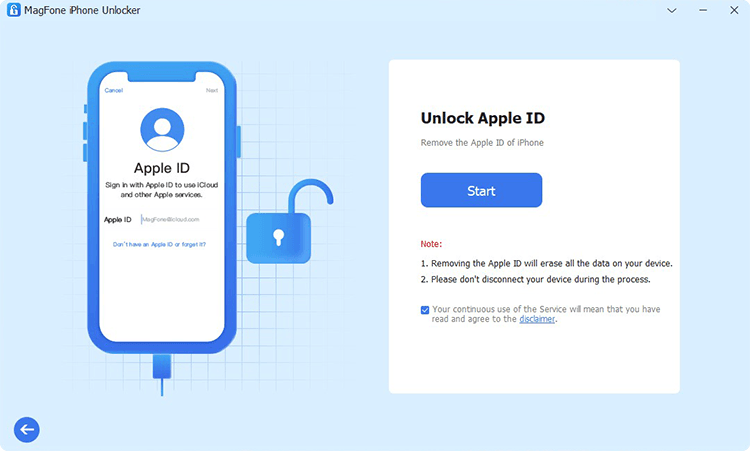
First up is to connect your iDevice to your computer through a USB cable. After your device is detected by the computer, open MagFone iPhone Unlocker and select the Remove Apple ID option then click on the Start button.
Step 2 Check and Confirm the Device Status of iDevice
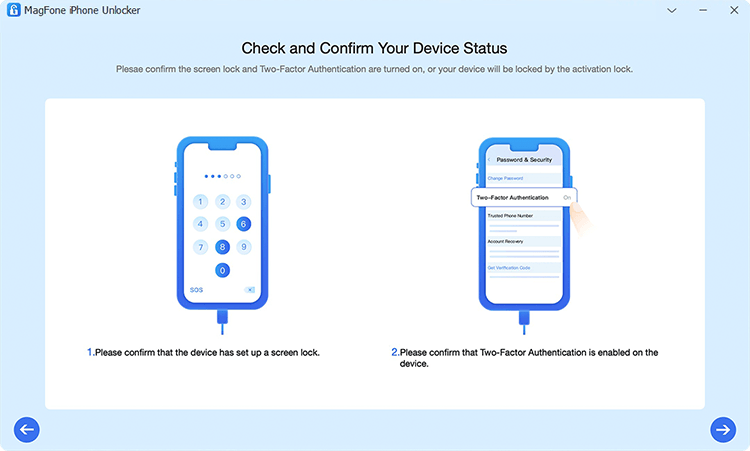
Then you need to make sure that you have turned the Find My feature off on your device. If not, go to Settings > Your Device > Find My and select Find My iPhone then toggle it off. Go to proceed to click the Next button.
Step 3 Download and Verify the Firmware for iDevice

Next, you need to check the device information of your device. If there is nothing wrong, you can directly select the version of the firmware and start downloading it. You can manually correct the device information, then click on the Download button.
Step 4 Remove Apple ID from iPhone without Password
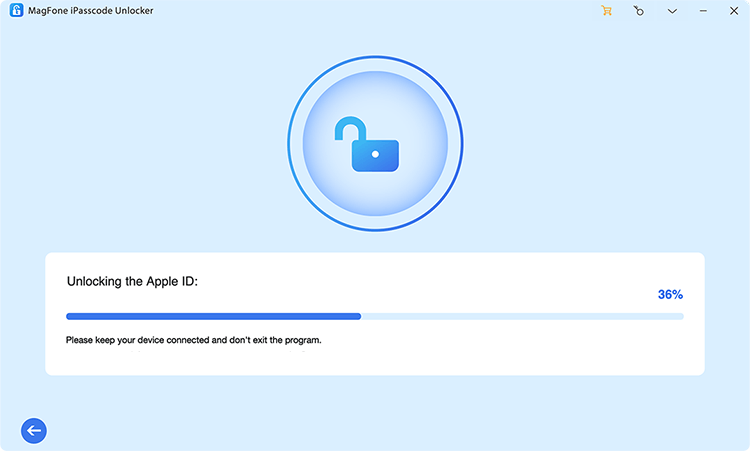
After downloading the firmware, you can now click on the Unlock button to start removing Apple ID without password. In the process of fixing the issue, you need to keep your device connected to your computer.
Part 4. Conclusion
If you forgot your Apple ID password or want to reset a new one, iforgot.apple.com is a good place to start. However, if you face issues, you can try alternative solutions to reset your Apple ID password. MagFone iPhone Unlocker, on the other hand, provides a fast and effective method for users who want to remove Apple ID without password when unable to reset the Apple ID password. If you need a guaranteed way to remove Apple ID without password and regain access to your iPhone, MagFone iPhone Unlocker is a reliable choice.

Dylan Jones
Editor in chief





