








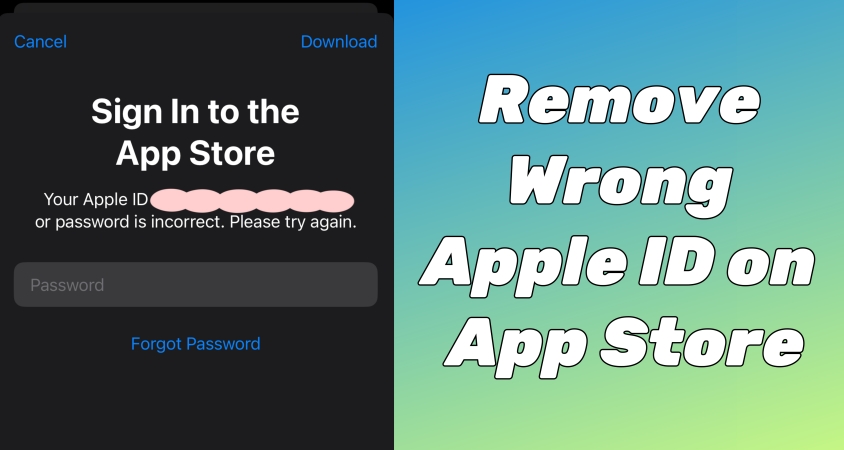
Have you ever tried updating or downloading an app on your iPhone, only to be prompted that your Apple ID for App Store is wrong? This issue commonly occurs when apps were originally installed using a different Apple ID, on second-hand devices, or due to incorrect iCloud settings. If you are stuck with the wrong Apple ID on the App Store, don't worry—there are multiple ways to resolve it. In this guide, we will walk you through various solutions to fix the wrong Apple ID on Apple Store issue. Let's dive into the details.
- Part 1. Why Is My Apple ID Wrong on App Store?
- Part 2. Fixes to Wrong Apple ID in App Store (Unmatched Account)
- Part 3. Fixes to Wrong Apple ID in App Store (Previous Account)
- Part 4. FAQs about Apple ID in App Store
- Part 5. Conclusion
Part 1. Why Is My Apple ID Wrong on App Store?
Before fixing the issue that the App Store has wrong Apple ID, it is important to understand why it happens. Here are the most common causes.
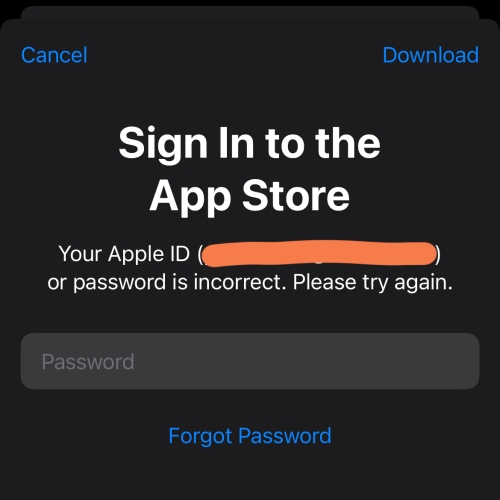
Reason 1. Apps purchased under a different Apple ID
If an app was downloaded or purchased using another Apple ID, it will continue to prompt for that Apple ID's password when updating.
Reason 2. Previous owner's Apple ID
If you used a second-hand iPhone, the previous owner's Apple ID might still be linked to the device.
Reason 3. Shared devices
If multiple people use the same device, their Apple ID might be active when accessing the App Store.
Reason 4. iCloud or App Store sign-in issue
Sometimes, an Apple ID mismatch occurs due to incorrect sign-in credentials or syncing problem with iCloud.
Part 2. Fixes to Wrong Apple ID in App Store (Unmatched Account)
In most cases, the incorrect Apple ID in App Store issue is because you have downloaded some apps using a different Apple ID from your current one. If you know the password of the wrong Apple ID in App Store, things are much easier when you want to update apps. But if you don't know the password, you can try the following 4 methods to fix the issue.
Solution 1. Remove and Reinstall the App
If an app was downloaded under a different Apple ID, you won't be able to update it in the App Store without that Apple ID's password on your iPhone. You can reinstall those affected apps and reinstall them using your current Apple ID.
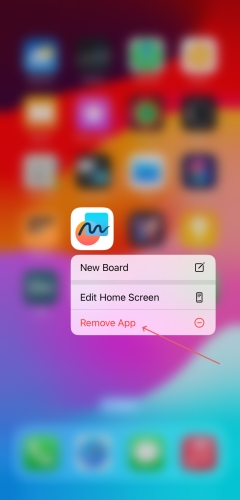
Step 1. From the Home Screen of your iPhone, touch and hold the app icon.
Step 2. Tap Remove App > Delete App, then tap Delete to confirm.
Step 3. Navigate to the App Store and reinstall the app using your current Apple ID.
Solution 2. Check Family Sharing Settings
If your device is part of a Family Sharing group, app purchases might be linked to the Family Organizer's Apple ID. Check your Family Sharing settings to resolve the issue.
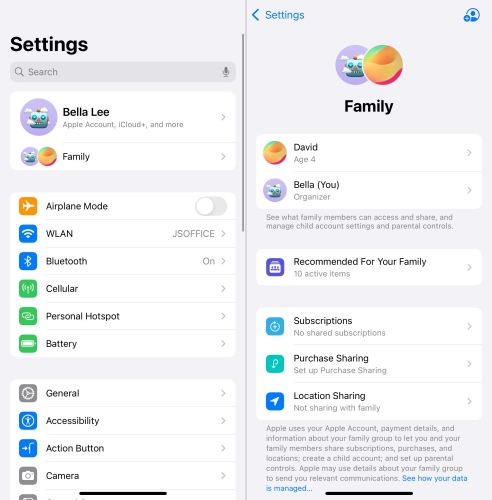
Step 1. Go to Settings > Family Sharing on your iPhone.
Step 2. Check which Apple ID is linked to purchased content.
Step 3. If needed, switch to the correct Apple ID.
Solution 3. Verify the Apple ID for App Store
If the wrong Apple ID keeps showing up in the App Store, you can verify and correct it directly from your iPhone settings. This refreshes the account information and ensures the App Store is linked to the correct Apple ID on your device.
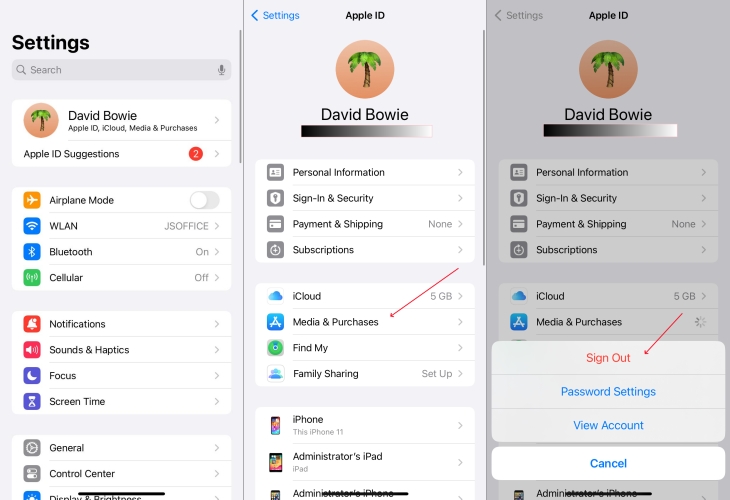
Step 1. Open Settings > your Apple ID name > Media & Purchases.
Step 2. Tap Sign Out twice to sign out your current account from App Store.
Step 3. Tap Media & Purchases and choose Continue to sign into App Store using your iCloud account, or choose Not [XXX] ? to sign into the affected Apple ID.
Solution 4. Sign Out and Sign Back into Apple ID
If you see the incorrect Apple ID in App Store, the simplest way to resolve this issue is by signing out the current Apple ID and then signing back in with the correct one on the iPhone. Follow the steps below.
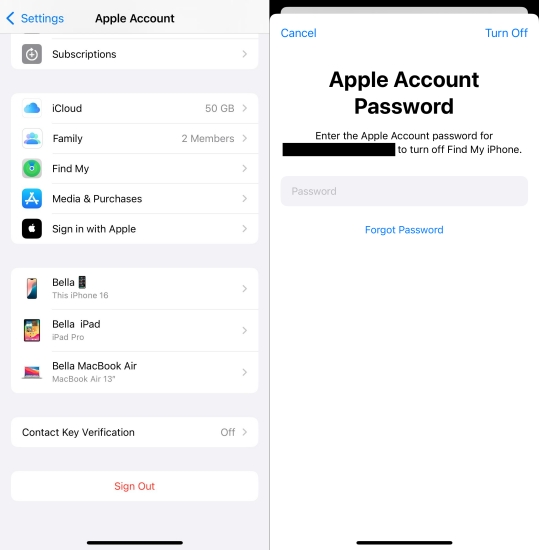
Step 1. Open Settings on your iPhone and tap your Apple ID name at the top.
Step 2. Scroll down to the bottom and tap Sign Out.
Step 3. Enter your Apple ID password and tap Sign Out to confirm.
Step 4. Tap Sign In and enter the correct Apple ID credentials.
Part 3. Fixes to Wrong Apple ID in App Store (Previous Account)
If the basic fixes don't solve the issue, or if the wrong Apple ID belongs to a previous owner or an old account you no longer use, you may need to take more advanced steps. In the following section, we'll cover deeper methods to remove an old or previous Apple ID that's still tied to your iPhone and App Store.
Solution 1. Factory Reset iPhone
If your iPhone is still linked with a previous owner's Apple ID or an old account and Find My is disabled, a factory reset can help by erasing all content and settings.This returns the device to its original state, allowing you to set it up from scratch with your current Apple ID. However, this method deletes everything on the device, so you should back up your data first to avoid losing important information.

Step 1. Navigate to Settings > General > Transfer or Reset iPhone.
Step 2. Tap Erase All Content and Settings > Continue > Erase iPhone.
Step 3. Enter your iPhone passcode and tap Erase iPhone to confirm.
Step 4. Set up your iPhone with the correct Apple ID.
Solution 2. Restore iPhone via iTunes
If Find My is turned off on the device, restoring your iPhone using iTunes or Finder is another good option for second-hand devices still linked to a previous owner's Apple ID. This will reinstall the operating system and remove all data on your iPhone, so back it up if possible.
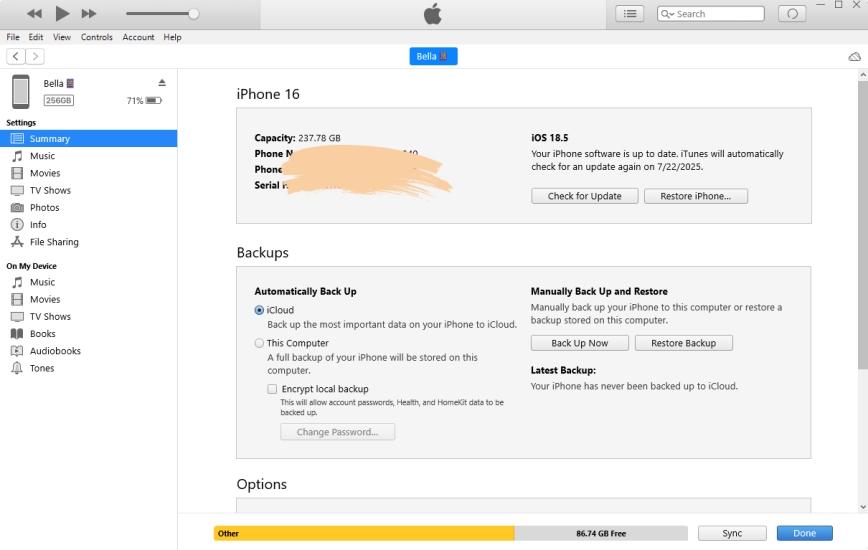
Step 1. Connect your iPhone to a computer using a USB cable.
Step 2. Open iTunes and the Finder, then click the device icon.
Step 3. Go to the Summary tab and click the Restore iPhone button.
Step 4. Choose to make a backup and click the Restore iPhone button again.
Step 5. Set up your iPhone and sign in with the correct Apple ID.
Solution 3. Use an Apple ID Removal
What to do if you don't have access to the password for the wrong Apple ID ? In this case, using an Apple ID removal is an elegant and convenient solution to remove the wrong Apple ID from your device without requiring a password. Here we recommend a dedicated Apple ID removal tool called MagFone iPhone Unlocker to you.
MagFone iPhone Unlocker is specially designed to remove various locks and restrictions, icluding screen lock, Screen Time restrictions, and Apple ID, from iPhone, iPad, and iPod touch without needing a password. Although you don't have access to the Apple ID password or use a second-hand iPhone, you can use MagFone iPhone Unlocker to remove Apple ID. Let's see how to use MagFone iPhone Unlocker to remove wrong Apple ID on the App Store.

MagFone iPhone Unlocker
Unlock various locks on iOS devices, including screen locks, MDM, Apple ID, and Activation Lock without needing a password.
Step 1 Connect iPhone to Computer and Open MagFone
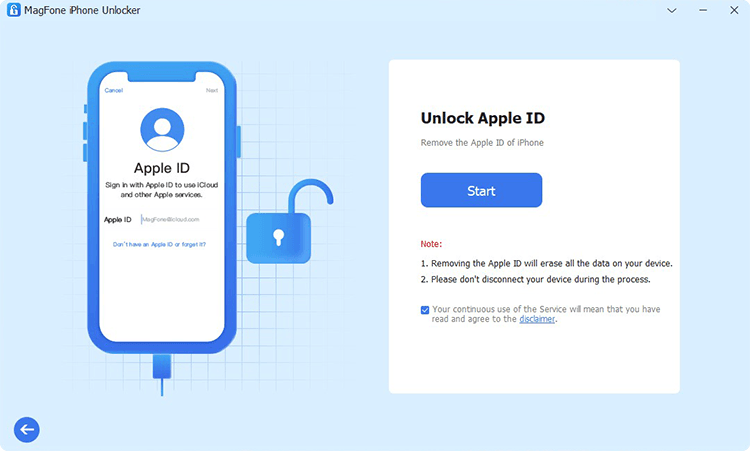
Start by opening MagFone iPhone Unlocker on your computer and select the Unlock Apple ID option. Go to connect your iPhone to the computer by using a USB cable and click on the Start button on the MagFone software.
Step 2 Confirm Two-factor Authentication and Screen Passcode
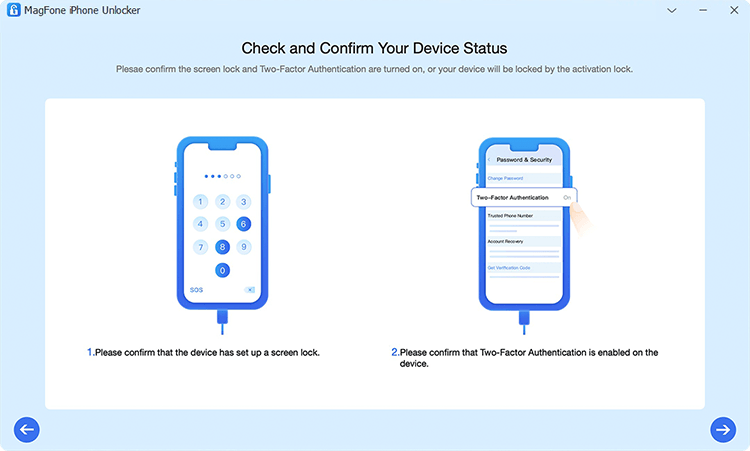
Now you need to confirm that the screen lock and two-factor authentication have been turned on. Or you can directly skip this step if the Find My feature is disabled.
Step 3 Download and Verify the Firmware for the iPhone

After confirming the device, you can check to see if the device information is correct. When there is anything wrong, you can manually correct it. Then click on the Download button to download the firmware for your iPhone.
Step 4 Start to Remove Wrong Apple ID on the App Store
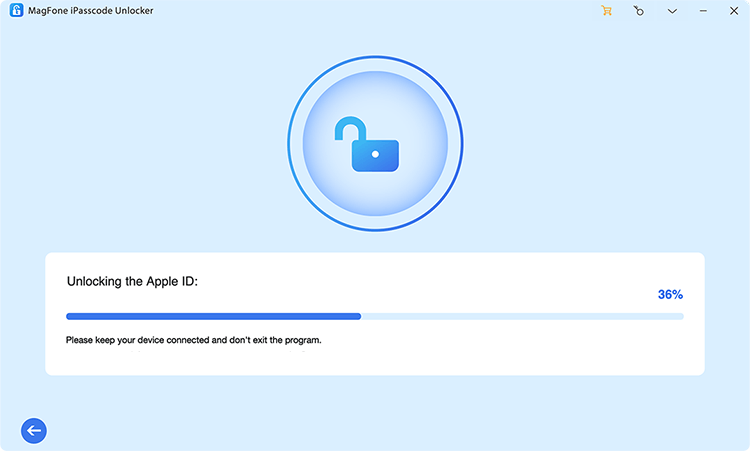
Once the download is complete, click on the Unlock button to let MagFone iPhone Unlocker remove wrong Apple ID from the App Store. Keep your locked iPhone connected to the computer until the process finishes.
Part 4. FAQs about App Store Connected to Wrong Apple ID
How to change Apple ID in App Store?
To change the Apple ID used for the App Store, you need to sign out of the current account and sign in with the new one:
Step 1. Open Settings on your iPhone.
Step 2. Tap your Apple ID > Media & Purchases.
Step 3. Tap Sign Out.
Step 4. After it signs out, tap Media & Purchases again.
Step 5. Choose Not [Name]? and enter the new Apple ID and password you want to use for the App Store.
Will resetting my iPhone remove the wrong Apple ID?
Yes, but you'll need the original Apple ID credentials to sign in again unless you use a third-party tool like MagFone iPhone Unlocker.
Can I update apps without entering the wrong Apple ID password?
No, unless you delete and reinstall the apps under your current Apple ID. In the App Store, you can only download and update apps with the original Apple ID.
Why is my App Store linked to a different Apple ID?
This usually happens when an app was downloaded under a different Apple ID or if an old Apple ID is still linked to the App Store. When you encounter this issue, you can also resolve it with the above methods.
Part 5. Conclusion
Fixing the wrong Apple ID issue in the App Store is usually straightforward once you choose the right solution. Whether you're signing out and back in, reinstalling problematic apps, adjusting your settings, or using a dedicated tool like MagFone iPhone Unlocker, there's an option that fits almost every scenario. Pick the method that best matches your situation, follow the steps carefully, and you'll be back to a smooth, hassle‑free App Store experience in no time.

Teresa Miller
Editor in chief





