








Find My is an awesome feature from Apple that allows you to track and locate your iPad with this feature turned on to prevent the device from being lost or stolen. For users, Find My protects their iPad, but they have to turn Find My off when they buy or sell a used iPad. Turning off Find My requires an Apple ID and password, which can be complicated if you don't know your account password. Luckily, whether you know your account and password or not, you can find out how to turn off Find My iPad here.
- Part 1. How to Turn Off Find My iPad Directly
- Part 2. How to Remove iPad from Find My Remotely
- Part 3. How to Disable Find My iPad without Password
- Part 4. Conclusion
Part 1. How to Turn Off Find My iPad Directly
Apple has made the process of disabling Find My iPad secure to prevent unauthorized access, but it also means you'll need proper Apple ID credentials to turn it off. When you know the Apple ID password linked to your iPad, disabling Find My iPad is relatively straightforward. Here's how to turn off Find my iPad on iPad.
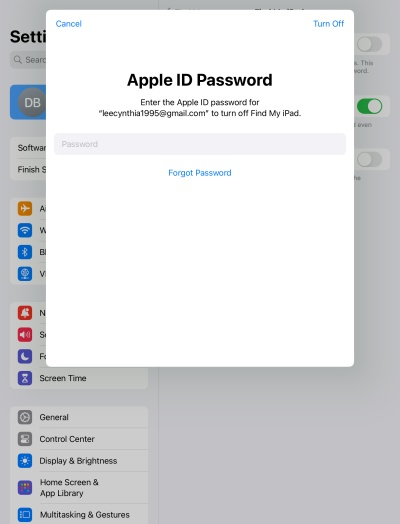
Step 1. Head to Settings > your Apple ID name > Find My.
Step 2. Tap Find My iPad, then tap to turn it off.
Step 3. Provide your Apple ID password and tap Turn Off.
Part 2. How to Remove iPad from Find My Remotely
Is it even possible to turn off Find My iPad remotely? Technically, yes, but need another Apple device. When you have another Apple device and know the Apple ID password, you can turn off Find My iPad on your iPad remotely. Here's how to disable Find My iPad remotely.
Method 1. Turn Off Find My iPad at iCloud.com
For users who prefer using a web-based platform, iCloud.com offers an option to deactivate Find My iPad. It's a web-based method that lets you remove your iPad from Apple ID so as to turn off Find My iPad. Here's how to turn off Find My iPad at iCloud.com.
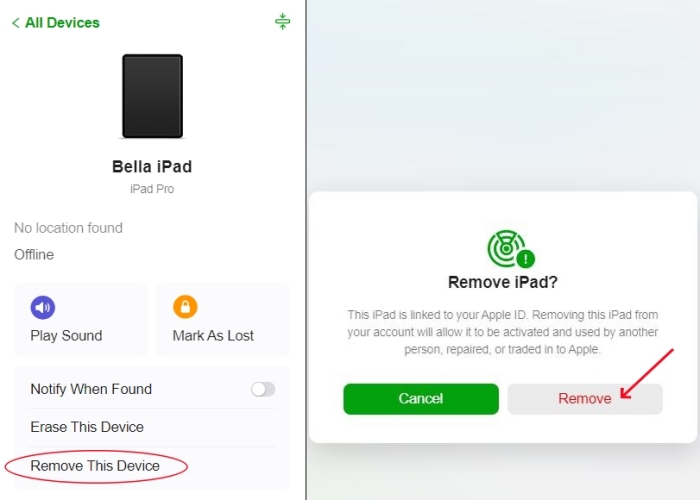
Step 1. Go to iCloud.com and log into with your Apple ID credentials.
Step 2. Click Find My > All Devices and find your iPad.
Step 3. Click Remove This Device, then click Remove.
Step 4. Enter the password associated with your Apple ID and click Remove Device.
Method 2. Shut Off Find My iPad via Find My App
The Find My app helps manage Apple devices, but you're only allowed to use the Find My app on another Apple device to turn off Find My iPad. If it's possible to access the Find My app from another Apple device linked to the same Apple ID account, follow the steps below to turn off Find My iPad from another device using the Find My app.
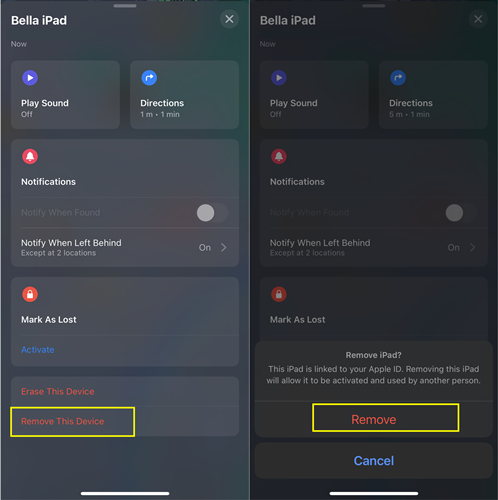
Step 1. Open the Find My app on your other Apple device.
Step 2. Tap Devices and chose your iPad.
Step 3. Tap Remove This Device, then tap Remove.
Step 4. Enter your Apple ID password to confirm this action.
Method 3. Toggle Off Find My iPad in Settings
In addition to using the Find My app or navigating to iCloud.com, every Apple device come with a built-in way to manage Apple ID services through the Settings app. Within this menu, you can disable Find My iPad with ease. Here's how to shut off Find My iPad in Settings on other Apple device with your Apple ID password.
On iPhone
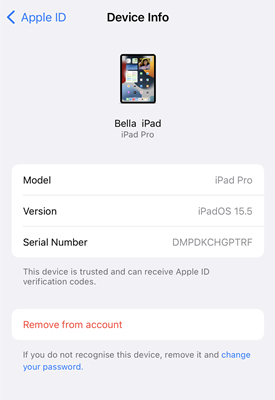
Step 1. Go to Settings > your Apple ID name and scroll down to the bottom.
Step 2. Find and tap your iPad, then tap Remove from Account.
Step 3. Tap Remove from Account again to confirm.
On Mac
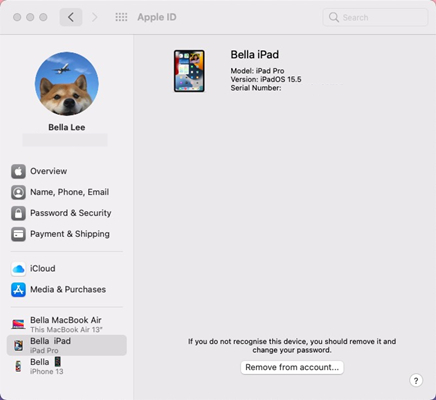
Step 1. Choose Apple menu > System Settings and click your Apple ID name.
Step 2. In the left column, find and click your iPad, then click Remove from Account.
Step 3. Click Remove from Account to confirm this action.
Part 3. How to Disable Find My iPad without Password
Disabling Find My iPad without a password isn't impossible, but it must be approached carefully. Depending on your situation, whether you've inherited an iPad, bought it from third party, or simply forgot your login details, methods introduced below may suit your needs. Let's break down the most effective methods to turn off Find My iPad without password.
Method 1. Bypass Find My iPad via iCloud Activation Lock Removal
If you've forgotten your Apple ID password or purchased a second-hand iPad still linked to the previous owner's Apple ID, MagFone iPhone Unlocker can bypass Find My iPad without the Apple ID password. It works by bypassing Activation Lock on the iPhone, iPad, and iPod touch with advanced techniques. It's useful when the original Apple ID is unavailable. Here's how to turn off Find My iPad without password using MagFone software.

MagFone iPhone Unlocker
Bypass iCloud Activation Lock on iPhone, iPad, and iPod touch without the original Apple ID or password.
Step 1Run MagFone Activation Unlocker
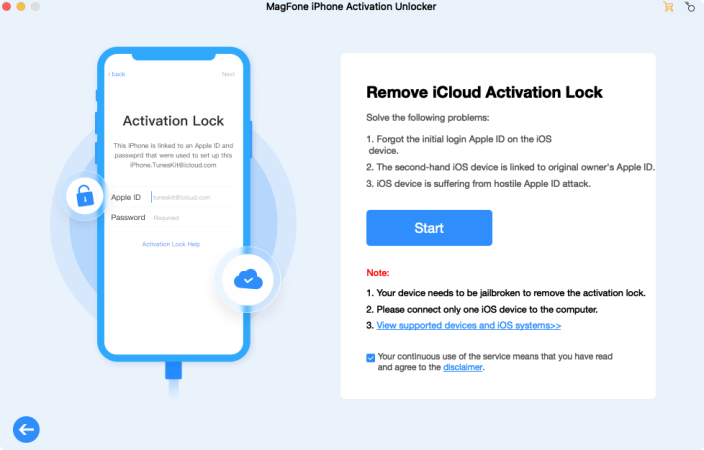
First, launch MagFone Activation Unlocker on your computer, and connect your iPad to the computer. Then select Remove iCloud Activation Lock from the home screen and click the Start button.
Step 2Jailbreak iPad Manually
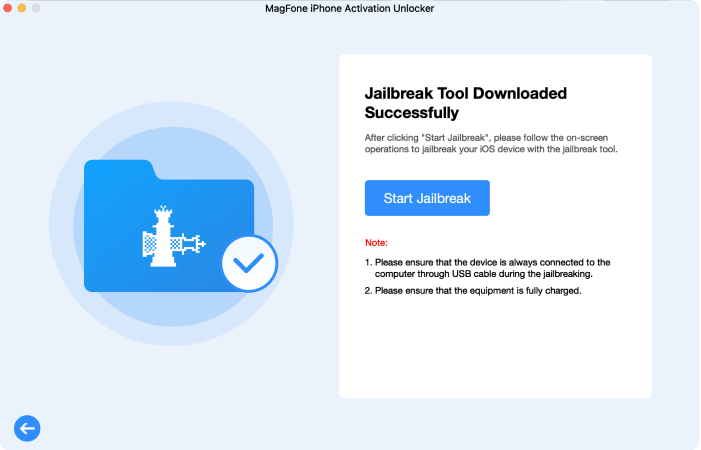
Next, you need to jailbreak your device. The jailbreak steps are different for Windows and Mac. You can click the jailbreak tutorial below to learn how to jailbreak your iPad.
Step 3Disable Find My iPad without Password
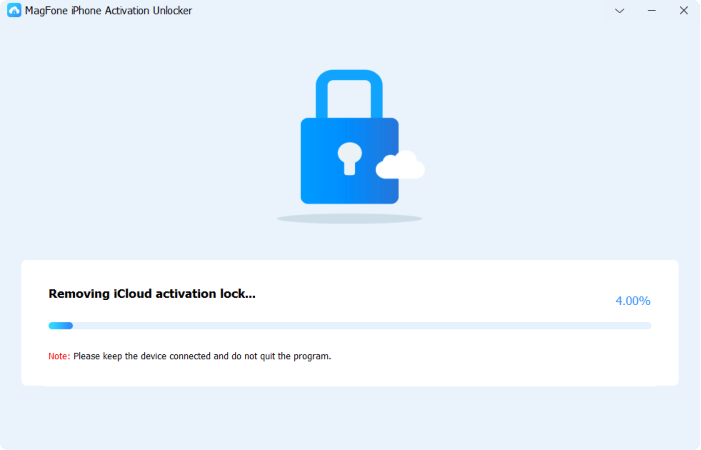
If you have successfully completed the steps to jailbreak your iPhone, verify the device information displayed on the screen of the MagFone software. After confirming the information, click the Start to Remove button.
Method 2. Deactivate Find My iPad by Resetting DNS Settings
The DNS method is a relatively difficult workaround that tricks the iPad into connecting to a fake server during activation and then turns off Find My iPad temporarily. It's free and doesn't require special tools. However, DNS bypass is just a temporary solution to turn off Find My iPad.
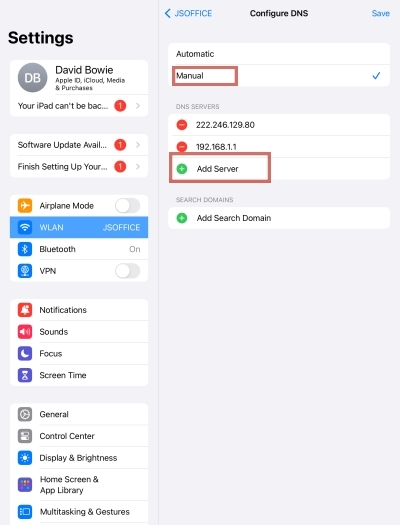
Step 1. Open Settings in your iPad and choose WLAN.
Step 2. Tap the i icon on the right side of WiFi.
Step 3. Tap Configure DNS and select Manual.
Step 4. Add the DNS address below according to your location.
- Asia: 104.155.28.90
- USA: 104.154.51.7
- Europe: 104.155.28.90
- South America: 35.199.88.219
- Australia and Oceania: 35.189.47.23
- Other: 78.100.17.60
Part 4. Conclusion
And voila! That's all! Several methods to turn off Find My iPad have been introduced in this guide. When you want to disable Find My iPad but don't know how to do, you can find a quick step-by-step reference. If you don't know the Apple ID password, you can use MagFone Activation Unlocker to disable Find My iPad. This method is simple and not time-consuming.

Teresa Miller
Editor in chief





