








Getting locked out of your own smartphone is a modern-day digital nightmare. You perform a factory reset to freshen up your device or fix a glitch, only to be greeted by a screen demanding a Google account you can't remember. This is the reality of the Google FRP lock. While it serves as a robust security shield, it can become a significant roadblock for legitimate owners. Here we'll tell you what FRP does and how to bypass the Google FRP lock if needed.
- Part 1. What Is Google FRP Bypass?
- Part 2. How to Remove Google FRP Lock
- Part 3. How to Bypass Google FRP Lock
- Part 4. How to Avoid the FRP Lock Screen
- Part 5. Conclusion
Part 1. What Is Google FRP Bypass?
Factory Reset Protection can be confusing for many Android users. Before attempting a FRP Google lock bypass, it is important to understand what FRP actually means and how bypassing it works.
What Is Google FRP?
Google FRP stands for Factory Reset Protection. It is a built-in security feature on Android devices that activates automatically when a Google account is added to the phone. After a factory reset, the system requires the previously synced Google account credentials to verify ownership. This prevents unauthorized access if a device is lost, stolen, or reset without permission.
What Is Google FRP Bypass?
Google FRP bypass means unlocking an Android phone after a factory reset without entering the previously linked Google account. In other words, a Google FRP bypass works by navigating around the verification screen or accessing hidden settings to remove the lock. Before trying any apk FRP Google bypass method, make sure you are the rightful owner of the device and follow the steps carefully.
Part 2. How to Remove Google FRP Lock
Sometimes, you do not need a complicated bypass Google FRP method if you still have access to your account information. There are simple ways to remove the lock by verifying your credentials or updating your account details. These approaches are often safer and recommended before attempting other FRP Google bypass apk solutions.
Method 1. Remove Google FRP Lock from the FRP Lock Screen
If you still remember the Google account used on the device, the easiest way to solve the problem is simply to verify the account on the FRP screen. This approach directly removes the FRP Google lock bypass requirement and restores full access to the phone without additional tools.
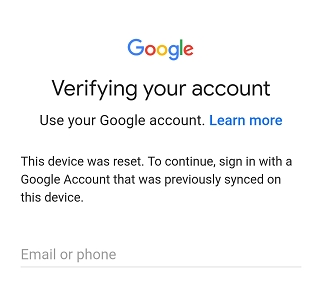
Step 1. Turn on the Android phone and connect it to a stable Wi-Fi network.
Step 2. Proceed through the setup process until the Google verification page appears.
Step 3. Enter the Google account email address that was previously synced with the device.
Step 4. Type the correct password and tap Next.
Step 5. After successful verification, the device will complete the setup process and remove the FRP lock automatically.
Method 2. Remove Google FRP Lock by Resetting Google Password
If you remember the email address but forgot the password, resetting the Google password can help you remove Google FRP lock. Once the password is changed and synced, you can use the new credentials to unlock the phone and complete the verification process.
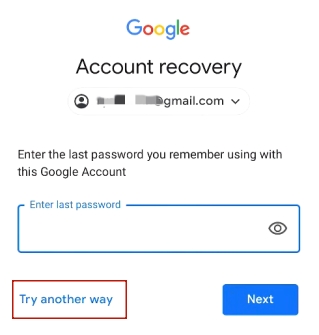
Step 1. Open another browser and visit the Google account recovery page.
Step 2. Enter the Google email address linked to the locked phone and click Next.
Step 3. Select Try another way and request a verification code sent to your recovery email.
Step 4. Enter the received code and create a new password for the account.
Step 5. Wait for the password to fully sync with Google services, then enter the updated password on the FRP screen to unlock the device.
Part 3. How to Bypass Google FRP Lock
If you no longer have access to the original Google account, you may need alternative ways to bypass FRP Google verification. Different Android versions support different techniques, including professional software tools or system accessibility features. Below are three common solutions for bypassing the Google FRP lock on many Android devices.
Method 1. Bypass Google FRP Lock via MagFone Android Unlocker
Although many FRP unlock APKs can be found online, most of them do not have official websites or reliable support services. This may lead to installation issues, compatibility problems, or potential security risks. For a safer option, MagFone Android Unlocker is widely recommended. The software provides an official platform and stable performance for Google FRP bypass tasks. It supports multiple brands, including Samsung, Xiaomi/Redmi, Vivo, Motorola, Oppo, and Realme, making it a practical solution for removing FRP verification. Here's how to use MagFone Android Unlocker to bypass the FRP lock.

MagFone Android Unlocker
Remove multiple kinds of screen locks on over 5000 Android devices and delete Google FRP lock without a password.
Step 1 Launch MagFone Android Unlocker
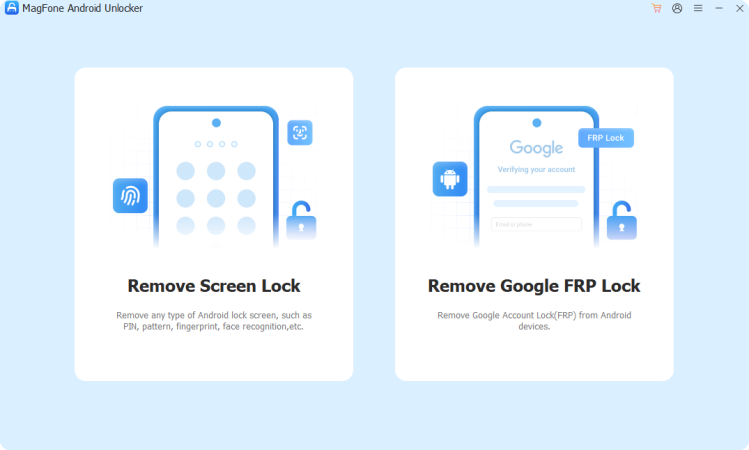
Download MagFone Android Unlocker on your computer and connect your Android phone. Then click Remove Google FRP Lock.
Step 2 Begin the FRP Bypass Process
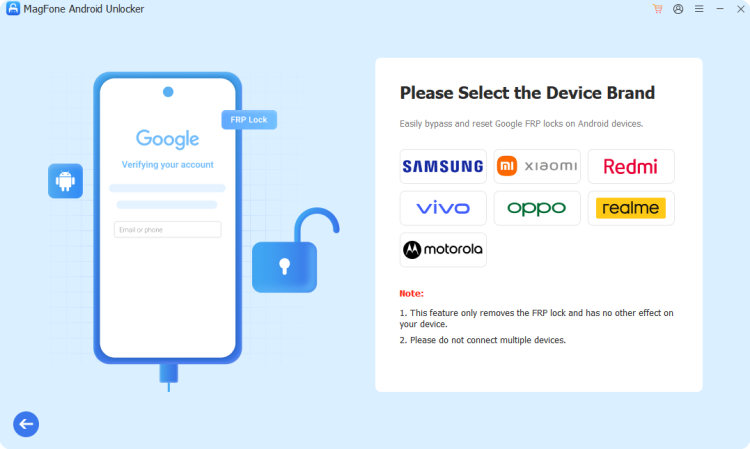
Choose the option to remove Google FRP lock from the main interface. Follow the instructions displayed on the screen to configure the connected device.
Step 3 Complete the FRP Removal
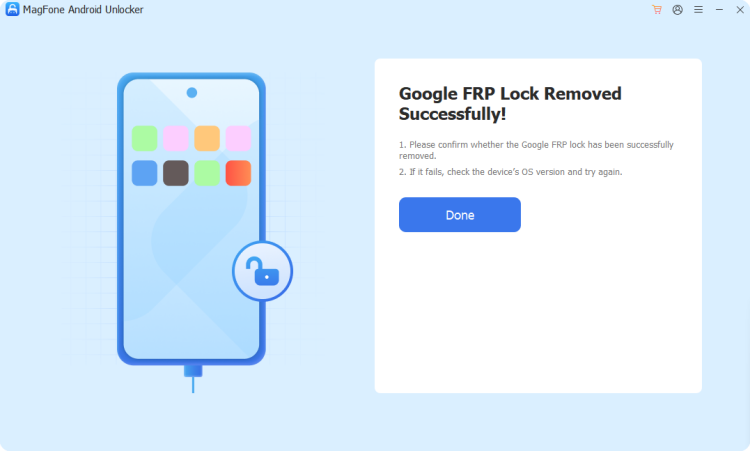
After that, the program automatically performs the FRP bypass. Once completed, restart the device and finish the setup without Google verification.
Method 2. Bypass Google FRP Lock Using Google Keyboard
On some older Samsung phones, it is possible to access hidden settings through Google Keyboard. This method can provide a pathway to system settings, allowing you to disable certain security restrictions and complete the FRP bypass Google account process.
Step 1. Start the phone after a factory reset and connect to a Wi-Fi network.
Step 2. On the Google verification screen, type "@" in the text field and open Google Keyboard Settings.
Step 3. Tap the three‑dot icon > Help & Feedback to open the help page.
Step 4. Highlight any text, choose Web Search, then search for "Settings" and open it.
Step 5. Pick About Phone, tap Build Number seven times, enable OEM Unlocking, then restart the device.
Method 3. Bypass Google FRP Lock with TalkBack Mode
TalkBack is an accessibility feature designed to assist visually impaired users, but on some Android versions it can also help users access hidden system functions. With the right steps, it may allow navigation to certain menus that help complete a bypass Google FRP process.
Step 1. Press Volume Up + Volume Down at the same time to enable TalkBack mode.
Step 2. Draw an L‑shaped gesture, then double‑tap the Voice Command option.
Step 3. Tap the mic icon and use a voice command to launch Google Assistant.
Step 4. Search for Settings, open the menu, then press Volume Up and Volume Down together to switch off TalkBack.
Step 5. Go to System Management and open the Backup & Reset menu. Then choose Reset All Settings and allow the device to restart.
Part 4. How to Avoid the FRP Lock Screen
To avoid encountering the FRP lock issue again in the future, it's best to keep your Google account credentials saved. The most effective approach is to remove the Google account from the phone before performing a factory reset. This disables FRP protection, preventing the device from requesting the previous Google account after the reset. Here's how to.
On Android (Samsung)
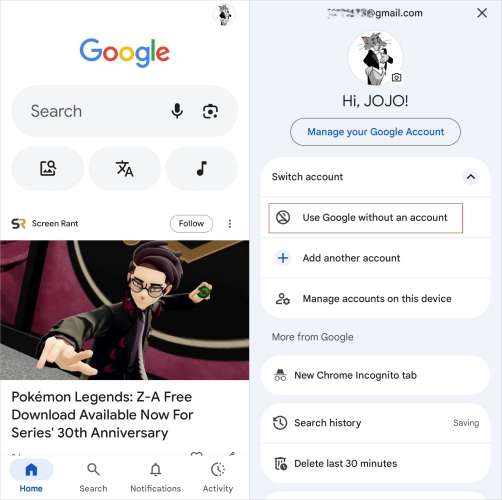
Step 1. Launch the Google app on your Samsung, and then tap the profile.
Step 2. Tap the Swicth account option and select Use Google without an account.
On Web
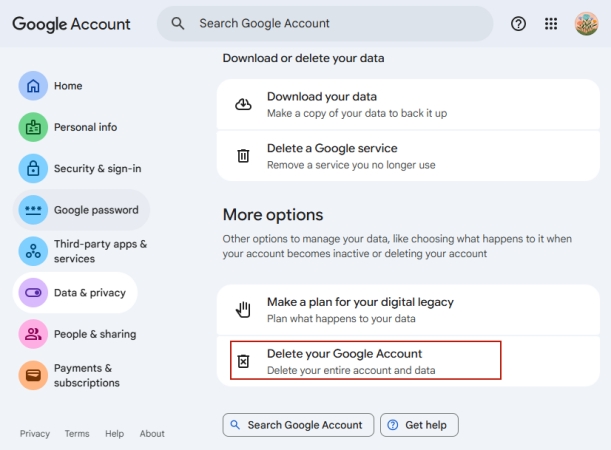
Step 1. Open your Google Account, go to Data & Privacy.
Step 2. In More options, choose Delete your Google Account, and follow the prompts to remove it.
Part 5. Conclusion
Factory Reset Protection is an important security feature that protects Android devices from unauthorized access. However, it can also become inconvenient if you forget your login details or purchase a device that still has the previous owner's account. By understanding what Google FRP bypass is and learning how to remove Google FRP lock, you can regain access to your phone through safe and practical methods.

Dylan Jones
Editor in chief




