








Factory Reset Protection, commonly called FRP, is a built-in security feature on Android phones to avoid unauthorized access after a reset. It activates when a device is linked to a Google account, ensuring your data stays protected. However, you may need to unlock it if you forget the password or buy a used Android phone. This guide covers Realme FRP Bypass solutions for various models, helping you regain access efficiently. Read on and dive into more details.
- Part 1. How to Bypass Realme FRP Lock [Easy & Quick]
- Part 2. How to Bypass Realme FRP Lock with Reset Code
- Part 3. How to Bypass Realme FRP Lock without Reset Code
- Part 4. Conclusion
Part 1. How to Bypass Realme FRP Lock [Easy & Quick]
Although there are multiple ways to handle FRP locks, MagFone Android Unlocker stands out as the most efficient option. It supports not only FRP Bypass on Realme devices but also other Android brands such as Xiaomi and Motorola. If you want a fast solution without complicated steps, this tool offers a straightforward process that even beginners can follow easily. Here's how to use MagFone Android Unlocker for Realme FRP bypass.

MagFone Android Unlocker
Remove multiple kinds of screen locks on over 5000 Android devices and delete Google FRP lock without a password.
Step 1 Connect Device and Launch Tool
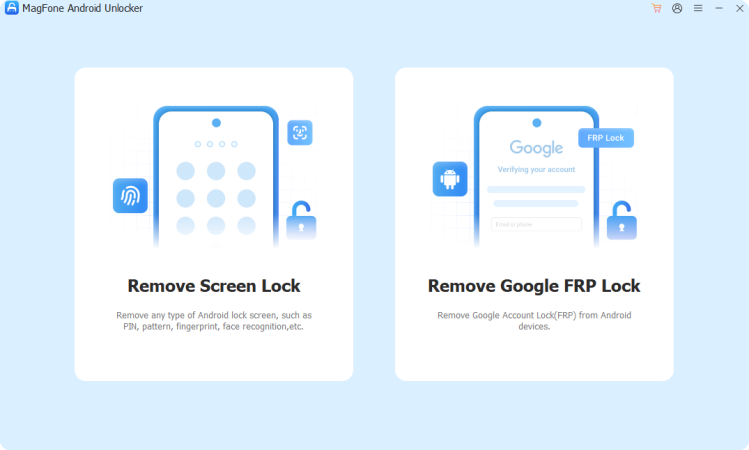
Use a USB cable to link your Realme phone to a computer, then open the unlocking software and select the FRP removal option.
Step 2 Select Realme and Follow Prompts
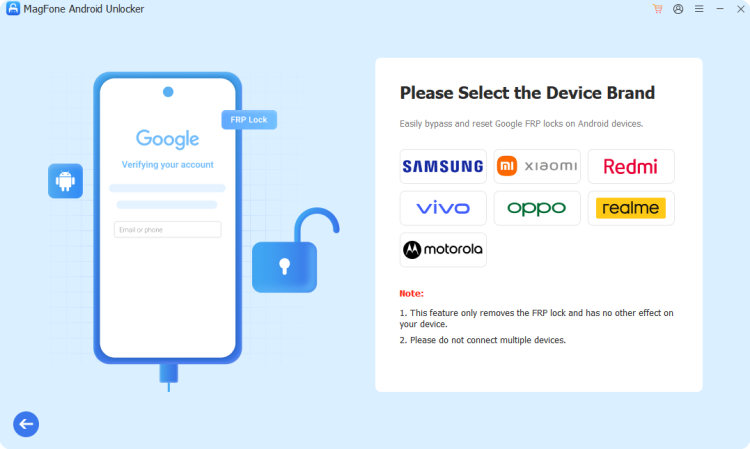
Let the program detect your device automatically or choose Realme manually, then start the process and follow the instructions displayed on-screen.
Step 3 Complete the FRP Bypass Process
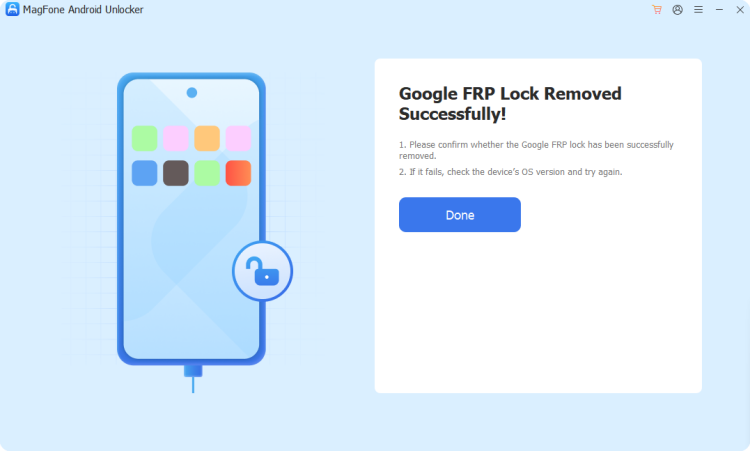
After the prompts finish, disconnect your phone, reboot it, and confirm completion to remove the FRP lock successfully.
 Pros
Pros- Fast unlocking with minimal effort
- Supports many Android brands
- Simple interface for beginners
- High success rate overall

- Paid tool for full use
Part 2. How to Bypass Realme FRP Lock with Reset Code
Using a reset code is one of the quickest manual ways to unlock a Realme device. This method involves entering a specific dial code to access hidden settings, enabling developer options, and resetting the phone again. Follow the steps below to ensure the process works correctly.
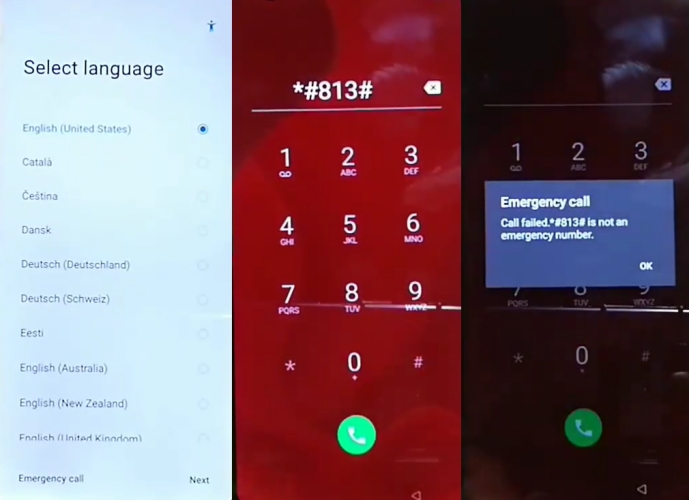
Step 1. Power on your Realme phone normally and connect to a stable Wi-Fi network.
Step 2. Return to the welcome screen and tap the Emergency Call option.
Step 3. Dial *#813# or *#812# and tap OK to confirm. Then wait until the home screen appears automatically.
Step 4. Tap About Phone in Settings. After that, Tap Version repeatedly to enable developer mode.
Step 5. Go back to open Developer Options. Also, you should enable OEM Unlock and USB Debugging.
Step 6. Enter the Additional Settings menu to select the Backup & Reset option.
Step 7. Tap Erase All Data to reset and wait for the device without FRP lock to restart.
Pros- No computer required
- Manual solution available
- Uses built-in system features
- A free Realme FRP bypass solution
- May fail on some models
- Requires precise step accuracy
- Data will be erased completely
Part 3. How to Bypass Realme FRP Lock without Reset Code
Besides factory reset techniques, several alternative methods allow unlocking Realme devices without erasing data.
Method 1. Bypass Realme FRP via Talkback (Realme C11/C35/C30)
This method uses the Talkback accessibility feature to navigate hidden settings and bypass the Google verification screen. It is particularly useful for entry-level Realme models like C11, C35, and C30. While effective, it involves multiple steps and requires careful attention. Users who are comfortable with technical procedures will find this approach helpful. Here's how to.
Step 1. Connect your phone to Wi-Fi. Press volume up and down together and tap Turn on.
Step 2. Enable Talkback feature when prompted and draw an L shape from the oppposite derection on screen.
Step 3. Double-select the Use voice commands option and speak Google Assistant clearly.
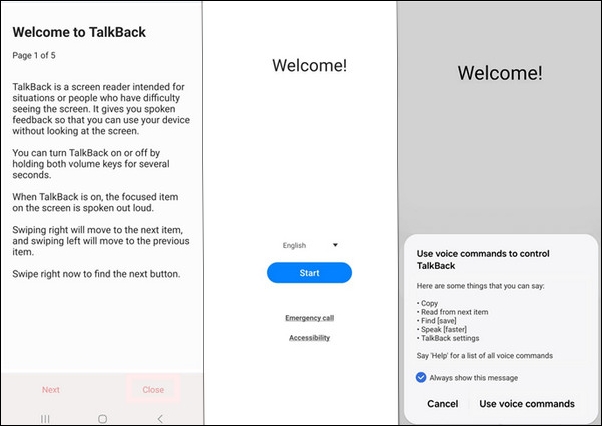
Step 4. After that, tap the keyboard icon and search YouTube to enter the YouTube website.
Step 5. Enter the YouTube Settings by tapping your Profile.
Step 6. Go to the About section, then open YouTube Terms of Service.
Step 7. Tap Chrome in the sharing options at the bottom, then select Always.
Step 8. Type techeligible.com into your web browser search bar.
Step 9. Scroll down the page and tap Access Device Settings.
Step 10. Go to Accessibility and select Accessibility Menu.
Step 11. Enable the Accessibility Menu Shortcut and press Allow > Got it.
Step 12. Open Apps & Notifications, then select See all Apps.
Step 13. Tap the three-dot menu. Choose Show System and select Google Play Services.
Step 14. Tap Disable > Disable App. Then select the Force stop choice and OK.
Step 15. Return to the app list, find Android Setup, and choose Force stop, then confirm with OK.
Step 16. Switch to the Hi There screen and tap Next to finish the initial setup.
Step 17. When the Checking for update screen appears, quickly tap the Human icon, then Assistant, go to Settings, and tap Enable.
Step 18. Continue by selecting Next, then tap More, and finally Accept.
Step 19. Follow the remaining setup steps to complete the process and successfully bypass Realme FRP.
Pros- Works on your Phone Directly
- Free accessibility-based method
- Complex steps for beginners
- Not guaranteed on all models
- Time-consuming and requires patience
- Requires precise execution of steps
Method 2. Bypass Realme FRP Using TSM Tool
TSM Tool is a dedicated software solution designed to help users bypass FRP (Factory Reset Protection) locks on a range of Android devices, including Realme. It provides an easier approach compared to the manual TalkBack method. With regular updates and broad compatibility, the tool can handle different security patches, making it another reliable option for Realme FRP bypass.
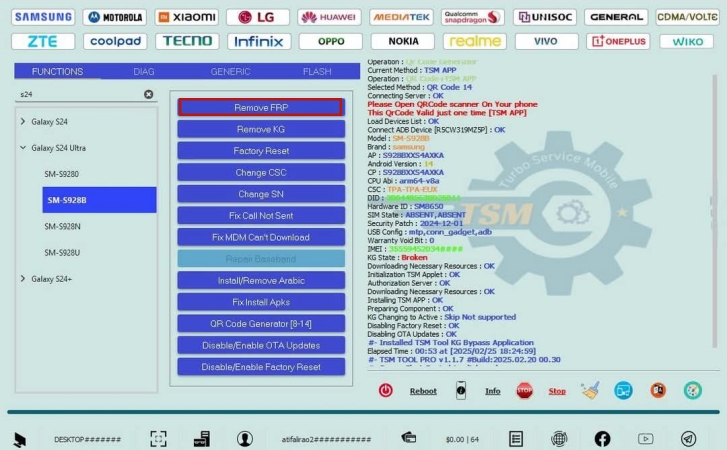
Step 1. Download and install the TSM Tool on your computer, then launch it as an administrator.
Step 2. Connect your Realme device via USB cable, enable USB debugging if required, and wait for the tool to detect your phone automatically.
Step 3. Sign up or sign in with your registered email and password.
Step 4. Then select the Remove FRP option within the TSM Tool interface.
Step 5. Click the Start button and follow the on-screen instructions carefully while the tool processes and removes the FRP lock.
Pros- Supports multiple Android brands
- Multiple features in this tool
- Automated process saves time
- Requires computer and USB connection
- Require purchase before using
- Risk if software not used properly
Part 4. Conclusion
Bypassing the Realme FRP lock can be achieved using several methods, each with unique advantages and limitations. Tools like MagFone Android Unlocker offer convenience, while manual approaches provide free alternatives. However, methods may vary in difficulty and success rates.

Teresa Miller
Editor in chief





