








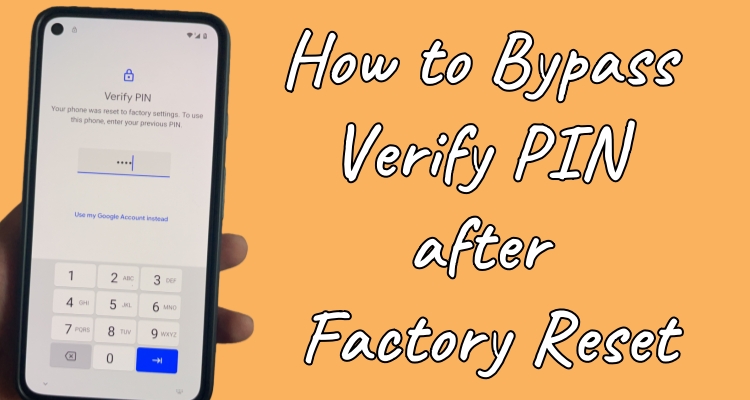
Getting stuck on the Verify PIN screen after factory reset can be frustrating, especially when you just want to set up your phone again. This situation often happens after resetting a device without removing the previously linked Google account. Whether you forgot your PIN, bought a second-hand phone, or performed a hard reset incorrectly, your Android device may block access. After reading, you can find a proper way to bypass Verify PIN after factory reset.
- Part 1. Can You Skip Verify PIN after Factory Reset?
- Part 2. How to Bypass Verify PIN after Factory Reset with PC
- Part 3. How to Bypass Verify PIN after Factory Reset without PC
- Part 4. Conclusion
Part 1. Can You Skip Verify PIN after Factory Reset?
The Verify PIN feature is part of Android's Factory Reset Protection (FRP), a built-in security system. It is linked to your Google account and activates automatically when a device is reset outside the standard settings menu. When triggered, the system asks for the last used PIN, password, or Google credentials to confirm ownership.
You can bypass or skip the Verify PIN after a factory reset with proper solutions. However, the method depends on your situation, such as whether you have a computer or the original credentials of your device. Below are three common ways you can use, including both PC-assisted and manual methods.
| Method | Difficulty | Requirements | Time Needed | Success Rate |
|---|---|---|---|---|
| MagFone Android Unlocker (PC) | Easy | Computer + USB cable | 5–10 minutes | High |
| Google Assistant Trick | Medium | Internet + patience | 30 minutes or above | Moderate |
| Contact Support Center | Easy | Proof of ownership | Varies | Moderate |
Part 2. How to Bypass Verify PIN after Factory Reset with PC
Using an FRP unlocker is one of the simplest and most reliable ways to bypass the Verify PIN screen. Tools like MagFone Android Unlocker are designed to remove FRP locks efficiently. Since the Verify PIN is tied to Google's FRP system, removing the FRP lock also eliminates the Verify PIN requirement on devices from Motorola, Samsung, Oppo/Realme, Vivo, and Xiaomi/Redmi. This approach allows you to restore access to your Android device with ease.

MagFone Android Unlocker
Remove multiple kinds of screen locks on over 5000 Android devices and delete Google FRP lock without a password.
Step 1 Connect Device and Open Program
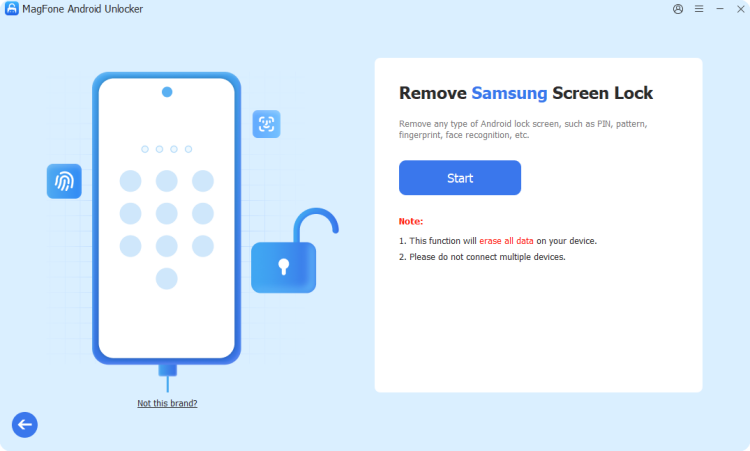
Attach your Android phone to the computer using a USB cable, then launch the unlocking program and choose the FRP removal option.
Step 2 Choose Brand and Follow Instructions
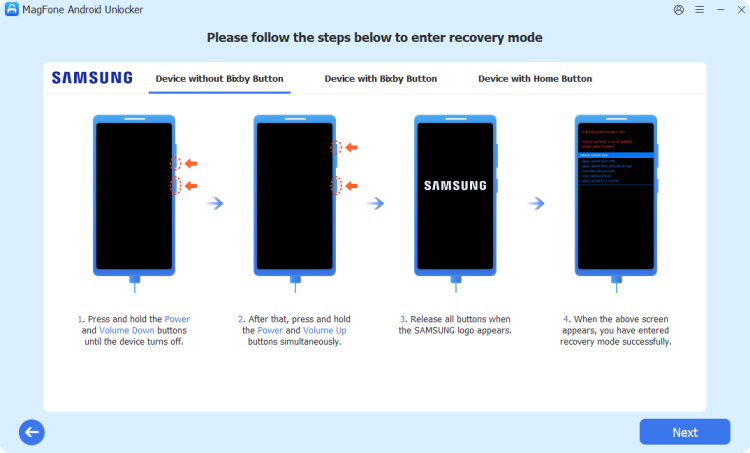
Allow the software to detect your phone automatically or manually select your device brand, then proceed by following the on-screen guidance carefully.
Step 3 Finish the Verify PIN Bypass Process

Wait until the process completes, disconnect your phone, restart it, and confirm that the FRP lock and PIN verification have been successfully removed.
Part 3. How to Bypass Verify PIN after Factory Reset without PC
If you prefer not to use a computer, there are still manual methods you can try directly on your phone. These solutions require more steps and patience, but they can work in certain cases. Below are two commonly used approaches.
Method 1. Bypass Verify PIN after Factory Reset in Keyboard Settings
This method works by navigating through hidden settings using the keyboard features. It essentially exploits system pathways to access device settings without completing the verification process. While it can be effective, it requires careful attention to each step and may only work on some Samsung devices.
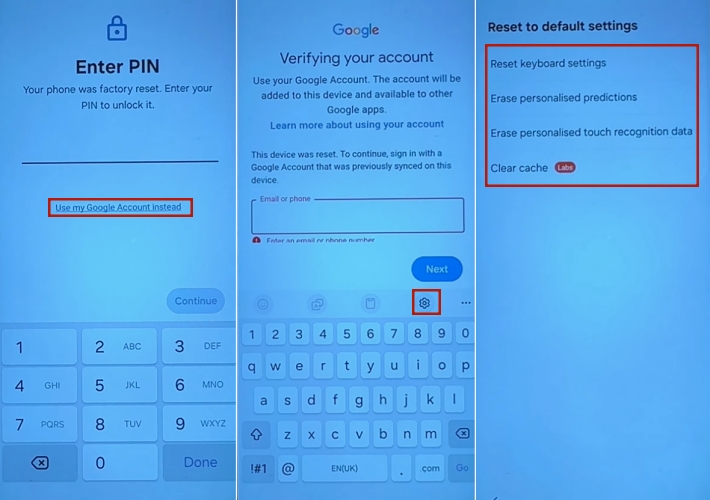
Step 1. On the Verify PIN screen, tap the Use my Google Account Instead option.
Step 2. Tap the text field to bring up the keyboard, then press the settings (gear) icon.
Step 3. Then scroll down to tap Reset to default settings and reset, erase, and clear the list shown.
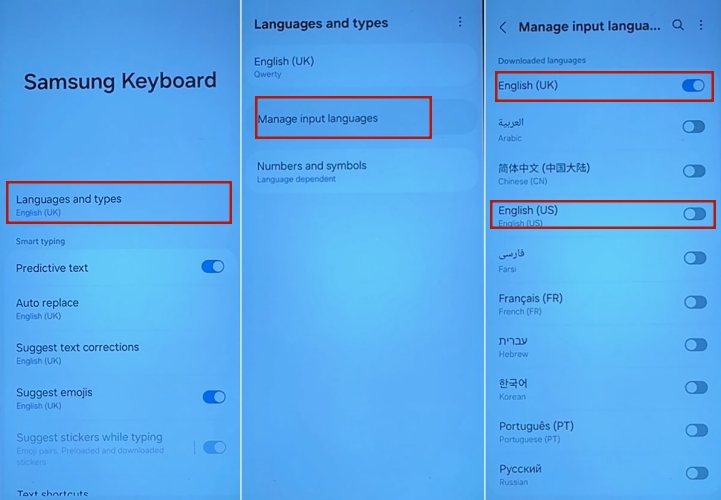
Step 4. Back to the keyboard Settings and then tap Language and types here.
Step 5. Go to Manage input languages. Then tap the More icon > Check for updates.
Step 6. Then tap Update next to English (UK), English (US), Español (ES), Español (US).
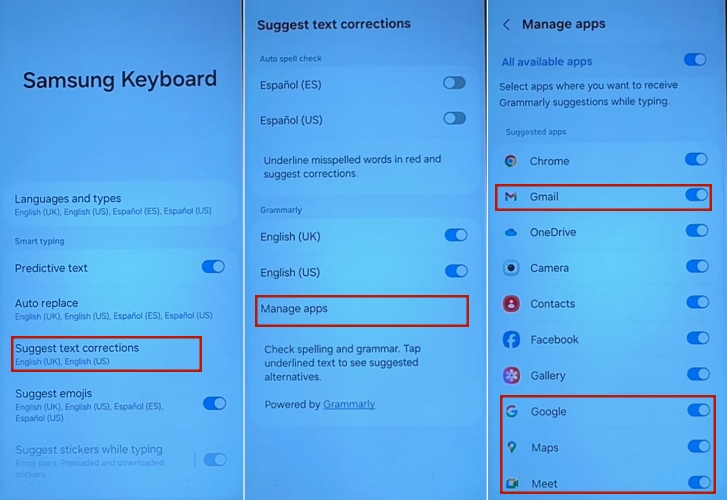
Step 7. Back to the Keyboard settings and tap Suggest text corrections > Manage apps.
Step 8. From that page, switch off Email, Google, Maps, Meet, Google Play Store, and Settings.
Step 9. Back to the Keyboard settings and press More typing options. Then turn off all buttons on that page.
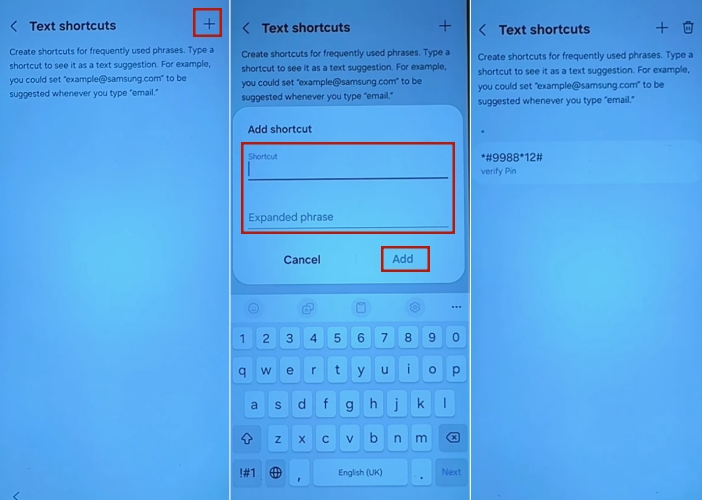
Step 10. Go back to enter the Text shortcuts section and tap +.
Step 11. Enter *#9988*12# to the Shotcut entrance and verify Pin in the Expressed phrase box. Then tap Add.
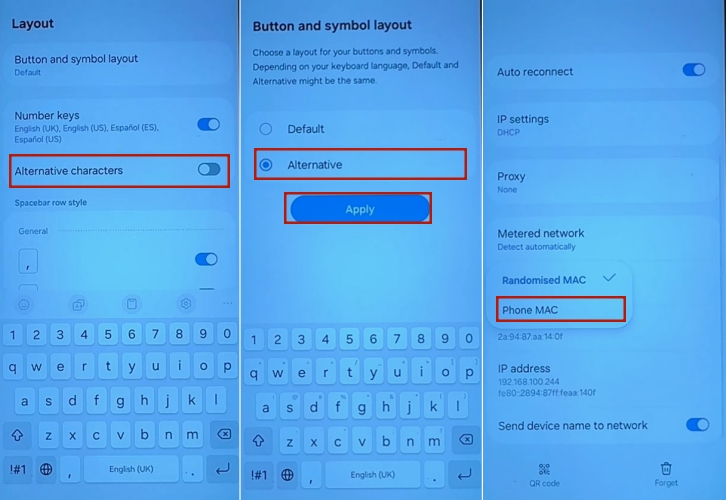
Step 12. Go back and tap Layout here to enable the Alternative characters. Still on that page, tap Button and symbol layout, and switch it to Alternative.
Step 13. Then you'll automatically swicth to the Verifying your google account interface, tap the back icon until you see the wifi settings.
Step 14. Select your connected wifi and tap view more. Then switch the MAC address type to phone MAC by tapping on it.
Step 15. Still on that page, tap Security, and it'll show a connected signal.
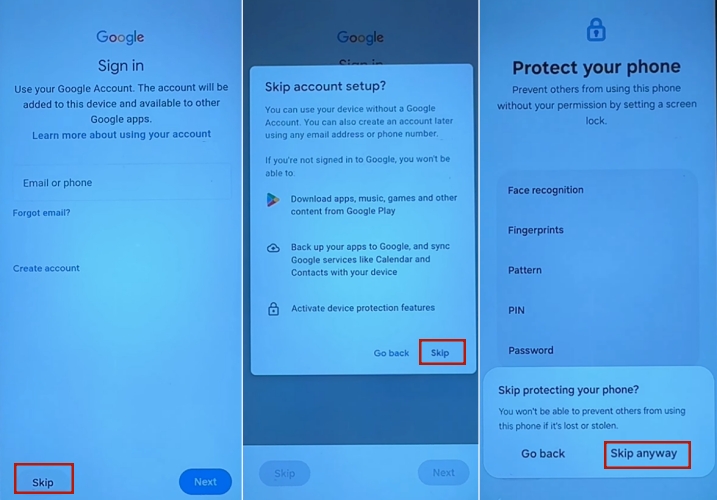
Step 16. Go back and tap Next > Skip > Don't copy. Skip all the time until you see the Google services. Accept it.
Step 17. After that, tap Forgot password or don't have an account > Set up later in Settings.
Step 18. After completing all the remaining settings, you can enter your Samsung phone without Entering a PIN.
Method 2. Bypass Verify PIN after Factory Reset by Contacting Support
Another reliable method is to reach out to the official customer support center of your phone's brand. This approach is especially useful if you are the original owner and can provide proof of purchase or account details. Support teams have the tools and authorization to remove FRP locks securely. However, this option may not work for second-hand devices without proper documentation.
Part 4. Conclusion
Encountering the Verify PIN after factory reset screen can feel like a major obstacle, but it's actually a security feature designed to protect your data. Whether you choose to use a professional PC tool, try manual bypass techniques, or contact customer support, there are effective solutions available. For the quickest and most reliable results, using MagFone Android Unlocker is often the best option.

Dylan Jones
Editor in chief





