








Selling an old phone, handing it to a family member, or simply tired of Google tracking your every tap? Whatever your reason, unlinking a Google account from an Android device isn't always as simple as tapping "sign out." This guide walks you through every method, from the Settings app to remote removal, so your data stays safe and your next owner starts fresh. Let's learn how to remove Google account from Android together.

- Part 1. What Happens After Removing Google Account in Android?
- Part 2. How to Remove Google Account from Android in Settings
- Part 3. How to Remotely Remove Google Account from Android
- Part 4. How to Delete Google Account from Android After a Reset
- Part 5. Conclusion
Part 1. What Happens After Removing Google Account in Android?
Once a Google account is disconnected from a phone, everything tied to that account — synced emails, contacts, calendar entries, app data, and cloud backups — stops updating on the device. Some Google apps may even become unusable. Before you go through with it, here's what you should take care of first:
Back up your data. Save contacts, photos, and important files somewhere else, such as Google Drive, a computer, or another cloud service.
Note your Play Store purchases. Apps and subscriptions tied to the account may become inaccessible.
Turn off Find My Device. Otherwise, Factory Reset Protection (FRP) could lock the phone later.
Remember your credentials. You may need your Google username and password again during setup or verification.
Check for other synced accounts. Some devices support multiple Google accounts, so confirm which one you're removing.
Part 2. How to Remove Google Account from Android in Settings
If you have the phone in hand and know its passcode, removing the account directly through Settings is the fastest option. The exact menu names differ slightly by brand, but the overall flow is nearly identical across Pixel, Samsung, and most other Android devices.
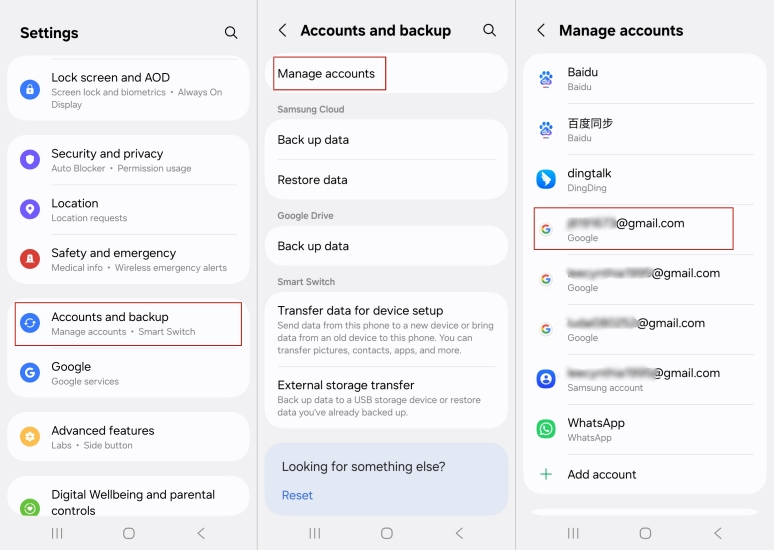
Step 1. Open the Settings app on your Android phone.
Step 2. Scroll down and tap Accounts & backup (on other devices, this may be labeled Passwords or Passkeys & Accounts).
Step 3. Press Manage accounts and choose the Google account you want to disconnect from the list of accounts on the device.
Step 4. Tap Remove Account and comfirm it.
Part 3. How to Remotely Remove Google Account from Android
Lost your phone, or need to disconnect an account from a device that isn't nearby? Google lets you manage this remotely through your account settings on any browser, as long as the target device has an active internet connection. Here's how to remove Google account from a Android phone remotely on a PC.
Step 1. On a computer (or another phone), go to accounts.google.com and sign in with the Google account linked to the device.

Step 2. Click the Security & sign-in option in the left-hand menu.

Step 3. Scroll to the Your devices section and select Manage all devices.

Step 4. From the list of connected devices, click on the phone you want to disconnect and enter your Goolge account password.

Step 5. Click Sign Out, then confirm by clicking Sign Out again in the pop-up window.

Part 4. How to Delete Google Account from Android After a Reset
It's common practice to reset a phone before selling or giving it away, hoping to wipe the Google account along with everything else. But doing this without first removing the account manually triggers Factory Reset Protection (FRP) — a safeguard that locks the device until the original Google credentials are entered. If you don't remember the password, MagFone Android Unlocker can help bypass the lock without the original login. Here's how to.

MagFone Android Unlocker
Remove multiple kinds of screen locks on over 5000 Android devices and delete Google FRP lock without a password.
Step 1 Plug In and Open the Program
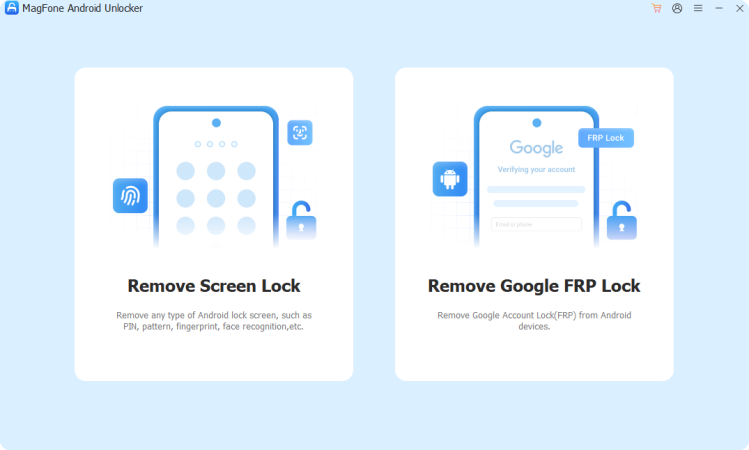
Install and launch MagFone Android Unlocker on your computer. Connect the FRP-locked phone to the PC using a USB cable, then select the Remove Google FRP Lock feature from the home screen.
Step 2 Let the Software Identify Your Phone
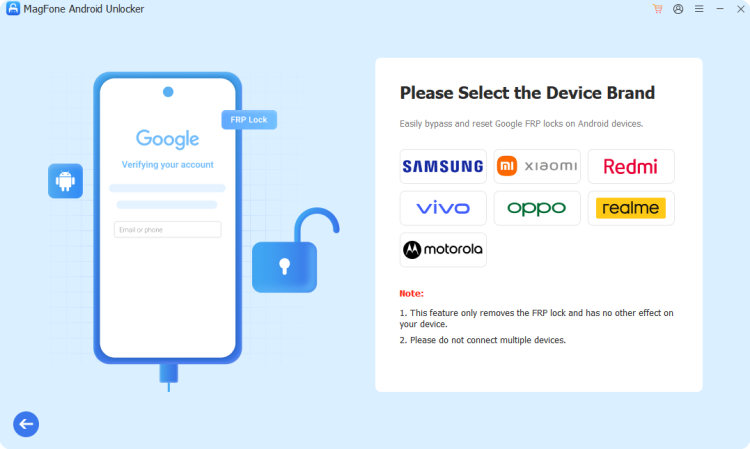
The program will attempt to recognize your device automatically. If it can't, manually pick your phone's brand and Android version from the dropdown menu. Once the details are correct, hit Start.
Step 3 Complete the On-Screen Walkthrough
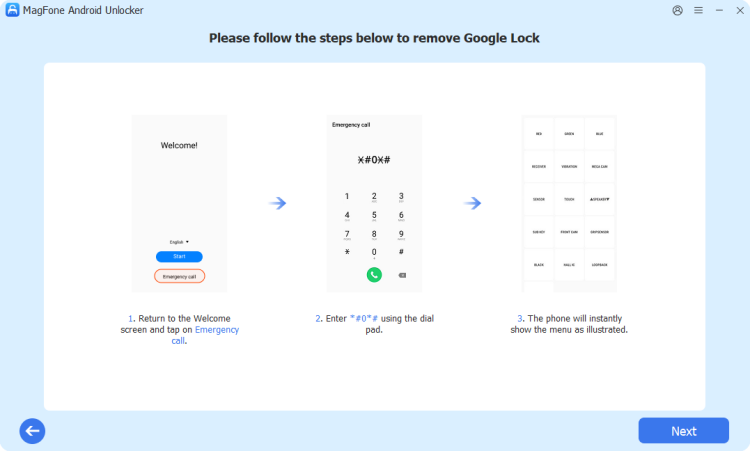
MagFone will present a customized set of instructions based on your specific device model. Work through each prompt shown on your phone and PC in order. When the process wraps up, you'll see a confirmation that the FRP restriction has been cleared.
Part 5. Conclusion
Disconnecting a Google account from an Android device doesn't have to be complicated. Whether you're doing it directly in Settings, remotely from a browser, or working around an FRP lock after a reset, there's a method suited to your situation. Just remember to back up your data first, so nothing important gets left behind.

Dylan Jones
Editor in chief




