









For users of Huawei devices that still support Google Mobile Services, forgetting your Google account credentials can be a nightmare. After a factory reset, you'll likely find yourself stuck at the Factory Reset Protection screen, unable to proceed with the initial setup. While FRP is a vital security feature for protecting your personal data, it often leaves legitimate owners searching for a reliable Huawei FRP tool to regain access to their own hardware.
- Part 1. Things to Know about Huawei FRP Bypass
- Part 2. Full Reviews: 2026 Top Huawei FRP Tools
- Part 3. How to Bypass Huawei FRP without Tools
- Part 4. Bonus Tip: Best Android Phone FRP Unlocking Tool
- Part 5. Conclusion
Part 1. Things to Know about Huawei FRP Bypass
Before downloading any Huawei FRP tool download package, it's essential to understand how FRP works on Huawei devices.
01What Is Huawei FRP Lock?
Huawei FRP lock is a security feature built into Android devices running EMUI with Google Mobile Services. Once a Google account is added, FRP activates automatically. After a factory reset, the device requires the previously synced Google credentials during setup. Without them, the phone remains locked at the verification screen.
02Is It Legal to Bypass Huawei FRP?
Bypassing FRP is legal only if you are the legitimate owner of the device or have explicit authorization. FRP exists to deter theft and unauthorized access. Using a Huawei FRP unlock tool on stolen devices violates laws in many regions.
03Is It Safe to Bypass Huawei FRP?
Safety depends on the tool and method used. Reputable desktop tools are generally safer than unknown APK files labeled as Huawei FRP tool crack. However, unofficial utilities may carry malware risks or cause firmware instability. It's recommended to download software only from trusted sources and avoid suspicious activation keys or patched versions.
04Is It Free to Bypass Huawei FRP?
Some FRP tools for Huawei solutions claim to be completely free, but many require activation keys or paid versions for full functionality. Free APK-based methods may work on older models but often fail on updated firmware. Professional PC tools usually offer higher success rates with paid licenses.
Part 2. Full Reviews: 2026 Top Huawei FRP Tools
Choosing the right Huawei FRP tool for PC can save hours of trial and error. Below are four commonly discussed tools in official documentation and Android repair communities, with balanced insights based on vendor descriptions and user feedback trends.
01Huawei FRP Tool
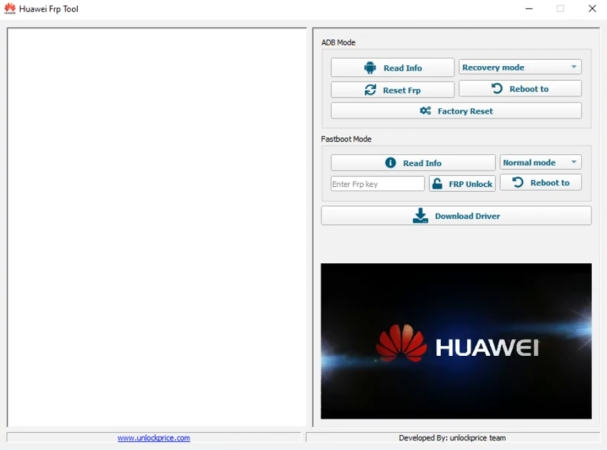
Huawei FRP Tool is a generic Windows utility frequently shared in Android repair forums. It focuses on older EMUI devices and enables FRP removal through Fastboot or ADB modes. Many users search for Huawei FRP king tool v1.0, which is often associated with early versions of this toolkit.
 Pros
Pros- Free to download and bypass
- Fastboot and ADB support
- Free download availability
- Works on older models

- Poor HarmonyOS compatibility
- May fail on updates
- Limited official support
How to Use Huawei FRP Tool:
Step 1. Download the Huawei FRP Bypass Tool APK to your computer and install the necessary USB drivers.
Step 2. Power off your Huawei device, then enter recovery mode and connect it to the computer.
Step 3. Launch the tool, click "Read Info" to confirm the connection, then select "Reset FRP" to remove the lock.
02Huawei FRP Eraser
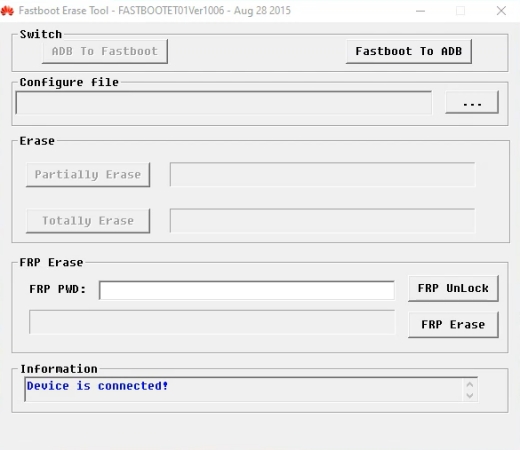
Huawei FRP Eraser is a lightweight bypass utility aimed at removing FRP through firmware-level commands. It is often referenced in discussions about Huawei FRP tool download for PC solutions. The tool typically requires driver installation and sometimes a purchased key to activate bypass functionality.
Pros- Focused FRP removal function
- Lightweight desktop application
- Works offline once activated
- Quick process on support
- Activation key required
- No official vendor support
- Model-specific success rates
How to Use Huawei FRP Eraser:
Step 1. Download and install Huawei Fastboot FRP Eraser on your computer, then complete the setup process properly.
Step 2. Turn off your Huawei device, force it into recovery mode. Then connect it to your PC.
Step 3. Launch the tool, enter your purchased FRP key, then click FRP Erase to remove the lock.
03Huawei FRP and ID Bypass Tool
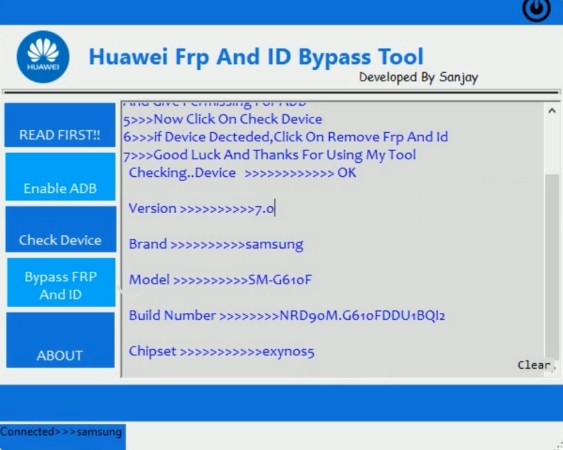
Huawei FRP and ID Bypass Tool is designed to remove both Google FRP and Huawei ID restrictions. It operates mainly through ADB mode and is widely mentioned in online repair communities. Many users refer to it when searching for Huawei FRP and id bypass tool free utilities.
Pros- Free to download and use
- Supports FRP and Huawei ID
- ADB-based unlocking mechanism
- Fast process on compatibility
- Firmware-dependent success rate
- Not beginner-friendly setup
How to Use Huawei FRP and ID Bypass Tool:
Step 1. Download and install the newest version of the Huawei FRP and ID Bypass tool on your computer.
Step 2. Connect your Huawei device to the computer using a USB cable, then open the unlocking software.
Step 3. On the main interface, click the "Read First" button to initialize the connection process properly.
Step 4. Select "Activate" to enable ADB mode, allowing your Huawei phone to automatically restart within seconds.
Step 5. Turn on USB debugging, click "Check Device," then choose "Bypass FRP And ID" to remove the lock.
Part 3. How to Bypass Huawei FRP without Tools
Some users prefer manual approaches instead of installing a Huawei FRP tool apk or desktop program. These methods typically exploit accessibility features or system shortcuts. However, they are often patched in newer security updates and may not work consistently in 2026, especially on devices running newer EMUI builds.
01Bypass Huawei FRP via QuickShortcutMaker APK
QuickShortcutMaker is an Android utility that creates shortcuts to hidden system activities. On older Huawei devices, it can open Google account settings during setup. Installing the APK on an FRP locked Huawei phone usually requires an OTG cable or a preloaded file transfer method.
Step 1. Download QuickShortcutMaker APK to a USB drive.
Step 2. Connect the OTG cable to the Huawei phone and install the APK file.
Step 3. Open the app and search "Google Account Manager."
Step 4. Launch account login activity. Then add a new Google account and reboot.
02Bypass Huawei FRP Using TalkBack
TalkBack is an Android accessibility feature intended for visually impaired users. Some older Huawei firmware allowed navigation to browser links from the help section. Users exploited this path to reach settings and add accounts, effectively completing a Huawei FRP bypass without PC tools.
Step 1. On the setup screen, draw an "L" gesture.
Step 2. After that, enable TalkBack accessibility and access the TalkBack help tutorial.
Step 3. From the Help page, open a YouTube video and tap the link to launch the browser.
Step 4. Navigate to the Settings page and then add a new Google account.
03Bypass Huawei FRP with Emergency Call
The emergency call trick is one of the oldest FRP workarounds. It involves entering special dialer codes to access hidden menus. While this method once helped bypass FRP locked Huawei devices, most 2026 firmware versions have patched these vulnerabilities.
Step 1. Tap Emergency Call on setup screen and enter service code sequence.
Step 2. Access the hidden testing menu. Then open the system settings option.
Step 3. Perform a factory reset again.
Step 4. Restart the device and complete setup.
Part 4. Bonus Tip: Best Android Phone FRP Unlocking Tool
If you're not dealing with a Huawei phone stuck in FRP lock but another Android device, MagFone Android Unlocker can help you bypass FRP locks on Xiaomi, Redmi, and Oppo phones. Designed for multi-brand compatibility, it supports a wide range of Android versions and security patches. The software provides step-by-step guidance, making it suitable for both beginners and advanced users. Below is a simple guide on how to use MagFone Android Unlocker to remove Google FRP restrictions safely and efficiently.
Step 1 Link Android Phone and Run MagFone
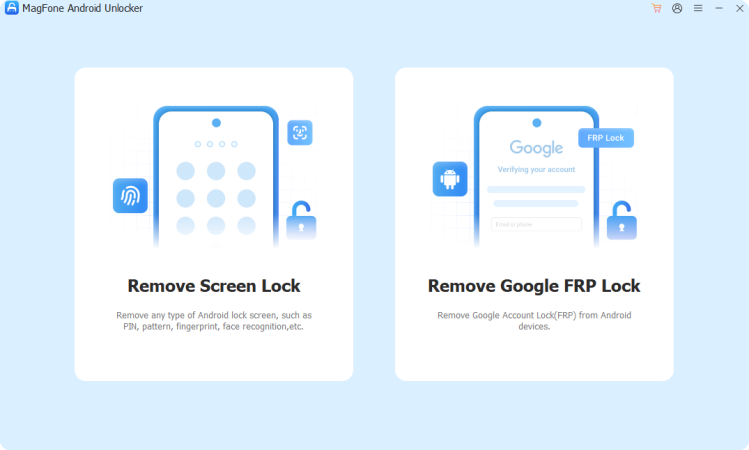
Link both your Android phone and a computer with a USB. Then run MagFone Android Unlocker and select Remove Google FRP Lock.
Step 2 Choose the Device Brand and Android Version
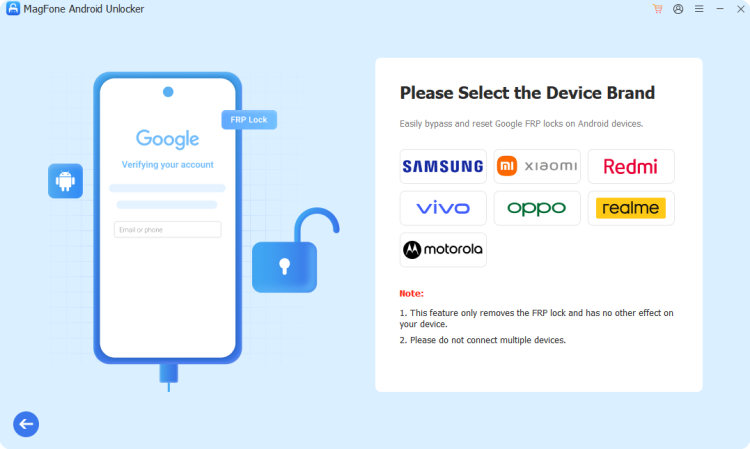
Wait for the software to detect your Android device, or manually choose Android. Select your Android version, then click Start and Continue.
Step 3 Bypass FRP Lock on Android Phone
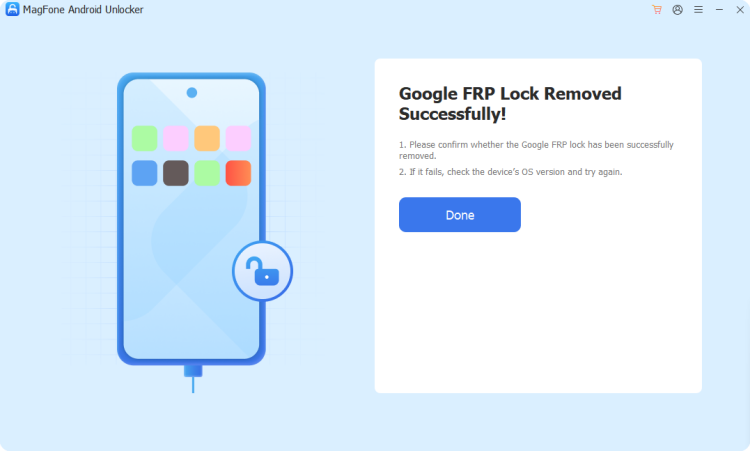
Follow the on-screen instructions carefully to operate your Android phone. Wait for MagFone to bypass the FRP lock, then click Done.
Part 5. Conclusion
Huawei FRP exists to protect user data, but it can also lock out legitimate owners after a reset. Professional PC-based solutions remain the most stable choice compared to outdated manual tricks. Whether using a Huawei FRP tool free version or a licensed unlock utility, always verify device ownership and download software responsibly to ensure a secure Huawei FRP bypass experience.

Teresa Miller
Editor in chief




