








Are you locked out of your Android device after a factory reset? That's why many users search for Fixfirmware Apk to regain access to their phones when they forget their Google account password. The tool has become popular among Android users looking for an FRP bypass solution without credentials. But does it actually work, and is it worth trying? In this review, we'll explore how to use Fixfirmware Apk and whether you should consider an alternative instead.
- Part 1. What Is Fixfirmware Apk Used For?
- Part 2. How to Use Fixfirmware FRP Bypass
- Part 3. Final Verdict: Can Fixfirmware Apk Bypass FRP?
- Part 4. Best Alternative to Fixfirmware for FRP Bypass
- Part 5. Conclusion
Part 1. What Is Fixfirmware Apk Used For?
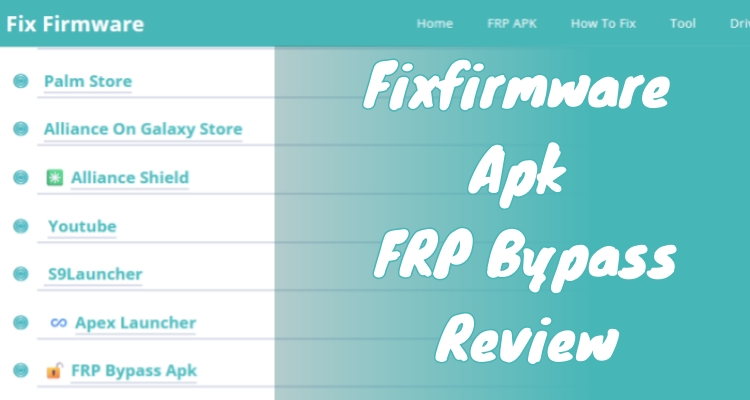
The Fixfirmware Apk is commonly known as an Android utility designed to help users bypass Factory Reset Protection on locked devices. It mainly targets users who forgot their Google account information or purchased a second-hand phone that still has the previous owner's account attached. Besides FRP removal, the platform also shares Android repair and firmware-related resources.
The Fixfirmware FRP Apk works by guiding users through a sequence of system settings, hidden menus, and downloaded APK files that temporarily disable certain Google verification services. Once those restrictions are interrupted, the device may allow users to add a new Google account or finish setup without completing the original account verification process.
Part 2. How to Use Fixfirmware FRP Bypass
Using the fixfirmware FRP bypass process can feel complicated for beginners because it requires several downloads and system modifications. Here's how to get and use Fixfirmware for FRP bypass.
Step 1. Perform a factory reset on your Android device and move through the initial setup until you reach the Google account lock screen. Link your device to a Wi-Fi signal and switch your region settings to India.
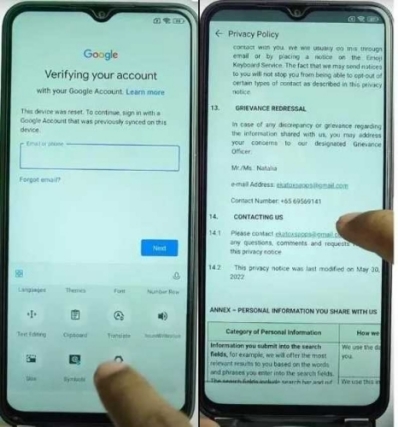
Step 2. On the account verification page, tap the input box to trigger the virtual keyboard. Access the additional settings by choosing the "More" or "Options" icon.
Step 3. Head into the "About" menu, open the "Privacy Policy," and scroll until you find the "Contact Us" segment.
Step 4. Select the email address provided and choose to open it using the "Messages" application.
Step 5. Compose a message containing "www.youtube.com" and send it. Click the resulting link to launch the YouTube app. From there, navigate to "Settings," then "About," and select "YouTube Terms of Service" to open a browser.
Step 6. In the browser URL bar, go to the fixfirmware/apk site and look for the specific FRP bypass download section.
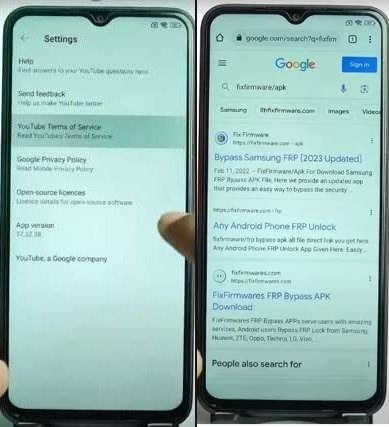
Step 7. Access the site and download the necessary utility files: Package Disabler Pro, Notification Bar, Disabler Pro Fix, and the Google Account Add APK.
Step 8. Use the "Alliance On Galaxy Store" link on the page to sign in or create a new Google profile for the device.
Step 9. Go to your file manager's download history and run the installation for the apps you just retrieved.
Step 10. Once installed, pull down the notification shade to enter "Settings." Navigate to "Privacy," then "Permission Manager," then "Files and Media," and select the option to "Show System."
Step 11. Find "Package Disabler Pro" in the list, choose "Allow management of all files," and confirm your choice.
Step 12. Go back to the fixfirmware/apk interface, turn off your Wi-Fi, and select "Direct Open Disabler Pro." Agree to the terms and activate the "Device Admin" privileges.
Step 13. Reconnect to Wi-Fi. Open the app's menu (three-dot icon), select "Import from XML," navigate to your downloads, and pick the "Disable Play Services" file. Complete the import and press OK.
Step 14. Enter the main device settings, go to "Accounts and Backup," select "Manage accounts," and add the Google account to the system.
Step 15. When the "Bypass FRP" prompt appears, interact with it and follow the remaining on-screen instructions.
Step 16. Within "Settings," go to the "Apps" list and select "Chrome." From there, locate and launch the "Activity Manager."
Step 17. Search for "Android Setup," dismiss the "Cancel" prompt, and look for "PreDeferredSetupWizardActivity."
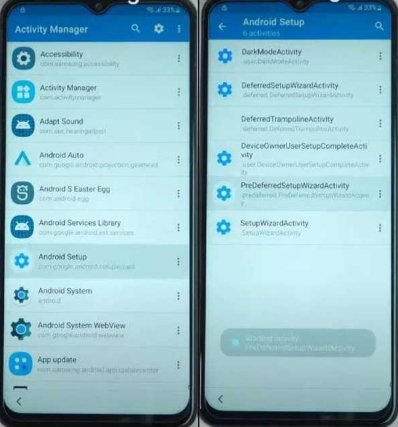
Step 18. Choose the "Setup Wizard" option, set it to "Always," agree to the terms, and let the device finish the internal setup. Once the cycle is complete, you will be able to use your phone freely.
Part 3. Final Verdict: Can Fixfirmware Apk Bypass FRP?
Yes, the Fixfirmware FRP method can bypass FRP locks on certain Android devices, especially older Samsung phones running outdated Android security versions. However, the process is far from simple, and the success rate varies depending on the phone model and security patch level. Since it relies on third-party APK files and unofficial workarounds, users may also face risks such as failed installations, software instability, or security concerns during the bypass process. Here are the main pros and cons of the Fixfirmware Apk tool.
 Pros
Pros- No computer required
- Supports multiple Android devices
- Free APK downloads available
- Helpful video guides for FRP bypass

- Complicated installation procedure
- Uncertain third-party APK sources
- Limited newer device compatibility
- Time-consuming bypass process
Part 4. Best Alternative to Fixfirmware for FRP Bypass
For users seeking a safer and easier FRP unlocking experience, MagFone Android Unlocker is often considered a more efficient solution than Fixfirmware Apk methods. Unlike complicated APK installations, MagFone offers a cleaner desktop-based interface with guided instructions throughout the unlocking process. It supports FRP bypass on multiple brands, including Samsung, Xiaomi, Motorola, and more. Since the software automates most of the technical steps, even beginners can remove Google FRP locks more smoothly and quickly. Here's how to do it.

MagFone Android Unlocker
Remove multiple kinds of screen locks on over 5000 Android devices and delete Google FRP lock without a password.
Step 1 Connect Phone and Open MagFone
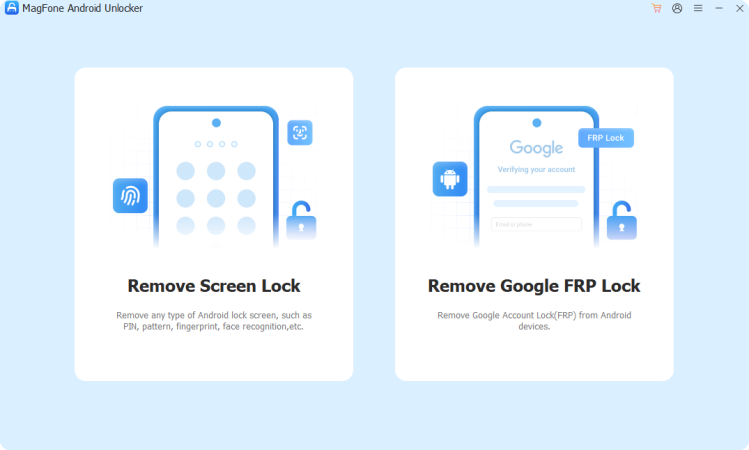
Use a USB cable to link the Samsung device to your computer. Install and launch MagFone Android Unlocker on the PC, then choose the option labeled Remove Google FRP Lock from the main dashboard.
Step 2 Choose Device Information Correctly
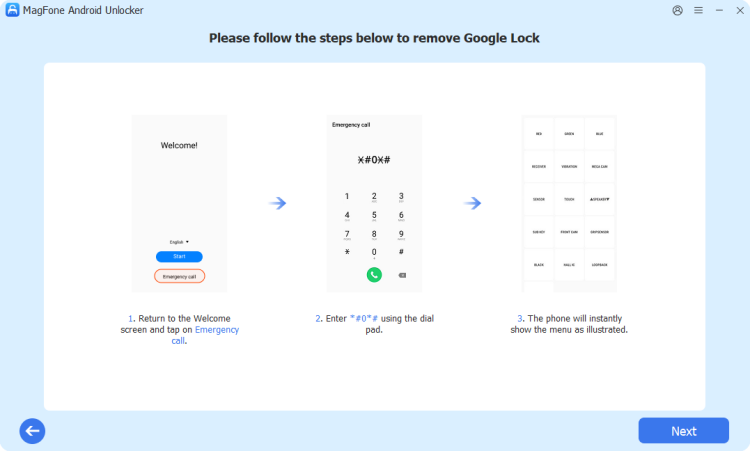
Allow the software to recognize the connected Samsung phone automatically. If detection does not happen instantly, manually select Samsung and choose the proper Android version displayed on the screen. Press Start, then proceed by selecting Continue.
Step 3 Begin the FRP Unlocking Process
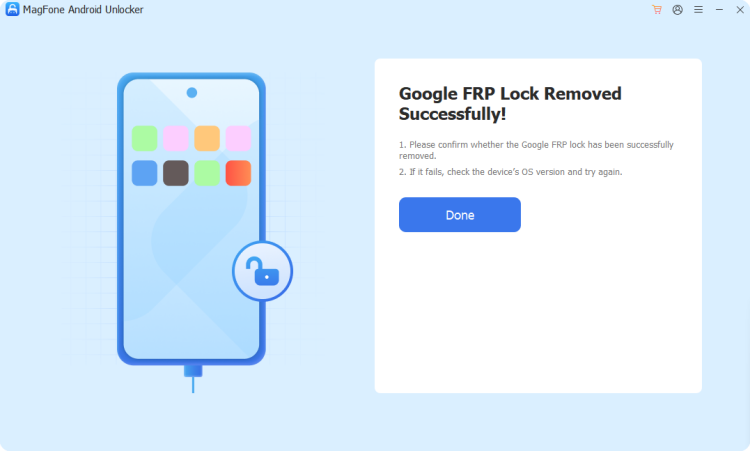
Carefully follow the instructions displayed by the software to place the Samsung phone into the required mode. Once configured correctly, MagFone will start removing the FRP restriction automatically. After completion, click Done to finalize the unlocking process successfully.
Part 5. Conclusion
The Fixfirmware FRP bypass solution can help some Android users unlock FRP-protected devices, especially on older Samsung phones. However, the lengthy setup, uncertain compatibility, and risks from unofficial APK downloads may discourage many users. While the method still works in certain cases, tools like MagFone Android Unlocker provide a simpler and more reliable experience for bypassing Google verification locks safely and efficiently on supported Android devices.

Dylan Jones
Editor in chief





