








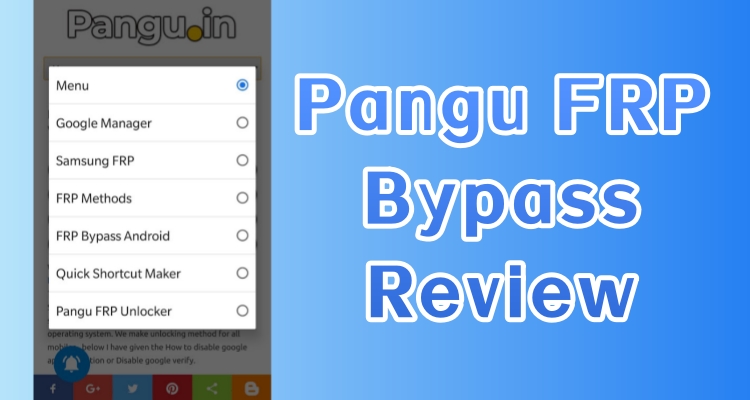
Locked out of the Google FRP after a factory reset? You aren't alone. The Factory Reset Protection (FRP) lock is a formidable security barrier, but the Pangu FRP Bypass tool has long been touted as a free "skeleton key" in tech forums. In this 2026 review, we provide a detailed 2026 review of the Pangu FRP bypass tool, including features, safety concerns, compatibility, and step-by-step guides on Pangu FRP APK download and bypass.
- Part 1. Pangu FRP Bypass Tool Full Review
- Part 2. How to Download Pangu FRP Bypass APK
- Part 3. How to Use Pangu FRP Bypass Tool 2026
- Part 4. Best FRP Bypass Alternative: Pangu vs MagFone
- Part 5. Conclusion
Part 1. Pangu FRP Bypass Tool Full Review
The Pangu FRP Bypass tool is a specialized utility designed to circumvent Google's Factory Reset Protection. Originally developed to exploit vulnerabilities in older Android versions, it functions by tricking the system into allowing a new Google account login without requiring the original credentials. Below is some useful information about the Pangu FRP bypass you may find helpful.
01Can You Use Pangu FRP Bypass Tool?
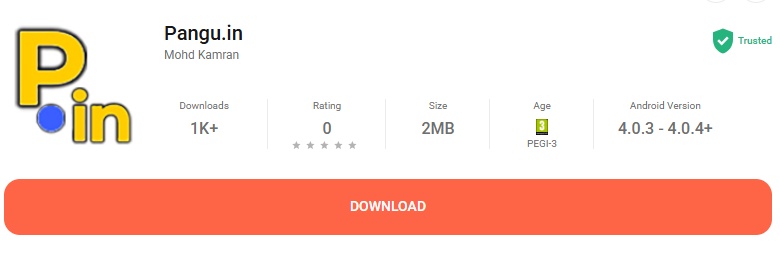
Before attempting the Pangu FRP bypass APK download, it's essential to understand the tool's technical requirements and compatibility with Android devices and operating systems.
| Tool Name | Pangu FRP Bypass |
| Android Versions | Android 4.4 to Android 11 |
| Supported Brands | Samsung, LG, Lenovo, Oppo, Vivo, HTC |
| Required Tools | USB cable, OTG cable, USB drive |
02Is Pangu FRP Bypass Free?
Yes, the original Pangu FRP Bypass tool is free. Most versions of the Pangu FRP bypass free download are distributed without payment. However, many download websites bundle the tool with advertisements or additional software.
03Is Pangu FRP Bypass Safe?
Not entirely. Although some people report successful results with the Pangu FRP bypass APK, security concerns exist. Antivirus programs such as Windows Defender or Chrome may flag the tool because it uses exploit-like techniques to bypass system security. Additionally, downloading the APK from unverified websites increases the risk of malware or spyware.
04Pros and Cons of Pangu FRP Bypass
Evaluating the advantages and disadvantages of the Pangu FRP Bypass tool can help users understand its potential benefits and limitations. Based on user feedback and practical testing, the following points highlight the main pros and cons of the tool.
 Pros
Pros- Free to use
- Supports multiple Android brands
- Simple interface design

- No official support
- Only supports older devices
- Potential security risks
- Requires additional tools
Part 2. How to Download Pangu FRP Bypass APK
If you want to perform a Pangu FRP bypass APK download, the process is relatively straightforward in the Pangu official page. For other sources, you must ensure that they are trustworthy to avoid security threats.
Step 1. Download the Pangu FRP Bypass tool from a trusted source, such as the Pangu website, to a computer or spare device.
Step 2. Copy the downloaded Pangu APK file to a USB flash drive.
Step 3. Connect the USB drive to the FRP-locked Android phone using an OTG cable.
Step 4. Open the phone's File Manager and locate the Pangu APK on the USB drive.
Step 5. If installation is blocked, open Google Play Store / Google Play Services, tap the profile icon, then go to Play Protect > Settings.
Step 6. Turn off Scan apps with Play Protect, confirm the prompt, then return and install the Pangu APK.
Part 3. How to Use Pangu FRP Bypass Tool 2026
Using the Pangu FRP Bypass tool involves creating a new Google account entry through a browser login exploit. The instructions below explain the overall procedure. Let's learn how to use the Pangu bypass tool to unlock the FRP lock.
Step 1. Launch the Pangu FRP Bypass APK on your Android device, then tap the three-dot menu icon located in the upper-right corner of the screen.
Step 2. Select the Browser sign-in option at the top and type a new Google account email into the provided field.
Step 3. Tap Next, then set up a new password for the account that you will be able to remember.
Step 4. Press Finish and allow the device a moment to apply and update the account changes.
Step 5. Turn off your Android phone, wait a few seconds, and power it on again.
Step 6. After the device restarts, tap Next to continue with the initial setup process.
Step 7. A message will appear indicating that a new account has been successfully added. Tap Next to move forward.
Step 8. When the Google verification page appears, input the new Google email and password you created earlier.
Step 9. Tap Next, and the device will attempt to verify the Gmail account and password for FRP authentication.
Part 4. Best FRP Bypass Alternative: Pangu vs MagFone
While Pangu FRP Bypass has been widely discussed in Android communities, it is no longer the most reliable option. Modern Android security updates have reduced its success rate significantly. Because of this, many users now turn to dedicated unlocking software such as MagFone FRP Unlocker, which offers updated compatibility and a more streamlined unlocking process.
| Feature | Pangu FRP Bypass | MagFone Android Unlocker |
|---|---|---|
| Price | Free | Paid (trial available) |
| Ease of Use | A little Complex | Beginner-friendly |
| Success Rate | Low on new devices | Higher success rate |
| Supported Android | Android 4.4 – 11 | Android 5 - 16 |
| Software Updates | Rare | Regular updates |
| Safety | Potential security warnings | Verified installer |
| Platform | Windows & APK | Windows & macOS |
MagFone Android Unlocker's main advantage is reliability. Unlike older exploit-based tools, it uses structured unlocking procedures and receives ongoing updates to support newer Android models. This makes it a better option for users who are not comfortable with technical methods or risky downloads. Anyone who wants a simpler and more stable FRP removal process, especially for modern Android phones, may find MagFone a more suitable solution.

MagFone Android Unlocker
Remove multiple kinds of screen locks on over 5000 Android devices and delete Google FRP lock without a password.
Step 1 Link Android Phone and Run MagFone
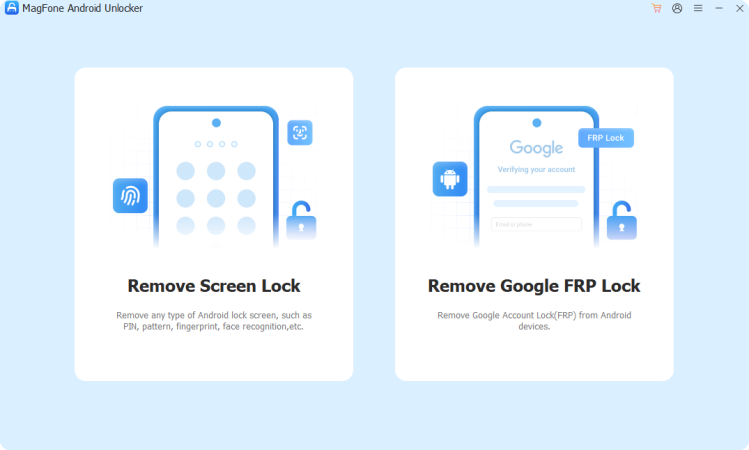
Attach your Android device to your computer using a USB cable. After that, open MagFone Android Unlocker on the computer and select the Remove Google FRP Lock feature on the home screen.
Step 2 Choose the Device Brand to Unlock
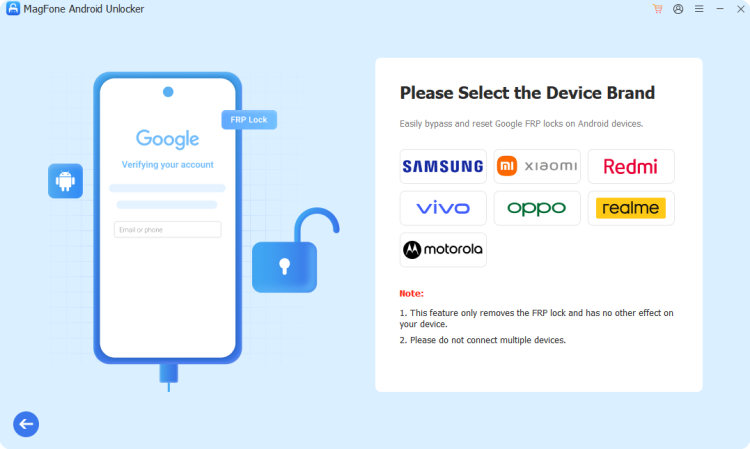
Wait for the program to detect your Android device automatically, or manually select the device brand if needed. Then choose the correct Android version and click Start, followed by Continue to proceed.
Step 3 Bypass FRP Lock on Android Phone
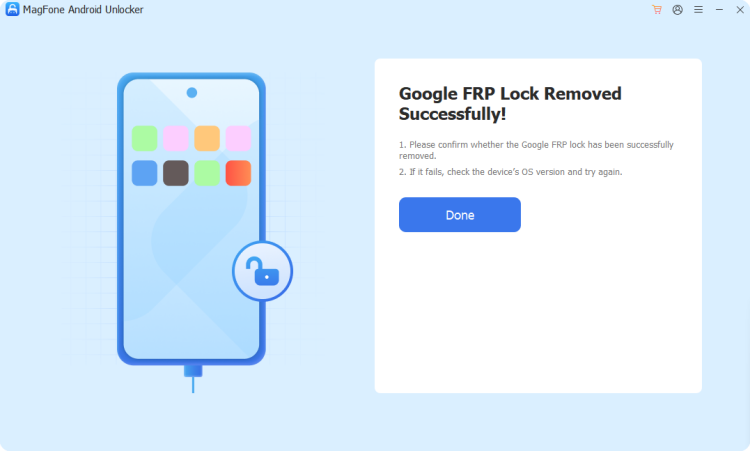
Carefully follow the on-screen instructions provided by the software to operate your Android phone. The program will begin removing the FRP lock. Once the process finishes successfully, click Done to complete the bypass.
Part 5. Conclusion
Pangu FRP Bypass was once a popular solution for removing Google verification from Android devices. It remains a free option that can work on older smartphones running earlier Android versions. However, its effectiveness has decreased significantly with modern security updates. In 2026, the tool should be considered a legacy workaround rather than a reliable solution. Users with newer devices may achieve better results using updated FRP unlocking software that offers higher compatibility and safer installation.

Dylan Jones
Editor in chief




