








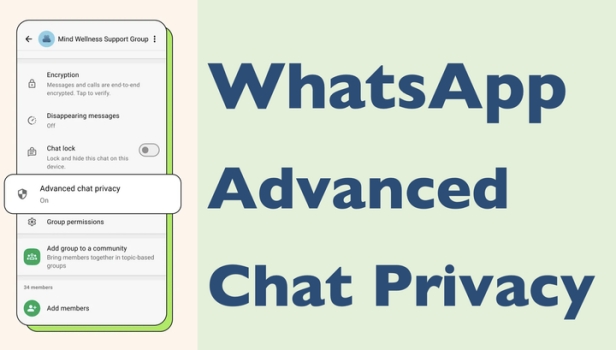
In this era of information explosion, chat history is becoming one of the digital assets we need to protect the most. WhatsApp's recent Advanced Chat Privacy feature is designed to help users take more control of their conversations. Whether you're worried about your chats being exported or want to hide sensitive content and keep your account private, this new feature is worth knowing. Below, we take you through a comprehensive understanding of its uses, how to turn it on, and how to further manage your WhatsApp chat history.
- Part 1. What Is Advanced Chat Privacy on WhatsApp
- Part 2. How to Turn on Advanced Chat Privacy in WhatsApp
- Part 3. Bonus Tip: Export WhatsApp Chats Beyond Blocking
- Part 4. Conclusion
Part 1. What Is Advanced Chat Privacy on WhatsApp
Apart from end-to-end encryption, WhatsApp has launched a new advanced chat privacy feature for privacy guarantees. This feature can be used for single chat and group chat, aiming to provide users with stronger privacy protection. Once the advanced chat privacy is turned on in a chat, the following activities in this chat will be blocked:

Media auto-download:
WhatsApp users can enable the media auto-download feature to save WhatsApp media to iPhone Photos and Android Gallery. If the advanced chat privacy is turned on, all newer photos and videos received in this chat will no longer be saved to your device.
Export chat:
WhatsApp's export chat feature will also be prevented if you want advanced chat privacy.
Meta AI:
Meta AI services will also be unavailable, including asking AI questions, creating images, or summaries.
Once Advanced Chat Privacy is enabled in a WhatsApp chat, all members of that chat will receive an in-chat notification informing them that the enhanced privacy setting has been activated. Each participant in the chat can turn off this feature at any time, which can be a bit tricky. However, there is a workaround: the group admin can restrict changes to the advanced chat privacy setting through group permissions, so that other participants cannot modify it deliberately.
Part 2. How to Turn on Advanced Chat Privacy in WhatsApp
The WhatsApp Advanced Chat Privacy feature is especially useful for groups where sensitive information needs to be discussed but members are not familiar with each other. This feature can avoid privacy leaks in some cases. And it goes to effect in per chat, so you need to activate this feature in target chat. Here's how to turn on the advanced chat privacy on different devices:
On iPhone:
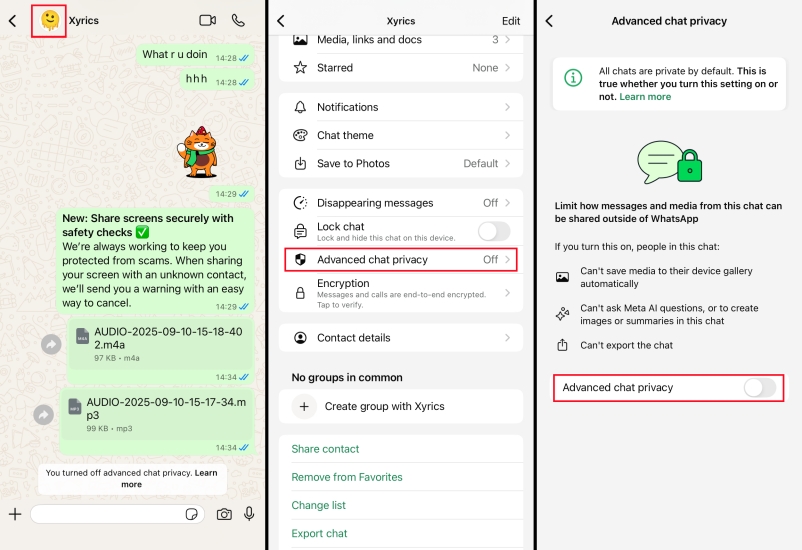
Step 1. Open a private chat in WhatsApp and press the profile icon.
Step 2. Find and tap Advanced chat privacy and tap the button to enable this feature.
On Android:
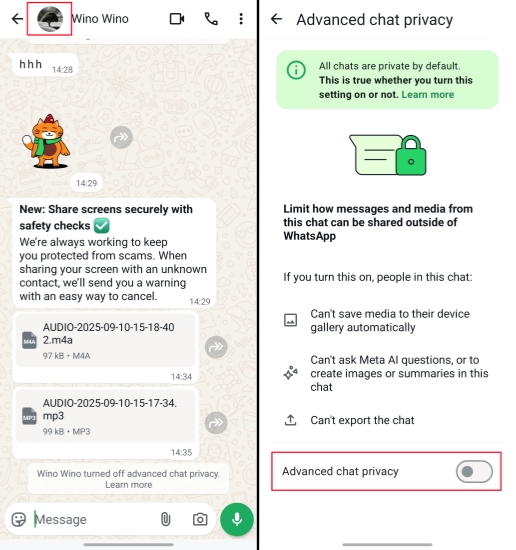
Step 1. Enter a target chat in WhatsApp and tap the profile icon.
Step 2. Tap Advanced chat privacy and then tap the button to turn it on.
On Web:

Step 1. Load a chat in WhatsApp web and click the profile picture to enter the contact info page.
Step 2. Click Advanced chat privacy and click the button to enable the feature.
Part 3. Bonus Tip: Export WhatsApp Chats Beyond Blocking
When you tap the Export chat option in WhatsApp, you will see a prompt message saying "Advanced chat privacy has been turned on, and prevents exporting this chat". But in some cases, you may still want to export, share, or back up your chats. At this time, you need to use other methods to safely export the record.
| Method | Export Content | Bulk Export | Selective Export | Preview Export |
|---|---|---|---|---|
| MagFone Chats Transfer | All WhatsApp contents | Yes | Yes | Yes |
| Chrome Extension | All WhatsApp contents | No | No | No |
Method 1. Use MagFone Chats Transfer
Here comes MagFone WhatsApp Transfer, ready to back up, export, and manage your WhatsApp chats. With MagFone WhatsApp Transfer, you can export your WhatsApp chats even though the advanced chat privacy is enabled. Besides, it can help you back up and restore WhatsApp data, which gives you a more flexible way to guarantee your chat privacy. Here's how to export WhatsApp chat via MagFone WhatsApp Transfer:

MagFone Chats Transfer
Efficiently back up and export your WhatsApp content without loss or hassle — everything moves with you, just as it was.
Step 1 Install MagFone Chats Transfer
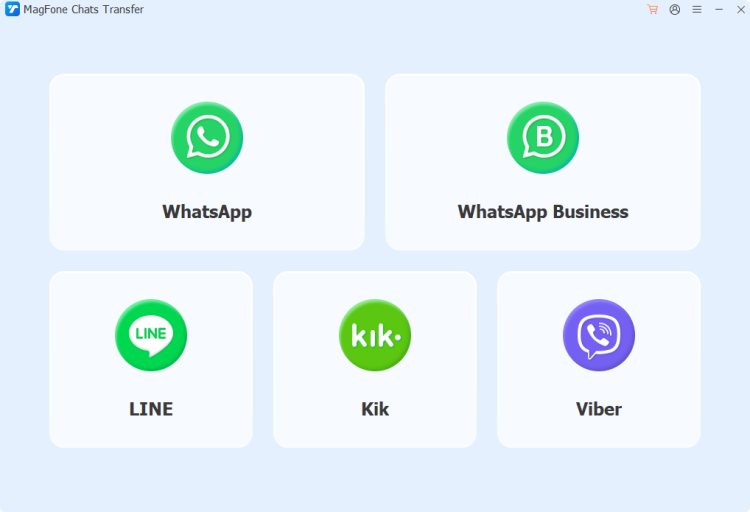
First, download and install MagFone Chats Transfer on your computer. After launching this program, click the WhatsApp button and plug your iPhone into your computer via a USB cable.
Step 2 Back Up WhatsApp Chats
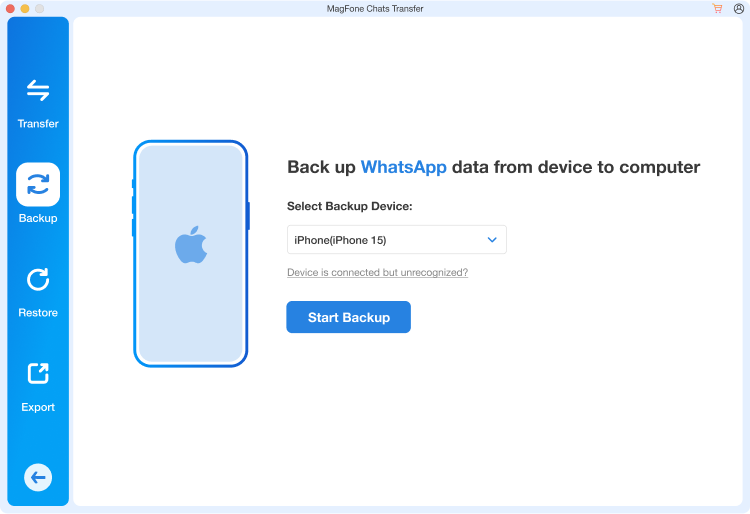
On the next page, you will access four features. Click the Backup feature in the left bar. Also, your iPhone will be detected by this program automatically.
Step 3 Export WhatsApp Chats
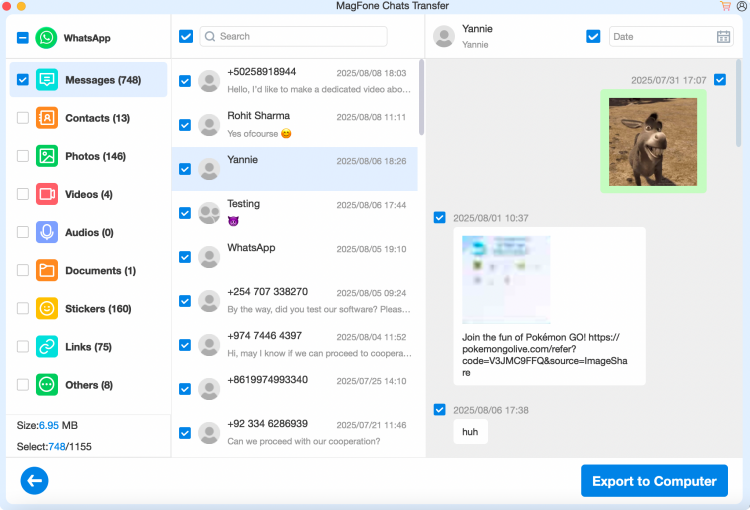
Switch to the Export section, and you can click the view icon to access your WhatsApp chat. Then select the WhatsApp chat and click Export to computer to export your WhatsApp chat beyond advanced chat privacy settings.
Method 2. Use Chrome Extension
In addition to MagFone Chats Transfer, you can also use a Chrome extension on WhatsApp Web to export your chats when advanced chat privacy settings are enabled.
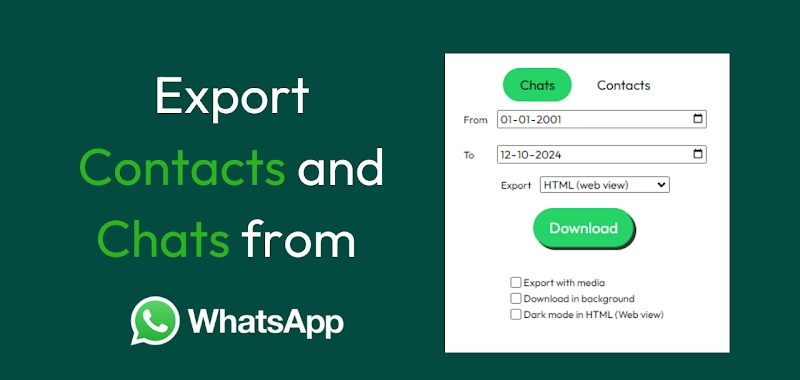
Step 1. Log in to your WhatsApp account on WhatsApp web and add the WAexport extension to your Chrome.
Step 2. Open a WhatsApp chat and click the Chrome Extension icon to run WAexport.
Step 3. Tick your preferred download option and click Download to export the chat.
Part 4. Conclusion
WhatsApp's advanced chat privacy is useful in many ways, but it also disables some convenient features, such as chat export and media auto-download. Many WhatsApp users have raised concerns about these limitations. If you want to manage your WhatsApp data more safely and effectively with advanced chat privacy features, MagFone Chats Transfer is a tool you shouldn't miss.

Edgar Davis
Editor in chief




