








WhatsApp has become one of the main ways we share everyday moments. But as these pictures pile up, many users start asking the same question: how can I safely back up my WhatsApp photos and keep them easy to access? Whether you use an iPhone or an Android device, there are several ways to protect your images. This guide will walk you through each method step by step so you can choose the backup solution that works best for you.

- Part 1. How Do I Back Up My WhatsApp Photos?
- Part 2. How to Back Up WhatsApp Photos on iPhone & Android
- Part 3. How to Back Up WhatsApp Photos to Google Photos
- Part 4. How to Back Up WhatsApp Photos to Google Photos
- Part 5. Conclusion
Part 1. How Do I Back Up My WhatsApp Photos?
Backing up WhatsApp photos is essential if you want to protect your memories from accidental loss, phone damage, or switching devices. These photos can be saved and backed up in several ways, such as using WhatsApp's built-in cloud backup, syncing them with a photo service, or transferring them to a computer with dedicated tools. In the following sections, we'll walk you through each method in detail so you can choose the option that works best for you.
| Method | Photos Content | Storage Limitation | Recommendation |
|---|---|---|---|
| Google Drive | Not accessible | Free 15 GB | ⭐⭐⭐ |
| iCloud | Not accessible | Free 5 GB | ⭐⭐⭐ |
| Google Photos | Readable | Free 15 GB | ⭐⭐⭐⭐ |
| MagFone WhatsApp Transfer | Readable | No | ⭐⭐⭐⭐⭐ |
Part 2. How to Back Up WhatsApp Photos on iPhone & Android
WhatsApp allows users to back up their data to Google Drive on Android and iCloud on iPhone directly within the app, so you can use this official method to back up your WhatsApp photos. However, the drawback is that whether you back up to Google Drive or iCloud, the backup is stored in an encrypted format. You can't view or extract the photos directly from these backups. You can only access their contents by restoring the entire backup to a phone.
01Back Up WhatsApp Photos to Google Drive
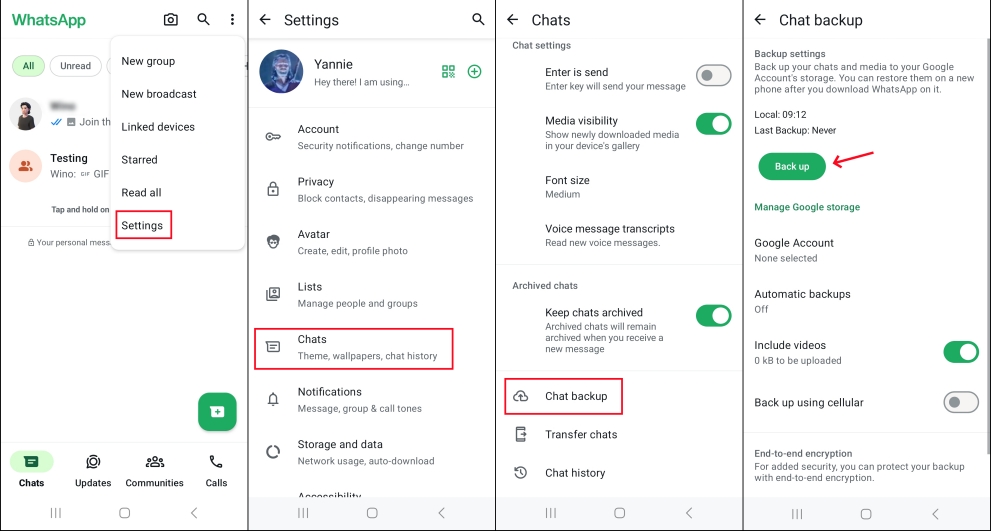
Step 1. Open WhatsApp and press the upper-right icon for more options.
Step 2. Go to Settings > Chats > Chat backup.
Step 2. Tap Back up, and your WhatsApp data, as well as WhatsApp photos, will be backed up to Google Drive.
02Back Up WhatsApp Photos to iCloud
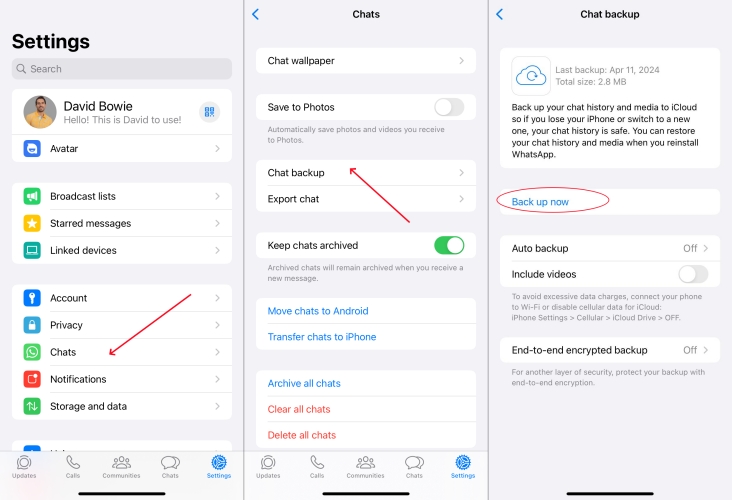
Step 1. Open WhatsApp and head to Settings.
Step 2. Find Chats > Chat backup and tap Back up now to back up WhatsApp photos to iCloud.
Part 3. How to Back Up WhatsApp Photos to Google Photos
There are many users who are wondering how to back up WhatsApp photos to Google Photos. You may be more focused on WhatsApp photos and want to preserve these photo memories. Fortunately, this can be easily done using WhatsApp's auto-download feature.
📝How to Enable WhatsApp Auto Save Photos:
On Android:
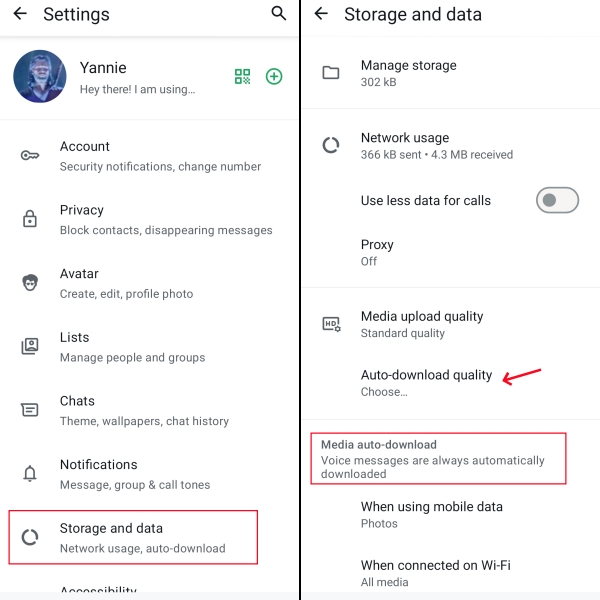
Step 1. Access WhatsApp and tap the triple-dot icon for more features.
Step 2. Tap Settings > Storage and data. Allow WhatsApp photos to auto-save when using mobile data and connected to Wi-Fi.
On iPhone:
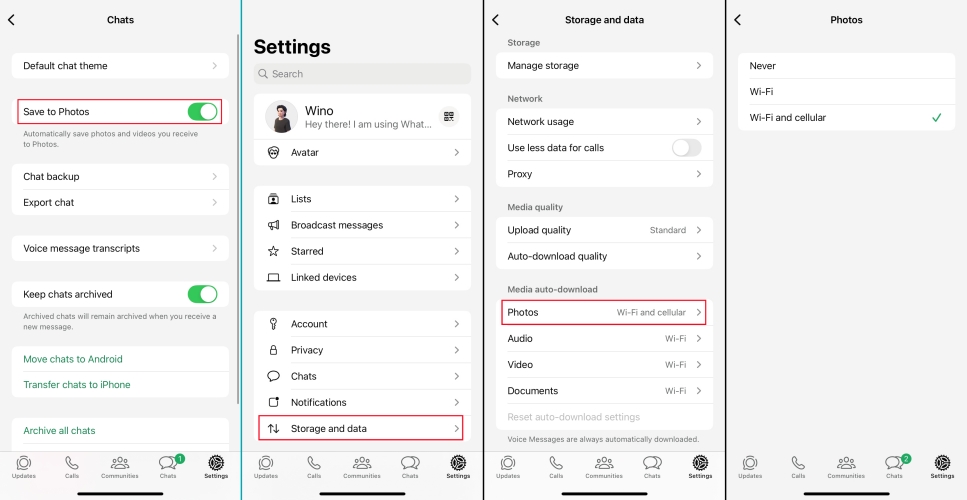
Step 1. Head to WhatsApp Settings > Chats and enable the Save to Photos feature.
Step 2. Back to Settings and find Storage and data.
Step 3. Tap Photos under Media auto-download stack and choose Wi-Fi and cellular.
If you have enabled WhatsApp photo auto save, then all WhatsApp photos will be saved to your phone's gallery. Then you can back up these WhatsApp photos to Google Photos. Here's how to back up WhatsApp images to Google Photos on Android and iPhone:
Back Up WhatsApp Photos to Google Photos on Android:
You can back up your WhatsApp photos to Google Photos by including the WhatsApp image folders in Google Photos backup. Once WhatsApp's auto-download is turned on, your received photos are saved to your phone's storage and collected in the WhatsApp Images folder. In the Google Photos app, you can enable backup for this folder so that all WhatsApp photos are automatically uploaded to your Google account and kept safely in the cloud.
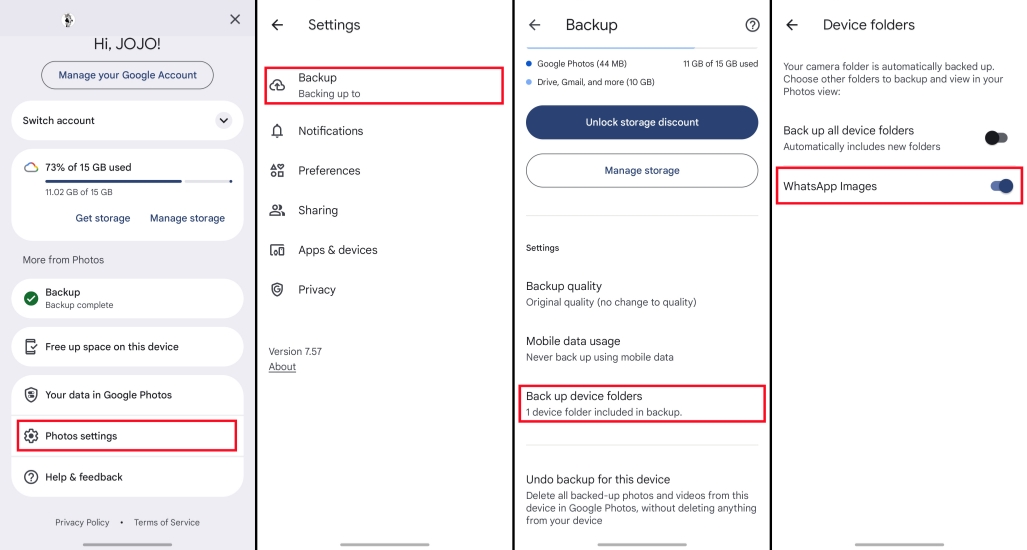
Step 1. Log in to your Google account on Google Photos.
Step 2. Tap your account icon and tap Photos settings.
Step 3. Tap Backup > back up device folders and allow WhatsApp Images backup.
Back Up WhatsApp Photos to Google Photos on iPhone:
If media auto-download is enabled in WhatsApp, all your WhatsApp photos will be saved to your iPhone Photos app by default. Google Photos will then back up all photos from your iPhone, but the backed-up WhatsApp photos will appear in the entire photos album, without an additional separate WhatsApp Images album.
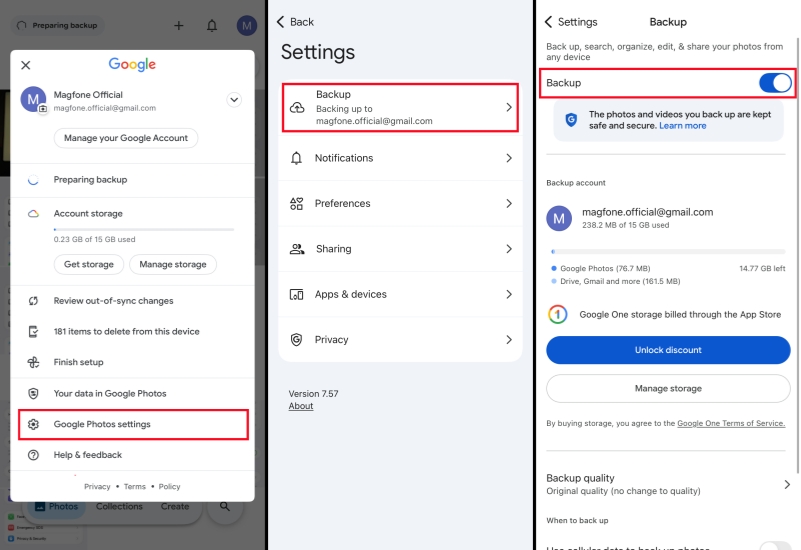
Step 1. Log in to your Google account on Google Photos.
Step 2. Tap your account icon and find Google Photos settings.
Step 3. Tap Backup and turn on the Backup switch.
Part 4. How to Back Up Photos from WhatsApp to PC
When you choose to back up WhatsApp photos to Google Drive or iCloud, you can't access the backup content, and you don't know if the photos are completely backed up. When you choose to back up WhatsApp photos to Google Photos on iPhone, not just WhatsApp photos will be backed up. To avoid this inconvenience and mess, MagFone WhatsApp Transfer is recommended for you.
As a WhatsApp data management tool, MagFone WhatsApp Transfer is available to back up, transfer, export, and restore WhatsApp data. It allows you to back up WhatsApp photos effectively and safely. You can browse the backed-up photos in a whole sight and sort by date. Besides, you can selectively export them to your computer and manage them. Here's how to back up photos from WhatsApp to computer using MagFone:

MagFone Chats Transfer
Safely backup all your important WhatsApp photos from iPhone to PC without loss or hassle — everything moves with you, just as it was.
Step 1Launch MagFone Chats Transfer

First, download and install MagFone Chats Transfer on your computer. Also, you need to connect your iPhone to your computer for data transferring. Next, launch the program.
Step 2 Back Up WhatsApp Photos
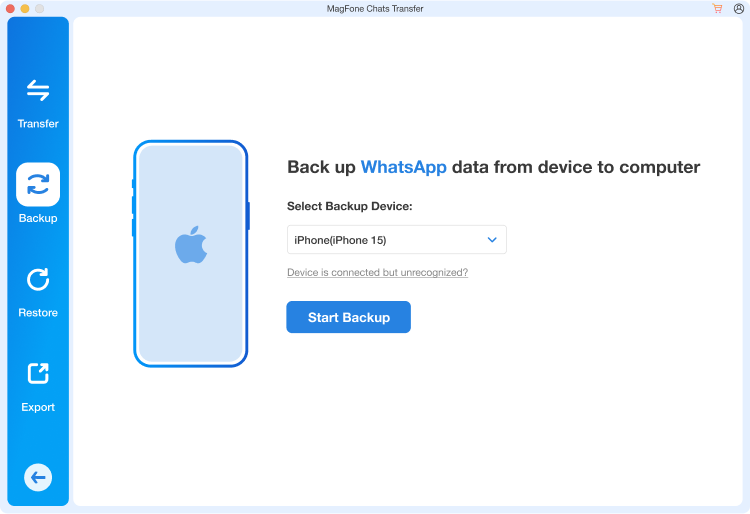
Click WhatsApp on the main interface. Then you will see four feature options in the left bar. Click the Backup option. Once your device is detected, click Start Backup to back up your WhatsApp data. To forward, you may also be required to input your iPhone passcode to give permission.
Step 3 Complete WhatsApp Photos Backup
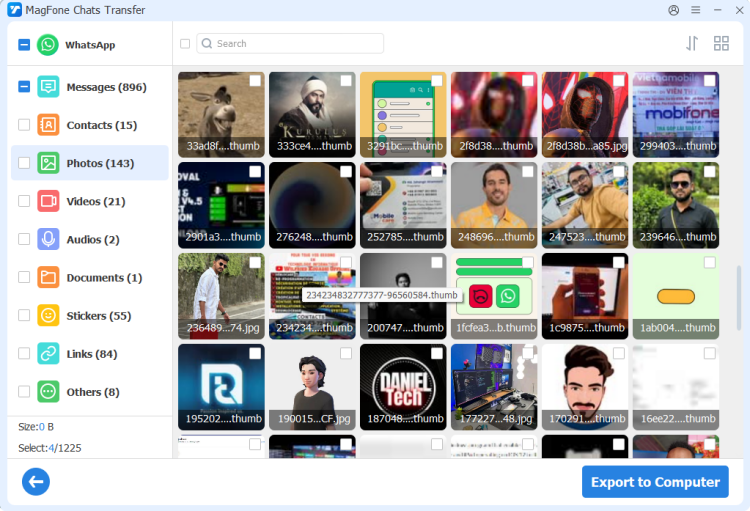
Once the backup is completed, click Export. And you can see the backup list. Click the View icon to check your WhatsApp backup content.
Part 5. Conclusion
Keeping your WhatsApp photos backed up doesn't have to be complicated. By using desktop tools like MagFone Chats Transfer to save photos to your computer, you can build a backup strategy that's both secure and convenient. Instead of worrying about losing important memories when you switch phones, run out of storage, or delete chats by mistake, you'll always have a safe copy of your WhatsApp photos available..

Edgar Davis
Editor in chief





