








For privacy reasons, many WhatsApp users prefer to sign up with different phone numbers, and they may look for a virtual number alternative when there are no multiple phone numbers. Google Voice is one of the most commonly considered options, which leads many users to ask: Can I use a Google Voice number for WhatsApp? The answer is sometimes, but it is not guaranteed. In this guide, we will explain whether it is possible, how to try it, and what to do if your Google Voice number does not work on WhatsApp.
- Part 1. Can You Use Google Voice Number for WhatsApp?
- Part 2. How to Use Google Voice Number for WhatsApp [Not 100% Work]
- Part 3. What to Do When Google Voice Number Not Working on WhatsApp?
- Part 4. Conclusion
Part 1. Can You Use Google Voice Number for WhatsApp?
In the past, users were able to use a Google Voice number to create and verify a WhatsApp account. However, this method has become much less reliable over time. Based on many user reports, WhatsApp now more strictly limits the use of VoIP and virtual numbers, which means Google Voice numbers may fail during the verification process.
That said, you may still come across users who say they are using WhatsApp with a Google Voice number. In most cases, these accounts were likely set up earlier, before WhatsApp tightened its verification rules.
Part 2. How to Use Google Voice Number [Not 100% Work]
Although using a Google Voice number for WhatsApp is no longer as reliable as it once was, some users still want to test it. If you are not willing to give up, below are steps you can try:
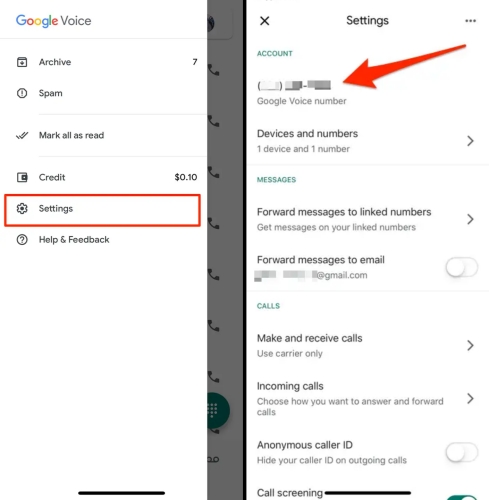
Step 1. Go to Google Voice and tap the menu icon in the upper-left corner.
Step 2. Tap Settings and tap your Google Voice number to copy it.
Step 3. Scroll down and turn on Do not disturb.
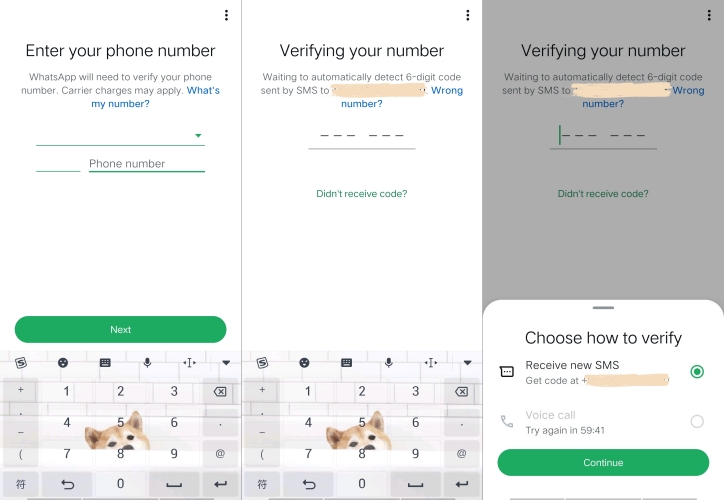
Step 4. Open WhatsApp and tap AGREE AND CONTINUE, then paste your Google Voice number to forward.
Step 5. Choose Call me when you are required to verify the phone number.
Step 6. Back to Google Voice and wait for an incoming voicemail from WhatsApp. Listen to the voicemail to get the verification code.
Step 7. Back to WhatsApp and enter the verification code, and finish setting up WhatsApp.

MagFone Chats Transfer
Efficiently back up your WhatsApp content without loss or hassle — everything moves with you, just as it was.
Part 3. What to Do When Google Voice Number Not Working on WhatsApp
If your Google Voice number was rejected during WhatsApp verification, or if your existing Google Voice–linked account was suddenly logged out, don't worry. Since Google Voice is a virtual number service and WhatsApp's verification rules can be strict, these issues are fairly common. Here are some solutions you can try before giving up.
Option 1. Use a Second SIM Card
If your goal is to separate WhatsApp accounts on different occasions, the most stable solution is a physical SIM card. Generally, there will not be restrictions when you try to sign in to WhatsApp with a real phone number. So, when Google Voice is not allowed to register, you can use the extra SIM card phone number to verify.
Option 2. Use WhatsApp Companion Mode SIM Card
For users who don't have an extra phone number to sign in with on WhatsApp, companion mode is a good option.
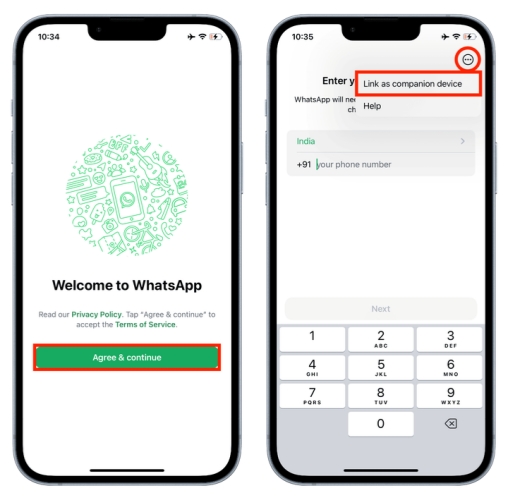
Step 1. When you are required to enter the phone number to verify, tap the triple-dot icon in the upper-right corner.
Step 2. Tap Link as companion device, and follow the on-screen instructions to use WhatsApp on your primary device to scan the QR code.
Part 4. Conclusion
Using a Google Voice number for WhatsApp is not officially supported in 2026. However, it's worth a quick attempt if you already have a Google Voice number and don't have a lot at stake. For a better WhatsApp experience or successful use, you can consider an extra SIM card or link WhatsApp as a companion device. In addition, no matter what number you are now using in WhatsApp, MagFone WhatsApp Transfer is a good helper to manage your data. Give it a try!

Edgar Davis
Editor in chief





