








Have you ever planned the perfect message, birthday wishes, holiday greetings, meeting reminders, or important cross-time-zone updates, only to miss the ideal time to send it because you forgot, were too tired to stay up, or were simply buried in work? In moments like this, it's natural to wish you could write your messages ahead of time, set a schedule, and let them send automatically, just like emails. However, the reality isn't that straightforward. Does WhatsApp actually support this feature? And if there's no official option, how can you still make it work? In this guide, we'll show you practical ways to schedule WhatsApp messages on iPhone, Android, and WhatsApp Web, ensuring you never miss an important moment again.
- Part 1. Can You Schedule Messages on WhatsApp?
- Part 2. How to Schedule Messages on WhatsApp
- Part 3. Bonus Tip: Back Up WhatsApp Messages on iPhone
- Part 4. Conclusion
Part 1. Can You Schedule Messages on WhatsApp?
WhatsApp does not currently offer a built-in schedule message feature like email clients do. You can't just type a message, pick a time, and let WhatsApp handle the rest automatically. However, that doesn't mean you're out of options. With the help of certain tools, shortcuts, and workarounds on iPhone, Android, and WhatsApp Web, you can still schedule WhatsApp messages in advance and have them sent at just the right moment. In the rest of this guide, we'll walk you through exactly how these methods work, step by step, so you can choose the one that best fits your device.
Part 2. How to Schedule Messages on WhatsApp
Though WhatsApp doesn't support scheduling messages, the good news is that there are practical workarounds for every platform. In the following sections, we'll walk you step by step through how to schedule WhatsApp messages on iPhone, Android, and WhatsApp Web, so you can choose the method that fits your device and messaging habits best.
How to Schedule WhatsApp Messages on iPhone
On iPhone, the easiest way to schedule WhatsApp messages is by using the built-in Shortcuts app. By creating an automation that runs at a specific time, you can prewrite your message and have WhatsApp open with the text ready to send to a chosen contact. However, there may be some errors when you run the shortcuts. So it's suggested that you test the shortcut before you schedule a WhatsApp message.
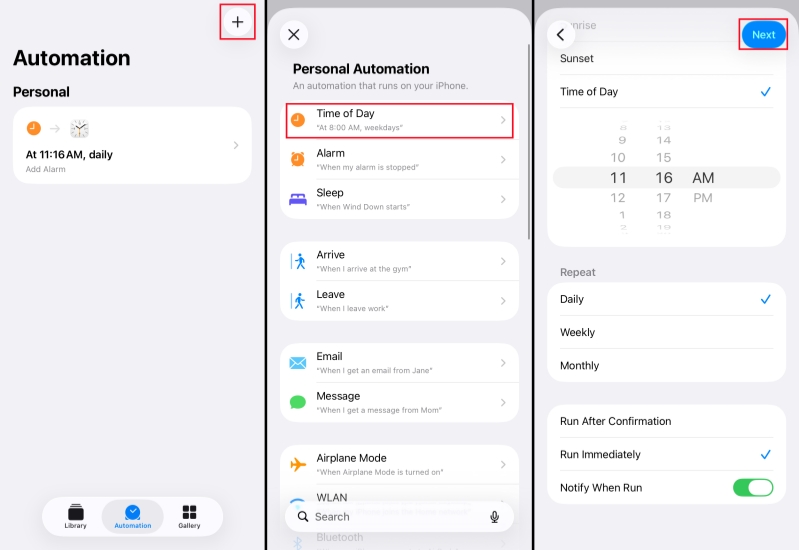
Step 1. Open the Shortcuts app on your iPhone and tap Automation at the bottom.
Step 2. Tap the + icon, choose Time of Day, then set the specific time and repeat frequency when you want your WhatsApp message to be sent.
Step 3. Select Run Immediately, then tap Next.
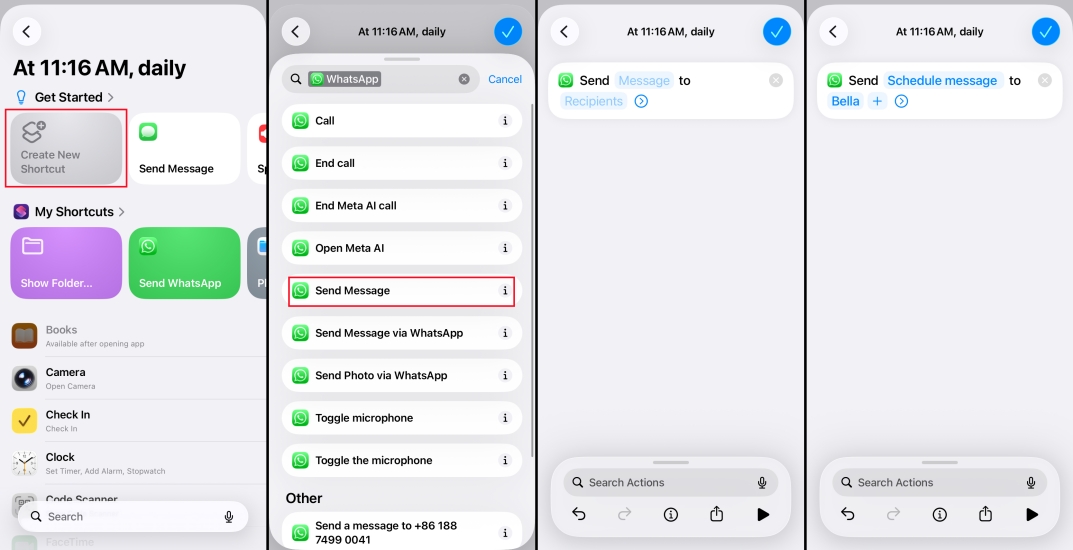
Step 4. Tap Create New Shortcut, then search for and select WhatsApp.
Step 5. Tap Send Message, type the text you want to send in the Message field, and enter the phone number or select the contact in the Recipients field for the scheduled message.
Step 6. Tap the confirm icon to finish creating a shortcut to scheduling WhatsApp messages.
How to Schedule WhatsApp Messages on Android
To schedule a WhatsApp message on Android, you need to utilize a third-party app. These apps let you draft your message, select the recipient, pick a date and time, and then either send the message automatically or prompt you to confirm it when the time comes. Here we have tested SKEDit, and the steps are below:
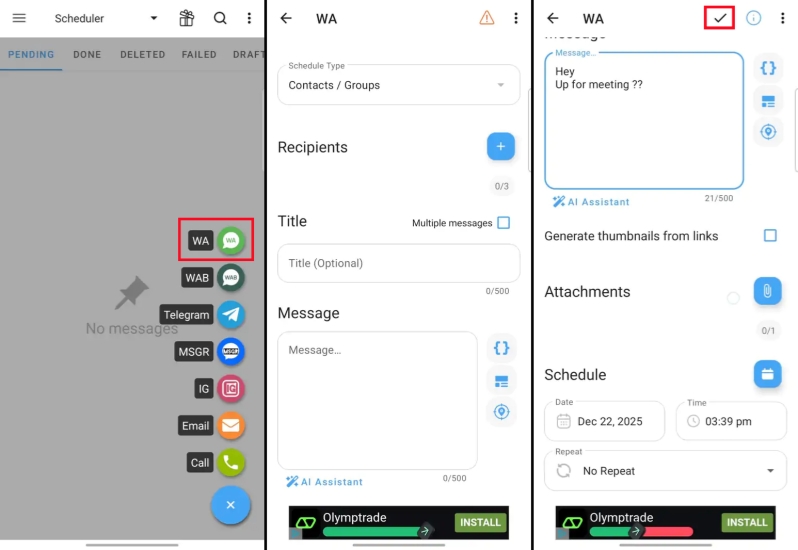
Step 1. Download and install SKEDit on your device, then run the app to start.
Step 2. Tap SKIP > I UNDERSTAND.
Step 3. Tap the + icon and choose WA, then you'll be required to check and complete the settings on your device to avoid issues during scheduling WhatsApp messages.
Step 4. Schedule a WhatsApp message, set the recipient, message, and the time. Then tap the tick icon to confirm.
How to Schedule WhatsApp Messages on WhatsApp Web
Extensions designed for WhatsApp can add a scheduling interface directly in your browser, allowing you to type a message, set a time, and let the extension handle the rest. What to note is that some Chrome extensions state to automate sending a WhatsApp message, but require you to click the send icon.
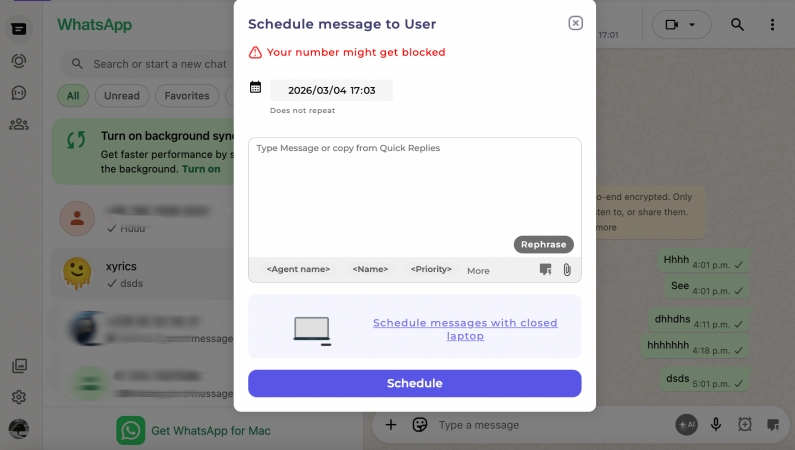
Step 1. Add the Eazybe extension to Chrome.
Step 2. Click the Extensions icon and click Eazybe to run it.
Step 3. Enter a WhatsApp chat and click the clock icon in the type box, then you can set the timer and type a message you want to schedule. Then click Schedule to schedule a WhatsApp message.
Part 3. Bonus Tip: Back Up WhatsApp Messages on iPhone
Scheduling WhatsApp messages helps you hit the right moment, but making sure those important conversations are safely stored is just as crucial. Whether it's scheduled birthday wishes, client updates, or key reminders, you don't want to lose them if something happens to your phone. Here, MagFone WhatsApp Transfer is recommended to you to guarantee WhatsApp messages. As a strong data management tool, MagFone can back up, restore, transfer, and export your WhatsApp data. Just follow the steps below to ensure your chats stay safe and recoverable at any time.

MagFone Chats Transfer
Efficiently back up and export your WhatsApp content without loss or hassle — everything moves with you, just as it was.
Step 1 Access MagFone Chats Transfer
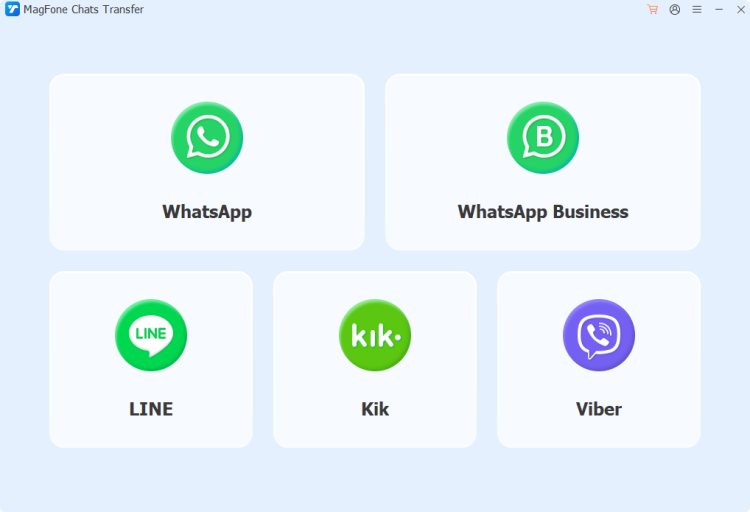
Download and install MagFon Chats Transfer on your computer, then connect your iPhone to the computer using a data cable. Open the program when you are ready.
Step 2 Back Up WhatsApp Messages
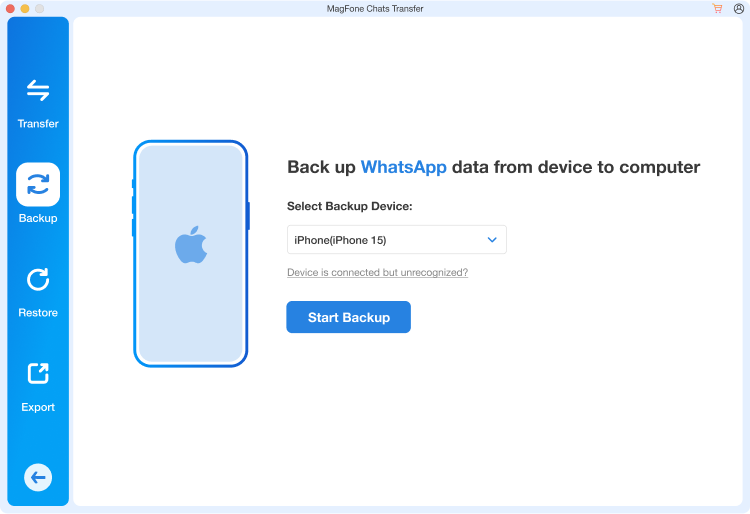
Click WhatsApp from the provided options. Check your device information on the computer, and click Start Backup to back up your WhatsApp messages. When it's completed, click Done. And you can click the view icon to check your backed-up WhatsApp messages.
Part 4. Conclusion
While WhatsApp doesn't offer a built-in way to schedule messages, you're far from out of options. By using Shortcuts on iPhone, third-party apps like SKEDit on Android, and browser extensions on WhatsApp Web, you can schedule important messages in advance and send them at exactly the right time. Combine this with a solid backup routine for your chats with MagFone Chats Transfer, and you'll not only communicate more efficiently, but also keep your valuable conversations safe.

Edgar Davis
Editor in chief




