







Few things are more frustrating than trying to open a photo, video, or document on WhatsApp only to see a Download Failed message. This common error can happen for several reasons, including a weak internet connection, insufficient storage space, or even a missing media file. The good news is that in most cases, the problem can be fixed with a few simple troubleshooting steps. In this guide, we'll explain why WhatsApp download failed, walk you through practical ways to resolve the issue, and show you how to check failed downloads that may still be accessible on your device.
- Part 1. Why Does WhatsApp Say Download Failed?
- Part 2. How to Fix WhatsApp Download Failed Error
- Part 3. Possible Ways to See Failed WhatsApp Downloads
- Part 4. Bonus Tip: Back Up iPhone without Data Loss
- Part 5. Conclusion
Part 1. Why Does WhatsApp Say Download Failed?
When WhatsApp fails to download a photo, video, audio file, or document, the app usually shows an alert message that can help you identify the cause. You may see alert messages like:
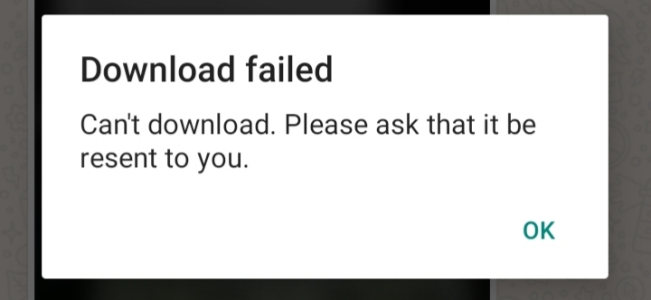
- Download Failed. Can't download. Please ask that it be resent to you.
- Download Failed. The download was unable to complete. Please try again later.
- Download Failed. Can't download because no internal storage is available. Please unmount it as a disk drive, and try again.
- Download failed. Sorry, the media file appears to be missing. Please ask [ ] to re-send it.
These alerts usually appear because of:
- An unstable network connection
- Insufficient phone storage
- Expired or missing media files
- Restricted WhatsApp permissions
- An outdated WhatsApp version
- Temporary device bugs.
Part 2. How to Fix WhatsApp Download Failed Error
If WhatsApp keeps showing a download failed error, don't worry. The issue is often caused by a few common problems that are easy to check and fix. Below are several methods you can try to get WhatsApp downloading photos, videos, and documents normally again.
Method 1. Check the Network
A weak or unstable internet connection is one of the most common reasons WhatsApp cannot complete a download. If your Wi-Fi is slow, disconnected, or your mobile data is not working properly, media files may fail to load. Switching between Wi-Fi and mobile data, or reconnecting to your network, can often solve the problem quickly.
On Android:
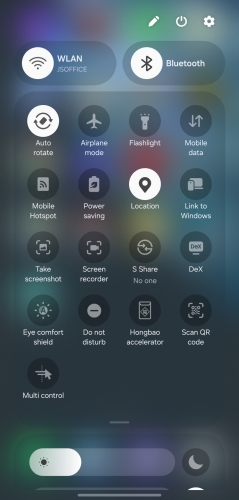
Swipe down from the top edge of the screen, switch the network to a strong WiFi or available cellular data.
On iPhone:
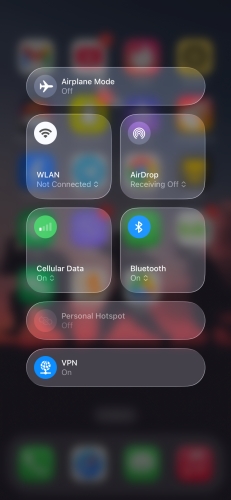
Swipe down from the upper-right corner of the screen, and switch the network to a stable WiFi or mobile data.
Method 2. Check WhatsApp Download Settings
If WhatsApp's access is restricted on your phone, you may also be unable to download media in WhatsApp. Allowing full access to WhatsApp can avoid the issue.
On Android:
Step 1. Go to phone Settings > Apps > WhatsApp.
Step 2. Tap Permissions to allow relevant services.
On iPhone:
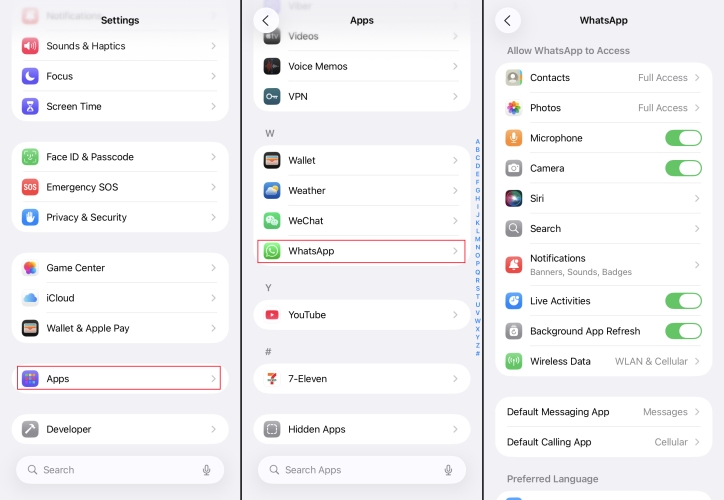
Step 1. Go to iPhone Settings > Apps > WhatsApp.
Step 2. Tap Photos to enable Full Access.
Method 3. Restart Your Device
Sometimes the error is caused by temporary system glitches or background app issues on your phone. Restarting your device can refresh the operating system, close problematic processes, and restore normal app behavior.
On Android:
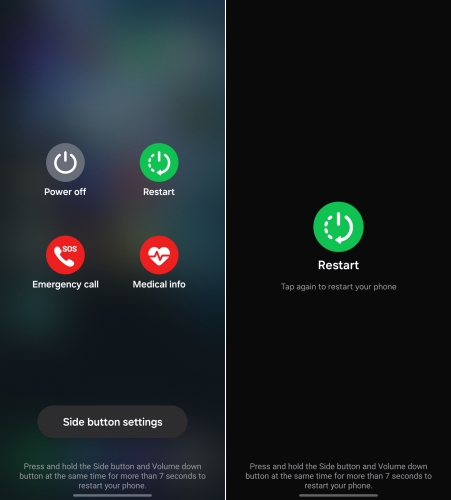
Keep pressing the Power button, then tap Restart or Reboot in the next screen.
On iPhone:
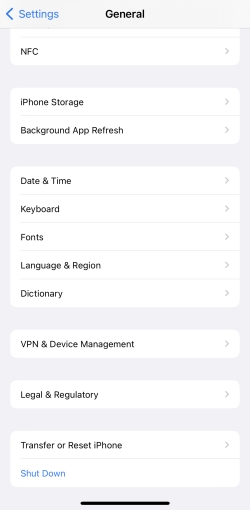
Step 1. Go to Settings > General.
Step 2. Tap Shut Down at the bottom and drag the slide to switch off your iPhone.
Step 3. Long-press the Power button to restart.
Method 4. Update WhatsApp to the Latest Version
Using an outdated version of WhatsApp may lead to bugs, compatibility problems, or download errors. Installing the latest version can help restore proper downloading and improve overall stability.
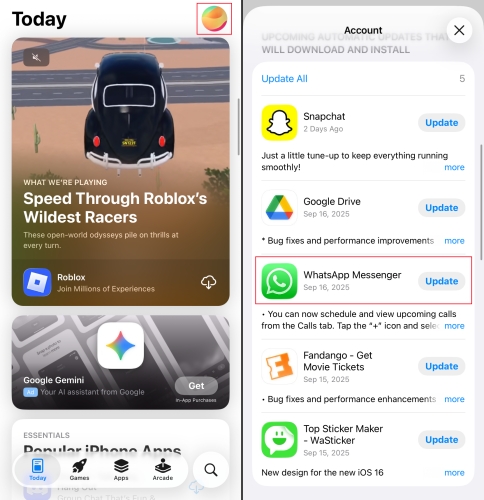
Open App Store or Google Play Store on your phone and search for WhatsApp. If you see an Update option, tap to update WhatsApp to the latest version.
Method 5. Clear WhatsApp Cache [Android]
An overloaded WhatsApp cache may affect the downloads in WhatsApp. Clearing WhatsApp cache can be a solution when you have an issue downloading items. You can clear app cache directly in Settings on Android.
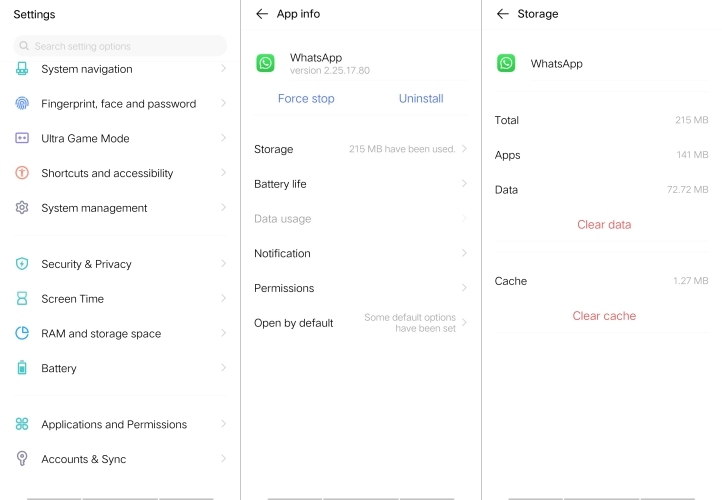
Step 1. Go to Settings > Apps and find WhatsApp.
Step 2. Tap Storage > Clear Cache to clear WhatsApp cache.
Method 6. Free Up Device Storage
If your phone is running low on available storage, WhatsApp may not have enough space to save media files. Deleting unused apps, old files, or duplicate media can create enough space for WhatsApp to function normally again.
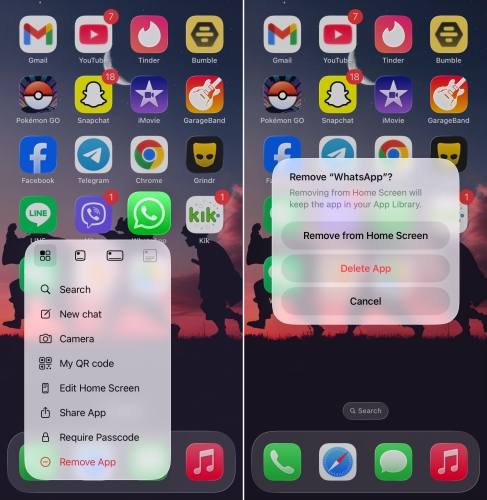
Method 7. Uninstall and Reinstall WhatsApp
If none of the earlier fixes work, reinstalling WhatsApp may help remove deeper app issues or corrupted installation files. This gives the app a fresh start and can resolve persistent download failures. Before doing this, it is important to back up your chats and media so you do not lose important data.
Part 3. Possible Ways to See Failed WhatsApp Downloads
Don't worry if you are unable to download photos, videos, or documents in WhatsApp. There may be a chance you can find the failed downloads on your phone.
Option 1. Check Gallery/Photos on Device
In terms of photo or video download failure, if you have enabled media auto download for WhatsApp, then you may be able to find them in your phone's Photos or Gallery. Since the photos or videos you receive in chat will automatically be saved to Photos on iPhone or Gallery on Android phone.
Option 2. Check Items in File Manager [Android]
Android phones will keep a copy of your WhatsApp data, including photos, videos, documents, voice messages, etc. So it's highly possible that you can access the failed WhatsApp downloads in the File Manager.
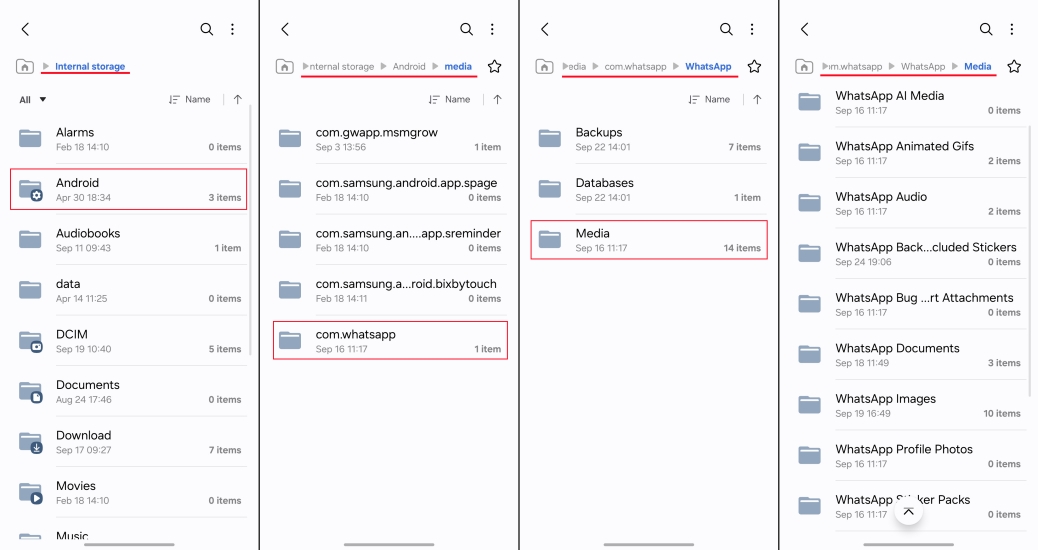
Step 1. Open File Manager and go to the path: Internal storage > Android > media > com.whatsapp > WhatsApp > Media.
Step 2. Here you can see various files named with their types. You can open a specific file to access the failed downloads.
Option 3. Check via MagFone iPhone Data Recovery [iPhone]
If you use an iPhone and cannot find the failed downloads in Photos or within WhatsApp, a data recovery tool such as MagFone iPhone Data Recovery may offer another way to check. This software is designed to scan iPhone storage for deleted, expired, or inaccessible WhatsApp messages and media. In addition, it can scan and extract items from iTunes backup. This can be a useful option when the file is no longer visible on the device but may still be recoverable from internal storage or a backup.

MagFone iPhone Data Recovery
Recover WhatsApp data from iPhone and iPad without data overwritting and device reset.
Step 1 Run MagFone iPhone Data Recovery

Run MagFone iPhone Data Recovery on your computer and use a data cable to link your iPhone to the computer.
Step 2 Scan Failed WhatsApp Downloads

Click iPhone/iPad Data Recovery from the main interface, then select WhatsApp from the data list, and click Scan to scan WhatsApp data.
Step 3 Recover Failed WhatsApp Downloads
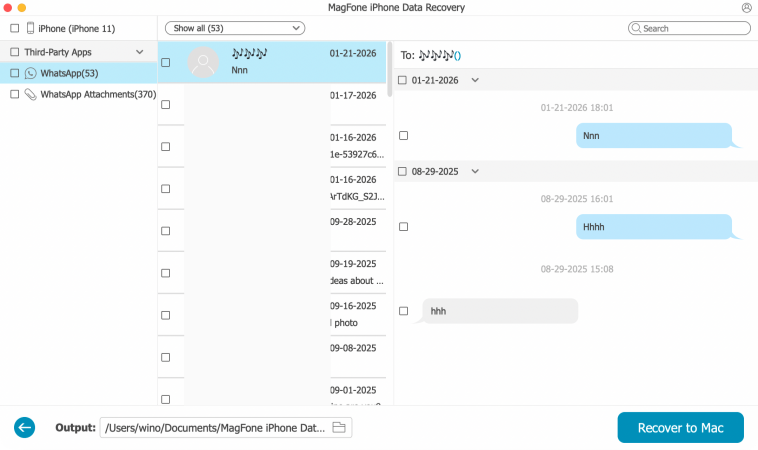
Check the scanned result. Select the failed download items and click Recover to PC or Recover to Mac to export them to your computer.
Part 4. Bonus Tip: Back Up iPhone without Data Loss
If you are worried about losing important WhatsApp chats, photos, videos, or other data in the future, creating a backup is a smart precaution. A proper backup gives you peace of mind and makes it easier to restore your information if anything goes wrong while using WhatsApp.
MagFone WhatsApp Transfer is one of the recommended backup solutions for iPhone users. With MagFone, you can create regular WhatsApp backups, read WhatsApp backups, and export backups when necessary. Follow the steps below to prevent WhatsApp data loss in the future:

MagFone Chats Transfer
Efficiently back up and restore your WhatsApp content without loss or hassle — everything moves with you, just as it was.
Step 1 Run MagFone WhatsApp Transfer
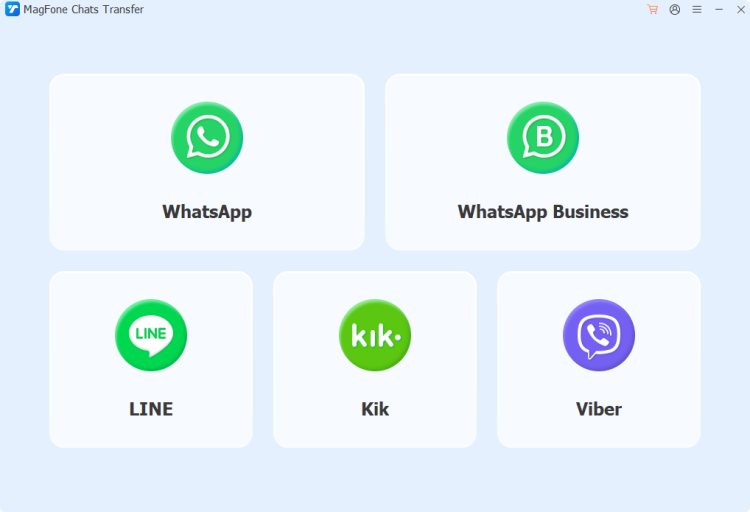
Open MagFone WhatsApp Transfer and connect your iPhone to the computer using a data cable. Then click WhatsApp on the main interface.
Step 2 Back Up WhatsApp without Data Loss
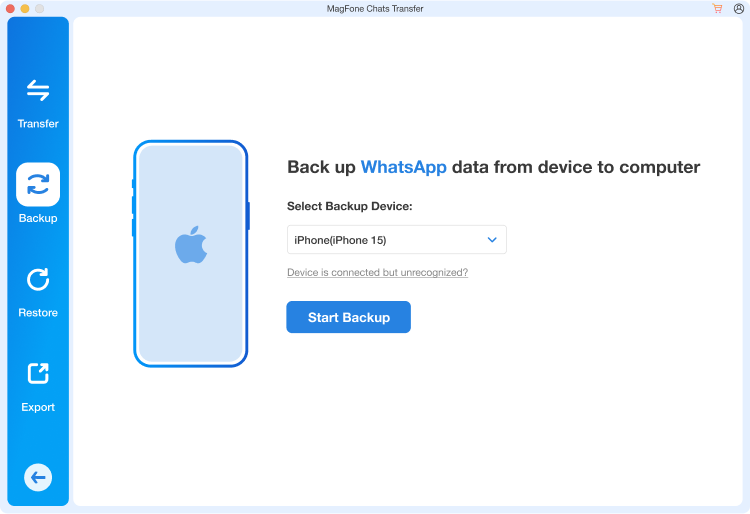
Click Backup in the left menu, then click Start Backup to back up your WhatsApp to the computer.
Step 3 Restore WhatsApp Backup
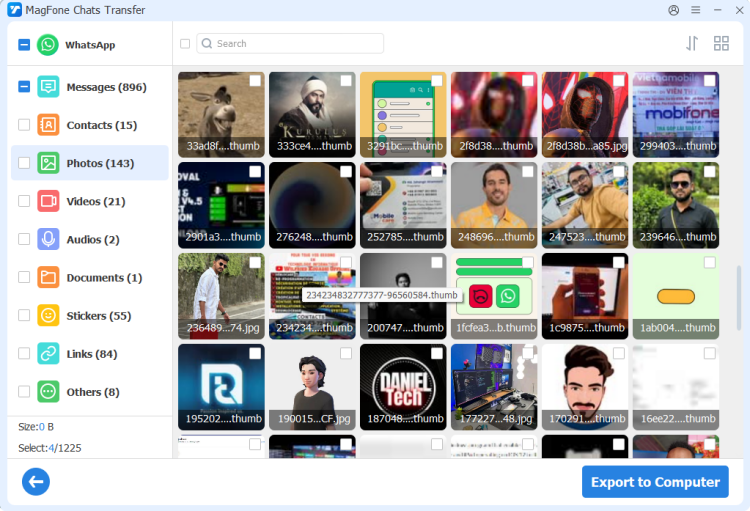
After backup, you can click Export to view the backup. If there is a data loss in the future, you can restore and find lost items in WhatsApp.
Part 5. Conclusion
WhatsApp download failed errors can be frustrating, but they are usually not difficult to fix once you identify the cause. In most cases, you can solve the problem quickly after trying the methods in part 2. And even if a file does not download properly, there may still be ways to find or recover it through your device's Photos, Gallery, File Manager, or recovery tools like Magfone iPhone Data Recovery.

Edgar Davis
Editor in chief




