








PDF files are widely used to share important documents, invoices, e‑books, and study materials on WhatsApp. However, it can be frustrating when a PDF sent or received on WhatsApp refuses to open, shows an error, or simply won't download. This issue can be caused by a variety of factors, such as a poor network connection, lack of storage, or app glitches. In this guide, we'll walk you through the main reasons why PDF is not opening in WhatsApp and provide step‑by‑step solutions to get your documents working again.
- Part 1. Why Is PDF Not Opening in WhatsApp?
- Part 2. How to Fix PDF Not Opening in WhatsApp
- Part 3. Bonus Tip to Open WhatsApp PDF Files When Failed
- Part 4. FAQs about Opening PDF in WhatsApp
- Part 5. Conclusion
Part 1. Why Is PDF Not Opening in WhatsApp?
PDF not opening in WhatsApp doesn't mean the file is corrupted. The issue can originate from your phone's settings, your network, or WhatsApp itself. By identifying the most common causes, you can quickly address the issue.
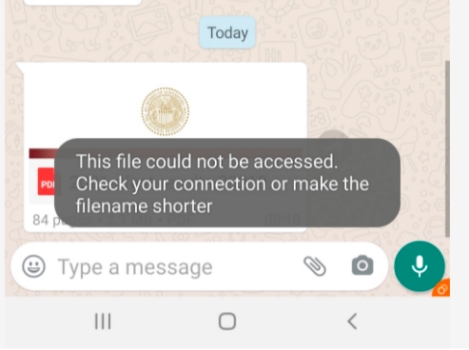
- Unstable or weak internet connection: The PDF hasn't fully downloaded due to poor or interrupted network.
- Insufficient device storage: Your phone doesn't have enough free space to download or save the PDF file.
- Corrupted or incomplete PDF file: The document itself is damaged or was not sent/downloaded properly.
- Outdated WhatsApp version: An older app version may have bugs or compatibility issues with certain files.
- Temporary system or app glitches: Background processes or minor software issues interfere with file handling.
- Cache or data issues in WhatsApp: Corrupted cached data prevents PDFs from downloading or opening correctly.
- Expired or removed media from server: Older PDFs may no longer be available for download from WhatsApp's servers.
- Restricted permissions or settings: WhatsApp or the file manager may lack permission to access storage or files.
Part 2. How to Fix PDF Not Opening in WhatsApp
Once you have a rough idea of why PDFs might not be opening in WhatsApp, you can start working through some practical fixes. Below are several proven methods that address the issue of PDF files not opening in WhatsApp.
Method 1. Check the Network
A weak or unstable internet connection is one of the most common reasons WhatsApp PDFs fail to download or open. If the file hasn't finished downloading, WhatsApp won't be able to access it. Make sure your Wi‑Fi or mobile data is turned on and working correctly.
On Android:
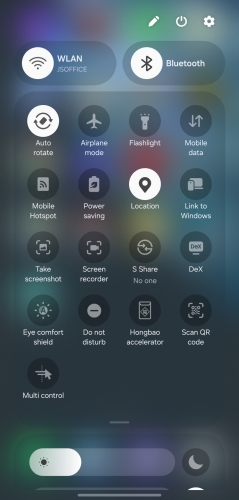
Swipe down from the upper edge of your screen, then switch your network between Wi-Fi and Cellular data.
On iPhone:
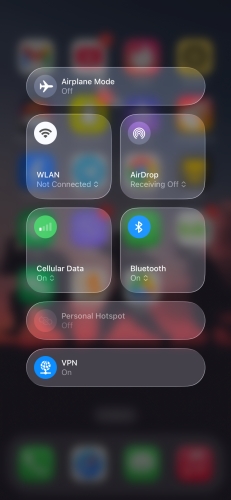
Swipe from the upper edge or bottom edge of your iPhone screen, then switch your network between Wi-Fi and Cellular data.
Method 2. Restart Your Phone
Temporary system glitches or background processes can interfere with how WhatsApp handles files. Restarting your phone helps clear the cache in memory, closes stuck processes, and refreshes the operating system. Once the phone has restarted, open WhatsApp and try accessing the PDF file again.
Restart Android Phone:
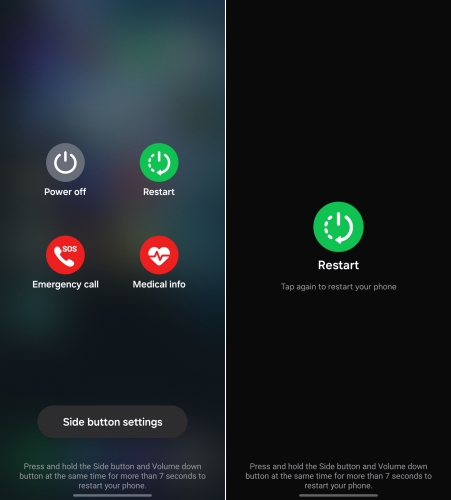
Step 1. Long-press the Power button.
Step 2. Choose Restart and tap Restart again.
Step 3. When the phone is shut completely, long-press the Power button to restart it.
Restart iPhone:
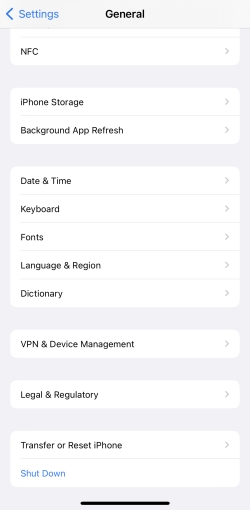
Step 1. Open Settings and tap General.
Step 2. Scroll to the bottom and tap Shut Down.
Step 3. Drag the slide to the right to shut it off.
Step 4. When the iPhone is completely closed. Long-press the Power button to restart it.
Method 3. Check Available Storage
If your device is running low on storage, WhatsApp may not be able to download or save PDF files properly. This may cause you being unbale to download and open PDF files successfully. Go to your phone's storage settings and check how much free space is available. If the remaining storage is very low, delete unnecessary apps or data on your phone to free up space.
- On Android: Phone Settings > Device care > Storage.
- On iPhone: iPhone Settings > General > iPhone Storage.
Method 4. Open the PDF with A PDF Reader
On Android devices, you may not be able to open PDF files in WhatsApp directly due to incompatibility. So when you are unable to open PDF files in WhatsApp, you can download a PDF reader and open the PDF files via the PDF reader.
Step 1. Download a PDF reader on your phone.
Step 2. Go back to WhatsApp and tap the PDF file you want to check. Then choose the PDF reader you want to open it with.
Note:
If you install a PDF reader on your phone, you also need to allow it access to all files so it can read your WhatsApp documents smoothly. You can do this as follows:
Step 1. Go to Settings > Security and privacy > Permission manager.
Step 2. Tap Files, and tap See more apps that can access all files at the bottom.
Step 3. Find the PDF reader you use on your phone and allow it to access files.
After granting the necessary permissions, go back to WhatsApp and tap the PDF again. When prompted, choose your preferred PDF reader to open the file.
Note:
There are also cases where WhatsApp doesn't show the PDF reader app when you tap on a PDF. If this happens, first let the file finish downloading in WhatsApp, then open your File Manager, locate the downloaded PDF in the WhatsApp Documents or Downloads folder, and open it directly with your PDF reader.
Method 5. Clear WhatsApp Cache
Downloaded WhatsApp data will be stored on your phone and will accumulate over time. Clearing the WhatsApp cache can help remove these temporary files without deleting your chats and media. After clearing the cache, reopen WhatsApp and try to open the PDF again.
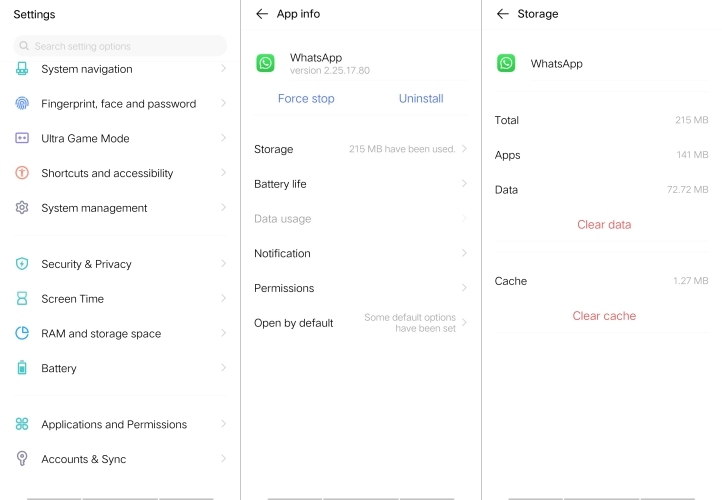
Step 1. Go to Settings > Apps > WhatsApp.
Step 2. Tap Storage, then tap Clear cache to free up WhatsApp cache.
Method 6. Update WhatsApp
Running an outdated version of WhatsApp can lead to compatibility issues or bugs. If you can't open a PDF file in WhatsApp, you may install the latest WhatsApp version to fix the issue. Just open Google Play or App Store, search for WhatsApp. If you see an Update option next to WhatsApp, just tap it to install the latest update.
Method 7. Delete and Reinstall WhatsApp
If none of the previous methods work, the last resort is to delete WhatsApp and reinstall it. Before you uninstall, make sure to back up your chats from WhatsApp Settings > Chats > Chat backup so you don't lose your WhatsApp data. After reinstalling WhatsApp from Google Play or the App Store, log in again and restore your backup. Then reopen the PDF files.
Part 3. Bonus Tip: Open WhatsApp PDF Files with MagFone Chats Transfer
For iPhone users, there is another reliable way to read PDF files when they won't open in WhatsApp. You can use MagFone WhatsApp Transfer to back up your WhatsApp data from iPhone to a computer and then view the PDFs directly from the backup.
MagFone WhatsApp Transfer lets you create a full WhatsApp backup of your iPhone on your computer, including all attached documents such as PDFs. If a WhatsApp PDF can't be opened on your iPhone, you can use MagFone to access the chat backup, locate the message, and read the PDF on your computer instead. You can even export the PDF file from the backup to your computer for long‑term storage, printing, or further review.

MagFone Chats Transfer
Efficiently back up and read WhatsApp PDF files on iPhone/iPad.
Step 1 Download and Install MagFone Chats Transfer
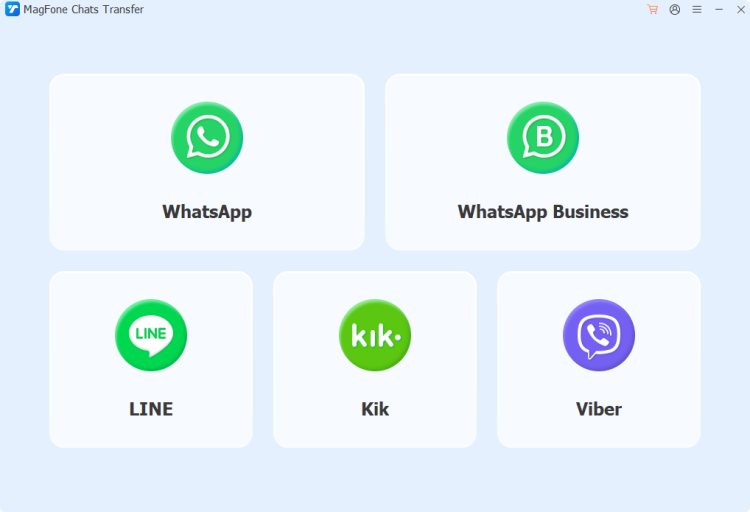
First, download and install MagFone Chats Transfer on your computer, and use a data cable to link your iPhone to the computer. Then open this tool to start.
Step 2 Scan PDF Files from WhatsApp
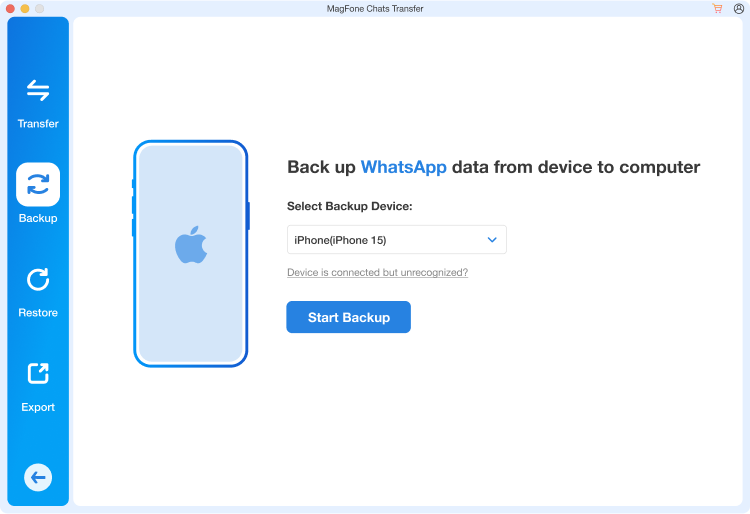
Select WhatsApp for more features. Click Backup in the left menu, then click Start Backup to back up your WhatsApp data, as well as PDF files, to the computer.
Step 3 Open WhatsApp PDF File without Hassle
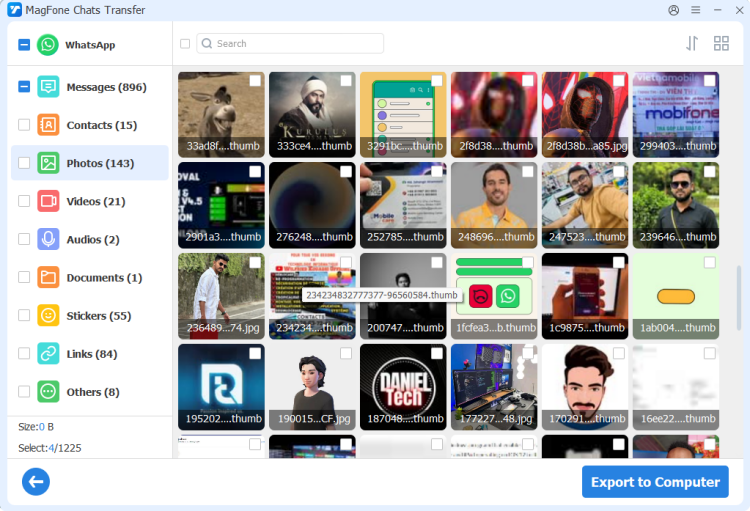
When the backup is completed, click Export. Then click the view icon to read your WhatsApp data. Select the PDF you can't open and click Export to Computer to download it to your computer. Then you can open and check the WhatsApp PDF file on your computer.
Part 4. FAQs about Opening PDF in WhatsApp
How to change default PDF viewer in WhatsApp?
You can adjust the settings to change the default PDF viewer in WhatsApp.
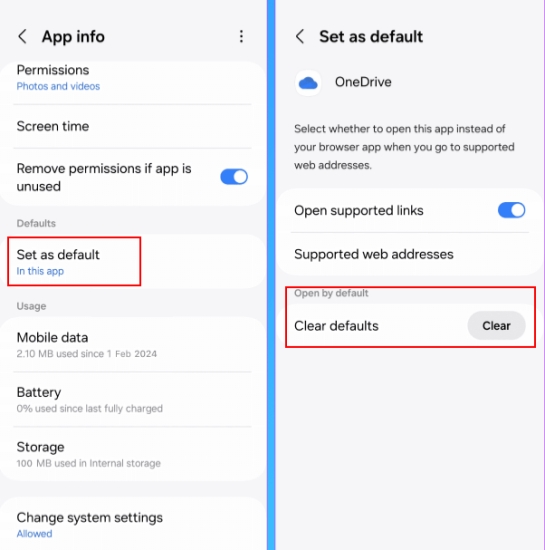
Step 1. Open Settings and tap Apps.
Step 2. Find and tap the default PDF viewer.
Step 3. Tap Set as default, then tap Clear to change the default PDF viewer for WhatsApp.
How to download PDF from WhatsApp after it has expired?
If a PDF file has expired on WhatsApp, you can't download it anymore. You can only ask the sender to send it again.
How to recover deleted PDF files from WhatsApp?
To recover deleted WhatsApp PDF files on an Android phone, you can open the File Manager and go to the path: Internal storage > Android > Media > com.whatsapp > WhatsApp Documents. You may find and recover the deleted WhatsApp PDF files in this folder. To recover deleted WhatsApp PDF files on an iPhone, you may use a recovery tool like MagFone iPhone Data Recovery.
Part 5. Conclusion
By checking your internet connection, restarting your phone, freeing up storage, using a reliable PDF reader, clearing WhatsApp cache, updating the app, and, if needed, reinstalling it, you can resolve most issues related to PDFs not opening in WhatsApp. If you can't fix the issue due to file corruption, you may ask the sender to resend the PDF file. If this guide helps, share your comment below.

Edgar Davis
Editor in chief





