








Is WhatsApp the communication platform you use the most in daily life? As more and more chat messages and media files accumulate, have you also found that it is getting more and more stuck, and even WhatsApp is not working? The biggest reason is that WhatsApp cache takes up most of the memory. The accumulation of cache can slow down your phone's smoothness and make your experience worse. What's worse, many users are hesitant to clean WhatsApp cache because they are afraid of data loss. In this guide, we will tell you how to clear WhatsApp cache safely and easily to get your WhatsApp back to smooth.

- Part 1. Precautions to Clear WhatsApp Cache
- Part 2. How to Clear WhatsApp Cache on iPhone
- Part 3. How to Clear WhatsApp Cache on Android
- Part 4. FAQs about Clearing WhatsApp Data
- Part 5. Conclusion
Part 1. Precautions to Clear WhatsApp Cache
Once you receive and load a message or media on WhatsApp, it will accumulate cache on your phone. Clearing WhatsApp cache involves deleting media and messages in WhatsApp. Many users are stopped by a huge WhatsApp cache and are afraid to lose data by clearing the WhatsApp cache. Actually, as long as you take the appropriate precautions, you can clear your abundant WhatsApp data without losing the chat history.
Here, the only suggestion is to back up your WhatsApp data to your computer. Backing up WhatsApp to a PC can not only retain a copy of your WhatsApp data but also help you free up phone storage after clearing cache. Whether you are an Android or iPhone user, it's quite easy to back up WhatsApp to a computer.
On Android:
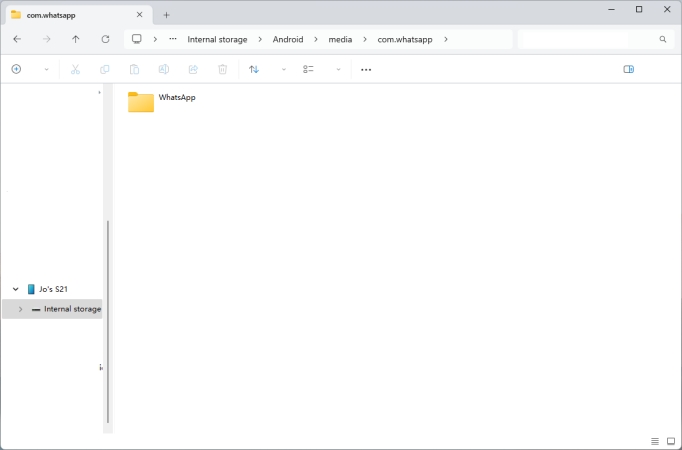
Step 1. Connect your phone to your computer with a data cable.
Step 2. Open the File Manager on your computer and click your device in the left directory.
Step 3. Go to the path: Internal storage > Android > media > com.whatsapp > WhatsApp.
Step 4. Copy and paste the WhatsApp folder to a location on your computer.
On iPhone:
The operation is quite different from Android due to the system limitations. iPhone users need to back up WhatsApp data to a computer via a transfer tool. MagFone WhatsApp Transfer is an efficient WhatsApp data management tool that is created to transfer, back up, restore, and export WhatsApp data. Not occupying your phone storage and causing any data loss, MagFone WhatsApp Transfer is a helper if you want to clear WhatsApp cache on your iPhone. If there is any unexpected deletion in the clearing cache process, you can restore it without hassle. Let's see how it works:

MagFone Chats Transfer
Efficiently back up your WhatsApp content without loss or hassle — everything moves with you, just as it was.
Step 1 Run MagFone Chats Transfer
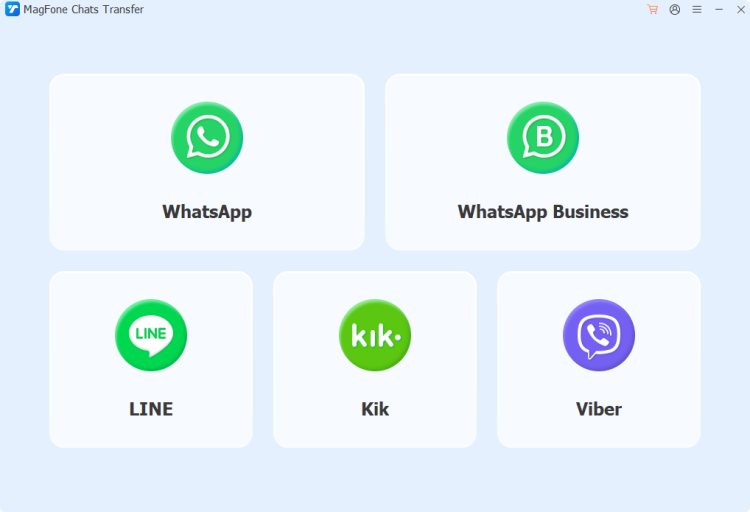
Download and install MagFone Chats Transfer to your computer. And launch the transfer tool after installation.
Step 2 Back Up WhatsApp Data
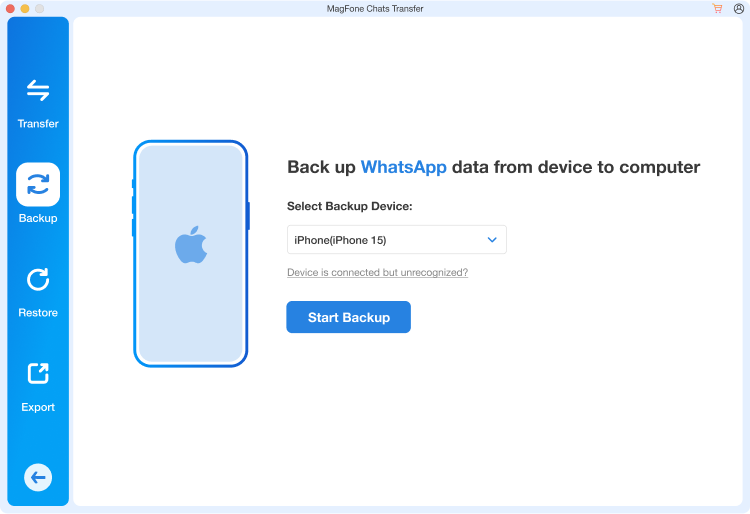
Click the WhatsApp option on the first page to proceed. And then click the Backup option to let the tool detect your iPhone. Once your iPhone is detected successfully, click Start Backup to back up your WhatsApp data.
Step 3 Complete WhatsApp Backup
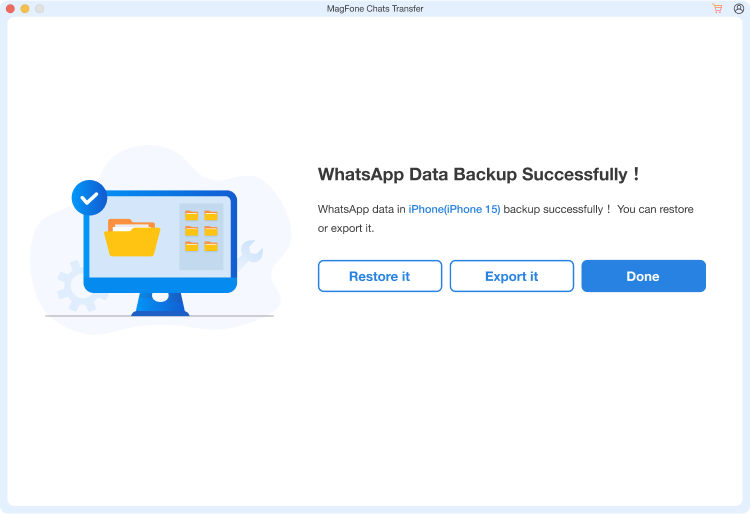
Once the backup is completed, you can click the Done option to end the process. Then you can click the Export option on the left side, and click the view icon to check your WhatsApp data.
Part 2. How to Clear WhatsApp Cache on iPhone
You can clear WhatsApp cache via the storage management function in WhatsApp on iPhone. Due to this feature, you can check large cache media files and delete them selectively to manage data.
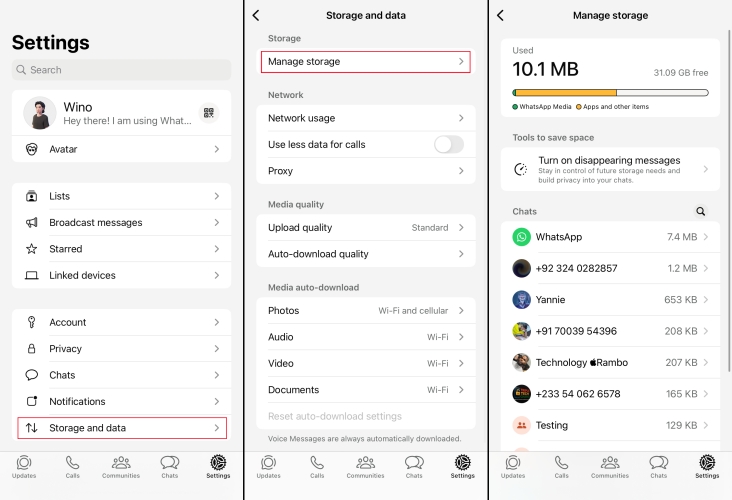
Step 1. Open WhatsApp and tap Settings at the bottom.
Step 2. Tap Storage and data > Manage storage. On this page, you can see the storage usage of each WhatsApp chat.
Step 3. Enter a chat and tap Select to select unwanted or repeated media to free up your WhatsApp cache.
There is another method being introduced by others, which is to offload WhatsApp in your iPhone Settings to clear the cache. This method will uninstall WhatsApp on your device, but keep all chat history and data. And if you want to continue using WhatsApp, you need to reinstall it, and the cache will still occupy your storage. So, we don't recommend this method.
Part 3. How to Clear WhatsApp Cache on Android
Unlike the iPhone, the methods to clear WhatsApp cache on Android are more flexible. You can manage the WhatsApp data or cache via the WhatsApp built-in storage management function or via your phone settings. These actions can free up a lot of storage space while preserving chat history and important data, keeping WhatsApp running smoothly on your Android phone.
In WhatsApp:
You can see how much space each chat or group occupies, and selectively clean up unnecessary photos, videos, voice messages, or documents in WhatsApp directly.
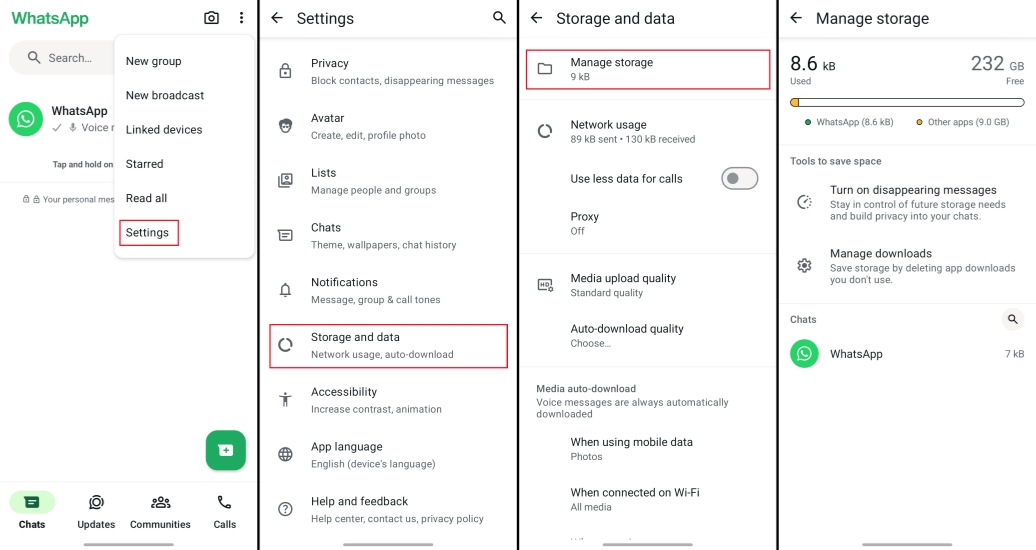
Step 1. Open WhatsApp and tap the triple-dot icon in the upper-right corner.
Step 2. Go to Settings > Storage and data > Manage storage.
Step 3. Long-press the item you want to delete and select more items, then tap the delete icon to delete them.
In Phone Settings:
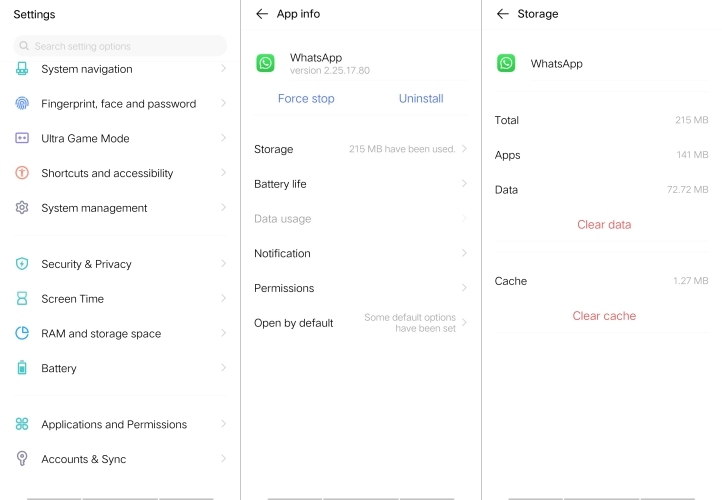
You can also clear WhatsApp cache directly in your phone's settings. Just open Settings and find Apps > WhatsApp > Storage. Then choose Clear cache to clear WhatsApp cache on Android.
Part 4. FAQs about Clearing WhatsApp Data
What happens if I clear WhatsApp cache?
Clearing WhatsApp cache involves deleting some frivolous and repetitive messages or media selectively. It will delete the previously saved data in WhatsApp, but won't delete the saved media on your phone storage. If you don't want to delete any WhatsApp messages to clear the cache, it's suggested you make a backup so that you can restore it in any case.
How often should I clear WhatsApp cache?
It depends on the frequency you use WhatsApp. If you rely on WhatsApp in daily life, then once a week is a good habit. If you don't use WhatsApp much, then there is not much need to clear WhatsApp cache.
How to clear WhatsApp data without losing chats?
If you don't want to lose chat while clearing WhatsApp data, you can delete the repeated items in WhatsApp, such as forwarded or repeated media. Also, you can make a copy of WhatsApp data to your computer in case you delete some important chats unconsciously.
Part 5. Conclusion
When there is too much WhatsApp cache, causing WhatsApp to crash and prevent smooth performance on your phone, it's time to clear the WhatsApp cache. If you want to clear WhatsApp cache without losing any data, it's highly recommended that you make a backup of WhatsApp data in advance, whether using iCloud, Google Drive, or MagFone Chats Transfer. Try the methods in this guide to clear WhatsApp cache and free up your phone storage quickly and safely!

Olivia Wood
Editor in chief





