








WhatsApp is one of the most frequently used apps in our daily communication, and the photos accumulated in chats often contain important information and precious memories. However, when you need to export multiple WhatsApp photos at once, export them to your computer, or back up images from specific conversations, the process may not feel very intuitive. In this guide, we will explain how to export WhatsApp photos using both the official export feature and an alternative method, helping you choose the most effective and suitable option for your needs.

- Part 1. How to Export Photos from WhatsApp [Official Feature]
- Part 2. How to Export WhatsApp Photos to PC
- Part 3. Which Is the Fittest Way to Export WhatsApp Photos
- Part 4. Conclusion
Part 1. How to Export Photos from WhatsApp [Official Feature]
Using WhatsApp's official export options, you can export photos from WhatsApp across different platforms. Whether you are using an iPhone or an Android device, the built-in feature lets you export and store important images with just a few steps. In this part, we will explain how to export WhatsApp photos on mobile phones.
01Export WhatsApp Photos on iPhone
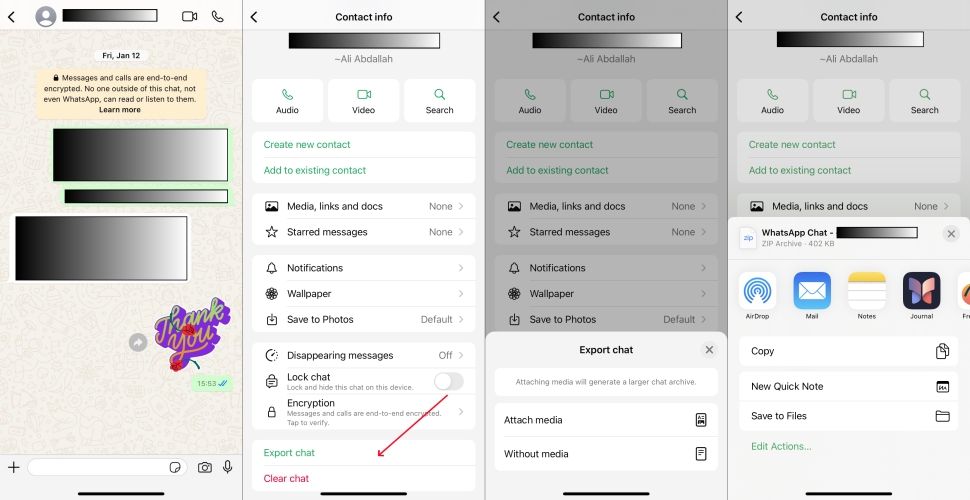
Step 1. Open WhatsApp and enter a target chat.
Step 2. Tap the contact icon and then tap Export chat.
Step 3. Choose Attach media and choose a location you want to export the WhatsApp photos to.
02Export WhatsApp Photos on Android
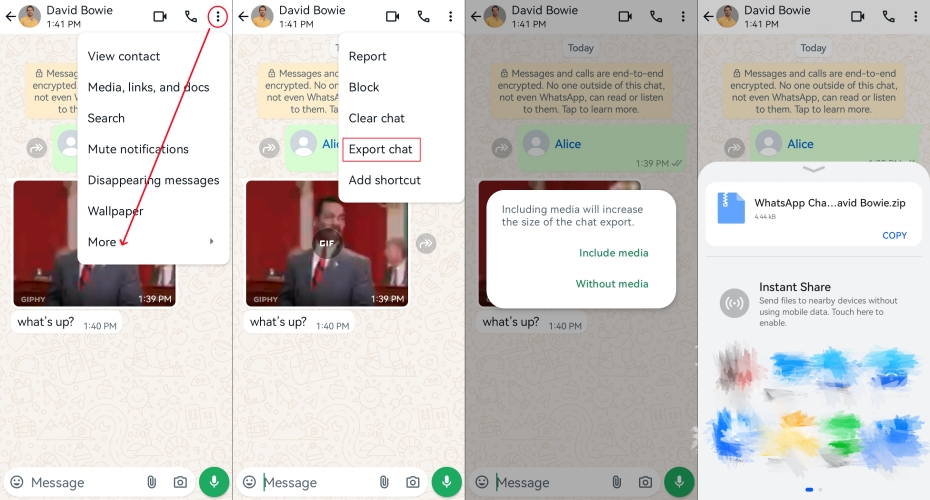
Step 1. Launch WhatsApp and access a target chat.
Step 2. Tap the triple-dot icon and tap More.
Step 3. Choose Export chat and choose Include media. Then choose a location to save the exported WhatsApp chat file.
📝How to Export WhatsApp Photos on Web
Unlike the mobile version, WhatsApp Web itself does not offer an export chat feature for photo export. In the web version, users can only manually select and download the wanted images, which is less efficient when it is necessary to save a large number of chat photos.
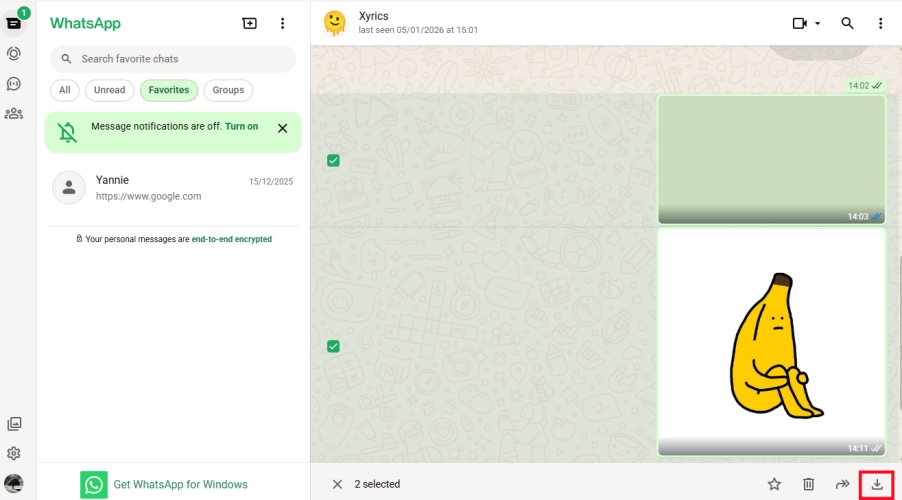
Step 1. Head for WhatsApp web and sign in to your account.
Step 2. Open a WhatsApp chat and right click a photo, then you can select your desired WhatsApp photos and click the Download icon to export them.
Part 2. How to Export WhatsApp Photos to PC
For users who want to manage or back up WhatsApp photos on a larger screen or external drive, exporting WhatsApp photos to a computer is often the most convenient choice. Whether your photos are stored on an iPhone or an Android device, you can move them to a PC for safer storage, easier viewing, or further organization. Here we will show you how to export WhatsApp photos from mobile phones to a PC step by step.
01 Export WhatsApp Photos from iPhone to PC
Using a professional third-party tool to export WhatsApp photos from iPhone to PC offers a more direct and flexible way to manage your data. Instead of manually saving images one by one, tools like MagFone WhatsApp Transfer can detect your WhatsApp media, let you preview photos in bulk, and selectively export WhatsApp photos you need. This is especially helpful if you want to export large numbers of photos at once while keeping the original quality. Here's how to export WhatsApp photos from iPhone to PC using MagFone Chats Transfer:

MagFone Chats Transfer
Efficiently back up your WhatsApp content without loss or hassle — everything moves with you, just as it was.
Step 1 Launch MagFone Chats Transfer
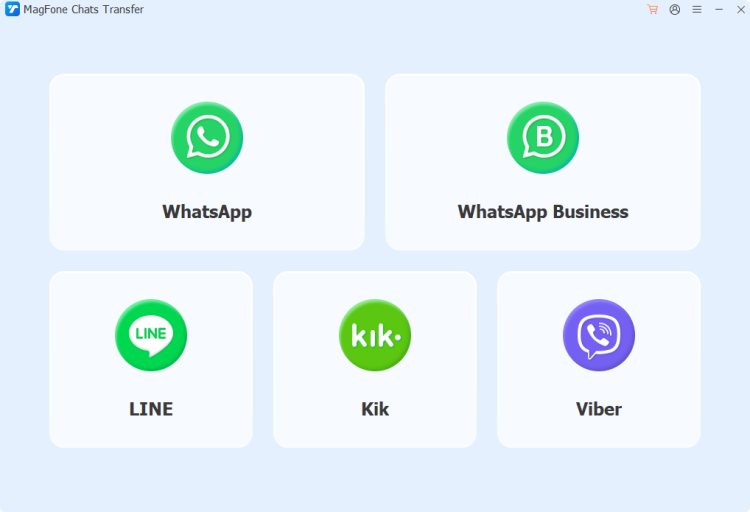
Download and install MagFone Chats Transfer on your computer. Then, connect your iPhone to the computer using a compatible USB cable. Once the installation is complete, launch the program.
Step 2 Back Up WhatsApp Photos
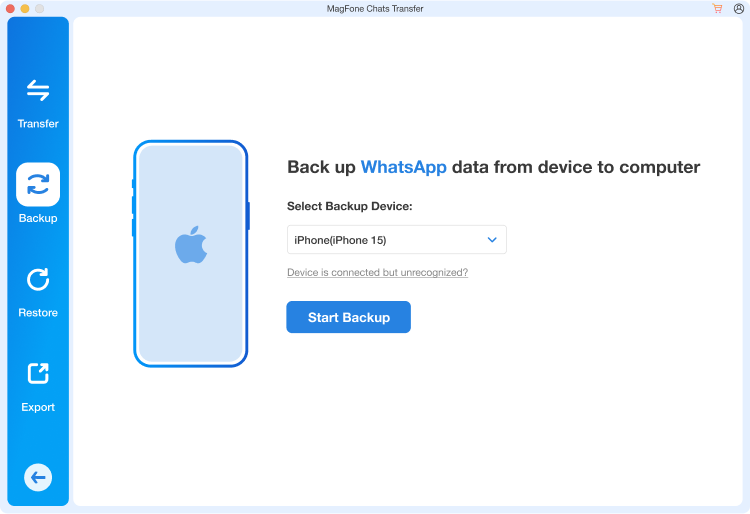
In the main screen, select WhatsApp, then choose the Backup option on the left panel. After your device is recognized, click Start Backup to create a backup of your WhatsApp chats.
Step 3 Export WhatsApp Photos from iPhone to PC
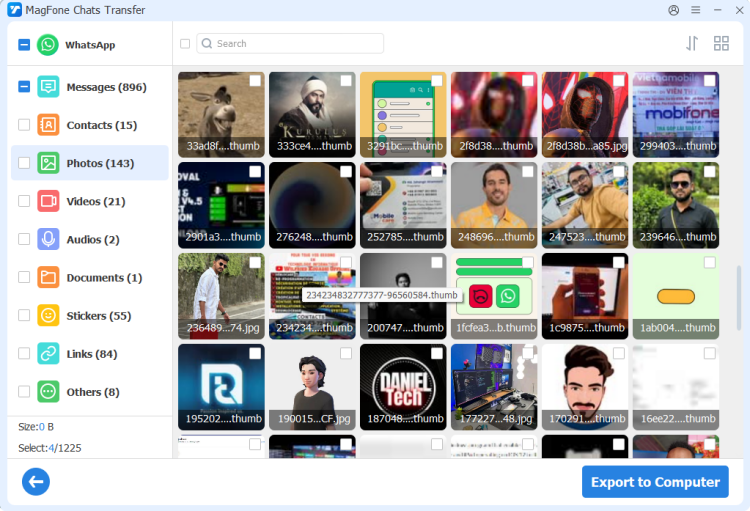
When the backup process finishes, select the Export option. You will now see all your WhatsApp chats organized by different content types. Click Photos and select the WhatsApp photos you want to export, then click Export to computer to export the selected WhatsApp photos to your PC.
02Export WhatsApp Photos from Android to PC
On Android devices, WhatsApp photos will be saved in local storage automatically. By connecting to your computer and using File Manager, you can copy and export the WhatsApp photos directly to your PC.
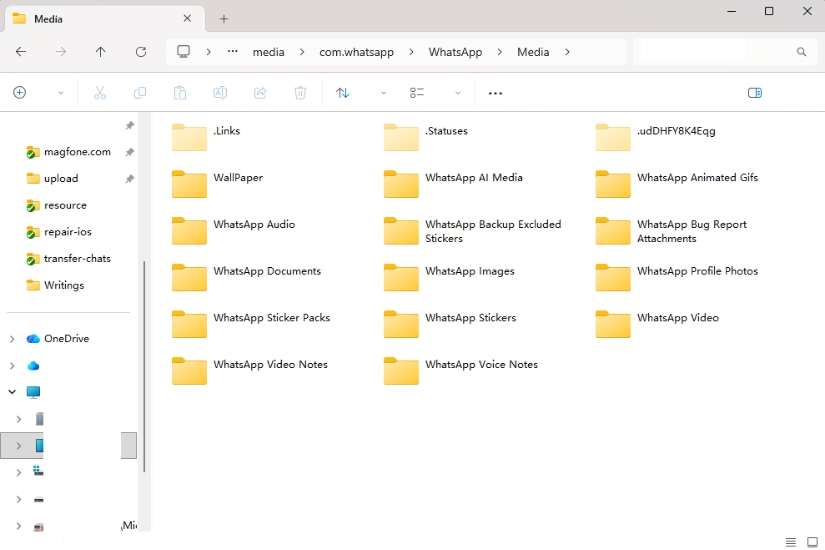
Step 1. Connect your phone to your computer using a data cable, then launch the File Manager.
Step 2. Go to the path: Internal Storage > Android > media > com.whatsapp > WhatsApp > Media > WhatsApp Images. In this folder, you can check all your WhatsApp photos.
Step 3. Select the wanted WhatsApp photos and copy them to your computer.
Part 3. Which Is the Fittest Way to Export WhatsApp Photos?
When it comes to exporting WhatsApp photos, what you consider most must be the efficiency and flexibility. To help you choose the appropriate export method more intuitively, the following comparison table comprehensively compares the different methods mentioned above from several key dimensions.
| Method | Compatibility | Suitable Scenarios | Selective Export | Operation | Recommendation |
|---|---|---|---|---|---|
| WhatsApp Export Feature | Android & iPhone | Export WhatsApp photos from single chat | ❌ | Moderate | ⭐⭐⭐ |
| MagFone WhatsApp Transfer | iPhone | All exporting cases | ✔️ | Quite easy | ⭐⭐⭐⭐⭐ |
| File Manager | Android | Export WhatsApp photos in batch | ✔️ | Easy | ⭐⭐⭐⭐ |
By comparison, it's clear that each method differs significantly in terms of suitable scenarios and flexibility. WhatsApp's official export feature bundles all media files in a chat together, including photos, videos, and voice messages, so you can't export only photos on their own. In contrast, third-party solutions such as MagFone WhatsApp Transfer and File Manager provide greater flexibility, allowing you to filter WhatsApp data by type, making it easier to export WhatsApp photos separately from other media.
Part 4. Conclusion
Overall, there are multiple ways to export WhatsApp photos, and each is better suited to different situations. If you prefer sticking with the official workflow, you can use WhatsApp's built-in export feature directly. If you need to separate photos from other media and manage them more precisely, third-party tools like MagFone Chats Transfer offer greater flexibility. By choosing the method that best matches your actual needs, you can easily export, organize, and preserve your valuable WhatsApp photos.

Olivia Wood
Editor in chief





