








WhatsApp group chats are full of important memories, work updates, and valuable information you don't want to lose. Whether you're changing phones, organizing project discussions, or simply backing up precious conversations, exporting your WhatsApp group chats is a smart move. In this guide, you'll learn step by step how to export WhatsApp group chats across devices and how to export WhatsApp group chats in Excel.

- Part 1. How to Export Group Chat in WhatsApp on iPhone & Android
- Part 2. How to Export WhatsApp Group Chats to Computer
- Part 3. How to Export WhatsApp Group Chat in Excel
- Part 4. Conclusion
Part 1. How to Export Group Chat in WhatsApp on iPhone & Android
For most users, the most direct way is to use WhatsApp's official Export chat feature, which can quickly export and save the chat history of a single group chat for viewing or sharing. The exported WhatsApp group messages will be saved in a TXT file, and the media will be saved separately. Follow the steps below to export group chat in WhatsApp:
01On iPhone:
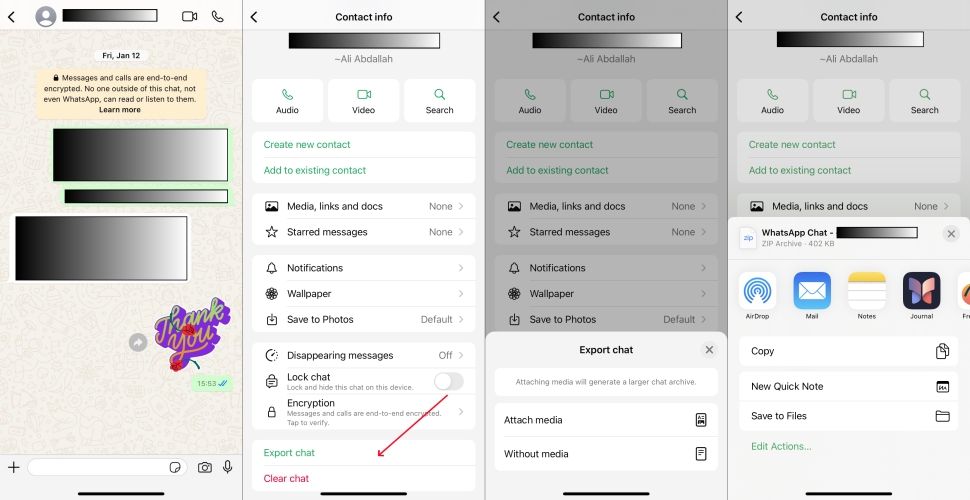
Step 1. Open WhatsApp and enter a group chat.
Step 2. Tap the group file icon and swipe to the bottom.
Step 3. Tap Export chat and choose whether to attach media according to your preference.
Step 4. Then choose a location where you want to export the WhatsApp chat to.
02On Android:
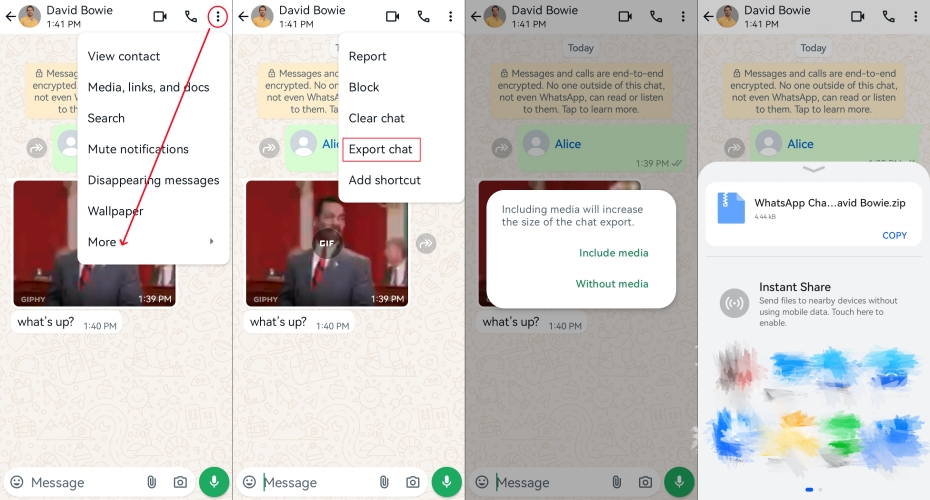
Step 1. Run WhatsApp and enter a group chat.
Step 2. Tap the triple-dot icon and tap More.
Step 3. Choose Export chat and whether to include media, then export the WhatsApp group chat to a location you'd like.
Part 2. How to Export WhatsApp Group Chats to Computer
When the content in a WhatsApp group chat grows over time, viewing and managing it only on your phone can become inconvenient and impractical for long-term storage. Exporting group chats to a computer lets you review conversations more clearly on a larger screen and makes it much easier to organize, back up, and archive your data. In this part, we'll introduce two options to help you export WhatsApp group chats from your phone to your computer.
Option 1. Export WhatsApp Group Chats to Computer via Email
You can share an exported WhatsApp group chat to many different platforms, and email is one of the simplest ways to move it to your computer. After exporting the group chat from WhatsApp, you can send it to your own email address as an attachment. Then, just sign in to your email account on your computer to download and view the exported chat file.
01On iPhone:
Step 1. Launch WhatsApp and open the group chat you want to export.
Step 2. Tap the group info icon at the top, then scroll down to the bottom of the screen.
Step 3. Select Export Chat, and decide whether or not to attach media based on your needs.
Step 4. Choose the Mail app and save the exported WhatsApp group chat file to your email account.
Step 5. Launch the mail app and check the exported WhatsApp group chat on your computer.
02On Android:
Step 1. Open WhatsApp and go to the group chat you wish to export.
Step 2. Tap the triple-dot icon and tap More.
Step 3. Choose Export chat and decide if you want to include media, and then choose the mail app to save the group chat.
Step 4. Log in to your email account on your computer to check the exported WhatsApp group chat.
Option 2. Export WhatsApp Group Chats to Computer via MagFone Chats Transfer
When you export WhatsApp group chats via email, you're often limited by attachment size, and messages and media are saved in separate files. If you have large chats or lots of media and want a more complete backup, using a dedicated tool is more efficient and flexible. MagFone WhatsApp Transfer helps you export WhatsApp group chats to your computer in a clearer, more organized way. With no complicated steps, you can simply follow the steps below to back up and save your group conversations on your computer in just a few clicks.

MagFone Chats Transfer
Efficiently back up your WhatsApp content without loss or hassle — everything moves with you, just as it was.
Step 1 Launch MagFone Chats Transfer
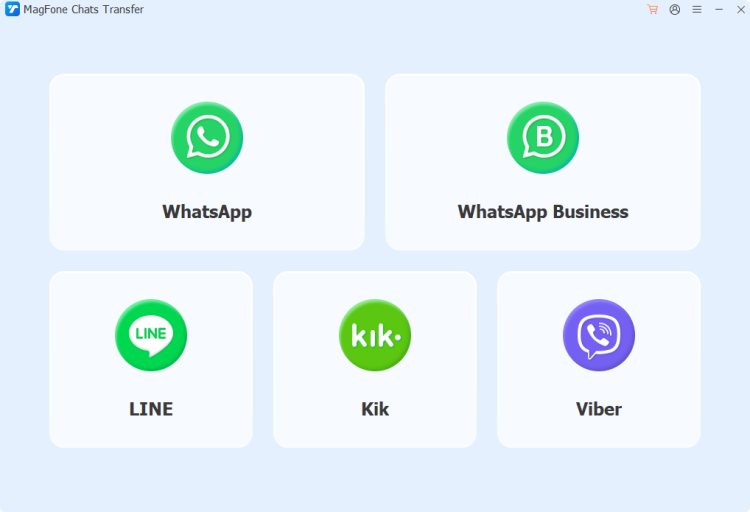
Prepare by downloading and installing Magfone Chats Transfer on your computer. Then connect your iPhone to the computer via a data cable. After all is done, launch the tool and click the WhatsApp option in the main interface.
Step 2 Back Up WhatsApp Group Chats
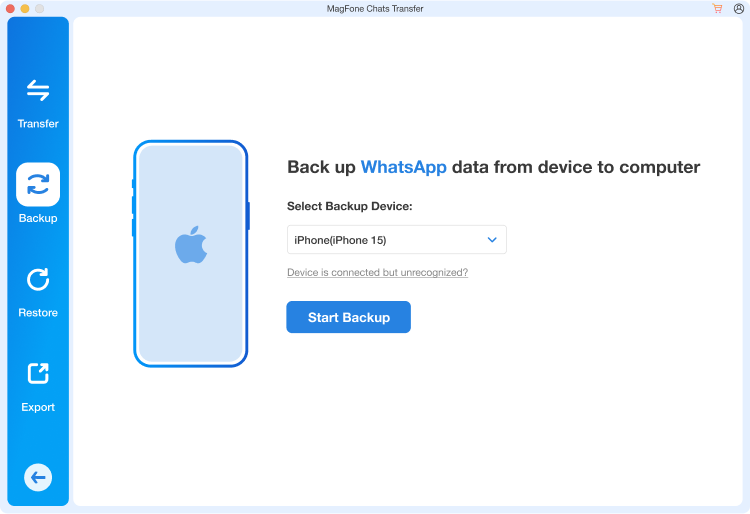
Click the Backup option in the left bar and click Start Backup to back up your WhatsApp group chats.
Step 3 Export WhatsApp Group Chats
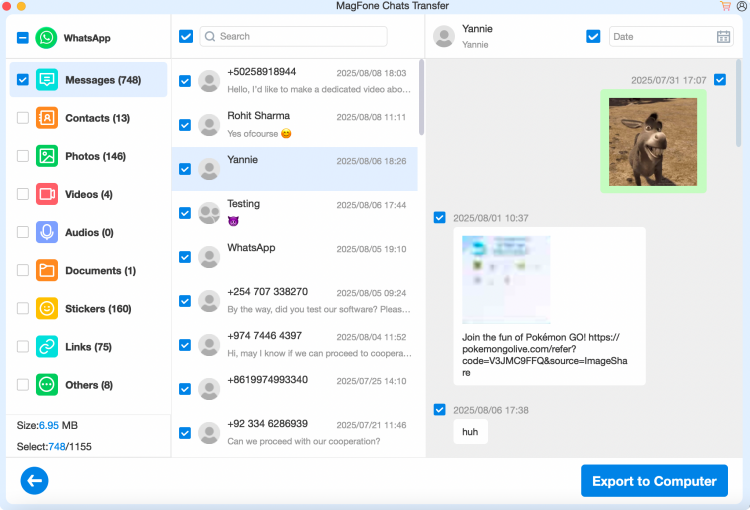
Click the Export option when the backup is completed. Here you can select the group chat you want to export and click Export to computer to export it.
Part 3. How to Export WhatsApp Group Chat in Excel
When exporting a WhatsApp group chat, many users also want to export WhatsApp group chats in Excel for easier viewing and analysis. You can't do this directly with the methods mentioned before, because the exported WhatsApp group chats are usually in TXT or HTML format. The good news is that you can convert these files into Excel with the help of additional tools. The exact steps will depend on whether your exported chat is a TXT file or an HTML file. In the following methods, we'll use Microsoft Excel to complete the conversion.
Method 1. Export WhatsApp Group Chat in Excel from TXT
If your WhatsApp group chat is exported as a simple text file, you can easily turn it into a spreadsheet using the Excel tool.
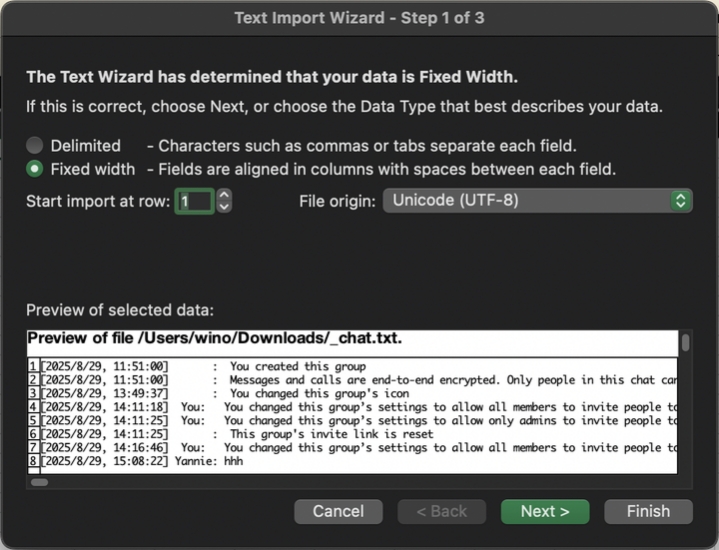
Step 1. Launch Microsoft Excel on your computer and create a blank workbook.
Step 2. Click File > Import. Choose the Text file when asked to choose the type of file you want to import. Then click Import.
Step 3. Select the exported WhatsApp group chat file from your computer and click Get Data.
Step 4. Choose Delimited and select Unicode (UTF-8) in the File origin options. Then click Finish > Import to import the exported WhatsApp group chat to the existing Excel sheet.
Step 5. Click the ?Save icon and select a location to save the exported WhatsApp chat in Excel.
Method 2. Export WhatsApp Group Chat in Excel from HTML
If you use tools like MagFone WhatsApp Transfer to export WhatsApp group chats, the chats may be saved in HTML format. You can also use Microsoft Excel to convert this HTML file into an Excel spreadsheet for easier viewing and analysis.
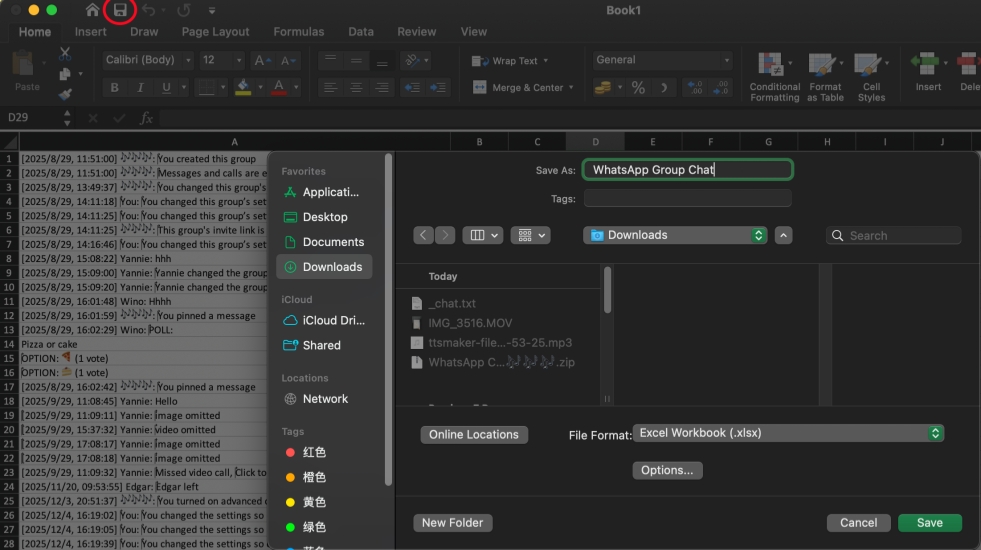
Step 1. Locate your mouse on the exported WhatsApp group chat file, right-click the mouse, and choose Open with Microsoft Excel.
Step 2. Then click the Save icon and click Save again to save the exported WhatsApp group chat in Excel.
Part 4. Conclusion
Whether you want to export WhatsApp group chat on your phone, export WhatsApp group chats to a computer, or export WhatsApp group chat in Excel, this guide provides clear, step-by-step instructions for each scenario. If you need to back up or export a large number of group chats, MagFone WhatsApp Transfer is highly recommended. It offers a more comprehensive, stable, and flexible way to manage your WhatsApp data across devices and keep your chat history safe and accessible whenever you need it.

Olivia Wood
Editor in chief





