








Apple's reveal of iOS 27 at WWDC 2026 brought exciting new features to the iPhone, prompting many users to jump onto the developer and public beta tracks early. However, beta software is notoriously unstable. If you are experiencing severe battery drain, overheating, or apps that constantly crash, you are likely looking for a way out.
If you are wondering what new capabilities are coming to your device, when you can download the update, or whether your current iPhone is compatible, this comprehensive guide covers everything Apple announced on stage.
- Part 1. Can You Remove iOS 27 Beta from iPhone?
- Part 2. How to Remove iOS 27 Beta from iPhone without Computer
- Part 3. Alternative Ways to Uninstall iOS 27 Beta from iPhone [Safe & Quick]
- Part 4. How to Correctly Restore Your Data After Downgrading
- Part 5. FAQs about iOS Beta Profile Remove
- Part 6. Conclusion
Part 1. Can You Remove iOS 27 Beta from iPhone?
Yes, you can remove the iOS 27 Beta from your iPhone. Depending on your situation and whether you want to avoid losing data, you have three primary options.
| Feature | Leave the Beta Track in the Settings | Revert to Stable iOS 26 via iTunes/Finder | Downgrade from iOS 27 Beta via System Repair Tools |
|---|---|---|---|
| Immediate Result | Stay on current beta, but transition to public track later | Instantly remove beta and reinstall public iOS 26. | Instantly remove beta and reinstall public iOS 26. |
| Data Loss Risk | None. No data is wiped from your device. | High. Completely erase your phone. | High. Wipe data during major rollbacks. |
| Computer Required | No, can be done directly in iPhone Settings. | Yes, require a Mac or Windows PC. | Yes, require a Mac or Windows PC. |
| Best For | Users who can tolerate current bugs but want the final public release. | Users with a completely broken phone who want a native fix. | Users encountering iTunes errors or stuck in recovery loops. |
Before removing any iOS beta, you need to make some preparations. It is crucial to turn off Find My iPhone before removing iOS 27 Beta. Then you won't be asked to remove Activation Lock from your iPhone. To disable Find My iPhone, follow the steps below.
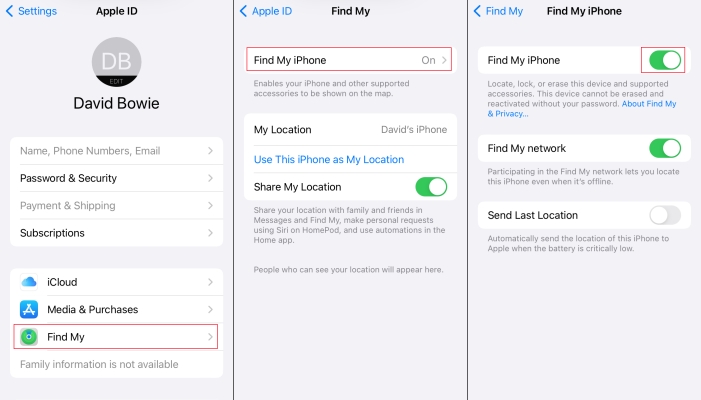
Step 1. In the Settings app, tap your Apple ID name.
Step 2. Select Find My, then tap Find My iPhone.
Step 3. Toggle off the switch to disable Find My iPhone.
Part 2. How to Remove iOS 27 Beta from iPhone without Computer
If you dislike the bugs but don't want to lose any of the data, photos, or messages you have accumulated since installing the beta, this is the best method for you. This approach doesn't instantly remove the iOS 27 beta software. Instead, it unenrolls your device from the beta program, meaning your iPhone will stop receiving experimental weekly updates.
When Apple officially releases the stable, public version of iOS 27 in the autumn, your iPhone will automatically install that clean version, seamlessly switching your back to the public track without losing a single megabyte of data. Go to remove iOS 27 Beta from your iPhone without a computer now.
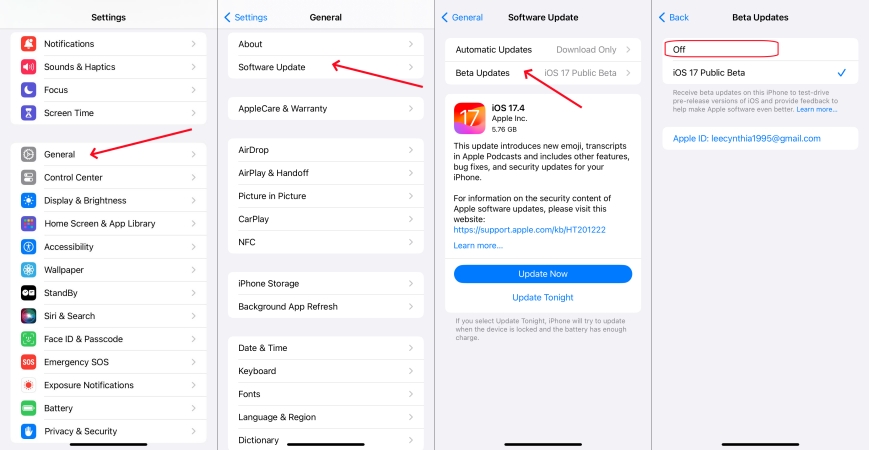
Step 1. Open the Settings app on your iPhone.
Step 2. Scroll down and tap on General.
Step 3. Tap on Software Update, then select Beta Updates.
Step 4. Change the selection to Off.
Once completed, go back to the main software update screen. You will remain on your current iOS 27 beta build until the official public release becomes available.
Note:
If you used a computer to install an iOS beta, you have to restore iOS to remove the iOS beta version. To delete the profile immediately, you can directly use a professional iOS downgrade tool like MagFone iOS System Recovery.
Part 3. Alternative Ways to Uninstall iOS 27 Beta from iPhone [Safe & Quick]
If the iOS 27 Beta has rendered your iPhone completely unusable and you need to revert to a stable operating system immediately, you must perform a clean system restore. This process will completely wipe your iPhone and reinstall the latest publicly signed stable release. Before removing the iOS beta, turn off Find My on your iPhone first, then try the following methods to uninstall iOS 27 Beta from your device with a computer.
Method 1. Delete iOS 27 Beta via iTunes/Finder
The beta profile installed with a computer on your computer can be removed with iTunes or the Finder. This method uses Recovery Mode to completely erase the iOS 27 Beta environment and reinstall the stable version of iOS 26. Learn how to remove iOS 27 Beta from your iPhone now.
📝What You Need:
A Mac or a Windows PC with iTunes
A high-quality, reliable USB or USB-C cable
A stable, high-speed internet connection

Step 1. Connect your iPhone to a computer using a USB cable.
Step 2. Open Finder on a Mac or iTunes on a Windows PC.
Step 3. Put your iPhone into Recovery Mode by pressing the following button combination.
- Press and quickly release the Volume Up button.
- Press and quickly release the Volume Down button.
- Press and hold the Side button until you see the support screen.
Get an iPad, iPhone, or iPod touch into recovery mode with one click for free.
Step 4. Click the Restore option when it appears in the Finder or iTunes.
Step 5. Follow the on-screen setup prompts to set up your iPhone.
Method 2. Uninstall iOS 27 Beta via a Third-Party Tool
Sometimes, using native tools like Finder or iTunes can result in unexpected error codes such as error 4013 or error 9, or the iPhone might get stuck in a continuous reboot cycle when trying to process the downgrade. If you run into these connection errors, utilizing a dedicated third-party tool like MagFone iOS System Recovery can serve as an alternative workaround.
MagFone iOS System Recovery features a dedicated Upgrade/Downgrade iOS function that automates the detection and downloading of signed public IPSW firmware package like iOS 26 from Apple's servers. By adopting advanced technology, you don't need to worry about security. More importantly, it is easy to remove iOS beta with this tool even if you are a tech newbie.

MagFone iOS System Recovery
Fix various iOS and iPadOS system issues, such as black screen, boot loop, frozen screen, or stuck on Apple logo, without data loss.
Step 1 Connect Your iPhone and Computer

Go to launch MagFone iOS System Recovery on your computer, then connect your iPhone to the computer with a USB cable. On the main interface of the software, click the Upgrade/Downgrade iOS button.
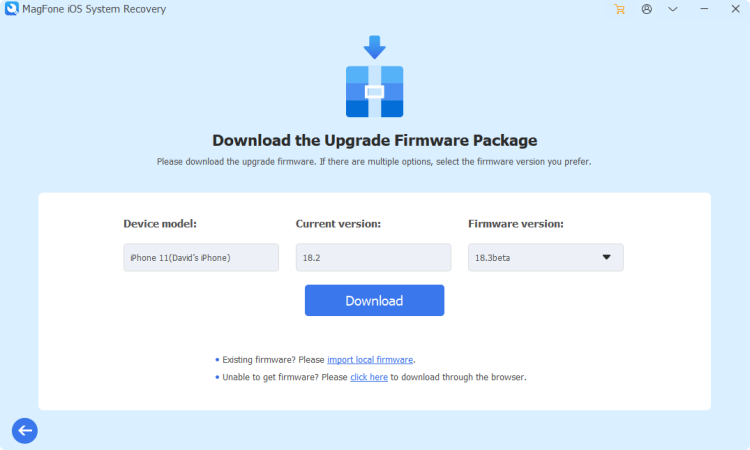
Step 2 Download the Firmware Package
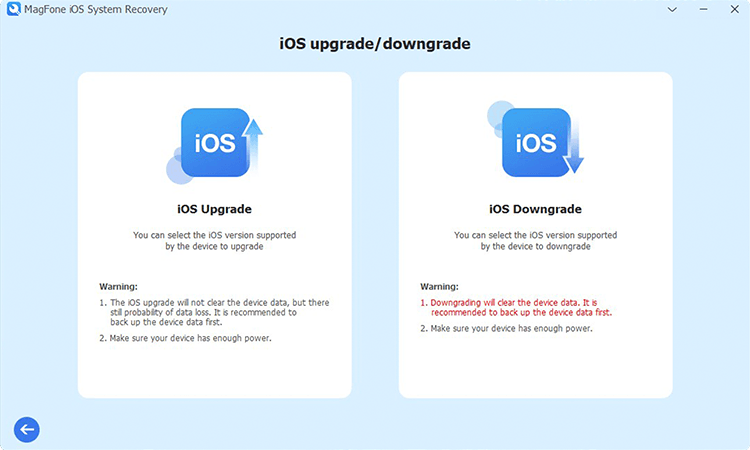
Then continue to click the Downgrade iOS button. All the device information of your iPhone will be presented on the screen. If the information is correct, you can click the Download button to download the firmware.
Step 3 Start to Remove iOS 26 Beta
Now you can click the Start Downgrade button to start removing iOS beta profile from your iPhone once the firmware package is downloaded to the computer. In the whole process, keep your device connected.
Part 4. How to Correctly Restore Your Data After Downgrading
Once the downgrade finishes, your iPhone will reboot to the original "Hello" welcome screen. Following the on-screen setup prompts, you will be asked how you want to set up your data. It is a necessary step to restore your iPhone if you don't want to lose any important data.
Note:
The backups created while using the beta might not be compatible with the current iOS version. If you don't make a backup of your iPhone while using the current version of iOS, you cannot restore your device with your most recent backup.

Step 1. Progress through the initial language, region, and WiFi configurations.
Step 2. When reaching the Transfer Your Apps & Data screen, select Restore from iCloud Backup or Restore from Mac or PC.
Step 3. Select the archived backup that matches the date before you installed the iOS 27 beta.
If you only have backups created while using the iOS 27 beta, you must choose Don't Transfer Anything to set up the phone as a new device, as those newer files are fundamentally incompatible with iOS 26.
Part 5. FAQs about iOS Beta Profile Remove
Will factory reset remove iOS beta?
No, a standard factory reset from your iPhone settings will not remove the iOS beta. If you go to Settings > General > Transfer or Reset iPhone > Erase All Content and Settings, it will wipe your personal data, photos, and apps, but it will keep the exact same iOS beta software version installed. To completely remove the beta and go back to a stable public version of iOS, you have to use a computer to perform a full system restore.
How to remove iOS 27 Developer Beta from iPhone?
To remove the iOS 27 Developer Beta from your iPhone, you can choose between two methods depending on whether you want an immediate fix or a risk-free transition. One is to turn off future beta features in the Settings directly, and the other is to downgrade to stable iOS 26 using iTunes or Finder immediately. Alternatively, you can use a professional iOS downgrade tool like MagFone iOS System Recovery to remove iOS 27 Developer Beta quickly.
How to remove iOS beta without losing data?
The only way to remove an iOS beta completely without losing any of your current data is to unenroll from the beta program and wait for the official, final public release to come out. Completely removing the iOS beta will cause data loss, but you can recover your data if you have an archived backup that was made before you first joined the beta program.
Can I restore an iOS 27 backup onto an iPhone running iOS 26?
No. Apple's system architecture prevents newer database backups from being restored onto older operating systems. If you downgrade to iOS 26, you can only restore a backup that was made while your phone was previously running iOS 26.
Part 5. Conclusion
Removing iOS 27 Beta might seem daunting, but with the right preparation and steps, you can revert to a stable iOS version smoothly. Remember to back up your data, follow the instructions carefully, and troubleshoot any issues that arise. If you want to remove iOS 27 Beta safely and quickly, we strongly recommend MagFone iOS System Recovery. With this tool, you can uninstall iOS Beta and downgrade from older iOS easily.

Dylan Jones
Editor in chief





