








I started the update on my iPhone 14 Pro and quickly received error 4013. Is anyone else experiencing this? I have tried a few steps and restarted, tried again, still receiving the error which states a restore to factory settings. I have never had this with any other update before and have had iPhone for years. Any suggestions?"
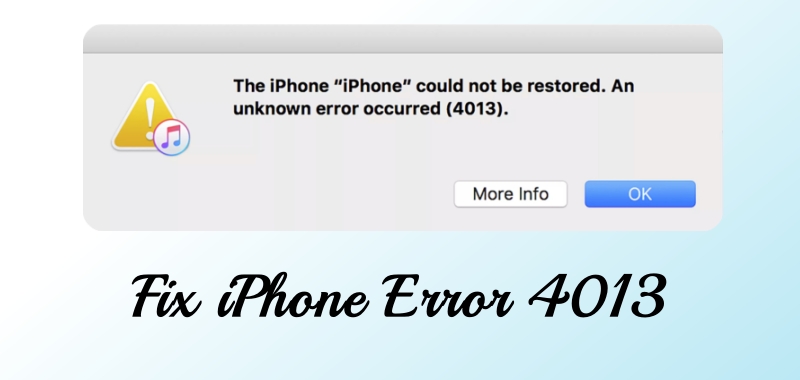
If you've ever tried updating or restoring your iPhone using iTunes and encountered an unknown error code—specifically iPhone Error 4013—you're not alone. This error occurs primarily when a communication issue arises between your iPhone and computer during the update or restore process. It's one of the more common issues Apple users face, and while frustrating, it's usually fixable. So, if you are looking for a way to fix iPhone Error 4013, then read on. This guide covers a few troubleshooting steps that you can try to resolve error 4013.
30-Second Troubleshooting: Find a Fix for iPhone 4013 Error
A message saying "The iPhone could not be restored. An unknown error occurred (4013)." often occurs when you try to update or restore your iPhone on your computer. Before dumping into troubleshooting steps, use this table to decide your next move based on your progress so far.
| Symptom | Likely Cause | Recommended Action |
|---|---|---|
| Error appears immediately | Cable or USB port | Change to an MFi-certified cable |
| Error appears at 80% progress | Storage or NAND flash | Attempt software restore |
| Phone has a cracked screen | Component short | Seek professional repair |
| Error 4013 persists on multiple computers | Internal logic board | Authorized Apple Service Provider |
- Part 1. What Does iPhone Error 4013 Mean?
- Part 2. What Causes iPhone Error 4013?
- Part 3. How to Fix iPhone Error 4013
- Solution 1. Force Restart iPhone
- Solution 2. Use a Different USB Cable
- Solution 3. Free up Space on iPhone
- Solution 4. Check iTunes Version
- Solution 5. Update the Operating System
- Solution 6. Enter Recovery Mode
- Solution 7. Use an iOS Repairing Tool (No Data Loss)
- Solution 8. Restore iPhone Using DFU Mode
- Part 4. FAQs about iPhone Error 4013
- Part 5. Conclusion
Part 1. What Does iPhone Error 4013 Mean?
iPhone Error 4013 is a communication failure between an iPhone and the computer during a restore or update process. As a hardware-related issue, it occurs when the system cannot properly transfer firmware data to the device. The issue commonly appears while restoring through iTunes or Finder and typically display these messages:
- "The iPhone could not be restored. An unknown error occurred (4013)."
- "The iPhone could not be restored. An unknown error occurred (4014)."
- "The iPhone could not be restored. An unknown error occurred (4005)."
- "The iPhone could not be restored. An unknown error occurred (9)."
When the error occurs, the restore process stops immediately and the device may remain unusable until the issue is resolved. Understanding the root cause of error 4013 helps to troubleshoot the problem effectively. Move on to knowing more details.
Part 2. What Causes iPhone Error 4013?
iPhone Error 4013 occurs for several reasons. Most of the times, it's linked to connection issues between your iPhone and computer you're using to restore or update it. But there are other possible causes, which we'll cover in the following content.
01Faulty USB Connection
A damaged USB cable, unstable port, or poor connection interrupts the data transfer between the iPhone and computer.
02Outdated iTunes or macOS Finder
Older versions of iTunes or macOS software may fail to communicate correctly with modern iPhone firmware.
03Corrupted Firmware Update
A partially downloaded or corrupted iOS firmware file can prevent the restore process from completing.
04Computer Security Software Conflicts
Antivirus or firewall applications occasionally block iTunes server communication, triggering restore errors.
05Hardware Failure
Sometimes the error originates from internal hardware components, such as the logic board, NAND storage chip, or connector cables.
Part 3. How to Fix iPhone Error 4013
It's essential to first understand what's causing iPhone Error 4013. Now that you've identified the potential causes, here's a step-by-step guide to fix iPhone Error 4013.
Solution 1. Force Restart iPhone
Before diving into more complex solutions, try a simple restart. Follow the steps below to force your iPhone to restart.
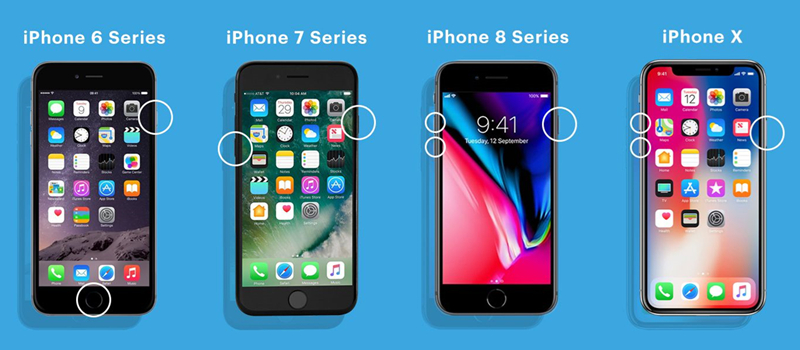
iPhone 8 or later: Press and quickly release the volume up button. Press and quickly release the volume down button. Press and hold the side button until you see the Apple logo.
iPhone 7 and iPhone 7 Plus: Press and hold both the side button and the volume down button until you see the Apple logo.
Solution 2. Use a Different USB Cable
If forcing your device to restart doesn't work, try replacing the USB cable or port. A poor connection is one of the most common causes of Error 4013. We recommend using an original Apple Lightning cable, connecting directly to the computer USB port, avoiding USB hubs or adapters, and trying multiple USB ports.
Solution 3. Free up Space on iPhone
When there is no enough storage on your iPhone, you are unable to update your iPhone to the latest version of iOS. In this case, choose to free up more space on your iPhone.
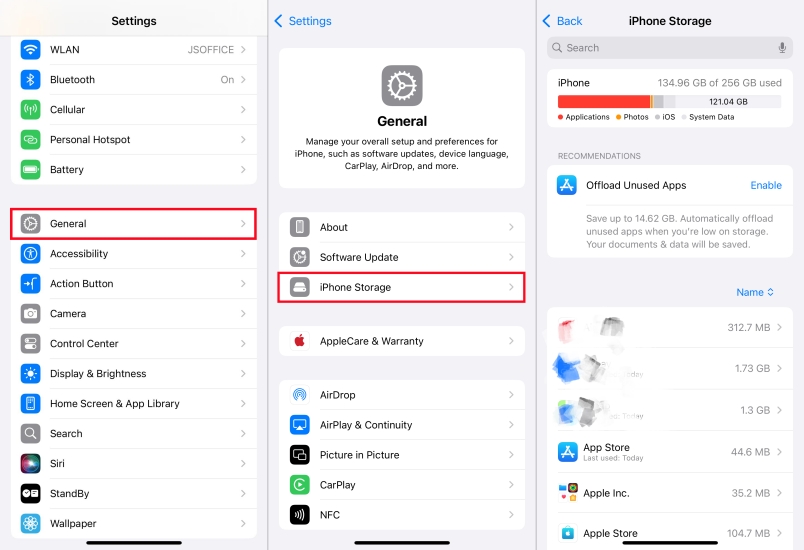
Step 1. Go to Settings > General > iPhone Storage.
Step 2. Find some unused apps or files to delete.
Solution 4. Check iTunes Version
Outdated software can cause communication errors between your iPhone and computer. Ensure that iTunes is updated to the latest version. Go to update iTunes by following the steps below.
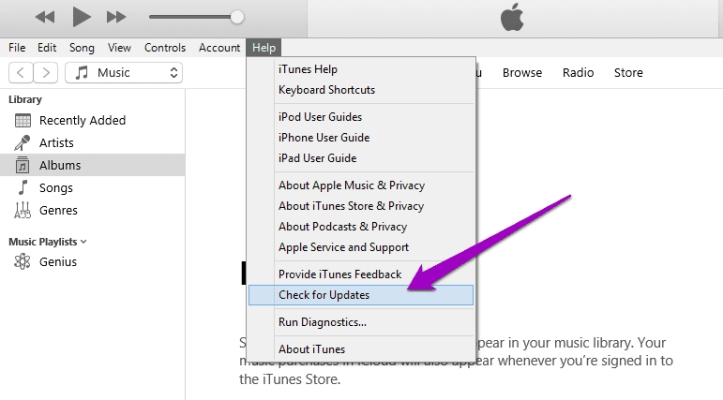
Step 1. Run iTunes, then choose Help > Check for Updates.
Step 2. Click the Download iTunes button in the update window.
Step 3. Follow the onscreen instruction to complete iTunes update.
Solution 5. Update the Operating System
In addition to updating to the latest version of iTunes, you can check for updates to your Mac or PC. Here's how to update your Mac or PC.
Update macOS on Mac
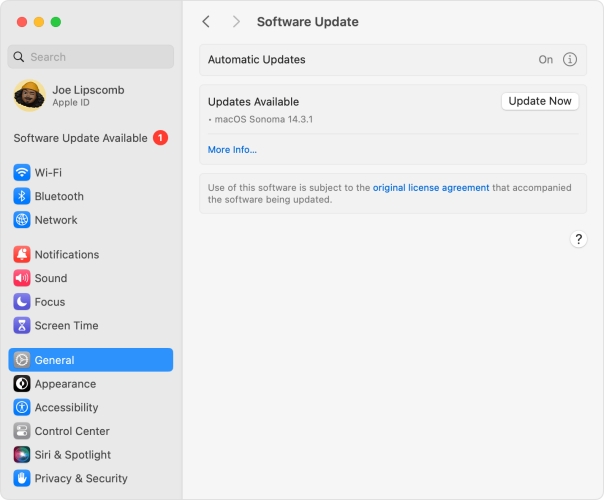
Step 1. From the Apple menu in the corner of your screen, choose System Settings.
Step 2. Click General in the sidebar of the window, then click Software Update on the right.
Step 3. Under Software Update, click Update Now to start updating your Mac.
Update Windows on PC
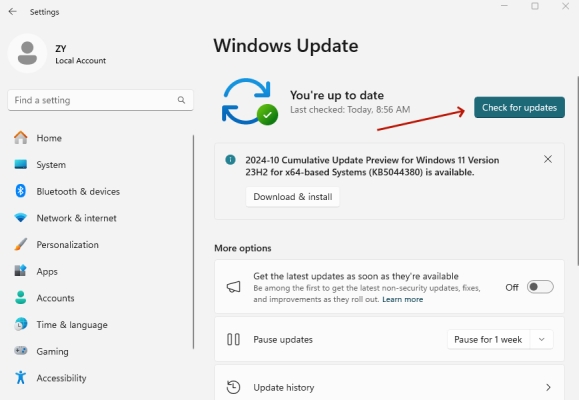
Step 1. Select Start, then click Settings > Windows Update.
Step 2. Under Windows Update, click Check for updates.
Step 3. Wait to update your PC to the latest version of Windows.
Solution 6. Enter Recovery Mode
If the above methods don't work, entering Recovery Mode is the next step. And you can update your iPhone in Recovery Mode. This should bypass Error 4013 if it's a software issue.

Step 1. Power off your iPhone, then connect it to your computer via a USB cable.
Step 2. Press the correct button to put your iPhone into Recovery Mode.
- iPhone 8 or later: Quickly press and release the Volume Up button, then the Volume Down button, and hold the Power button until the recovery mode screen appears.
- iPhone 7 and 7 Plus: Hold the Volume Down and Power buttons simultaneously until the recovery mode screen appears.
- iPhone 6s or earlier: Hold the Home and Power buttons simultaneously until the recovery mode screen appears.
Get an iPad, iPhone, or iPod touch into recovery mode with one click for free.
Step 3. In iTunes, click Update to reinstall the software.
Solution 7. Use an iOS Repairing Tool (No Data Loss)
Those errors on the iPhone caused by system glitches can be resolved a professional iOS repair tool. To fix iPhone Error 4013, we recommend MagFone iOS System Recovery to you. Using this tool, you can fix various system glitches and errors like iPhone error 4013 without compromising your files and losing your data. This is basically the most effective way to fix iPhone Error 4013.

MagFone iOS System Recovery
Fix various iOS and iPadOS system issues, such as black screen, boot loop, frozen screen, or stuck on Apple logo, without data loss.
Step 1 Connect iPhone to Computer and Run MagFone

Get MagFone iOS System Recovery and run it on your computer. Then connect your iPhone with error 4013 using a USB cable. Click the iOS System Repair button from the main interface.
Step 2 Select Standard Repair to Fix iOS Issues
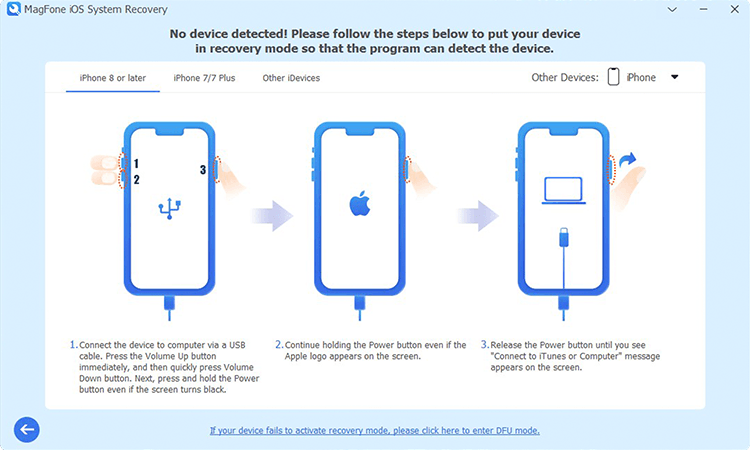
On the next window, select Standard Repair. Ensure that your device is detected by MagFone software. But if your device cannot be detected, you can put your device into recovery mode.
Step 3 Download and Verify the Firmware Package

Check the device information shown on the screen of MagFone software. Then carefully check the device information and get the latest firmware by clicking the Download button.
Step 4 Start to Repair iOS System in Standard Mode

Click Start Repair and wait for the process to complete. In the whole process, keep your device connected to the computer. Then your iPhone will restart, and the issue will be resolved.
Solution 8. Restore iPhone Using DFU Mode
Device Firmware Update (DFU) mode is the deepest restore method and bypasses many system errors. If Recovery Mode doesn't resolve the issue and using a third-party tool is not your choice, restoring the iPhone using DFU mode is your last resort. It will restore your device to the original state, but erase all the content and settings on your device.
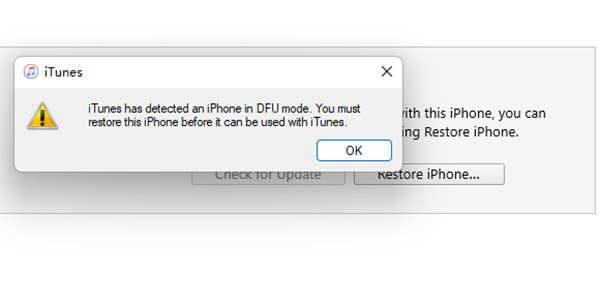
Step 1. Connect your iPhone to a computer, then turn off the device.
Step 2. Press and hold the Power button for 3 seconds.
Step 3. Press both Power and Volume Down button for 10 seconds.
Step 4. Release the Power button but continue holding Volume Down.
Step 5. Once in DFU mode, proceed with the restore process.
Part 4. FAQs about iPhone Error 4013
-
Is iPhone Error 4013 a hardware issue?
No. This cannot directly mean it is a hardware issue. In many cases, it is software related, but persistent failures may indicate internal hardware damage.
-
Will restoring the iPhone erase data?
Yes. A full restore removes all device data. So, it is essential to maintain regular backups whether to use cloud backup like iCloud or local backup like iTunes.
-
Can iPhone Error 4013 fix itself?
No. The issue requires manual troubleshooting or repair procedures. If you meet this error message on your iPhone, you can resolve it by restarting or resetting your device.
-
Which iPhone models experience Error 4013?
The error can appear on any iPhone model, including iPhone 6, 6s, 7, 7 Plus, 8, X, 11, 12, 13, 14, and 15. But this error can be fixed if it is caused by system issues.
Part 5. Conclusion
Dealing with iPhone Error 4013 can be frustrating, but by understanding its causes and following the process steps, you can fix it yourself most of the time. To quickly resolve iPhone Error 4013 without data loss, try using MagFone iOS System Recovery. However, if things get complicated, don't hesitate to seek professional help.

Dylan Jones
Editor in chief





