








Accidentally deleting text messages on an iPhone can be stressful, especially if those messages include important personal, work, or security information. The good news is that deleted messages are not always lost forever. In some situations, they may remain in the Recently Deleted folder, while in others, they can still be recovered through backups or device-based recovery methods. This article explains where deleted messages go on iPhone and walks you through four practical ways to restore both recently deleted and permanently deleted messages.
- Part 1. Where Do Deleted Messages Go on iPhone?
- Part 2. How to Restore Deleted Messages on iPhone [Recently Deleted]
- Part 3. How to Restore Deleted Messages on iPhone [Permanently Deleted]
- Part 4. Conclusion
Part 1. Where Do Deleted Messages Go on iPhone?
When you delete messages on an iPhone, they are not always erased immediately. On iOS versions earlier than iOS 16, deleted messages usually disappear from the Messages app right away. On iOS 16 and later, however, they are first moved to the Recently Deleted folder, where they remain for about 30 days before being permanently removed. Even after that, the messages may still be recoverable from an iCloud or iTunes/Finder backup created before deletion. In some cases, traces of the deleted data may also remain in the iPhone's internal storage until they are overwritten by new data.
Note:
If you previously enabled Text Message Forwarding, the deleted iPhone messages may still be stored on the device that receives your forwarded messages.
Part 2. How to Restore Deleted Messages on iPhone [Recently Deleted]
On iOS 16 and later, Apple added a Recently Deleted folder in the Messages app, allowing users to recover messages deleted by mistake within a limited time. However, the Messages app layout may look slightly different depending on the iOS version and settings, so the steps can vary from one iPhone to another. If the deleted messages are still in Recently Deleted, you can quickly restore them.
On iOS 26:
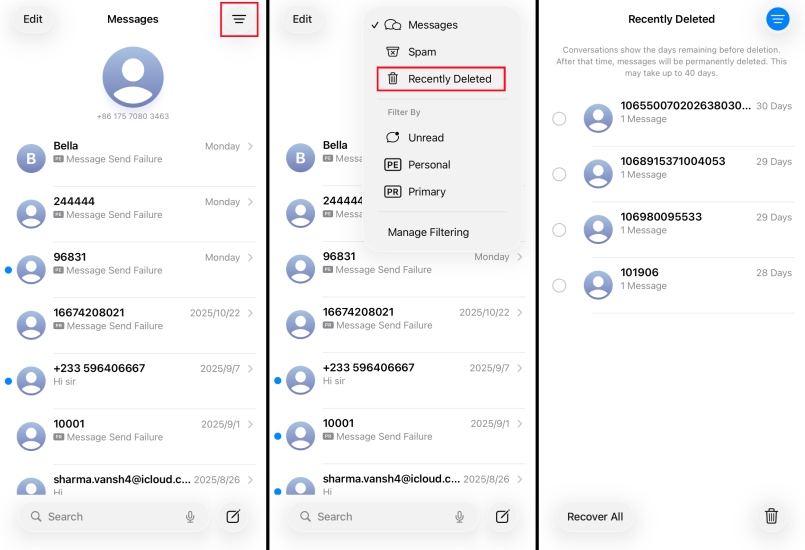
Step 1. Open the Messages app and tap the icon in the upper-right corner.
Step 2. Tap Recently Deleted to find deleted messages on iPhone.
Step 3. Select the messages you want to restore and tap Recover to restore them.
On iOS 18:
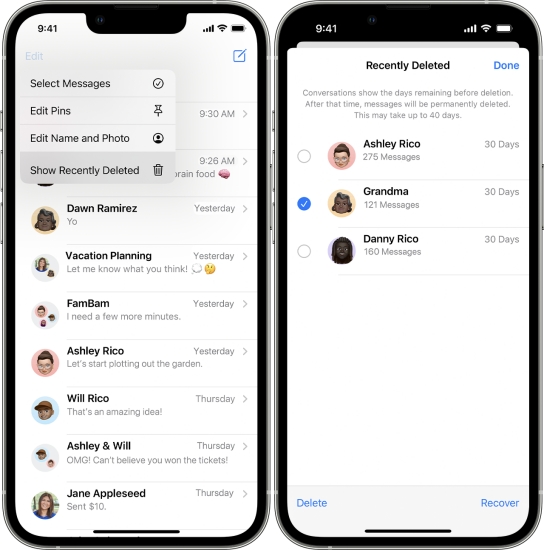
Step 1. Open Messages and tap Edit at the upper-left corner.
Step 2. Tap Show Recently Deleted to view the Recently Deleted messages.
Step 3. Select the wanted message threads and tap Recover to restore them.
On iOS 16 ~ iOS 17:
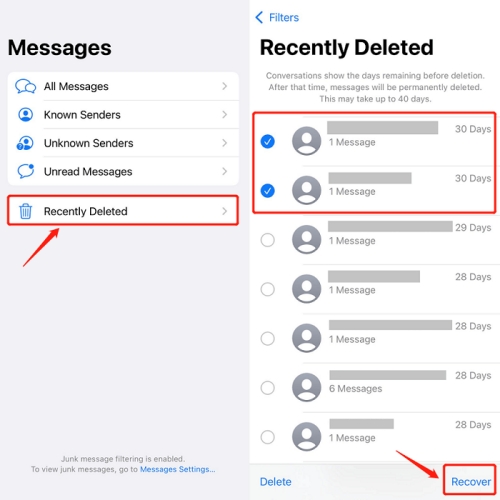
Step 1. Open the Messages app and tap the upper-left corner to view filters.
Step 2. Tap Recently Deleted to view your deleted text messages.
Step 3. Select and tap Recover > Recover Message to restore them.
Part 3. How to Restore Deleted Messages on iPhone [Permanently Deleted]
If the messages are no longer available in Recently Deleted, they may have been permanently removed from your iPhone. In that case, you will need to try other recovery options, such as restoring from an iCloud backup, iTunes backup, or checking whether the data can still be recovered from the device storage. The following methods explain the main ways to restore permanently deleted messages on iPhone.
Method 1. Restore Deleted Messages from iCloud Backup
If you have backed up your iPhone to iCloud before the messages were deleted, you may be able to restore them by resetting the device and recovering data from that backup. This method can bring back permanently deleted messages, but it will replace the current data on your iPhone with the data stored in the selected backup.

Step 1. Open iPhone Settings and access General.
Step 2. Access Transfer or Reset iPhone > Erase All Content and Settings > Continue > Erase iPhone.
Step 3. Enter the required iPhone passcode and Apple ID password to proceed.

Step 4. When the iPhone restarts, follow the on-screen instructions to set it up. When you see the Transfer Your Apps & Data screen, choose From iCloud Backup.
Step 5. Sign in to your iCloud and choose an available iCloud backup to restore to your iPhone. When you finish setup and the iCloud data is synced on the iPhone, you can open Messages to find permanently deleted messages.
Method 2. Restore Deleted Messages from iTunes Backup
If you previously created a backup on a computer through iTunes or Finder, you can try restoring your iPhone from that backup to recover deleted messages. It will also overwrite your existing data with the contents of the backup.

Step 1. Use a data cable to link your iPhone to a computer you used to back up the iPhone.
Step 2. Open iTunes or Finder, and access the iPhone icon.
Step 3. Click Restore Backup and choose an iTunes backup to restore to your iPhone. After restoring, you can open the Messages app to read deleted messages.
Method 3. Restore Deleted Messages from iDevice Storage
If you cannot find deleted messages on your iPhone, using a professional iPhone data recovery tool can be a practical solution. It can scan the device's internal storage for recoverable message data and let you restore selected items without relying entirely on iCloud or iTunes backups. MagFone Messages Data Recovery is a recommended option for this purpose, as it supports deep scanning and selective recovery. In addition, the tool now includes a new feature that allows users to back up iPhone data and restore it when needed, offering more flexibility for both data recovery and daily data protection.
Now download MagFone iPhone Data Recovery and follow the steps below to recover your deleted messages on iPhone:

MagFone iPhone Data Recovery
Recover data from iPhone and iPad in three recovery modes without data overwritting and device reset.
Step 1 Run MagFone iPhone Data Recovery

Link your iPhone to the computer using a data cable. When it's ready, open MagFone iPhone Data Recovery.
Step 2 Scan Deleted Text Messages on iPhone

Click iPhone/iPad Data Recovery on the screen, choose Messages from the data list, and click Scan to start scanning deleted messages on your iPhone. If required, enter the passcode on your iPhone.
Step 3 Restore Deleted Text Messages on iPhone
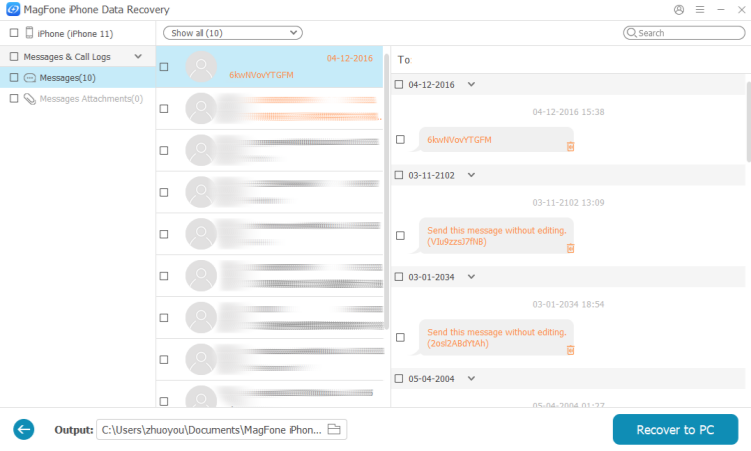
Check the scanned iPhone messages on the screen. Select the deleted text messages and click Recover to PC or Recover to Mac to export them to your computer.
Part 4. Conclusion
Where deleted messages go on an iPhone depends largely on the iOS version you are using. Depending on your situation, you may be able to recover them from the Recently Deleted folder, an iCloud backup, an iTunes/Finder backup, or even the device storage. For a more efficient and secure recovery process, MagFone iPhone Data Recovery can be a recommended option.

Edgar Davis
Editor in chief





