








Is FaceTime call history automatically deleted after a certain period of time? Since FaceTime records may contain important call details and contact activity, many users wonder whether deleted history can be recovered when needed. In this guide, we'll show you how to check FaceTime call history on your iPhone, explore ways to recover deleted FaceTime call history on iPhone, and share useful tips to help prevent future data loss. Keep reading to better manage your FaceTime history.
- Part 1. Can You Recover Deleted FaceTime Call History on iPhone?
- Part 2. How to Check FaceTime Call History on iPhone
- Part 3. How to Recover Deleted FaceTime Call History
- Part 4. How to Prevent FaceTime Call History Loss
- Part 5. Conclusion
Part 1. Can You Recover Deleted FaceTime Call History on iPhone?
Though there is no regret feature for FaceTime call history, there are still 3 ways to recover deleted FaceTime call history on iPhone. Here, we compare the three main methods so you can quickly choose the one that fits you.
| Method | Selective Recovery | Data Overwrite | Suitable Scenarios | Call Log Limitation |
|---|---|---|---|---|
| MagFone iPhone Data Recovery | ✔️ | ❌ | All scenarios | No limitation |
| iCloud Backup | ❌ | ✔️ | Deleted FaceTime call history is backed up to iCloud | Up to 100 |
| iTunes Backup | ❌ | ✔️ | Deleted FaceTime call history is backed up to computer | Up to 100 |
Part 2. How to Check FaceTime Call History on iPhone
FaceTime call history is usually kept on your iPhone unless you remove it manually, or newer call records push older ones out of the recent call list. If you want to review your FaceTime activity, you can check it in both the FaceTime app and the Phone app.
Option 1. Check FaceTime Call History in FaceTime App
Your FaceTime call history will be recorded in the FaceTime app. But if you delete a FaceTime call log, you can't undo this operation and can't see it in the app anymore.

Option 2. Check FaceTime Call History in the Phone App
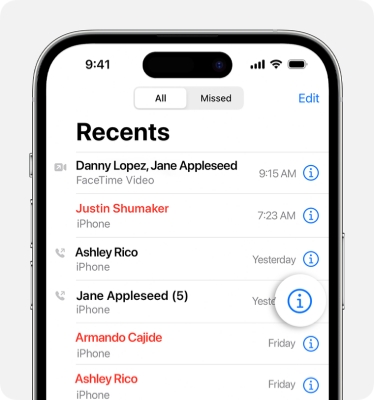
FaceTime call history also appears in the Phone app, so you can check your recent FaceTime calls there as well. Simply open the Phone app and go to Recents. If a call was made or received through FaceTime, it will be labeled FaceTime under the contact's name or phone number.
Note:
Keep in mind that your iPhone shows only up to 100 recent call records. Once this limit is reached, older logs may be replaced by newer ones. If the FaceTime call log you need is no longer visible, you can try Method 1 to access a more complete FaceTime call history.
Part 3. How to Recover Deleted FaceTime Call History
When you find that FaceTime call history is deleted automatically in the recent call list, you can try several recovery methods. The option depends on whether the data is still stored on your device or included in a previous backup.
Method 1. Recover Deleted FaceTime Call Logs from iDevices
One simple and effective way to recover deleted FaceTime call history is to use a data recovery tool. Among the data recovery tools we have used before, MagFone iPhone Data Recovery can be a cost-friendly and effective option. It supports recovering more than 20 types of data on iPhone, extracting data from iTunes backup, and recovering data in iCloud. As to FaceTime call logs, MagFone can recover them in HTML or CSV format, which includes information like name, call address, date, calling type, and duration. Apart from it being a paid tool, we can't think of any other disadvantages. The steps are also quite simple, just follow to get your full FaceTime call history.

MagFone iPhone Data Recovery
Recover data from iPhone and iPad in three recovery modes without data overwritting and device reset.
Step 1 Open MagFone iPhone Data Recovery
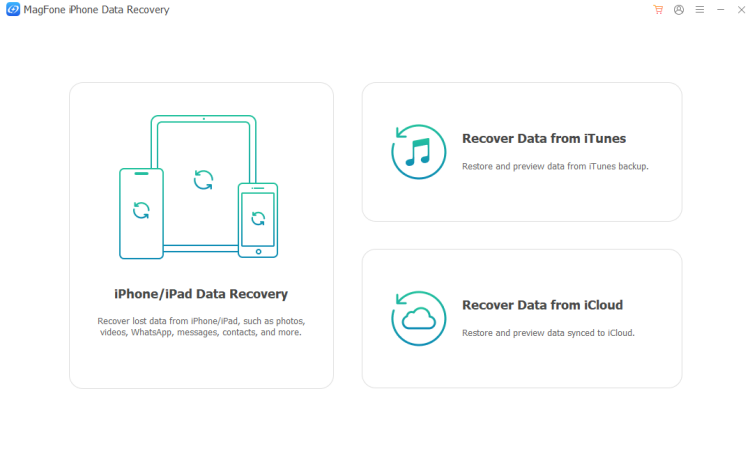
Open MagFone iPhone Data Recovery and use a data cable to link your iPhone to the computer.
Step 2 Scan Deleted FaceTime Call History on iPhone
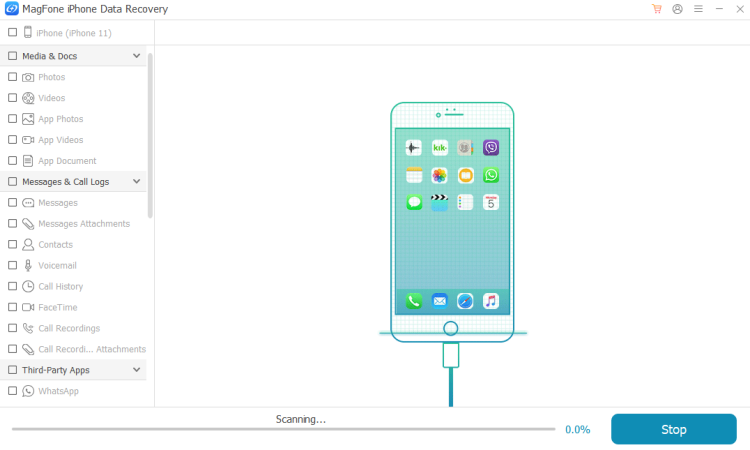
Click iPhone/iPad Data Recovery from the main interface. You will see a list of supported data when your iPhone is detected. Choose FaceTime and click Scan to allow the tool to scan your data.
Step 3 Restore Deleted FaceTime Call History
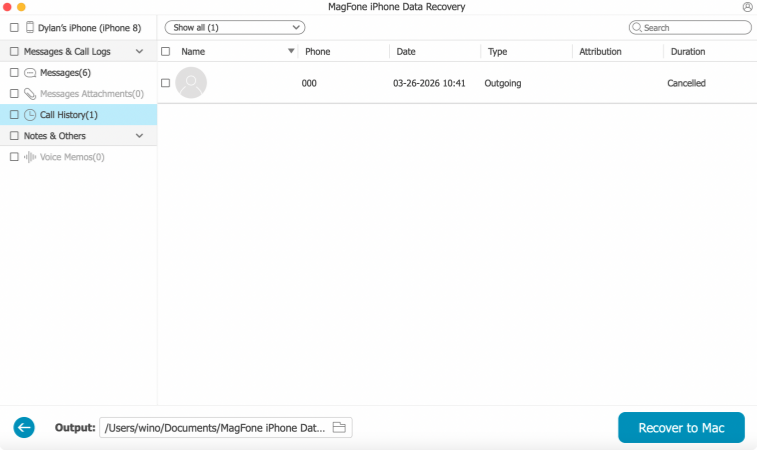
Check the FaceTime call history after scanning. You can select all FaceTime call history, or just select the deleted FaceTime call logs, and click Recover to PC or Recover to Mac to recover.
Method 2. Recover FaceTime Call Logs from iCloud Backup
If your iPhone has been backed up to iCloud, you may be able to restore deleted FaceTime call history from an earlier backup. Before restoring an iCloud backup, you need to first erase your iPhone or use a brand-new iPhone.
Factory Reset iPhone:
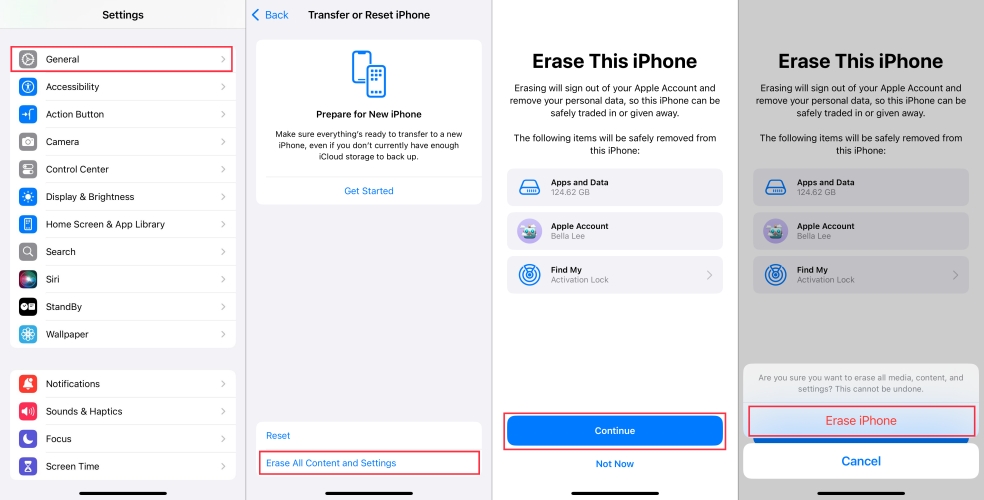
Step 1. Go to iPhone Settings > General > Transfer or Reset iPhone.
Step 2. Choose Erase All Content & Settings > Continue > Erase iPhone.
Step 3. Enter the iPhone passcode, Screen Time passcode, and Apple ID password if required.
Restore iPhone from iCloud Backup:
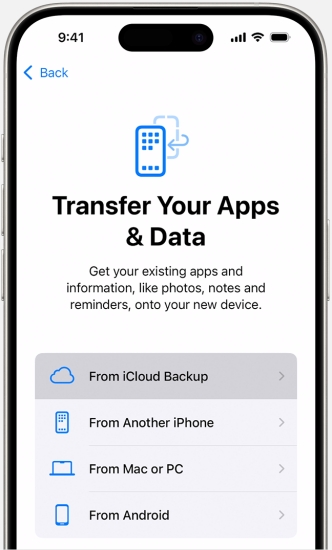
Step 4. After the iPhone restarts, you can open it and set it up. When you are asked whether to Transfer Your Apps & Data, choose From iCloud Backup.
Step 5. Enter your Apple Account details to verify, then choose an available iCloud backup to restore to your iPhone. When all data is loaded on the iPhone, you can open the FaceTime app or Phone app to check the call history.
Method 3. Recover FaceTime Call Logs from iTunes Backup
If you previously backed up your iPhone to a computer using iTunes or Finder, you can also try recovering FaceTime call logs from that backup. Before restoring an iTunes backup, it's recommended that you back up your iPhone to your computer to create a security copy.
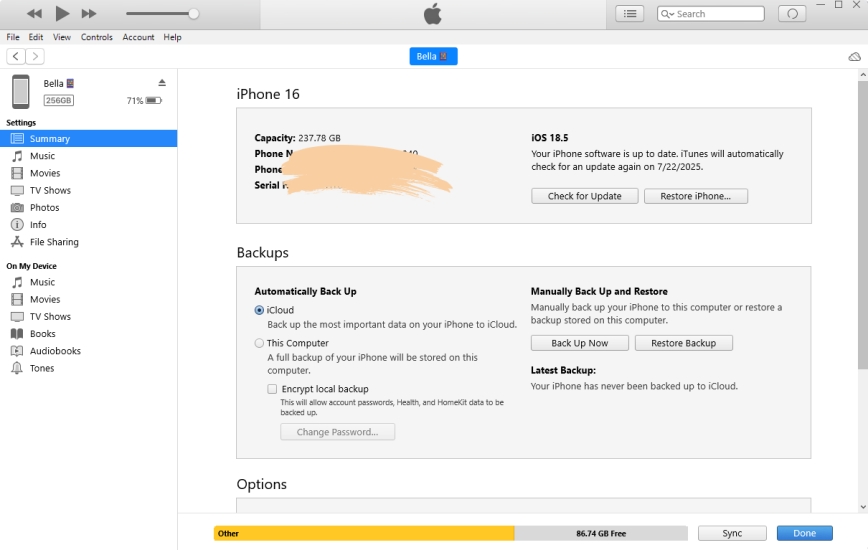
Step 1. Link your iPhone to the computer via a data cable.
Step 2. Open iTunes and click the iPhone icon after your iPhone has been detected.
Step 3. Click Restore Backup and choose an iTunes backup to restore to your iPhone.
Part 4. How to Prevent FaceTime Call History Loss
To reduce the risk of losing FaceTime call history, it is important to manage your call logs and backups carefully. Once a call log is deleted from your iPhone, it may be difficult to recover without a previous backup. For this reason, avoid deleting FaceTime records unless necessary.
You can also turn on FaceTime in iCloud to keep your call history synced across your Apple devices. This makes it easier to view FaceTime records on another device signed in with the same Apple ID.
In addition, creating regular backups of your iPhone on a computer is a reliable way to protect your data. You can back up your device with iTunes or Finder, or use a third-party tool such as MagFone iPhone Data Recovery if you want more backup and recovery options.
Part 5. Conclusion
Checking and recovering FaceTime call history on iPhone can be much easier when you know where to look and which recovery method to choose. Whether the call logs are still stored on your device or saved in a backup, the methods above can help you find the records you need. To avoid data loss, back up your iPhone with MagFone iPhone Data Recovery is highly recommended.

Edgar Davis
Editor in chief





